
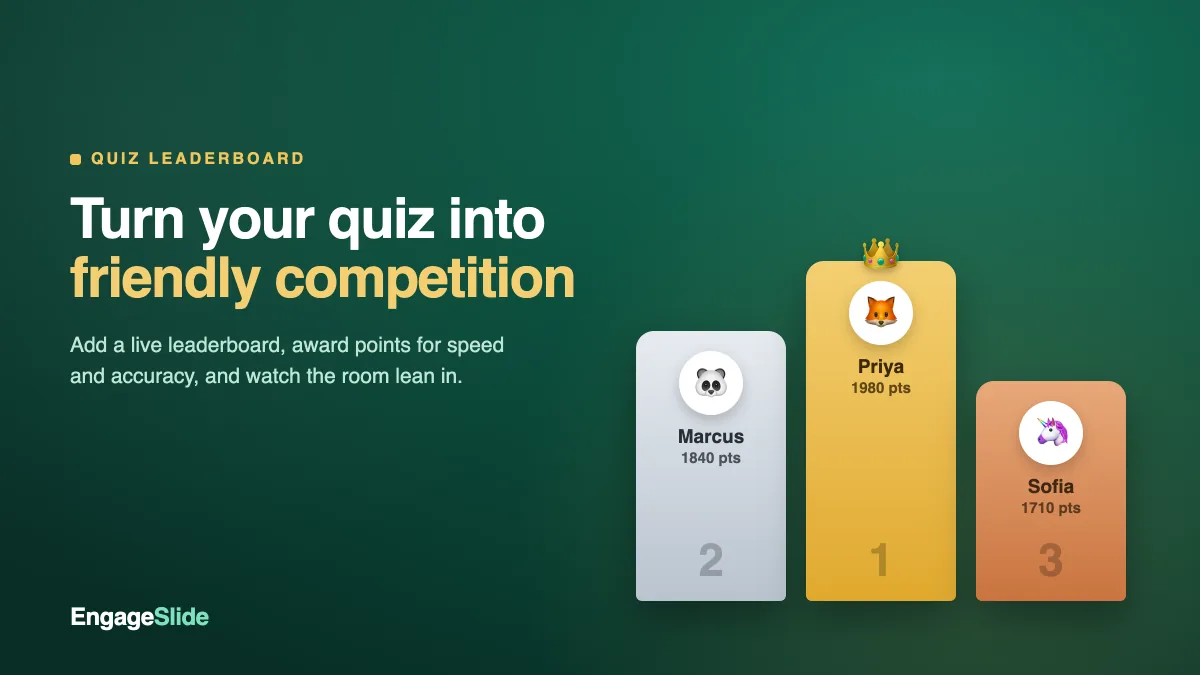
A quiz keeps people thinking. A quiz with a leaderboard keeps people competing — leaning forward, cheering when they climb a rank, groaning when someone edges past them in the final seconds. That little scoreboard is the difference between a room that politely answers your questions and a room that genuinely wants to win the next one. The best part is that adding one takes a couple of clicks. This guide shows you exactly how to add a leaderboard to your quiz, how the points work, and how to keep the competition friendly instead of cut-throat.
Why a leaderboard changes the whole room
Competition is one of the oldest motivators there is, and it works because it makes progress visible. When people can see where they stand, an abstract question ("do you know this?") becomes a concrete goal ("can I beat Marcus?"). A leaderboard adds three things a plain quiz can't:
- Stakes. Every question suddenly matters, because every answer moves you up or down the board.
- A reason to pay attention between questions. Players watch the standings update, which keeps energy high even during transitions.
- Social proof. Seeing peers score well nudges everyone to try harder — nobody wants to be the one who checked out.
There's real learning science underneath the fun, too. The act of retrieving an answer under a little pressure strengthens memory far more than passively re-reading — a well-studied phenomenon known as the testing effect. A leaderboard simply wraps that retrieval practice in a format people actually enjoy.
How the points work
Before you add the board, it helps to understand what it's ranking. On EngageSlide, players earn points on any scored quiz slide — Select Answer, Puzzle, Match Pair, Type Answer and more. Each correct answer earns the base points you set for that question, and if you leave the speed bonus on, faster correct answers earn more. Points then stack across every quiz slide to produce the running total the leaderboard sorts by.
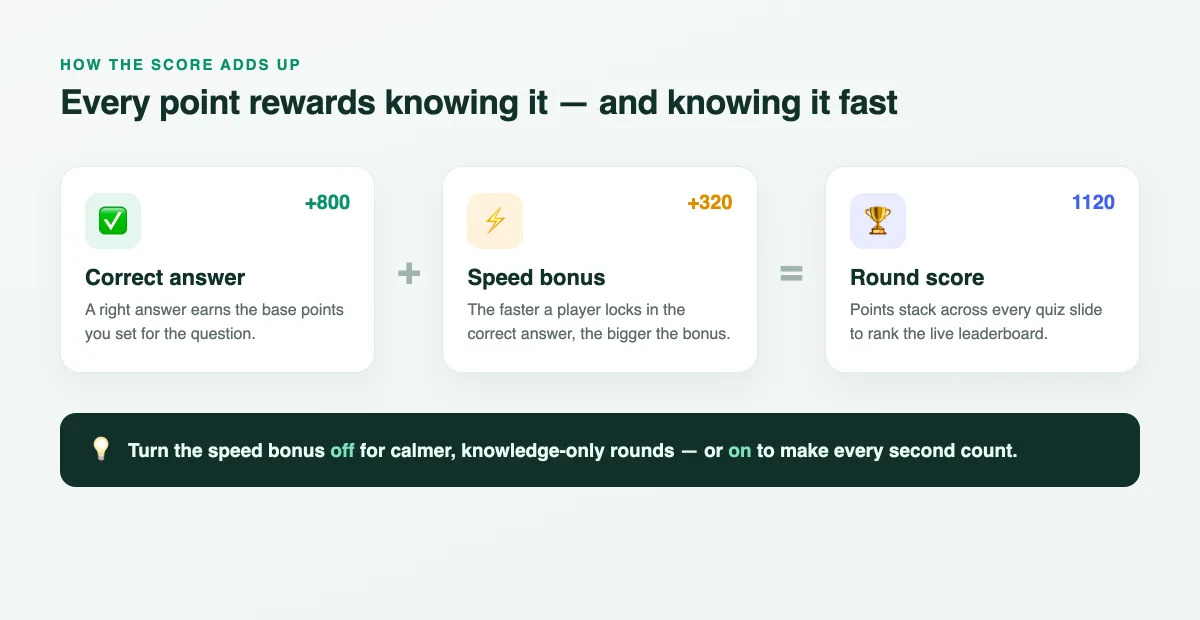
That single toggle — speed bonus on or off — quietly sets the tone of your whole game. Leave it on and you get a fast, high-adrenaline race where hesitation costs you. Turn it off and the board rewards pure accuracy, which is fairer for reflective questions or mixed-ability groups where you don't want the quickest thumbs to always win. You can decide per quiz, so a knowledge check and a party round can live in the same deck.
How to add a leaderboard to your quiz
The workflow is deliberately simple. If you can build a quiz slide, you can add a leaderboard:
- Build at least one quiz slide. Add your question, options and correct answer. Points are on by default — you can adjust the base value and the speed bonus in the slide settings.
- Add a Leaderboard slide after it. From the "Choose Slide Type" picker, insert a Leaderboard slide. Drop it wherever you want the standings to appear.
- Place it strategically. A leaderboard only counts the quiz slides that come before it, so you can show a mid-game board after a few rounds and a final board at the very end for the big reveal.
- Present. When you reach the Leaderboard slide, the standings render live from everyone's answers — ranked, colour-coded, with a crown on first place.
Here's what your audience sees on the big screen when you land on that slide during a live quiz:
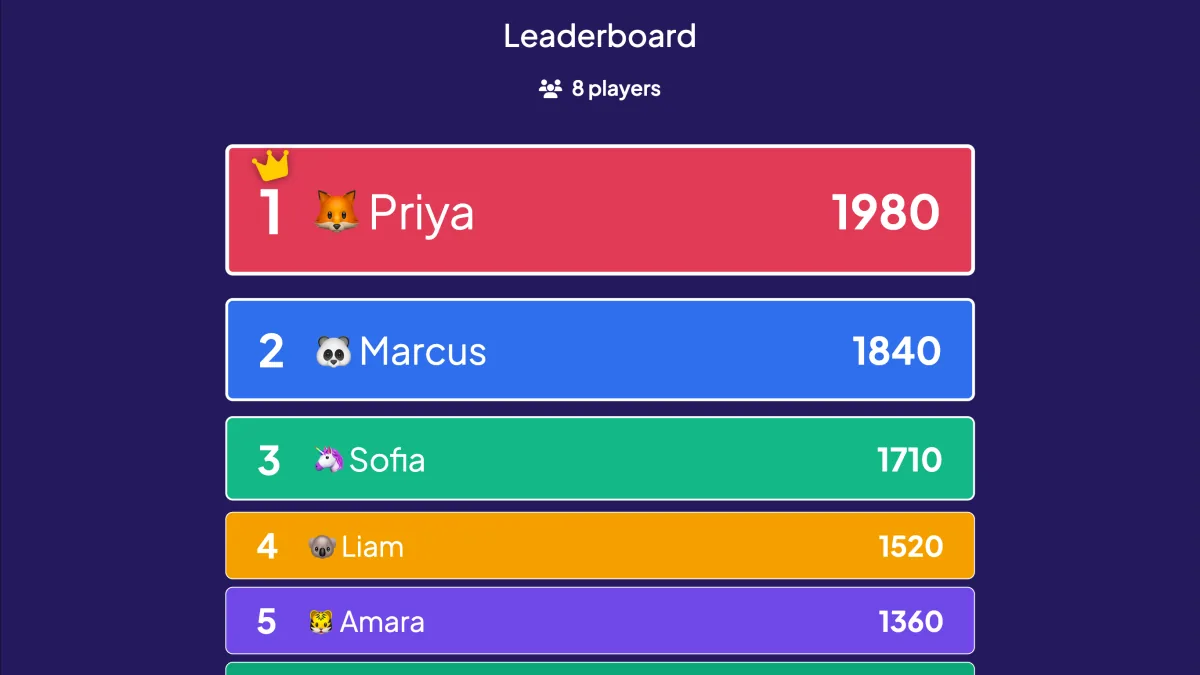
Every player picks an avatar and colour when they join, so the board feels personal — people spot their own row instantly and track it question by question. On the final leaderboard, EngageSlide adds fireworks and a winner spotlight to give your top scorer a proper moment. If you want a full walkthrough of building the quiz itself first, our guide on how to create a live quiz your audience will actually enjoy pairs perfectly with this one.
Team leaderboard vs individual leaderboard
Not every group wants a solo scramble to the top. EngageSlide leaderboards can rank individual players or teams, and the right choice depends on your goal:
- Individual is great for classrooms, trivia nights and any setting where personal recognition is the reward. It surfaces your sharpest players and creates natural rivalries.
- Team is better for onboarding, workshops and larger crowds where you want collaboration, not isolation. Newcomers hide inside a team, quieter people still contribute, and the energy becomes "us vs them" rather than "me vs everyone."
When team mode is on, the leaderboard shows a toggle so you can flip between the team standings and the individual players view mid-game — handy for celebrating both the winning team and the top overall scorer.
Keep it friendly, not brutal
A leaderboard is a spice, not the whole meal. Turn it up too high and the bottom half of the room disengages the moment they realise they can't catch up. A few small choices keep it fun for everyone:
The goal of a friendly leaderboard isn't to crown a genius — it's to give the whole room a reason to keep playing until the very last question.
- Mix easy and hard questions. A couple of gettable questions late in the game keep everyone mathematically alive and paying attention.
- Show the board in bursts, not constantly. A mid-game and a final board build suspense; a board after every single question can feel relentless.
- Let anonymity in when stakes are personal. Fun nicknames and avatars keep things light, so nobody feels publicly ranked by their real name.
- Reward more than first place. Call out the biggest comeback, the fastest answer, or the team that improved most — not just the winner.
For more ways to design rounds people look forward to, browse our 10 live quiz ideas to energize any meeting or class, or start from the EngageSlide blog for the full playbook.
Where a leaderboard fits best
Once you've run one, you'll find excuses to use it everywhere. Teachers use leaderboards for exam-review games and formative checks that students actually cheer for. Trainers use them to make compliance and product knowledge stick. Team leads run Friday trivia to close out the week, and event hosts use a running board across a whole session to keep a big audience invested from the opening question to the closing reveal. Because the whole thing lives inside your interactive presentation tool — no separate app, no extra login — you can drop a competitive quiz round into any deck you're already presenting.
Gamifying learning and meetings isn't a gimmick; done well, gamification turns passive audiences into active participants. A leaderboard is the simplest, most reliable way to make that happen. Add one to your next quiz, keep the competition friendly, and watch how much harder people work when there's a crown on the line.