
A live quiz is one of the fastest ways to wake up a Zoom call. People who were half-listening start leaning in, the chat fills up with jokes about the scores, and the meeting suddenly feels like an event rather than another video call. The good news is that you don't need a special Zoom plugin to do it. You need a quiz tool that runs in the browser, a way for people to answer from their own device, and a screen share. This guide walks through how to add a live quiz to Zoom meetings with EngageSlide, from building the questions to running the leaderboard, plus the setup tips that avoid the usual technical hiccups.
How a Live Quiz Works on Zoom
The setup is simple once you see the two screens involved:
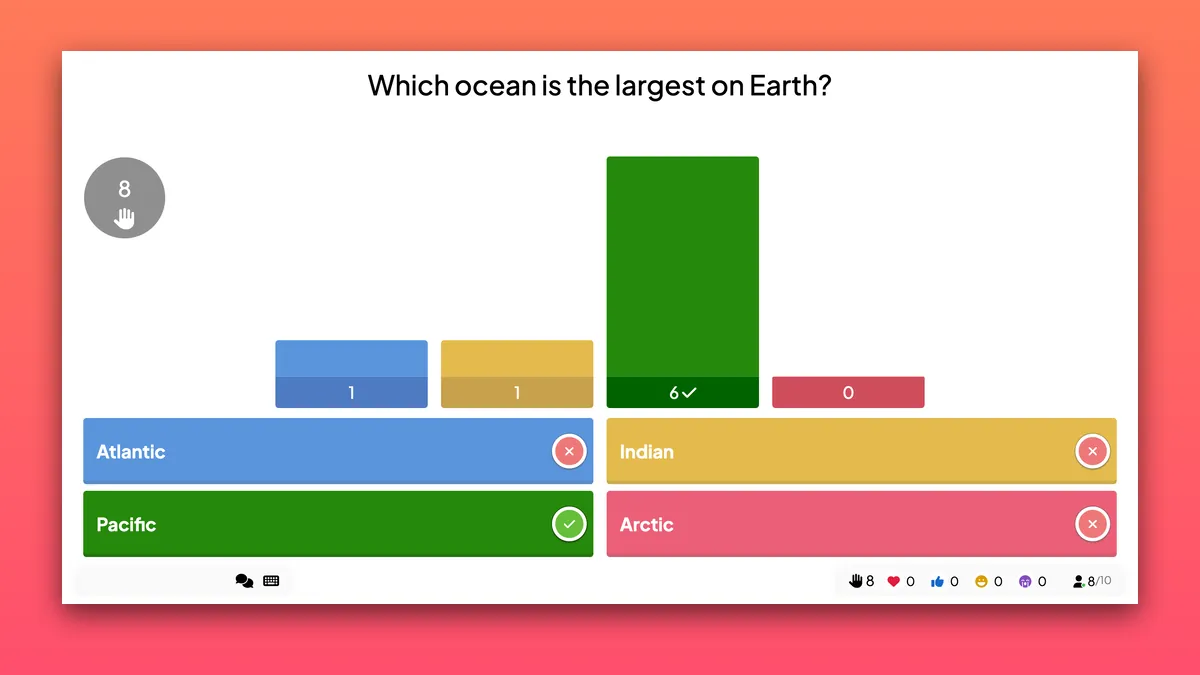
- The shared screen. You share your EngageSlide presentation through Zoom. Everyone sees the question, the countdown timer, the results and the leaderboard.
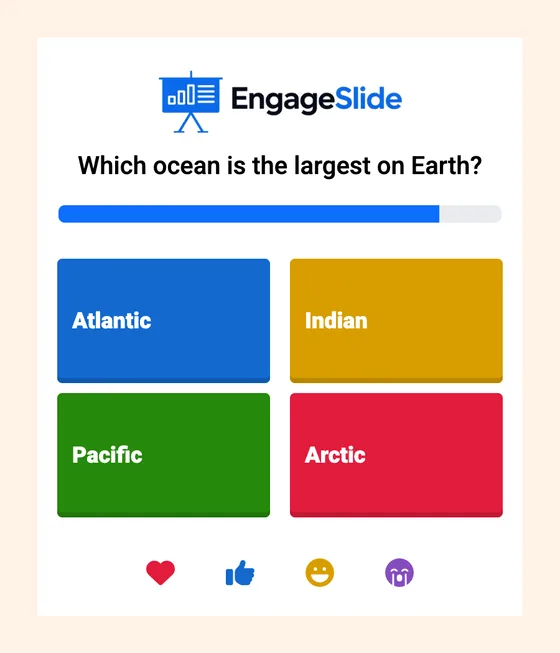
- The answer screen. Each participant answers on their own phone or in a separate browser tab. They join by scanning the QR code or entering the join code shown at the top of the slide. No app download, no account.
Because answers go straight from each person's device to EngageSlide, not through Zoom, everyone can answer at the same time and the results update live on your shared screen. This also means the quiz works the same way on Zoom, Google Meet or any other video tool, and in hybrid meetings where some people are in the room.
Step 1: Build Your Quiz
Create a new presentation in EngageSlide and add quiz slides. You have several question formats to choose from, which helps keep a quiz varied:
- Multiple choice for classic trivia and knowledge checks.
- True or False for quick-fire statements, including Fact or Myth labels.
- Type Answer when you want people to recall an answer rather than recognise it.
- Match Pair and Puzzle (put items in order) for something more hands-on.
If you're short on time, EngageSlide AI can generate a set of quiz questions from a topic, which you then edit to fit your group. For each question you can set the time limit, the points and whether faster answers earn more points. Finish with a Leaderboard slide so people can see who is winning. For more on writing questions people enjoy, see our guide on how to create a live quiz.
How many questions?
For a warm-up at the start of a meeting, three to five questions are enough and take about five minutes. For a team social or a training review, 10 to 15 questions with a leaderboard every five questions work well. Anything longer than 20 minutes on a video call is hard to sustain, so split bigger quizzes into rounds.
Step 2: Prepare Before the Call
A few minutes of preparation saves the awkward "can everyone see my screen?" moment.
- Test on a second device. Open the presentation, join from your phone and answer one question to confirm everything works.
- Close other windows and mute notifications. When you share, you don't want a private message appearing on screen.
- Use two monitors if you can. Share the presentation on one screen and keep Zoom's participant list and chat on the other.
- Copy the join link. You will paste it in the Zoom chat so people on a laptop can open it in one click.
Step 3: Share Your Screen in Zoom
Start the presentation in EngageSlide, then click Share Screen in Zoom and pick the browser window with your presentation, not your whole desktop. Sharing a single window keeps other apps private and makes the quiz fill the frame for participants.
Now tell people how to join. Leave the first slide up for a minute, read the join code aloud and paste the join link in the chat. Participants can:
- Scan the QR code on screen with their phone. This is the best option because they keep Zoom full screen on their laptop.
- Open the link in a new browser tab if they don't have a phone at hand. They switch between the Zoom window and the tab to answer.
Participants enter a name, choose an avatar and they're in. You'll see the count of joined players go up on your screen.
Step 4: Run the Quiz Live
This is where the energy comes from, so treat it like hosting a game show, not presenting a report.
- Read each question aloud. Some people will be watching the shared screen with a delay, and hearing the question helps them keep up.
- Use the countdown. A 15 to 20 second timer keeps the pace high. Longer timers on a video call create dead air.
- React to the results. When the answer is revealed, comment on it. "Only 30% got that one, let's talk about why" turns a quiz into a conversation.
- Show the leaderboard between rounds. Name the top three and invite them to unmute for a quick celebration. See our tips on how to add a leaderboard to your quiz.
If you want to move away from your desk, use the EngageSlide remote control to change slides from your phone while your laptop keeps sharing the screen.
Play in teams
For larger calls, turn on team mode. Participants join a team when they enter, the lobby shows a team grid and the leaderboard adds a team ranking. Team play works well with Zoom breakout rooms: send each team to a room for a few minutes between rounds to discuss answers, then bring everyone back for the next question.
Zoom gives you the room; the quiz gives people a reason to be in it. Keep the questions short, the timer tight, and your voice doing the hosting.
Common Problems and Quick Fixes
- "I can't see the QR code." Some people have a small Zoom window. Paste the join link in the chat and read the code aloud.
- "The screen looks slow." Screen sharing can lag on weak connections. Answers still arrive in real time because they come from participants' own devices, so the scores stay fair. Give a few extra seconds on the timer if many people are on mobile data.
- "I only have one screen." Share the presentation window and keep Zoom's floating controls visible. Ask a co-host to monitor the chat for you.
- People join late. Latecomers can join at any time with the same code and play from the current question.
- You're on Microsoft Teams instead. The same method works. EngageSlide also has a Microsoft Teams integration if your company runs meetings there.
Five Ways to Use a Zoom Quiz
- Meeting warm-up. Three light questions about the week or the company in the first five minutes.
- Training recap. A short quiz at the end of a session to check what people learned, which draws on the testing effect to help new knowledge stick.
- Team social. A full themed quiz night with rounds and a final leaderboard. Our guide to running a virtual pub quiz for remote teams has a ready-made run sheet.
- Webinar engagement. Quiz questions spread through a webinar keep attendees watching until the end.
- Classroom lessons. Teachers running online classes can use a quiz to open a lesson and check homework understanding.
Get Started
Adding a live quiz to Zoom takes about ten minutes the first time: build the questions, test the join flow, share the window and host. After that, it becomes a habit that people look forward to. Create your first quiz with the EngageSlide interactive presentation tool and try it at your next team meeting.