
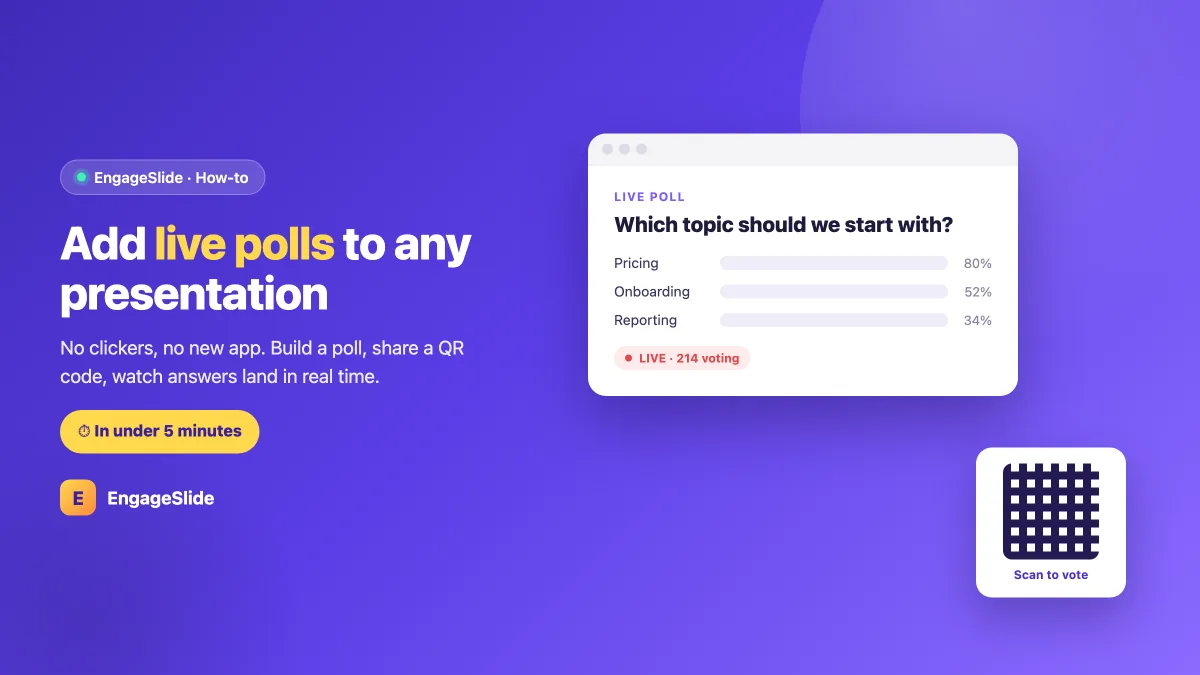
A live poll is the single fastest way to turn a passive audience into an active one. Ask a question, let everyone answer from their phone, and watch the results fill the screen in real time — the room wakes up instantly. The best part is how little it takes to set up: you do not need special hardware, a separate voting app, or an IT ticket. If you can add a slide, you can add a live poll. This guide shows you exactly how to do it in under five minutes.
If you are brand new to interactive presenting, skim how to make your presentations interactive first for the big picture; if you want a deeper look at building a deck around a poll, our guide to creating a presentation with a built-in interactive poll goes further. This article is the quick-start.
What you need (spoiler: almost nothing)
Adding live polls used to mean clickers, dongles, and a receiver plugged into a laptop. Not anymore. With a browser-based tool like EngageSlide, the entire kit is:
- A screen the audience can see — a projector, a TV, or a shared window on a video call.
- The phones people already carry. They join by scanning a QR code or typing a short code into their browser — no app install, no login.
That is it. Because everything runs in the browser, the exact same steps work in a lecture hall, a boardroom, or a fully remote Zoom or Teams call.
How to add a live poll in 3 steps
Here is the whole process, start to finish. The first time takes about five minutes; after that it is closer to one.
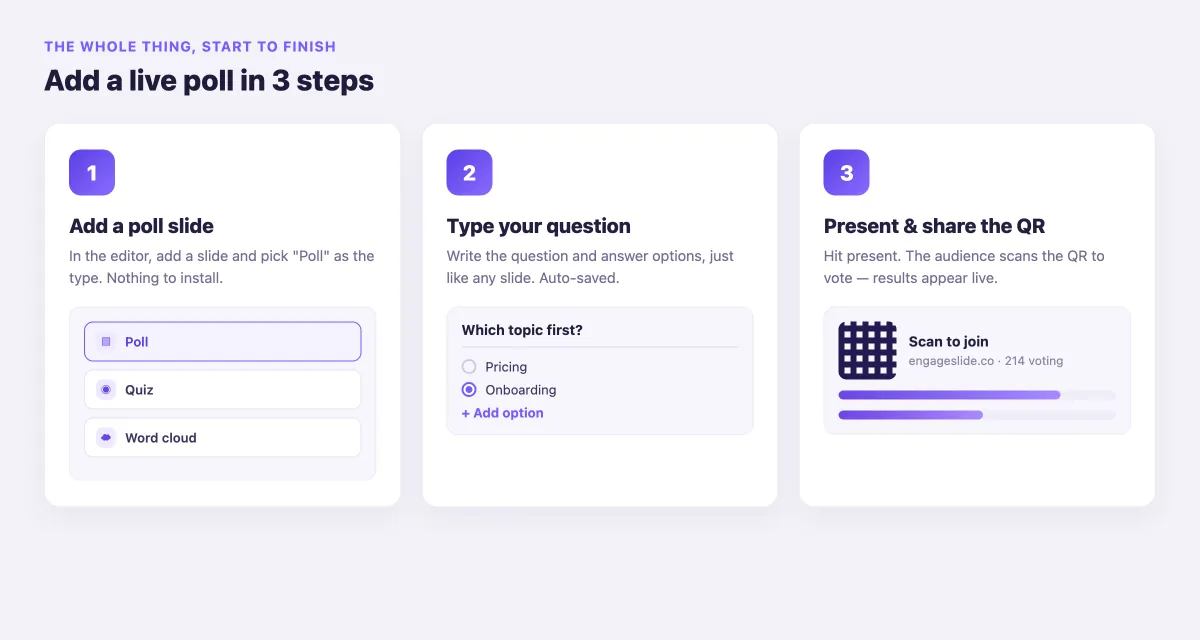
Step 1: Add a poll slide
In the EngageSlide editor, add a new slide and choose Poll as the slide type. There is nothing to download and nothing for your audience to set up — the poll lives right inside your deck, alongside your normal content slides.
Step 2: Type your question and options
Write your question and the answer options exactly like you would write any slide. Keep the question short and specific — "Which topic should we start with?" beats a vague "Any thoughts?" Everything auto-saves as you type, so there is nothing to publish or export.
Step 3: Present and share the QR code
Hit present. EngageSlide shows a join code and a QR code on screen. Your audience scans it, lands on the voting page in their browser, and taps their answer. As votes come in, the bars fill on the big screen in real time — and that live movement is what pulls every eye back to you.
The magic moment is the first vote landing on screen. The instant people see the results move because of them, they stop watching and start participating.
Choose the right type of poll
"Live poll" is not just multiple choice. EngageSlide gives you several formats, and picking the right one makes your question land better.
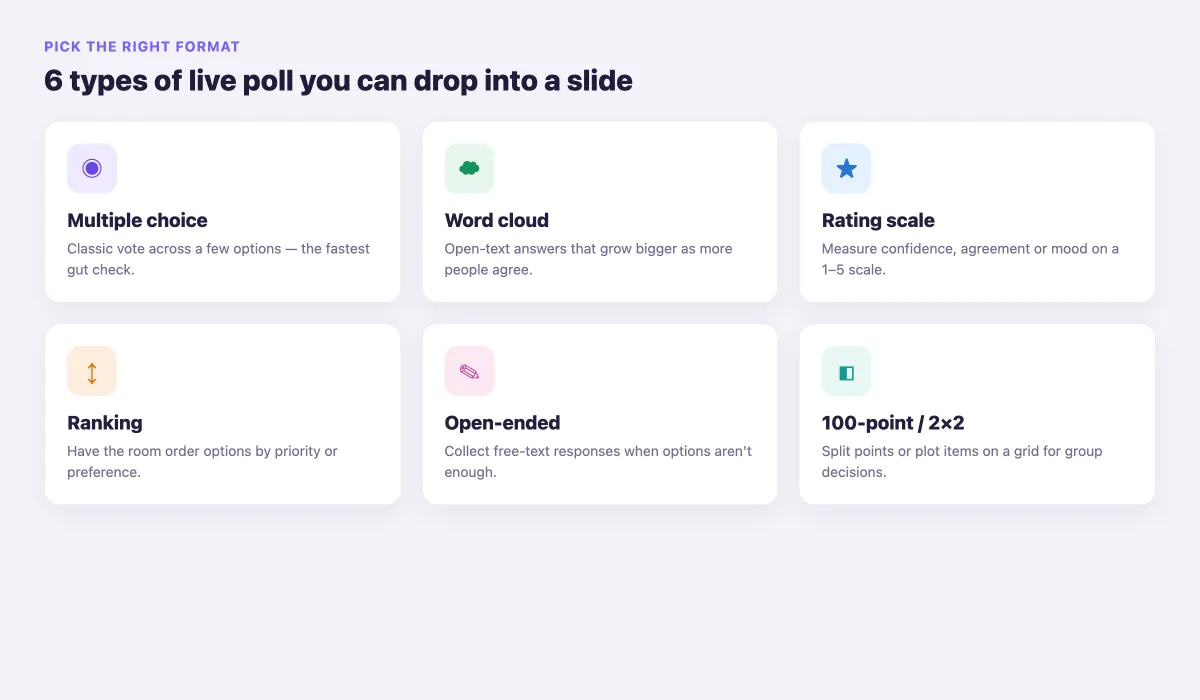
- Multiple choice — the classic vote across a few options. Fastest possible gut check.
- Word cloud — open-text answers that grow larger as more people submit the same word. Great for reactions and icebreakers.
- Rating scale — measure confidence, agreement, or mood on a simple 1–5 scale.
- Ranking — have the room order options by priority or preference.
- Open-ended — collect free-text responses when a fixed list of options is not enough.
- 100-point or 2×2 grid — split points across choices or plot items on a grid for richer group decisions.
Where to drop a poll for maximum effect
Adding the poll is easy; placing it well is what makes it work. A few reliable spots:
- The opening. Start with a poll instead of an agenda slide so people invest an opinion in the first minute.
- Every 8–10 minutes. Attention dips on a schedule; a mid-session poll resets it before it bottoms out.
- Before a key point. Poll the room's assumption, then reveal the answer — the contrast makes your point stick.
- The close. A quick "Which idea will you try first?" poll turns passive listening into a small commitment.
Quick tips to get more votes
A poll only works if people actually respond. These small habits lift participation dramatically:
- Say it out loud. "Grab your phone and scan this — it takes ten seconds." A verbal nudge doubles response rates.
- Show the QR early and leave it up. Give latecomers a chance to join without rushing.
- Keep options to 3–5. Too many choices slows people down and muddies the result.
- React to the result. Read the numbers aloud and respond — ignoring a poll is the fastest way to kill the next one.
A few common questions
If you have never run a live poll before, these are the things people usually wonder about:
- Do my audience need an account? No. They scan the QR code, land in their browser, and vote. There is no sign-up and nothing to install.
- Does it work for a remote or hybrid audience? Yes. Share the join link or QR in your video call, and remote attendees vote from wherever they are — the results merge with everyone in the room.
- Are the answers anonymous? By default, votes are anonymous, which is exactly what you want for honest opinions. For quizzes or lead capture you can identify participants instead.
- How many people can vote at once? A live poll is built for a full room — from a handful of people to a large audience — all answering in real time.
You're five minutes away
That is the whole thing: add a poll slide, type your question, present, and share the QR code. In the time it takes to make a coffee, you can turn a one-way slide into a two-way moment that wakes up the entire room. Open your next deck, pick one slide where you would normally ask a rhetorical question, and make it a real live poll. Once you see the bars move for the first time, you will never go back to a silent audience. For more ways to keep that energy going, browse the rest of the EngageSlide blog.