
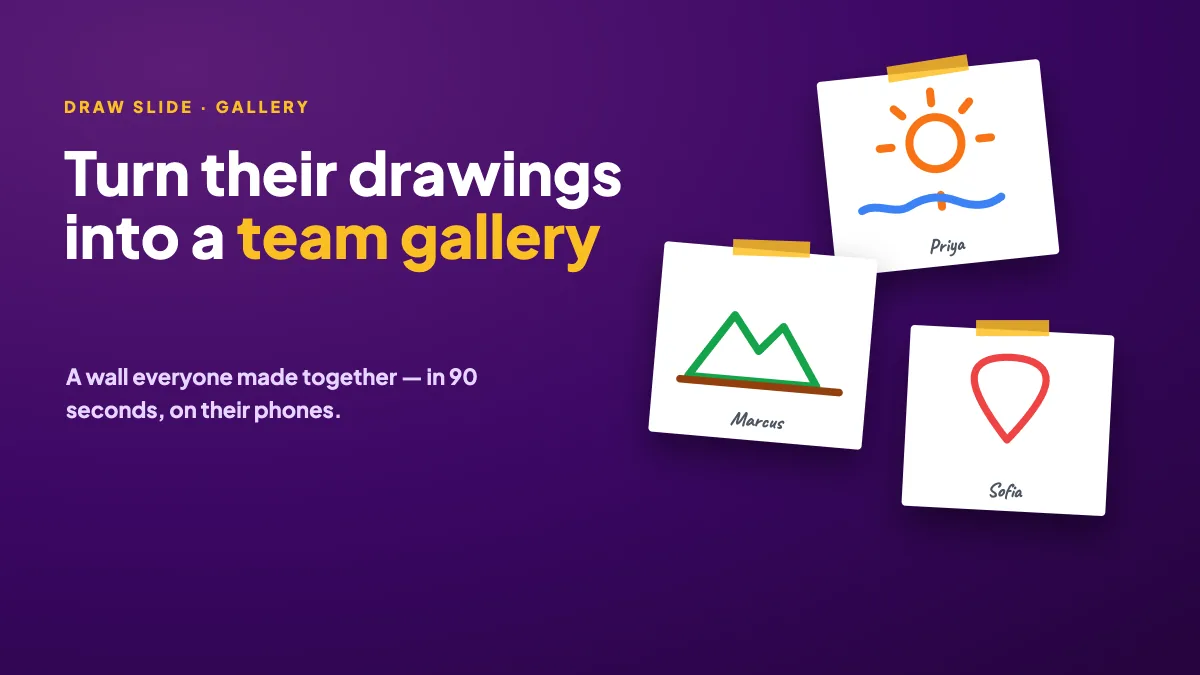
Most team sessions leave behind a deck nobody opens again. A drawing gallery leaves behind something people actually want to look at: a wall of sketches everyone in the room made, with their names under them. It takes 90 seconds to collect, it works just as well on a video call as in a room, and it gives you a picture of the team that a survey never will.
This guide shows how to build a team drawing gallery with EngageSlide's Draw slide, which prompts work for offsites, retros and end-of-year wrap-ups, and what to do with the wall once the session is over.
What a team gallery is
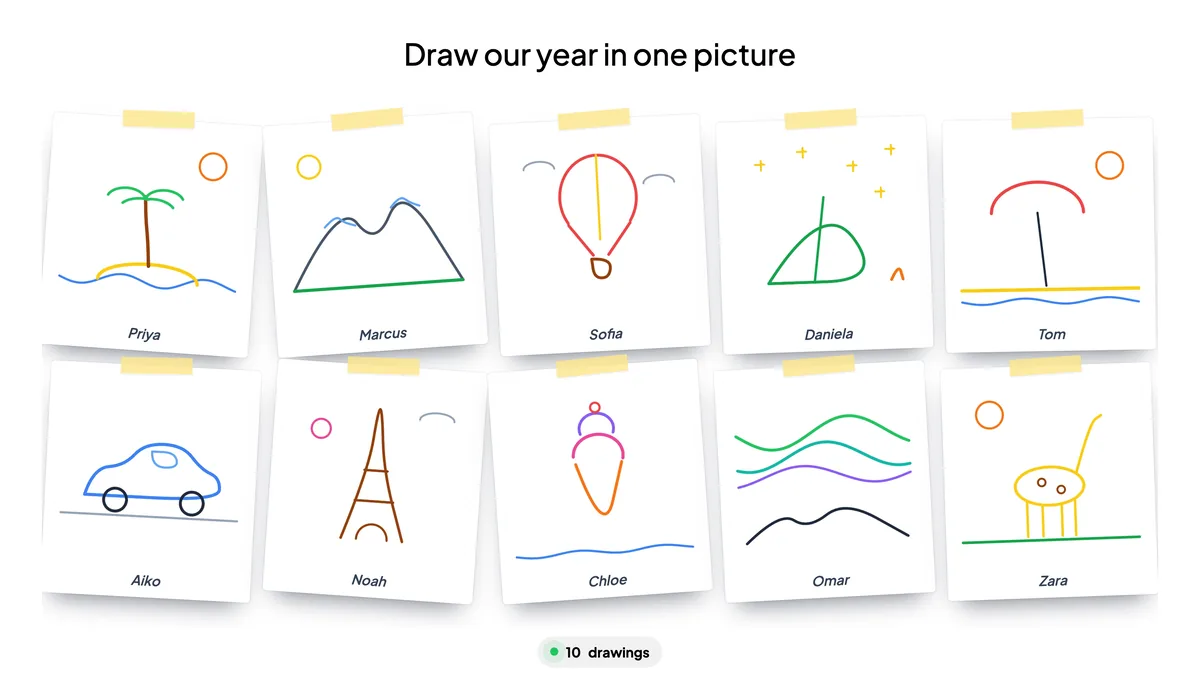
Everyone opens the session on their phone, draws an answer to one prompt, and taps send. Each drawing lands on the big screen as it arrives, tiled into a grid or a polaroid wall with the artist's name underneath. Nobody needs an account or an app; they scan a QR code and draw with a finger.
The result is a group portrait of how the team is feeling or what it remembers, made by the whole team at once rather than by the three people who always speak up.
Why it works better than another round of words
- Everyone contributes. Ten people can draw at the same time. They cannot all talk at the same time, and in most teams they do not try to.
- It is disarming. Nobody is judged on a stick figure, so people answer more honestly than they would in a go-round where every answer is on the record.
- It is memorable. A wall of drawings gets a genuine reaction in the room — laughter, pointing, questions — which is exactly what a flat survey result never gets.
- It is a keepsake. One screenshot and you have something to put in the recap email, the team channel or next quarter's opening slide.
A status round tells you what people are working on. A drawing wall tells you how the year actually felt.
Prompts that make a good gallery
The best prompts are concrete, personal and answerable in under a minute. Pick one — not three.
End of year and quarter wrap-ups
- Draw our year in one picture.
- Draw the moment you were proudest of this quarter.
- Draw what our team would look like as a vehicle.
Offsites and kickoffs
- Draw where you want us to be in twelve months.
- Draw your dream vacation — the classic warm-up when people do not know each other yet.
- Draw your role, explained to a five-year-old.
Retros and health checks
- Draw this sprint as weather.
- Draw the biggest rock in our road right now.
- Draw how it feels to hand work over between teams.
The retro prompts do a job words struggle with: people who would never write "the hand-off is chaos" will happily draw a tangle of arrows, and then explain it themselves when you zoom in.
How to set it up in EngageSlide
1. Add a Draw slide and write the prompt
Click + New Slide, choose Draw, and put your prompt in the slide title. Keep it to one sentence so it reads from the back of the room.
2. Choose the polaroid wall
Under Gallery style, pick Polaroid wall. Each drawing gets a white frame, a strip of tape and a slight tilt, which looks far more like a keepsake than a plain grid. Grid is the better choice when you have more than about twenty drawings and want them all readable.
3. Turn on names
Switch on collect name so each drawing is captioned with its artist. For a gallery this matters — the names are half the fun. Leave it off only when the prompt is sensitive, such as a health check in a team going through a rough patch.
4. Set one drawing per person and a time limit
Leave Drawings per person on 1 so the wall stays tidy; people can still edit and resend, and the new version replaces the old one. Add a time limit of 60 to 90 seconds so the activity has a clear end.
5. Optional: hide until you reveal
Turn on Hide drawings until I reveal and the screen shows only a stack of face-down cards and a counter while people draw. When everyone is in, click Reveal drawings and the whole wall appears at once. It is a small piece of theatre that works well at an all-hands.
Running it well
- Say "stick figures welcome" out loud. One sentence from you doubles the number of people who actually draw.
- Draw one yourself. If the facilitator's sketch is on the wall, the bar drops for everyone else.
- Do not narrate the silence. Ninety seconds of quiet drawing feels long to a host and short to the room. Let it run.
- Zoom into three or four. Click a drawing to open it full screen and ask the artist to explain. Use Replay drawing when you want the room to see how it was built — it gets a laugh almost every time.
- Close the slide when you move on. Turn on Stop submission so a late drawing does not pop in during the next topic.
What to do with the wall afterwards
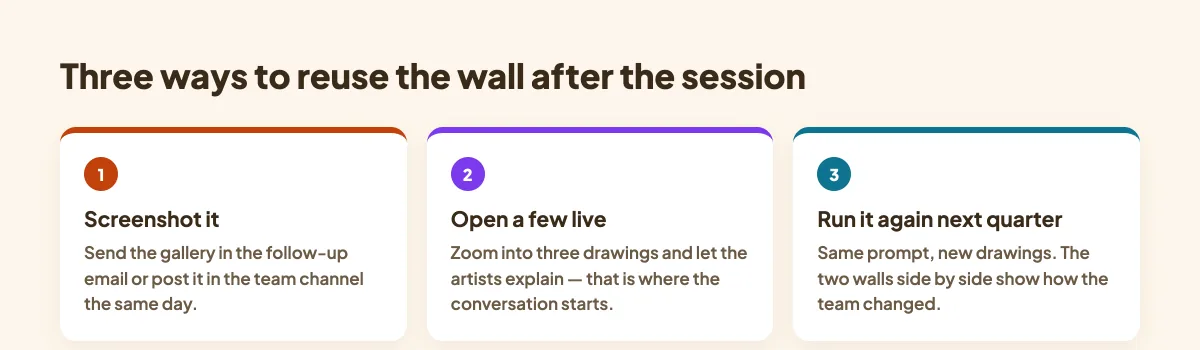
- Screenshot it the same day and put it in the recap email or the team channel while people still remember drawing it.
- Open next quarter with it. "This is what you drew three months ago" is a better opening than any agenda slide.
- Run the same prompt again at the next offsite. Two walls side by side are a surprisingly honest record of how the team changed.
- Pair it with a written round. Follow the gallery with a word cloud or an open-ended question when you need something you can quote in a report.
Where it fits with the other drawing slides
EngageSlide has three drawing tools and they solve different problems. Draw gives each person their own canvas and collects the results into the gallery described here. Whiteboard is one shared board the room builds together — better when you want to cluster and move ideas, as in a live whiteboard brainstorm. Draw & Guess is a game with turns and points, covered in our Pictionary guide.
For the full setup walkthrough of the Draw slide, including paper and pen options, see how to run a live drawing activity. All three are part of the same interactive presentation tool, so your audience stays on one join code for the whole session.
Try it at your next team session
Pick one prompt, add a Draw slide, switch the gallery to polaroid and give the room 90 seconds. You will end the session with a wall nobody wants to close — and a screenshot worth sending.