

Most brainstorms don't fail because the team is short on ideas. They fail because of the room. The three loudest people talk first, everyone else quietly anchors to what they said, and the quiet person with the best idea never gets a turn. A live word cloud flips that dynamic on its head: everyone submits at the same time, from their own phone, and the whole group instantly sees which ideas the room actually shares. In this guide you'll learn exactly how to run a fast, inclusive brainstorm with a live word cloud in EngageSlide — from framing the prompt to turning the cloud into a real decision.
Why traditional brainstorms fall flat
Decades of research on group creativity keep landing on the same culprits. The first is production blocking: in a spoken brainstorm only one person can talk at a time, so while you wait your turn you forget your idea or talk yourself out of it. The second is social loudness — people self-censor in front of a manager or a confident colleague. The third is the HiPPO effect: the Highest Paid Person's Opinion sets the direction before anyone else has spoken. The result is a whiteboard covered in the ideas of a vocal few, mistaken for the ideas of the whole team.
You can read more about how group brainstorming and production blocking work, but the practical fix is simple: let people contribute in parallel and anonymously. That's precisely what a live word cloud does.
What a live word cloud changes
A live word cloud collects short text submissions from everyone at once and sizes each word by how often it's mentioned. The moment two people type the same idea, it grows — so consensus becomes visible in seconds instead of after a 40-minute discussion. Because responses come in from each person's phone, there's no waiting your turn and no reading the room before you speak. Quiet contributors and senior leaders carry exactly the same visual weight.
Here's what a real EngageSlide word cloud looks like a minute into a "what should we improve?" brainstorm — the biggest words are simply the ideas the most people typed:
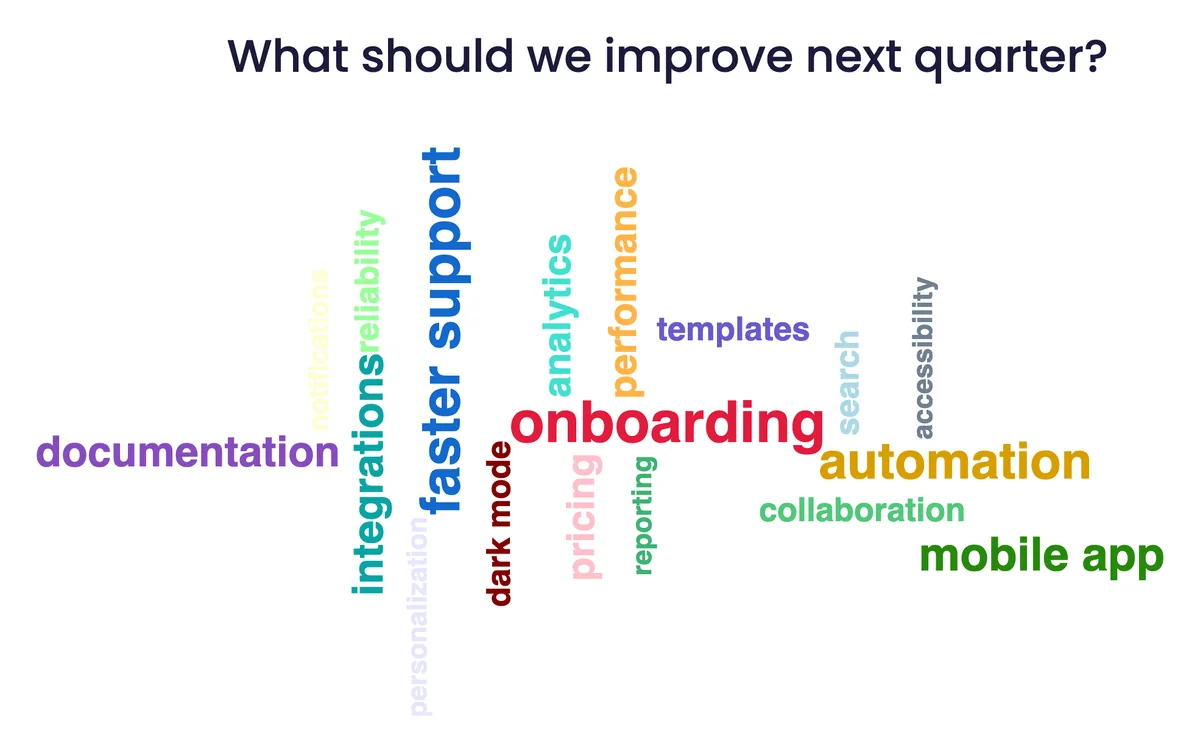
Notice how "onboarding", "faster support" and "automation" jump out. Nobody had to argue for them — the cloud shows the group already agrees, which is a far stronger starting point than one person's hunch.
How to run a word cloud brainstorm in EngageSlide
1. Add a word cloud slide
In your EngageSlide presentation, add a new slide and choose the Word Cloud type. This is a core feature of the interactive presentation tool, so there's nothing to install — it works the same in a meeting room, on Zoom, or in a hybrid setup where half the team is remote.
2. Frame one sharp prompt
The quality of a word cloud is decided entirely by the prompt. Keep it to a single, concrete question and ask for a word or short phrase. "What should we improve next quarter?" works; "Thoughts on the roadmap?" does not. Vague prompts produce vague clouds.
3. Open submissions
Present the slide and EngageSlide shows a join code and QR code. Participants scan or enter the code on their phones — no accounts, no downloads — and start typing. Ideas appear on the shared screen live, which itself sparks more ideas as people see the cloud take shape.
4. Read the cloud out loud
Once submissions slow down, narrate what you see. Call out the biggest words first ("clearly onboarding is on everyone's mind"), then deliberately point to the small, one-off words on the edges — those outliers are often the most original ideas in the room, and naming them tells people it's safe to be different.
5. Cluster and prioritize
A cloud shows themes, not decisions. Group related words into a handful of clusters, then move the group from divergence to convergence.
A word cloud is the divergent half of a brainstorm — it gets every idea on the table fast and fairly. Your job as facilitator is to supply the convergent half: cluster, prioritize, and commit to a next step before the energy fades.
Prompts that spark good ideas
Rotate the prompt to match the goal of the session. A few that reliably produce rich clouds:
- Problem-finding. "What's the biggest thing slowing us down right now?"
- Solution-generating. "In one word, what should we try next quarter?"
- Retrospective. "What's one thing we should start, stop, or keep doing?"
- Customer empathy. "What word do you think our customers use to describe us?"
- Vision. "If this project succeeds wildly, what does it look like in one word?"
Need more inspiration? We keep a running list of creative word cloud questions you can copy straight into a slide.
Turn the cloud into decisions
The real power of running your brainstorm inside EngageSlide is that you can keep the group moving without switching tools. Once the word cloud reveals the top three or four themes, chain the next slide to close the loop:
- Poll to prioritize. Drop the top clusters into a multiple-choice poll and let the team vote on where to focus first.
- Ranking or 100 points. For tougher trade-offs, use a ranking question or the 100-point slide so people distribute limited "budget" across the options — that forces genuine prioritization instead of everything-is-important.
- Q&A to pressure-test. Open a live Q&A so the team can raise concerns about the chosen direction before you commit.
Because it all happens in one presentation, you leave the session with a shared record: the raw ideas, the themes, and the decision — captured while everyone was in the room instead of reconstructed from memory afterward.
A few facilitation tips
- Give thinking time. Ten seconds of silence before you open submissions produces noticeably better ideas than "just shout them out."
- Keep it anonymous. Anonymity is where the honest ideas come from — don't ask people to sign their submissions during divergence.
- Cap it. A word cloud brainstorm should take five to eight minutes, not thirty. The visual makes consensus obvious quickly; trust it and move on.
- Repeat the loop. For a big topic, run several short clouds ("problems", then "solutions", then "first step") rather than one sprawling one.
Run a word cloud brainstorm once and you'll notice the difference immediately: more ideas, from more people, in less time — and a decision the whole team can see they helped make. Explore the rest of the EngageSlide blog for more ways to make every meeting genuinely interactive.