
Every one of us has sat through it. The lights dim, a deck opens, and forty minutes later nobody in the room could name a single thing they were told. The phrase death by PowerPoint was coined in the early 2000s to describe exactly that feeling, and two decades of better software has not killed it off. The tool was never really the problem. The format was: one person talking, everyone else watching.
The good news is that boring slides fail in predictable ways. Below are nine fixes, ordered roughly by how much they buy you for the effort, plus how to actually do each one in EngageSlide so the room has something to do besides sit still.
Why slides lose a room in the first place
Two things happen when a deck goes one-way. First, attention decays — people can follow a passive presentation for a while, but without a reason to act, the mind drifts to a phone. Second, and worse, you stop getting information back. You cannot tell whether the room is with you, ahead of you, or lost, so you keep presenting at the pace you planned instead of the pace they need.
Notice that both problems have the same shape: nothing is coming back the other way. That is why nearly every fix below is some version of ask something and show the answer. If you want the underlying mechanics, we went deeper on this in why your audience stops paying attention.
Fix 1 — Replace your densest slide with one question
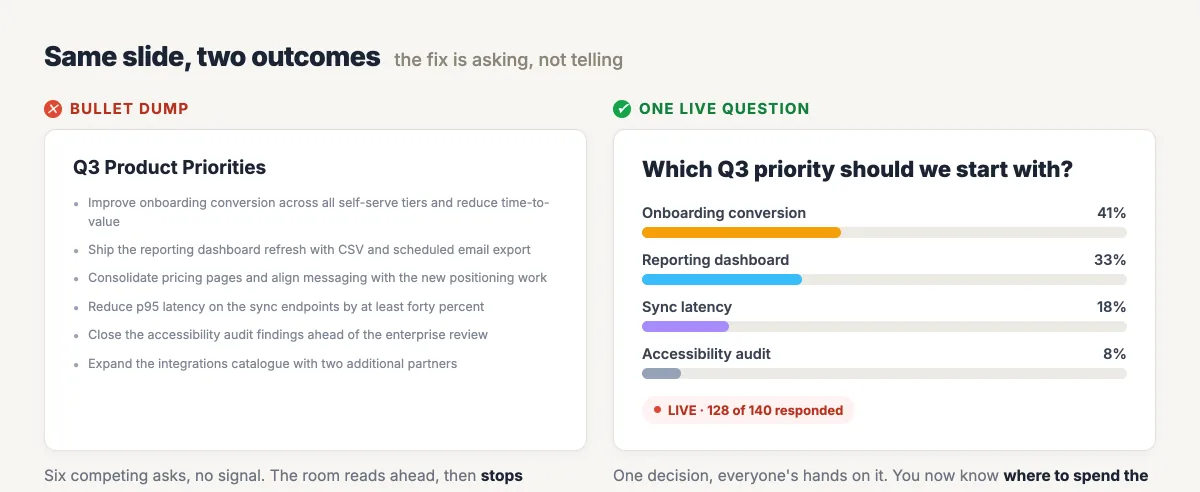
Find the slide with the most bullets on it. That slide is almost always a decision in disguise: six competing priorities, four options, three possible directions. Instead of reading it out, ask the room to choose.
In EngageSlide, add a poll slide, paste your bullets in as the options, and present. Participants join by scanning a QR code — no app, no account — and results fill in live. You have turned a slide people skim into thirty seconds where everyone is involved, and you leave knowing what the room actually thinks.
Fix 2 — Open with a question, not an agenda
The first ninety seconds set the contract. An agenda slide tells people they can safely tune out until their bit. A question tells them participation is expected.
A word cloud is the lowest-friction opener there is, because it costs one or two words and there is no wrong answer. Ask something you genuinely want to know — "what's your biggest blocker right now?" — and the answers become the frame for everything that follows.
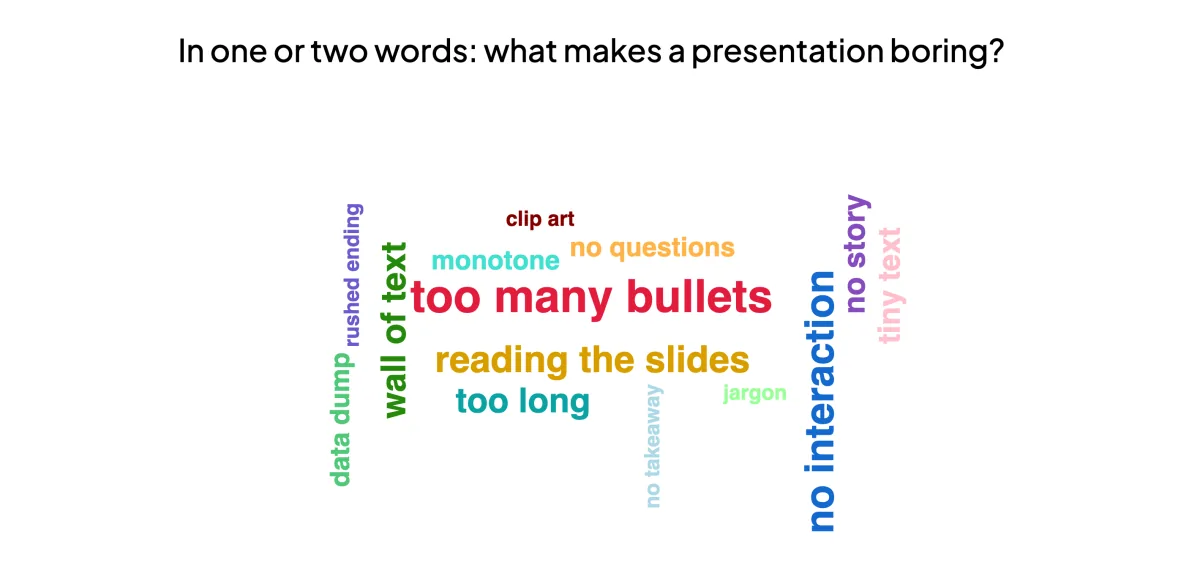
That is a real EngageSlide word cloud, and the answers are worth reading, because they are the list of things to avoid. "Too many bullets" and "no interaction" dominate. "Reading the slides" is right behind.
Fix 3 — Stop reading your own slides
If your slide contains complete sentences, your audience will read them faster than you can say them, and then they are waiting for you. Cut text down to a headline plus, at most, a short list of fragments. Say the rest out loud.
A slide is a prompt for the room, not a script for the presenter. If it can be read silently in less time than it takes you to narrate it, it is too full.
Fix 4 — Break the deck into segments with a checkpoint between each
Rather than one long arc, treat your talk as three or four ten-minute blocks with something interactive between them. The interaction is not decoration — it is a checkpoint that tells you whether to move on or go back.
A scale question ("how confident are you with this so far, 1–5?") takes fifteen seconds and gives you a number. If the average is low, the next ten minutes should look different from what you planned.
Fix 5 — Use a quiz when the content is factual
Anything your audience needs to retain — policy, product detail, safety steps, onboarding — works better as a question than a statement. Retrieving an answer, even a wrong one, does more for memory than being told the same thing again. This is the testing effect, one of the more robust results in learning research.
EngageSlide quiz slides award points and can put a leaderboard on screen, which adds just enough stakes to make people concentrate without turning the session into a game show. Keep it to three or four questions at natural pause points.
Fix 6 — Let questions arrive during the talk, not only at the end
"Any questions?" at minute thirty-nine gets you silence, because the question someone had at minute twelve has long since evaporated, and nobody wants to be the person who holds up the room.
Run live Q&A alongside your slides so questions come in as they occur, anonymously if people prefer, with upvoting so the ones the room cares about float up. You then answer three questions everyone wanted instead of one question one confident person asked. Our complete guide to running a live Q&A session covers the facilitation side.
Fix 7 — Cut the slide count, not the content
Long decks are usually a symptom of using slides as notes. Write your notes as notes — EngageSlide has a per-slide note field — and let each slide carry one idea. Fewer, clearer slides paced by interaction beats forty slides at ninety seconds each.
Fix 8 — Present from your phone so you can leave the lectern
Physical stillness reads as low energy. If you are anchored to a laptop because that is where the arrow keys are, you will stay there for the whole session.
With EngageSlide's presentation remote control your phone advances slides, so you can move, face the room, and watch faces rather than a screen. It is a small change with a disproportionate effect on how the talk feels.
Fix 9 — End by collecting something, not by thanking people
The last slide is your highest-attention moment and most decks waste it on "Thank you / Questions?". Use it to capture something instead.
Attach a short survey to the final slide — two or three questions, optionally collecting email addresses — and you finish with feedback you can act on and a record of who was in the room. For training or teaching, you can go further and push a graded assignment to the audience so what you covered gets practised while it is fresh, with numeric tolerance, a maths editor and auto-grading handling the marking. See the AI assignment maker for how that side works.
Putting it together: one deck, four checkpoints
You do not need all nine at once. A session that reliably holds a room looks roughly like this:
- Minute 0 — word cloud. One or two words on what people want out of the session. Sets the expectation that they participate.
- Minute 10 — poll. The decision from your densest slide. Tells you where the room stands before you argue for anything.
- Minute 20 — quiz. Three questions on the factual core, leaderboard on screen. Forces retrieval of what you just covered.
- Throughout — live Q&A. Open the whole time, upvoted, so you answer what people actually want answered.
- Minute 40 — survey. Two questions and an email field on the closing slide, instead of a thank-you slide.
That is five interactions across forty minutes — roughly one every eight minutes, which is frequent enough to reset attention without making the session feel like a quiz night.
What to change in your next deck
Pick the single slide you are least looking forward to presenting. It is almost certainly the dense one, and it is almost certainly a question you have written down as statements. Turn it into a poll. Present the session otherwise unchanged and watch what the room does at that slide compared with the ones around it.
That one change is usually enough to make the case for the other eight. Everything above runs inside EngageSlide's interactive presentation tool — polls, quizzes, word clouds, Q&A, surveys and assignments in one place, with participants joining from a QR code and no software to install. If you want more patterns to borrow, the EngageSlide blog has walkthroughs for each of these formats.