

Multiple-choice questions are quick to answer, but they have a weakness: people can often spot the right option without really knowing it. Fill in the blank questions close that gap. When the answer isn't printed on the screen, players have to recall it, and that is exactly the kind of practice that makes knowledge stick. The problem has always been that fill in the blank worksheets are slow to mark and dull to do. Run them as a live quiz instead and you get the rigour of recall with the energy of a game.
This guide shows how to turn any sentence into a live fill in the blank quiz with EngageSlide, how to choose between typed answers and a word bank, and how to write questions that actually test understanding.
Why fill in the blank works
Fill in the blank questions have a long history in teaching and testing. Language teachers know them as the cloze test, where words are removed from a passage and learners restore them from context. The format works for three reasons:
- It tests recall, not recognition. Pulling an answer from memory is harder than picking it from a list, and that effort is what strengthens memory. Researchers call this the testing effect.
- It keeps knowledge in context. A word inside a sentence is easier to use later than a word on a flashcard.
- It shows exactly where people get stuck. With several blanks in one sentence you can see which part was easy and which part nobody knew.
A multiple-choice question asks "do you recognise this?" A fill in the blank question asks "can you actually remember it?"
How to create a fill in the blank quiz in EngageSlide
1. Add a Fill in the Blank slide
In the editor, click + New Slide and choose Fill in the Blank from the Quiz and Game Competitions group. It works like every other EngageSlide quiz: a lobby, a countdown, points for speed and a live leaderboard.
2. Write the sentence and bracket the missing words
Type your sentence in the Sentence box and put square brackets around every word you want to hide:
- One blank: "Water boils at [100] °C at sea level."
- Several blanks: "The [Nile] is the longest river in Africa and flows into the [Mediterranean] Sea."
- Alternative answers: use a slash, as in "[color/colour]" or "[USA/United States]".
Prefer clicking to typing brackets? Select a word in the sentence and click Make blank. The panel lists the accepted answers for every blank, and the slide preview shows the answers filled in so you can check it before presenting.
3. Choose how players answer
Under How participants answer you have two modes:
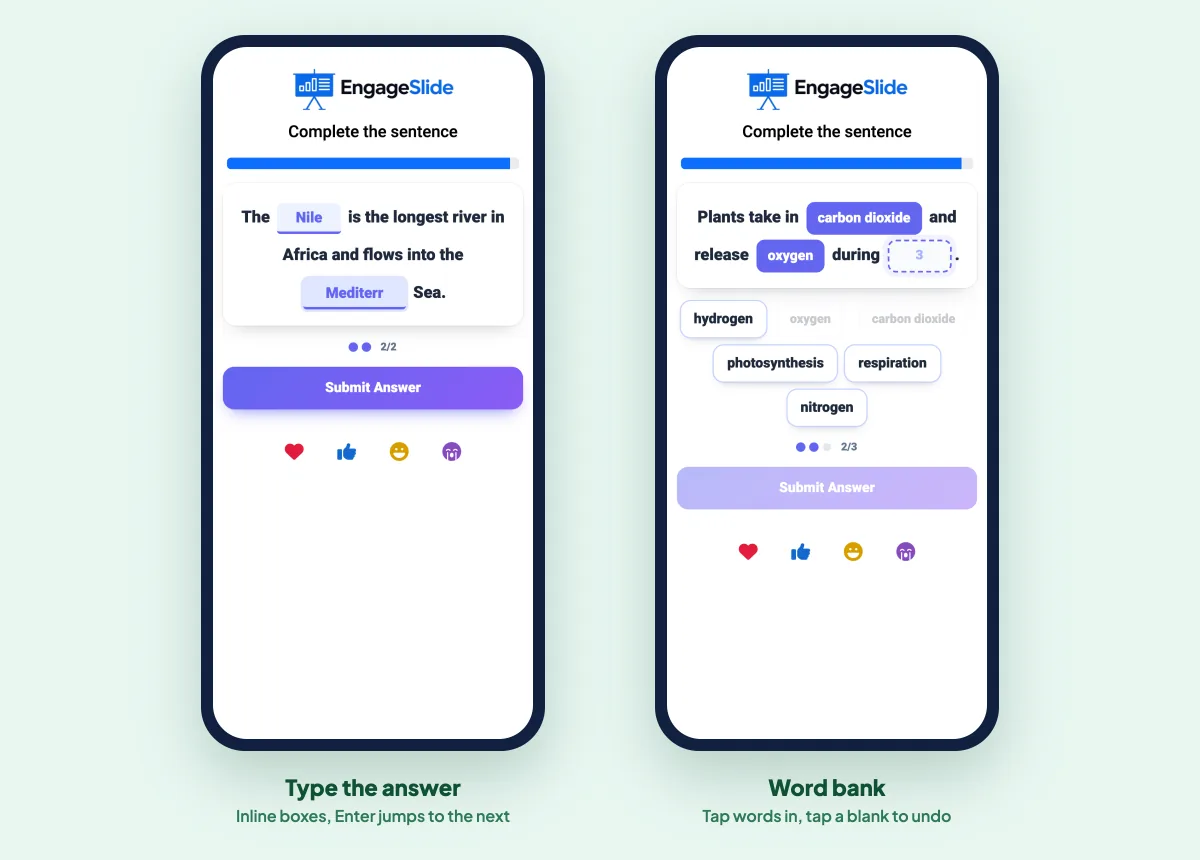
- Type the answer. Each blank is a text box right inside the sentence. Pressing Enter jumps to the next blank, and on the last blank it submits. This is the stronger test of recall.
- Word bank. Players tap words from a shuffled bank to drop them into the blanks, and tap a filled blank to give the word back. Add a few extra wrong words so it isn't just a process of elimination. This is ideal for younger learners, new vocabulary or mobile-heavy audiences.
4. Set how strict the marking is
Marking is forgiving by default: extra spaces and trailing punctuation are ignored, and "paris" counts for "Paris". You can tighten or loosen it:
- Match upper/lower case for questions where capitals matter, such as proper nouns in a language class.
- Ignore accents so "cafe" counts for "café", or "Ha Noi" for "Hà Nội".
- Partial scoring gives points for each correct blank instead of all-or-nothing. It's on by default when a sentence has more than one blank.
Finally, set the seconds to answer and the points range in the quiz settings, exactly as you would for any other question.
5. Play it live
Present, click Start Game, and players answer on their phones. While they answer, every blank on the big screen is the same width, so the size of a gap never gives the answer away.
The reveal: where the teaching happens
When time runs out the correct words flip into the blanks one by one. Under each blank you'll see the percentage of players who got it right, colour-coded green, amber or red, plus a Common mistakes strip showing the wrong answers people typed most. Counters show how many players were fully correct, partially correct or wrong, and points go straight to the leaderboard.
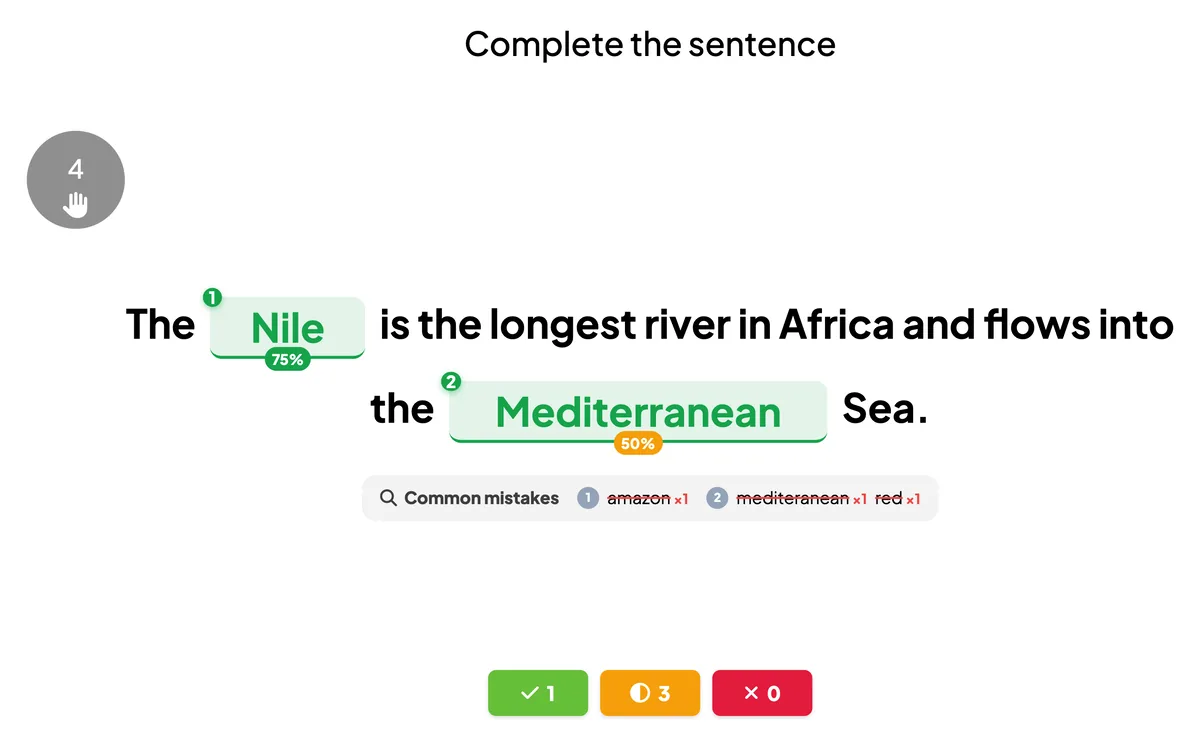
That common-mistakes strip is gold for a teacher or trainer. If half the room typed "Red" instead of "Mediterranean", you know exactly what to clarify before moving on. On their phones, players see their own sentence with each blank marked green or red and the correct answer under anything they missed.
Tips for writing good fill in the blank questions
- Blank the key idea, not a filler word. Hiding "the" or "is" tests grammar trivia, not understanding. Hide the term you actually taught.
- Make sure only one answer fits. "The capital of Australia is [Canberra]" works. "Australia is a [big] country" invites a dozen valid answers.
- List the spellings you'll accept. Add common variants with a slash, or switch to word bank mode when spelling isn't the point.
- Keep it to one to three blanks. More than that and the sentence becomes a puzzle rather than a question. The limit is ten, but fewer is usually better.
- Give enough context. The words around a blank should point to the answer for someone who knows the topic.
- Mix it with other question types. Alternate fill in the blank with multiple-choice, match pair or type answer questions to keep the pace varied.
Where to use it
- Language classes. Verb forms, prepositions and new vocabulary in real sentences.
- Science and history. Key terms, dates and processes, such as "Plants release [oxygen] during [photosynthesis]."
- Corporate training. Policies and product facts, like "Expense claims must be submitted within [30] days."
- Exam revision. Turn summary notes into a fast review round the whole class plays together.
If you are new to live quizzes, start with our guide to creating a live quiz people enjoy, and see how to add a leaderboard to keep the competition going across several questions.
Give it a try
Take one sentence from your next lesson or training, put brackets around the word that matters, and play it live. Fill in the Blank is part of EngageSlide's interactive presentation tool, alongside polls, word clouds, Q&A and the rest of the quiz family, so it slots straight into the deck you already have.