Presenting used to mean staying glued to a laptop.
For years, I thought that was normal.
Every time I ran a workshop, a team meeting, or a product demo, I stood within arm’s reach of my keyboard just to change slides. If I walked too far, I lost control. If I wanted to interact with the audience, I had to return to the laptop again.
Eventually, I realized something important:
The problem wasn’t my presentation skills.
It was my presentation setup.
That’s when I started using a browser-based presentation remote control tool—and it completely changed how I deliver talks.
This article walks through a real-world use case of how remote slide control improved my presentations, reduced technical stress, and made audience interaction feel natural again.
The Problem: Presentations That Feel Like You’re “Tethered” to a Laptop
If you’ve ever presented in front of a class, a meeting room, or even a conference audience, you probably recognize this situation:
You want to move closer to your audience.
But instead:
- you stay near the laptop
- you keep checking the slide screen
- you worry about losing track of slide order
- you interrupt yourself just to click “Next”
This creates distance between you and the people you're speaking to.
Modern presentations are supposed to feel interactive—not mechanical. Today’s presenters need mobility, real-time control, and visibility into what their audience sees.
That’s exactly where a presentation remote control tool changes everything.
A Real Scenario: Running a Live Training Workshop Without Touching My Laptop
Recently, I ran a 90-minute internal training session for a distributed team.
The goals were simple:
- explain a new workflow
- collect feedback during the session
- answer live questions
- keep everyone engaged
Normally, this would involve switching between slides, chat windows, and Q&A tools manually.
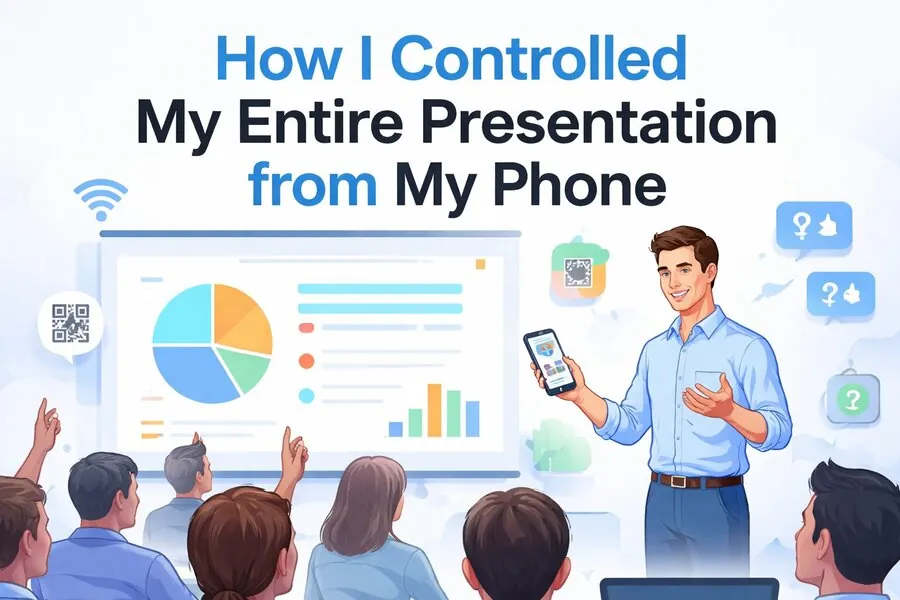
Instead, I used a presentation remote control interface directly from my phone.
Here’s what happened.
Step 1: Moving Freely While Controlling Slides from Anywhere
Instead of standing next to my laptop, I walked around the room while presenting.
Using my phone as a remote controller, I could:
- go to the next slide
- go back instantly
- see slide progress
- confirm what the audience was viewing
A live preview inside the remote interface ensured I always knew exactly which slide participants were seeing.
That alone made the presentation feel smoother and more natural.
Instead of “operating slides,” I could focus on storytelling.
Step 2: Using Speaker Notes Without Breaking Eye Contact
One of the most underrated presentation problems is forgetting what to say next.
Previously, I solved this by:
- memorizing scripts
- glancing at the laptop screen
- adding too much text to slides
With speaker notes visible inside the remote control interface, I could check key talking points privately during the presentation.
The audience never saw them.
This allowed me to:
- stay structured
- manage timing better
- avoid reading from slides
- maintain eye contact
It felt like having a silent assistant guiding the session.
Step 3: Managing Audience Questions Without Interruptions
During training sessions, questions often appear at unpredictable moments.
Previously, this created chaos:
Someone raised a hand.
Another typed in chat.
Someone else waited until the end.
Now, questions appeared in real time inside the Q&A panel of the remote control interface.
This changed everything.
Instead of reacting randomly, I could:
- scan incoming questions
- choose which ones to answer
- respond at the right time
- keep the session structured
The presentation flowed better—and participants stayed engaged longer.
Step 4: Fixing Slide Sync Issues Instantly
If you’ve ever run hybrid or remote presentations, you know this problem:
Someone says:
“I’m still on the previous slide.”
Normally, this interrupts momentum.
With a resync button inside the remote control interface, I could instantly align all participants to the current slide.
No refreshing.
No restarting.
No confusion.
It saved minutes of disruption during the session.
Step 5: Helping Participants Join the Session in Seconds
Another common issue during live presentations is onboarding late participants.
Instead of explaining access steps repeatedly, I simply displayed a QR code and joining instructions directly from the presenter interface.
Participants could:
- scan the code
- enter the session
- interact immediately
This made the session feel professional from the start.
Why Presentation Remote Control Matters More Than People Think
At first glance, remote slide control sounds like a small feature.
In practice, it changes how presentations feel.
Instead of managing technology, you manage the experience.
A presenter remote interface allows you to:
- move freely in the room
- monitor audience interaction
- follow speaker notes privately
- fix sync issues instantly
- onboard participants quickly
Together, these create a presentation environment that feels confident and controlled.
Especially Useful for These Types of Presentations
After using presentation remote control regularly, I realized it’s particularly powerful in several situations.
Training Sessions
Stay structured while answering questions live.
Workshops
Move between groups without losing slide control.
Classroom Teaching
Check notes without distracting students.
Sales Demos
Maintain eye contact instead of looking at slides.
Conferences
Control pacing without relying on stage equipment.
Modern presentation tools are designed to support interaction, not just slide delivery. Platforms like EngageSlide combine remote control with live polls, Q&A, and audience feedback features to turn passive listeners into active participants.
The Unexpected Benefit: Confidence
The biggest improvement wasn’t technical.
It was psychological.
When you know:
- what slide is showing
- what questions are coming in
- what you planned to say next
- and how to fix sync issues instantly
You stop worrying about presentation logistics.
You focus on your message.
And your audience notices the difference.
Final Thoughts: Present Like a Speaker, Not a Slide Operator
Many presenters think improving presentations requires better slides.
Often, it just requires better control.
A presentation remote control tool gives you:
mobility
clarity
structure
and confidence
—all without extra hardware or software installation.
If you regularly teach, train, pitch, or speak in front of groups, controlling your presentation from your phone might be the simplest upgrade you can make.
And once you try it, it’s surprisingly hard to go back.