
Engaging an audience today requires much more than showing static slides. Viewers want to participate, vote, answer questions, and see results appear instantly on screen.
EngageSlide was designed exactly for that purpose — a powerful browser-based presentation tool that lets your audience interact in real time using their phones.
The best part?
👉 Every feature is completely free and unlimited, unlike Kahoot or Mentimeter which restrict participants and question types on free plans.
This guide will walk you through how to create a presentation that includes a fully interactive poll slide, step by step.
⭐ What Is EngageSlide?
InteractiveSlide.co is an online presentation platform that lets you:
Build slide decks directly in your browser
Add interactive elements such as Polls, Quizzes, Word Clouds, and Q&A
Let your audience join instantly on their phones — no app needed
Display live results on screen in real time
Share access easily through a QR code
It is simple, fast, and familiar even for users new to interactive tools.
🎬 Getting Started
Visit the Website and Create an Account
Go to interactiveslides.co
Click Get Started
Sign up or log in if you already have an account
After logging in, you will arrive at your dashboard, where you can create new presentations or choose from available templates.
📑 Exploring the Slide Editor
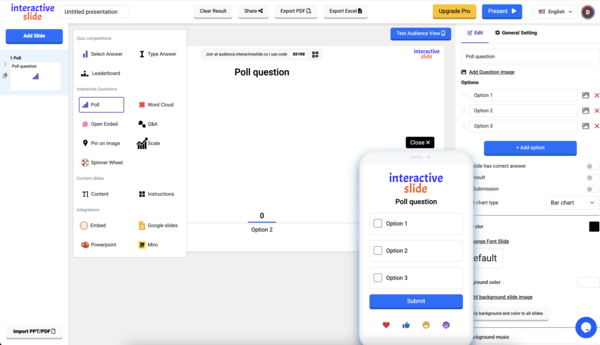
The editor layout is intentionally familiar, similar to Google Slides or PowerPoint:
A slide list on the left
Editing canvas in the center
Toolbar and customization options
A real-time Audience Preview panel
This helps new users get comfortable quickly.
🗳️ Creating Your First Poll Slide
When you create a new presentation, EngageSlide automatically generates a default poll slide for you.
Add Your Question
Click into the poll slide and type your question — for example:
“What topic should we discuss today?”
Add Answer Options
Enter multiple choice options directly below the question.
Watch Live Updates in the Audience Preview
As you type, everything updates instantly in the preview showing exactly what participants will see on their phones.
⚙️ Customizing Poll Settings
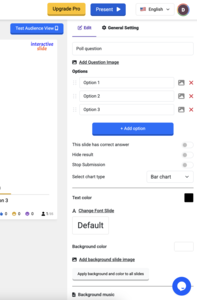
Open the Poll Settings panel to further customize your slide.
Mark the Correct Answer
Useful when creating a quick quiz.
Adjust Highlight Colors
For example, choose green to mark the correct option.
Change Chart Type
Switch between:
Bar chart
Pie chart
Hide or Pause Results
You can hide results during voting or stop accepting submissions when needed.
Customize Theme, Fonts, and Background
EngageSlide includes a full set of visual customization tools:
Theme selector
Font styles
Background colors or images
All changes apply instantly.
🧪 Testing Your Poll with Audience Demo
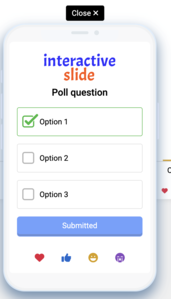
The Audience Demo mode allows you to simulate real audience interaction:
Open Demo mode
Submit a test response
Watch the chart update in real time
This feature ensures everything looks and works perfectly before presenting.
📱 Inviting the Audience via QR Code
When you're ready to collect responses from real participants:
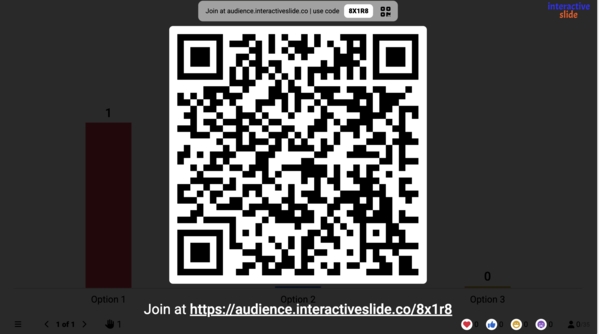
Open the QR code view
Display the code on screen
Your audience simply scans it with their phones
They join instantly without installing an app or registering
🖥️ Presenting in Fullscreen Mode
Click Present to open your slide deck in fullscreen mode — similar to Google Slides or PowerPoint, but enhanced with real-time interaction.
🎉 Conclusion
EngageSlide is a highly flexible and genuinely free tool for creating interactive presentations. It’s perfect for:
Teachers
Corporate trainers
Workshops
Webinars
Events and conferences
Any presenter who wants active audience participation
All features are free, with no limits on participants or question types — unlike Kahoot and Mentimeter.
Whether you're teaching, training, or presenting to a large audience, InteractiveSlide.co helps you deliver engaging, dynamic, and interactive experiences.