
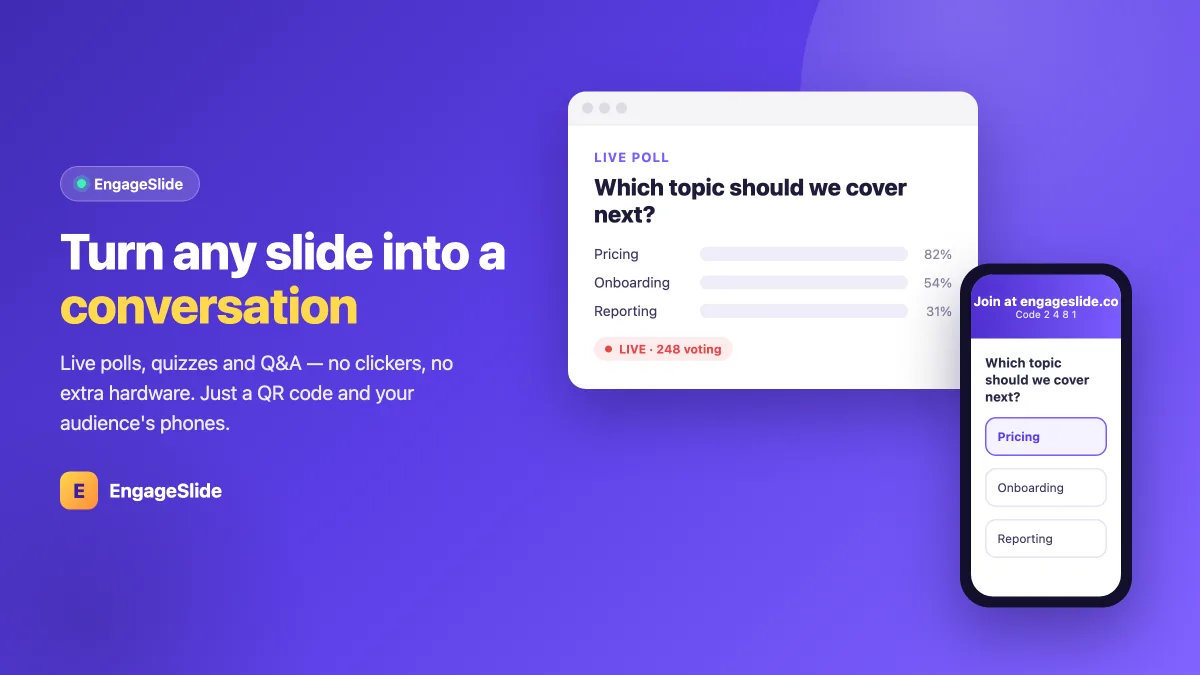
You have felt it from the stage: the glassy eyes, the phones lighting up under the table, the slow nod that means "I stopped listening ten slides ago." Attention is the hardest thing to hold in any room, physical or virtual — and a wall of bullet points does nothing to earn it back. The good news is that making a presentation interactive has almost nothing to do with budget or equipment, and almost everything to do with one small shift: asking your audience to do something instead of just watch.
This guide breaks down what "interactive presentation" actually means, why it works, the tiny bit of gear you need (spoiler: a phone and a screen), and six practical ways to turn any slide into a two-way moment — all of which you can set up in EngageSlide in a few minutes.
What an interactive presentation really means
An interactive presentation is simply one where the audience contributes, not just consumes. Instead of talking at people for forty-five minutes, you build in moments where they vote, answer, ask, rank, or react — and you respond to what they say in real time. Those systems have a name in research and education: audience response systems, and they have been shown to lift attention and recall precisely because participation forces the brain to engage rather than drift.
The key word is real time. Emailing a survey after the event is useful, but it does not change the energy in the room while you are speaking. Interactivity that happens live — where a poll result appears on screen the instant people answer — is what wakes a room up.
Why interaction beats a one-way deck
Passive slides ask nothing of the audience, so the audience gives nothing back. The moment you add a live question, three things change: people sit up because they are being asked, they think harder because they have to form an answer, and they feel heard because their input visibly shapes what happens next. This is the same principle behind active learning — we remember what we participate in far better than what we passively hear.
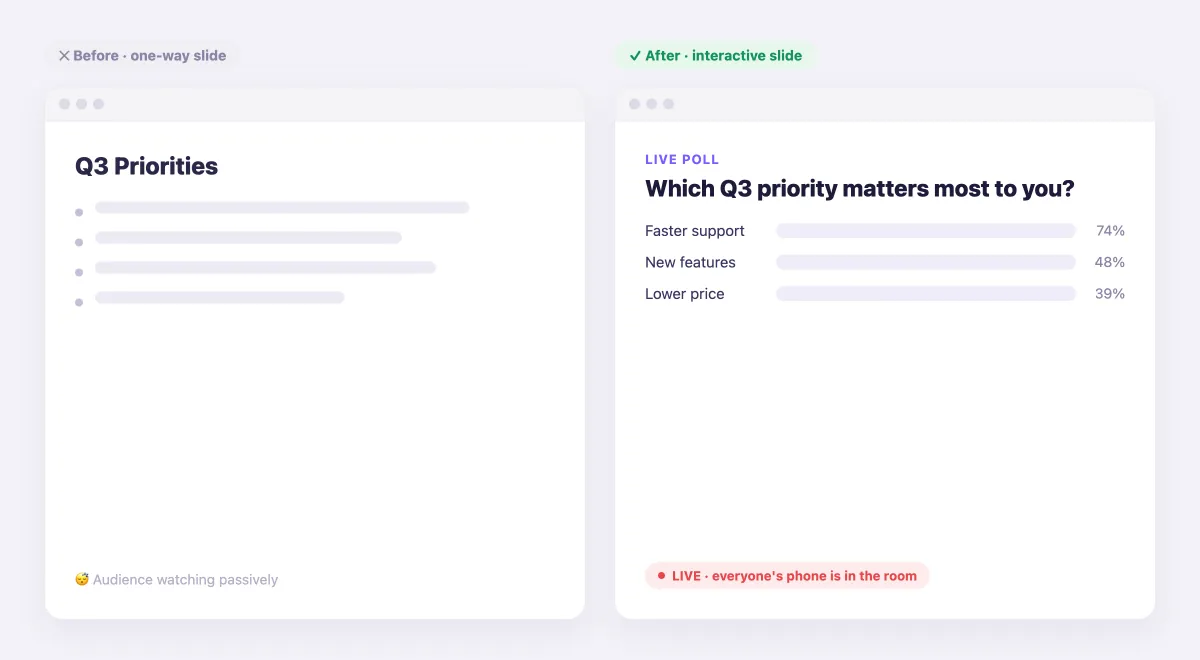
The difference is not cosmetic. A one-way "Q3 Priorities" slide gets polite silence; the same content reframed as "Which Q3 priority matters most to you?" gets every phone in the room voting — and gives you data you did not have before. Interaction turns your audience from spectators into a source of insight.
The only equipment you actually need
Here is what makes modern interactive presentations so accessible: you do not need clickers, dongles, a special room, or an IT ticket. You need exactly two things:
- A screen your audience can see — a projector, a TV, or a shared window on a video call.
- The phones people already have in their pockets. Attendees join by scanning a QR code or typing a short code into their browser — no app download, no login.
That is the whole setup. Because the audience uses their own devices and a plain web link, interactive presentations work identically in a lecture hall, a boardroom, or a fully remote Zoom or Teams call. The barrier that used to make audience participation expensive and clunky is simply gone.
Six ways to make any slide interactive
You do not need to reinvent your talk — you just need a few interactive moments sprinkled through it. These are the formats that work in almost any setting, and each one is a slide type you can drop into your deck.
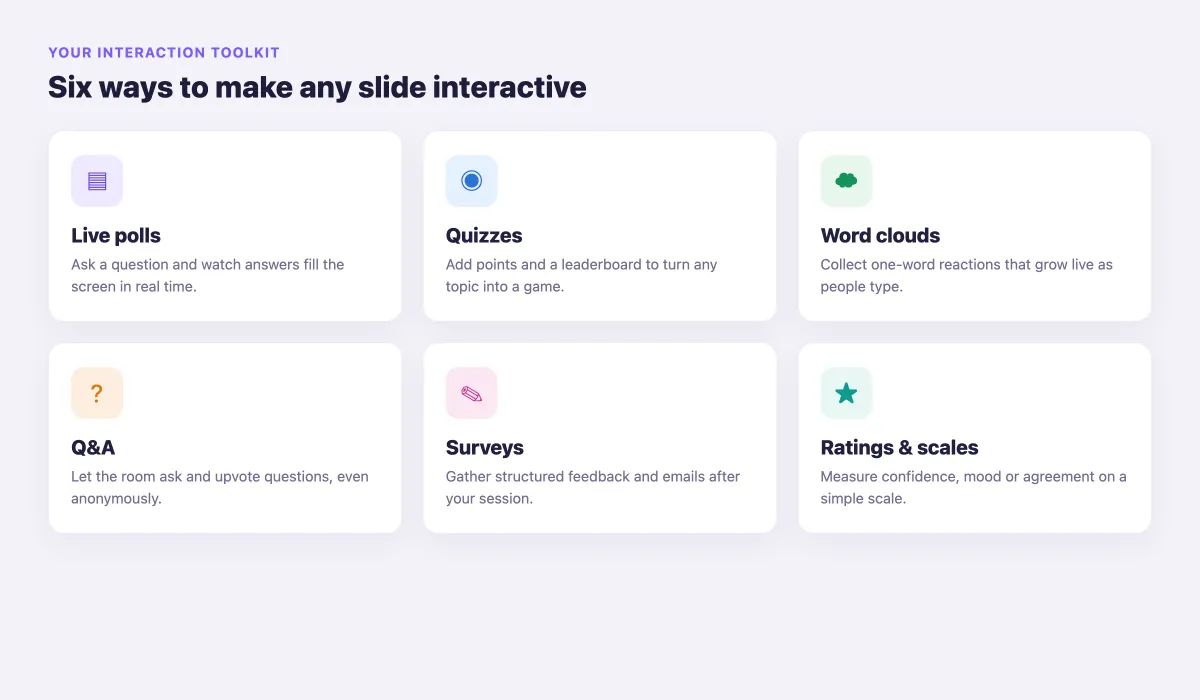
- Live polls. Ask a multiple-choice or open question and watch answers appear on screen instantly. Perfect for opinions, decisions, and quick temperature checks.
- Quizzes. Add points, a timer, and a leaderboard to turn any topic into friendly competition — ideal for training and classrooms.
- Word clouds. Collect one-word reactions that grow larger as more people submit the same term. A brilliant icebreaker and mood-reader.
- Live Q&A. Let the audience submit and upvote questions — anonymously if they prefer — so the best questions rise to the top instead of the loudest voice winning.
- Surveys. Gather structured feedback (and emails) at the end of a session to measure impact and follow up.
- Rating scales. Ask how confident, clear, or convinced people feel on a 1–5 scale to get a quick, honest read.
How to add interaction in EngageSlide
EngageSlide is built exactly for this — an interactive presentation tool that lets you mix normal content slides with live polls, quizzes, word clouds, and Q&A in one deck. Here is the basic flow:
1. Add an interactive slide
In the editor, add a slide and choose its type — poll, quiz, word cloud, or Q&A. Type your question and options just like you would write any slide. There is nothing to install and nothing for your audience to set up.
2. Present and let people join
When you present, EngageSlide shows a join code and QR code. Your audience scans it, lands on the join page in their browser, and is ready to respond within seconds. Everyone who joins sees the current question on their own phone.
3. Reveal results live and react
As people answer, results animate onto the big screen in real time. Read the room out loud — "interesting, most of you picked option B, let's talk about why" — and let the responses steer the conversation. That single habit, reacting to live input, is what separates a memorable session from a forgettable one.
You do not make a presentation interactive by adding more slides. You make it interactive by handing the microphone to the room — one question at a time.
Five tips to keep the interaction flowing
Adding a poll is easy; running a genuinely engaging session takes a little facilitation. These habits make the biggest difference:
- Open with a low-stakes question. A simple "Where are you joining from?" word cloud gets everyone's phone out early, so later questions feel natural.
- Ask, then pause. Give people 20–30 seconds and say the number of responses out loud so they know participation is happening.
- Use anonymity for honesty. For sensitive topics, anonymous polls and Q&A surface what people really think instead of the safe, expected answer.
- Actually use the results. Nothing kills participation faster than ignoring it. Reference the numbers, revisit them, and let them change your next point.
- Space it out. One interactive moment every 8–10 minutes keeps energy up without turning your talk into a game show.
Where to start
You do not need to redesign your whole deck. Pick your next presentation, choose one slide where you would normally ask a rhetorical question, and turn it into a real live poll. Watch what happens: heads come up, phones point at the screen instead of hiding under the table, and suddenly you are having a conversation instead of giving a monologue.
From there it compounds. Add a quiz to your training, a word cloud to your kickoff, a Q&A to your all-hands, and a survey at the end to capture feedback. If you want more practical playbooks like this, browse the rest of the EngageSlide blog — and the next time you step in front of a room, bring your audience with you.