
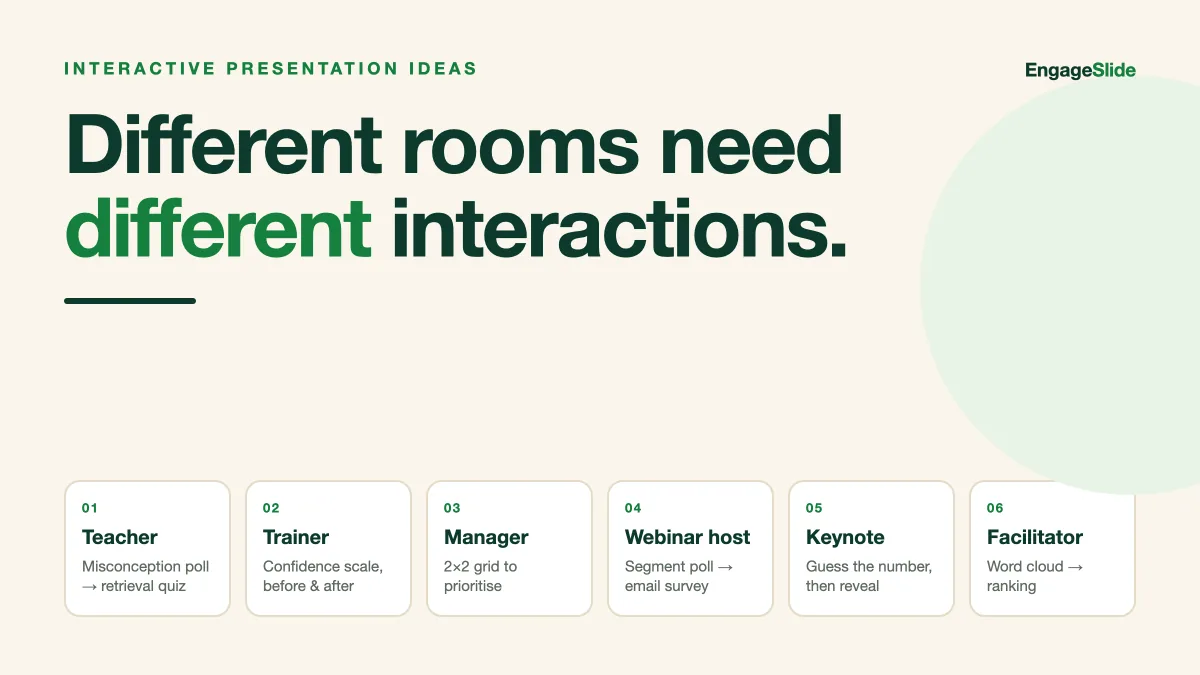
Most advice about interactive presentations stops at "add a poll." That's useful for about ten minutes, and then you're back to the same problem: a room that nods politely and remembers nothing. The interaction that works for a Monday stand-up is not the interaction that works for a 300-seat keynote, and a lecturer's retrieval quiz would fall flat in a sales pitch. Good interactive presentation ideas are matched to who is speaking, to whom, and for what outcome.
This guide is organised by speaker type. Find yourself below, take the two or three ideas that fit your next session, and build them with the slide types you already have in EngageSlide's interactive presentation tool. If you want the tactics behind why these work, read audience engagement techniques that actually work after this.
First, a rule that applies to every speaker
Whatever your format, interaction has a rhythm: roughly one participation moment every 8–10 minutes, and each one should have a job. Before you pick an idea, name the job:
- Warm up. Get the first tap out of the way — a word cloud or a one-tap poll — so participating feels normal.
- Diagnose. Find out what the room already knows or believes, so you can skip or slow down.
- Check. Confirm the last section actually landed before you build on it.
- Decide. Turn opinion into a ranked, visible group choice.
- Close the loop. Collect questions, feedback or follow-up work after you stop talking.
An idea without a job is decoration. An idea with a job changes what you say next.
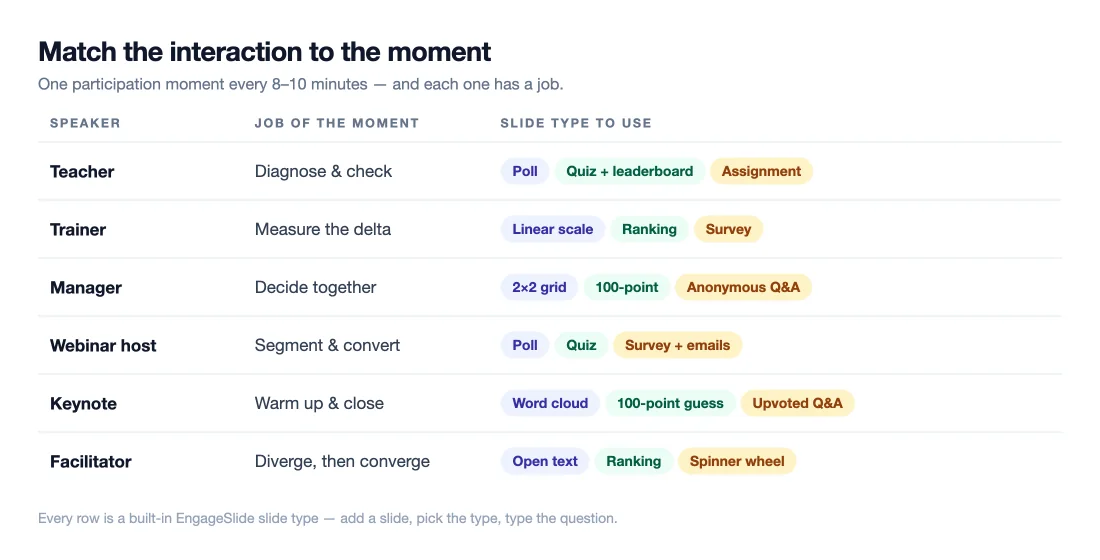
Ideas for teachers and lecturers
Open with a misconception poll. Put up a multiple-choice question with the common wrong answer as one of the options, and let the room vote before you teach anything. The distribution on screen tells you which misconception to attack — and students are far more attentive to an explanation of an answer they just committed to.
Use a mid-lesson quiz as retrieval practice, not as a test. Two or three quiz questions with points and a leaderboard, ten minutes after you introduce a concept, is one of the most reliable learning interventions there is — the effect of being asked to recall something is stronger than re-reading it, which researchers call the testing effect. Keep it light: no grades, timer on, leaderboard shown once at the end.
Finish with an exit word cloud. "One word for what still feels fuzzy." The cloud gives you next lesson's opening slide for free.
Send the graded work as an assignment, not a PDF. When the lesson ends, push a graded assignment to the same audience — numeric answers with a tolerance, math expressions typed in a formula editor, or short essays you grade by hand. Auto-marking handles the mechanical questions and you spend your time on the ones that need judgement. If you're starting from a paper exam, the AI can read an image or PDF of it and turn it into questions. See the AI assignment maker for how that flow works.
Ideas for corporate trainers
Start with a confidence scale, end with the same scale. A linear-scale question — "How confident are you applying this today, 1–5?" — asked at the start and again at the end gives you a before/after chart you can put in a report to whoever paid for the training. Same question, two data points, measurable delta.
Run a scenario poll instead of a knowledge poll. Rather than "what does the policy say," show a realistic situation and ask "what would you do?" The split in the room is the discussion. Then reveal the recommended action and explain the gap.
Use a match-pair or ranking slide for process steps. Ask participants to rank five steps in the right order, or match tools to situations. It converts a slide of bullets into ninety seconds of thinking.
Close with a feedback survey on the last slide. Link a survey to the presentation so it appears when you finish — a linear scale for usefulness, a short-answer for "what would you change," and an optional email field if people want the follow-up material. Responses land in Summary and Individual views and export to CSV for your training report.
Ideas for team leads and managers
Open the meeting with a one-tap pulse. "Capacity this week: comfortable / stretched / underwater." Three seconds, and you know whose update to listen to hardest.
Prioritise with a 2×2 grid or a 100-point question. When a team argues about what to do next, stop arguing and plot it: a 2×2 of impact versus effort, or 100 points each to distribute across candidate projects. The scatter of dots makes disagreement visible and specific instead of vague — a structured cousin of the classic nominal group technique. Everyone's vote counts equally, including the people who never speak first.
Collect blockers anonymously through Q&A. Turn on anonymous questions with upvoting, and address the top three. The upvote count does the hard work of telling you what matters to the team rather than what matters to the loudest person in the room.
Ideas for webinar hosts and marketers
Segment your audience in the first two minutes. A poll — "Which best describes you?" — warms up the room and tells you which examples to lean on for the next forty minutes. It also gives you a slide of audience data for the recap email.
Use a quiz as the mid-webinar attention reset. Three quick questions on what you've covered, with a leaderboard, right at the thirty-minute mark where attention normally collapses. Our full pacing plan for remote sessions is in how to keep a virtual audience engaged for a full hour.
Make the last slide a survey that collects emails. Instead of "email us if you want the deck," end on a linked survey with email collection turned on: rate the session, tell us your biggest challenge, tick a box for the follow-up. You leave the webinar with qualified interest, not a headcount. The online survey maker supports nine question types, anonymous responses and CSV export.
Ideas for conference and keynote speakers
Turn your opening statistic into a guess. Don't show the number — ask for it. A poll or a 100-point question where the audience estimates the figure, then the reveal. The gap between guess and reality is the moment people remember.
Word-cloud the theme. "One word: what does 'AI strategy' mean at your company?" In a large room, the cloud is a portrait of the audience that no pre-built slide can match, and you can react to it live.
Run Q&A properly. Open a Q&A slide at the start so questions accumulate throughout, let people upvote, and answer the top-voted ones at the end. No roaming microphone, no rambling. Our complete guide to running a live Q&A session covers the facilitation details.
The best interactive presentation idea is the one that changes what you say next. If the result on screen wouldn't alter your following five minutes, cut it and keep the slide.
Ideas for workshop facilitators
Diverge, then converge. Open with a word cloud or open text to gather raw ideas, then feed the strongest ones into a ranking slide so the group narrows them down. Two slides, and you've run a full divergence-convergence cycle without sticky notes.
Use the spinner wheel for turn-taking. Randomly picking who reports back removes the awkwardness of volunteering and keeps energy up between blocks.
Let people move at their own pace. For breakout work, hand control to participants so they answer a set of questions on their own device without waiting for your slide to advance.
How to actually build these
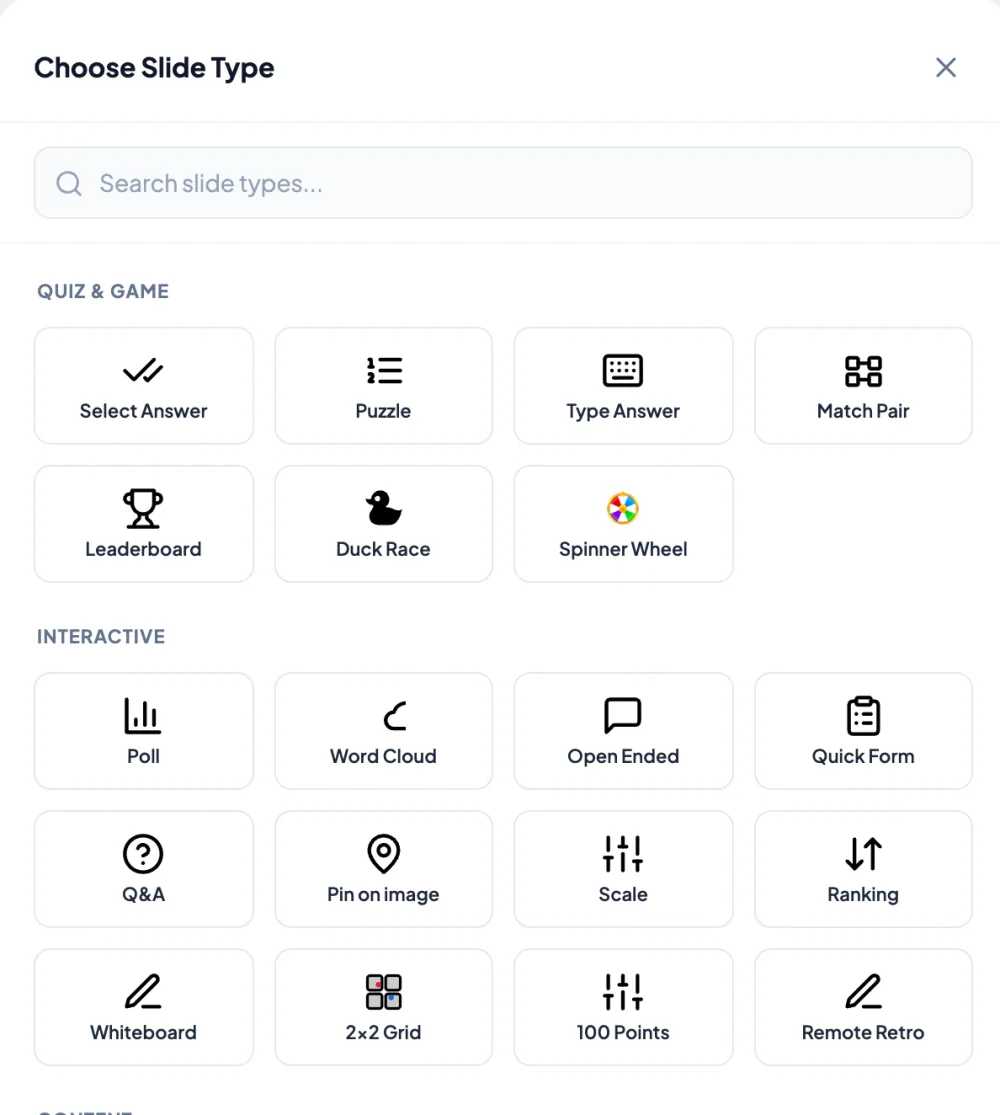
Every idea above is a slide type, not a workaround. In EngageSlide you add a slide, pick the type — poll, quiz, word cloud, Q&A, ranking, linear scale, 2×2 grid, 100-point, spinner, open text — type your question, and it's live. The audience joins from a QR code or a short code; nothing to install on their side. You can build the deck from scratch, generate a first draft with AI, or keep your existing deck and run the interactive slides through the PowerPoint add-in or Google Slides.
Start with two ideas, not ten. Pick the one that opens your session and the one that closes it, run them next week, and add a third once the rhythm feels natural. If you want a bank of concrete examples to steal from, browse 15 ways to make your presentation interactive with real examples or the rest of the EngageSlide blog.