

Sixty minutes is a long time to hold a room you cannot see. In person, you read faces and adjust. On a video call, you get a wall of muted tiles, a silent chat, and no way of knowing whether anyone is still there. The honest answer is that most virtual audiences are not "engaged for an hour" — they check out somewhere around minute twelve, drift into their inbox, and come back for the last two minutes to hear the summary.
The fix is not more energy from you. It is structure: giving the audience something to do at regular intervals, before their attention has a chance to leave. This guide lays out a 60-minute rhythm you can run on your existing deck, with the exact interaction to use at each point and how to set it up in EngageSlide's interactive presentation tool.
Why a virtual hour is harder than a room
Three things work against you online. First, the audience has a private, frictionless escape route — a second monitor, a Slack notification, an email that feels more urgent than your slide. Second, you lose the feedback loop: no nods, no confused frowns, no shifting in seats, so you cannot tell when you have lost them. Third, back-to-back video calls accumulate. Microsoft's Human Factors Lab measured brain activity across consecutive meetings and found that stress builds up without pauses, while short breaks let the brain reset and improve people's ability to focus and engage during the meetings themselves. Your session may be the fourth hour of someone's day.
None of that means virtual presentations cannot work. It means passive ones cannot. If your audience's only job for 60 minutes is to listen, video fatigue will win. If they have a reason to touch their phone or keyboard every few minutes — and it is your reason, not their inbox's — the hour holds.
The rule: one interaction every 8–10 minutes
You do not need to gamify the whole hour. You need a predictable cadence of small moments where the audience contributes something and sees the result on screen. Six touchpoints across an hour is enough. Here is the rhythm that works, and each stop is a slide type you can drop into a deck you have already written.
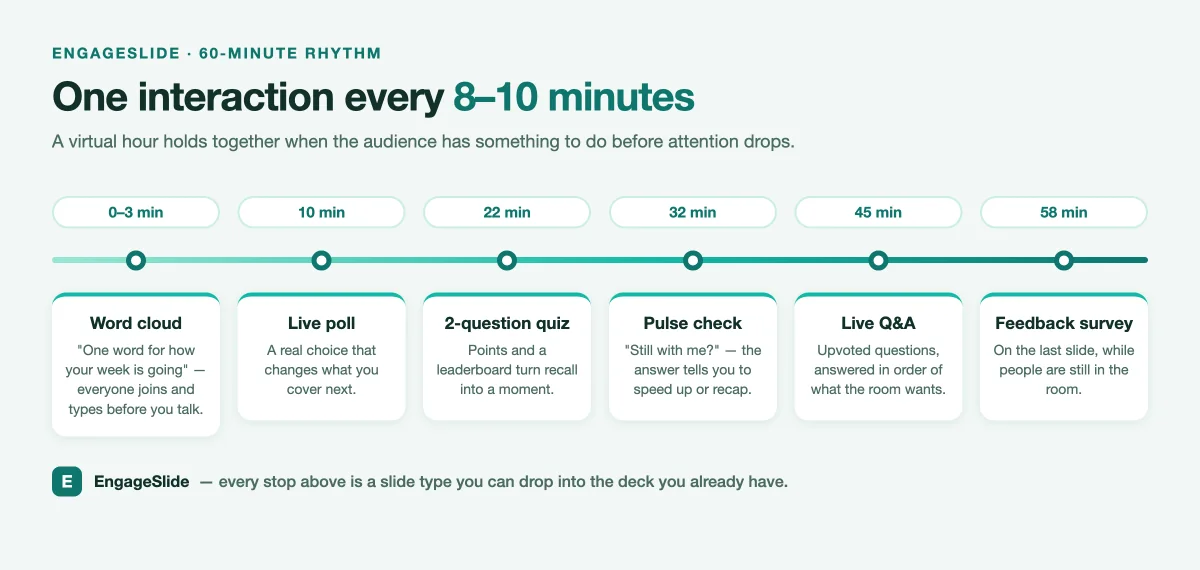
Notice what the cadence does: it never lets more than about ten minutes of pure talking go by, and it varies the type of ask. A word cloud, a poll, a quiz and a question are four different mental activities. Six identical polls would be as numbing as none.
Minutes 0–3: earn participation before you need it
The single biggest predictor of whether people participate at minute 40 is whether they participated at minute 2. Someone who has already typed one word into your session has crossed the line from viewer to participant, and they will cross it again far more easily.
So do not open with an agenda slide. Open with a word cloud everyone can answer in four seconds: "One word for how your week is going", "Where are you joining from?", or "What do you most want out of this hour?". Participants join by scanning a QR code or entering a short code at engageslide.co — no app, no account, no download — and their words appear on your screen as they type.
Set expectations out loud
Say the quiet part in the first minute: "There'll be a poll every ten minutes or so, and a quiz — keep the join page open on your phone." Audiences do not participate when they are unsure whether participation is wanted. Telling them the shape of the hour also gives them a reason to keep the second screen on your session instead of their email.
Minutes 10–25: give them decisions, not just information
The strongest interaction is one where the answer actually changes what happens next. A live poll around minute 10 — "Which of these three problems is costing your team the most right now?" — lets you say "right, most of you picked onboarding, so let's spend the next ten minutes there." That is real, and the audience can feel the difference between a poll that steers the session and a poll that is a stunt.
Around minute 22, switch modes. A two-question quiz on what you have just covered turns passive listening into recall, which is what actually makes content stick. In EngageSlide, quiz slides carry points and a leaderboard, and faster correct answers can score higher — enough of a game to wake a room up, short enough that it does not derail your agenda. Two questions, ninety seconds, move on.
Minute 30: the halfway pulse check
This is the interaction most presenters skip, and it is the one that saves virtual sessions. Halfway through, ask the audience how they are doing — and make the options honest enough to give you real information.
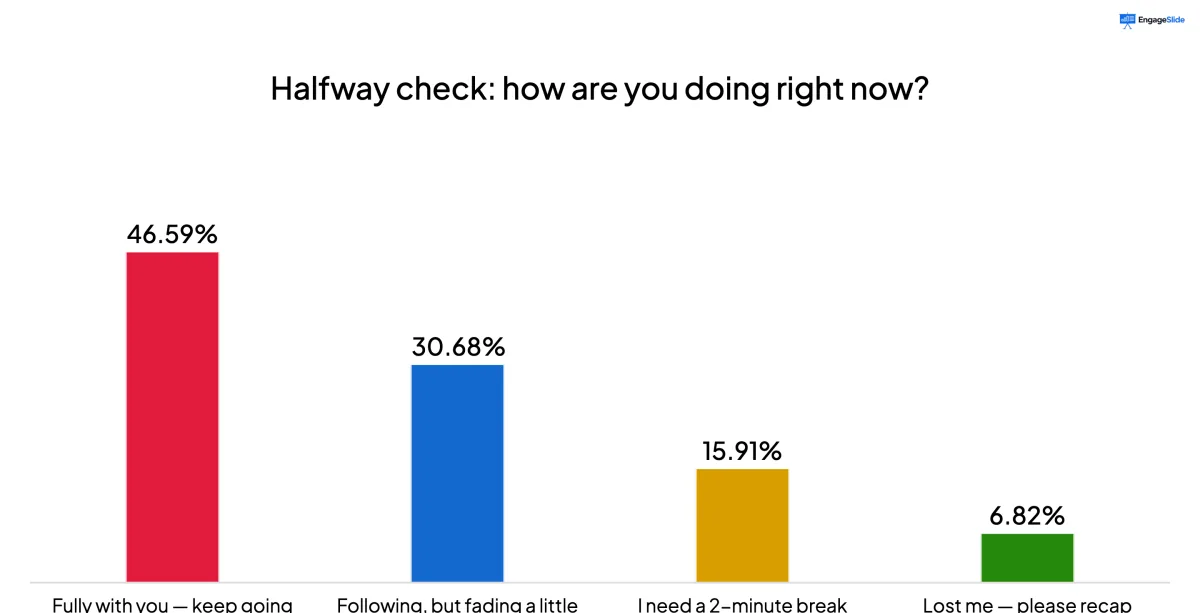
The value is in what you do next. If a quarter of the room says "I need a break", take two minutes — you will get them back sharper, which is exactly what the Microsoft break research predicts. If a chunk says "lost me, please recap", recap; you have just been handed the single most useful piece of feedback in the session, at a point where you can still act on it. Running this blind and discovering the problem in the post-event survey is far too late.
A virtual audience will not interrupt you to say they are lost. The only way to find out mid-session is to ask them in a way that takes one tap to answer.
Minutes 40–55: hand the floor over
Attention recovers when the source of the voice changes. Around the forty-minute mark, stop presenting and start responding. Open live Q&A, where participants submit questions and upvote each other's, so you answer in the order the room actually cares about — and anonymous submission gets you the questions people are too senior, too junior or too shy to ask out loud. If you want the full facilitation detail, we wrote a complete guide to running a live Q&A session.
Keep live chat and reactions running underneath the whole hour, not just this block. A steady trickle of reactions is a low-effort way for people to stay present, and it gives you the ambient signal that a video grid of muted tiles takes away.
The last two minutes: end with a question, not a thank-you slide
Most feedback forms are emailed after the event and answered by almost nobody. Ask while people are still in the room. An EngageSlide survey can be linked to the presentation and shown on the last slide, so the audience taps straight through from the session they just attended — three or four questions, a linear scale plus one open text box, optionally collecting email addresses if this is a lead-generating webinar. Responses land in a Summary view and export to CSV.
A 60-minute run sheet you can copy
- Before you start. Build the six interaction slides into the deck you already have — polls, quiz, Q&A and survey sit alongside your normal content slides, so you present one deck, not two.
- 0–3 min. Word cloud + join code on screen. Say the hour will be interactive.
- 10 min. Live poll whose result changes what you cover next.
- 22 min. Two-question quiz with points and a leaderboard.
- 32 min. Pulse check. Act on the answer — break, recap, or speed up.
- 45 min. Live Q&A with upvoting; answer top-voted questions first.
- 58 min. Feedback survey on the final slide, while everyone is still there.
- After. Review the session report and the survey results together — participation numbers tell you where attention dropped, the survey tells you why.
If engagement still drops
Three fixes, in order of how often they work. Shorten the gaps. If you lose people at minute 35, your interactions are too far apart for that audience — move to one every seven minutes. Raise the stakes of the ask. Questions with an obvious answer get ignored; questions where opinion genuinely splits get answered. Check the format, not the audience. If your slides are dense paragraphs read aloud, no amount of polling will rescue them — that is a separate problem, and we covered it in why your audience stops paying attention.
Keeping a virtual audience for a full hour is not about being more entertaining than their inbox. It is about making sure that every eight to ten minutes, the most interesting thing on their screen is something they are part of.