
Remote training fails quietly. Nobody walks out of a video call. They just switch to another tab, answer a few emails and come back when they hear their name. At the end, the trainer sees a list of attendees and thinks the session went fine, while half the group has learned very little. If you run onboarding, product, compliance or skills training for people who work from home, remote training engagement is the real problem to solve. This guide covers why remote learners drift, five fixes that work in practice, and a simple before, during and after plan you can run with EngageSlide.
Why Remote Employees Tune Out of Training
In a classroom, a trainer reads the room. They see confused faces, notice the person who has stopped writing and slow down when needed. On a video call, most of those signals are gone. Cameras are off, microphones are muted and the chat is silent. Five problems show up again and again:
- Passive listening. The session is a one-way broadcast. There is nothing to do, so people do something else.
- Screen fatigue. Long calls are tiring in a way that in-person sessions are not, which researchers have described as Zoom fatigue. Attention drops faster than you expect.
- Uneven participation. The same two or three people speak every time. Everyone else is happy to let them.
- No signal of understanding. "Any questions?" gets silence, and silence is not the same as understanding.
- No follow-through. The call ends, the slides are sent by email and nobody opens them again.
None of these is fixed by better slides alone. They are fixed by giving learners something to do every few minutes and by giving the trainer real data about who is following and who is not.
Five Fixes That Keep Remote Learners Involved
1. Ask everyone, not "anyone"
"Does anyone have a question?" puts pressure on one person to speak up in front of the group. A live poll asks the whole group at once, and each person answers on their own phone or laptop. In EngageSlide, people join by scanning the QR code or entering the code shown at the top of every slide, with no app to install and no account to create. Within ten seconds you see how many people answered and how the answers split. Use a poll in the first two minutes of the session, before any content, so people learn that this call expects them to act.
2. Check understanding with a quick quiz, not a question into silence
After each key concept, run a short quiz of two or three questions. It takes less than three minutes and tells you right away whether the idea landed. If 70% of the group picks the wrong answer, you know to explain it again before moving on. Quizzes also bring energy to a remote session: points for correct and fast answers and a leaderboard at the end give people a light reason to stay focused. If you want the full picture on this, see our guide to knowledge checks that make training stick.
3. Make it safe to say "I don't get it"
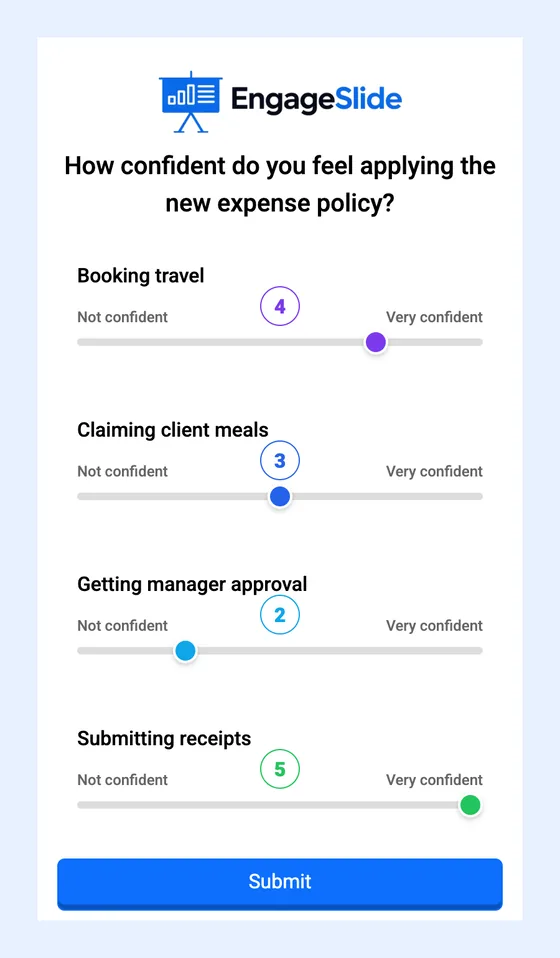
Many employees will not admit confusion in front of their manager or new colleagues. Anonymous tools remove that barrier. An anonymous Q&A slide lets people post questions without their name, and others can upvote the ones they also want answered, so you tackle the most common confusion first. A Scale question such as "How confident do you feel applying this process tomorrow?" gives you an honest read of the room. Low scores tell you where to spend the next ten minutes.
4. Switch the activity every 8 to 10 minutes
Remote attention works in short blocks. Plan your session so no stretch of talking runs longer than about ten minutes without an interaction. Vary the format so it does not feel repetitive:
- Word cloud to collect first reactions: "One word that describes our current onboarding process."
- Open Ended to gather real examples: "Describe a customer situation where this policy applies."
- Ranking to prioritise: "Rank these five tasks by how often you do them."
- Quiz to confirm the key facts before moving on.
Each of these takes one to three minutes, and each gives learners a reason to look at the screen again.
5. Continue after the call ends
Most of what people hear in training is forgotten within days unless they use it or are tested on it again. Instead of sending the slides and hoping, send a short graded assignment. With the EngageSlide assignment maker, you can create questions yourself or let AI read an existing test document or image and turn it into questions. Answers are graded automatically, you can set a due date, the number of attempts and a pass score, and you get a gradebook showing who completed it and who needs support.
A Remote Training Plan: Before, During and After
Put the five fixes together and you get a simple structure that works for a one-hour module or a full onboarding day.
Before the session
- Send a short pre-work assignment. Three to five questions on the basics, due the day before. You will know the group's starting level, and learners arrive already thinking about the topic.
- Build the interactive slides into your deck. Add polls and quizzes directly in the EngageSlide interactive presentation tool, or use the PowerPoint add-in, Google Slides integration or Microsoft Teams app if your training materials already live there.
- Test the join flow. Open the session on a second device and make sure the QR code and link work.
During the session
- Minute 0 to 3: a warm-up poll or word cloud linked to the topic.
- Every 8 to 10 minutes: a quiz, scale, ranking or open-ended question.
- Midpoint: an anonymous Q&A slot and a confidence scale.
- Last 5 minutes: a final quiz round with the leaderboard, then a short feedback survey.
A small tip for remote trainers: control the slides from your phone with the EngageSlide remote control. It frees your laptop screen for the video call and chat, so you can watch reactions and questions without switching windows all the time.
After the session
- Send the follow-up assignment with a due date of three to seven days later to reinforce the key points.
- Collect feedback with a survey. The EngageSlide survey maker supports linear scale ratings, multiple choice and open text questions, and you can link the survey to the presentation so it appears on the last slide. Export the results to CSV to share with managers or HR.
- Review the report. Look at which quiz questions most people got wrong. Those are the parts of the training to rewrite next time.
Remote learners don't need more slides. They need a reason to act every few minutes, a safe way to say they are confused, and a follow-up that proves the training worked.
Common Mistakes to Avoid
- Using interaction as decoration. A poll with no link to the content feels like a gimmick. Each question should either check understanding, bring out experience or help people apply the idea.
- Too many questions at once. Ten quiz questions in a row is a test, not training. Keep rounds short and spread them out.
- Ignoring the results. If a quiz shows confusion and you move on anyway, learners notice and stop taking the questions seriously.
- Forcing cameras on. Requiring cameras can make fatigue worse. Active participation through polls and quizzes is a better sign of engagement than a grid of faces.
- Making the leaderboard too serious. In workplace training, keep it light. The aim is focus and fun, not ranking colleagues against each other in public.
How to Know It Is Working
You don't need a complex learning platform to measure remote training. Track three simple numbers in each session: the share of attendees who answer each interactive slide, average quiz accuracy, and the completion rate of the follow-up assignment. If response rates stay above 80% through the session and quiz scores improve between the in-session quiz and the follow-up, your training is working. If response rates drop after the first 20 minutes, add an interaction earlier or shorten the section. For a deeper framework, read our guide to keeping a virtual audience engaged for a full hour.
Research on active learning has shown for years that people learn more when they do something with new information rather than only listen to it.
Start With One Session
You don't need to redesign your whole training programme. Take one upcoming remote session and add a warm-up poll, two short quizzes, an anonymous Q&A slot and a follow-up assignment. Compare the response rates and quiz scores with your usual session. For more ideas on running remote sessions, browse the EngageSlide blog.
Cover photo: "Wiki Senior project in home isolation 02" by Miomir Magdevski, Wikimedia Commons, licensed CC BY-SA 4.0; cropped.