
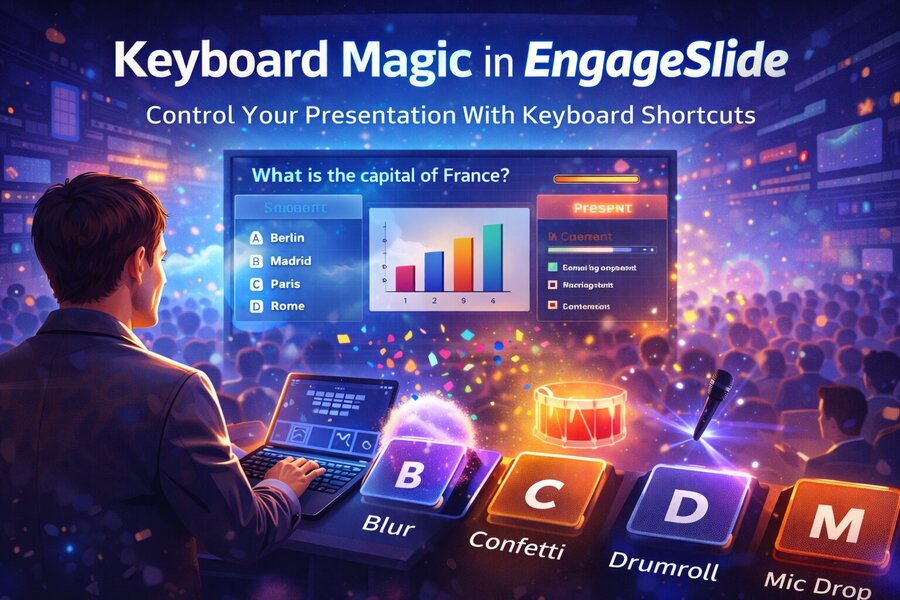
When you’re presenting live, small delays feel much bigger than they actually are. Moving your mouse to find a button, clicking around to trigger an effect, or searching for the right control might only take a few seconds — but those seconds interrupt your rhythm.
That’s why we built Keyboard Magic in EngageSlide.
It’s a simple idea: control key presentation actions using keyboard shortcuts instead of relying on the mouse. But in practice, it changes how presentations feel — both for the presenter and the audience.
What Is Keyboard Magic?
Keyboard Magic is a shortcut-based control panel available in present mode. When activated, it shows a compact overlay with instant actions you can trigger using single keys.
These include:
Blur (B) – temporarily hide the slide to focus attention on you
Quiet (Q) – reduce distractions instantly
Bubbles (O) – add a playful visual moment
Confetti (C) – celebrate a correct answer or milestone
Drumroll (D) – build suspense before revealing results
Curtain (U) – create a clean, dramatic transition
Mic Drop (M) – end a section with impact
Each action is tied to a specific key, so once you remember them, you don’t need to look at any menus.
Why Keyboard Shortcuts Matter During Live Presentations
Presenting is about momentum. When you stop to click around, even briefly, you break eye contact and shift your focus to the screen. Audiences notice that.
With keyboard shortcuts, you keep your attention forward. You stay engaged with the room. Everything feels smoother because transitions happen instantly.
It’s not about speed alone. It’s about confidence. When controls respond immediately, you feel more in command of the session.
Built for Interactive Presentations
EngageSlide is designed around interaction — live polls, quizzes, audience reactions, and real-time results. Keyboard Magic enhances those moments.
For example, after running a quiz question, you can press D for a drumroll before revealing the correct answer. If the room gets loud during discussion, a quick shortcut can bring focus back. When someone gets the right answer, a confetti effect adds a light, positive touch.
These small details make presentations feel dynamic without requiring complicated setup.
Practical Use Cases
In workshops, you can quickly switch between discussion and focus modes without navigating menus. In classrooms, teachers can reveal answers smoothly and keep students engaged. In corporate meetings, presenters can control transitions without interrupting their speaking flow. On stage, where timing matters even more, keyboard control reduces visible friction and makes the delivery look polished.
The key advantage is simplicity. There’s no need for extra hardware, no additional software, and no complicated configuration. Just press a key.
Designed to Be Subtle
Keyboard Magic isn’t meant to turn presentations into a light show. The goal is control, not distraction. Used thoughtfully, these shortcuts help manage attention, reinforce key moments, and maintain energy.
Because everything is triggered instantly, the audience doesn’t see the mechanics behind it. They just experience a smooth presentation.
A Small Feature With Real Impact
Many presentation tools focus heavily on design features. But once you’re in present mode, what matters most is control. Keyboard Magic focuses on that live moment — when you’re speaking, reacting, and adapting in real time.
It removes small points of friction that add up during a session. And when friction disappears, delivery improves.
If you regularly use interactive slides in EngageSlide, Keyboard Magic simply makes them easier — and more natural — to run.