
Most feedback surveys are sent too late. The session ends, people pack up, and a day later an email arrives with a link that almost nobody opens. The problem is rarely the questions. It is the timing, and the fact that the survey lives somewhere other than the session it is asking about. If you link the survey to your presentation, it shows up at the exact moment attendees are most willing to answer: the last slide, while they are still in the room with their phones in their hands.
This guide explains what a presentation-linked survey is, how to set one up in EngageSlide, and how to write and time it so you get honest, useful answers instead of a handful of polite fives.
What "linked to a presentation" actually means
In EngageSlide a survey can be standalone (a form you share by link or QR code, like any online form) or linked to a presentation. A linked survey is created from inside a specific deck and stays attached to it. That connection changes three things:
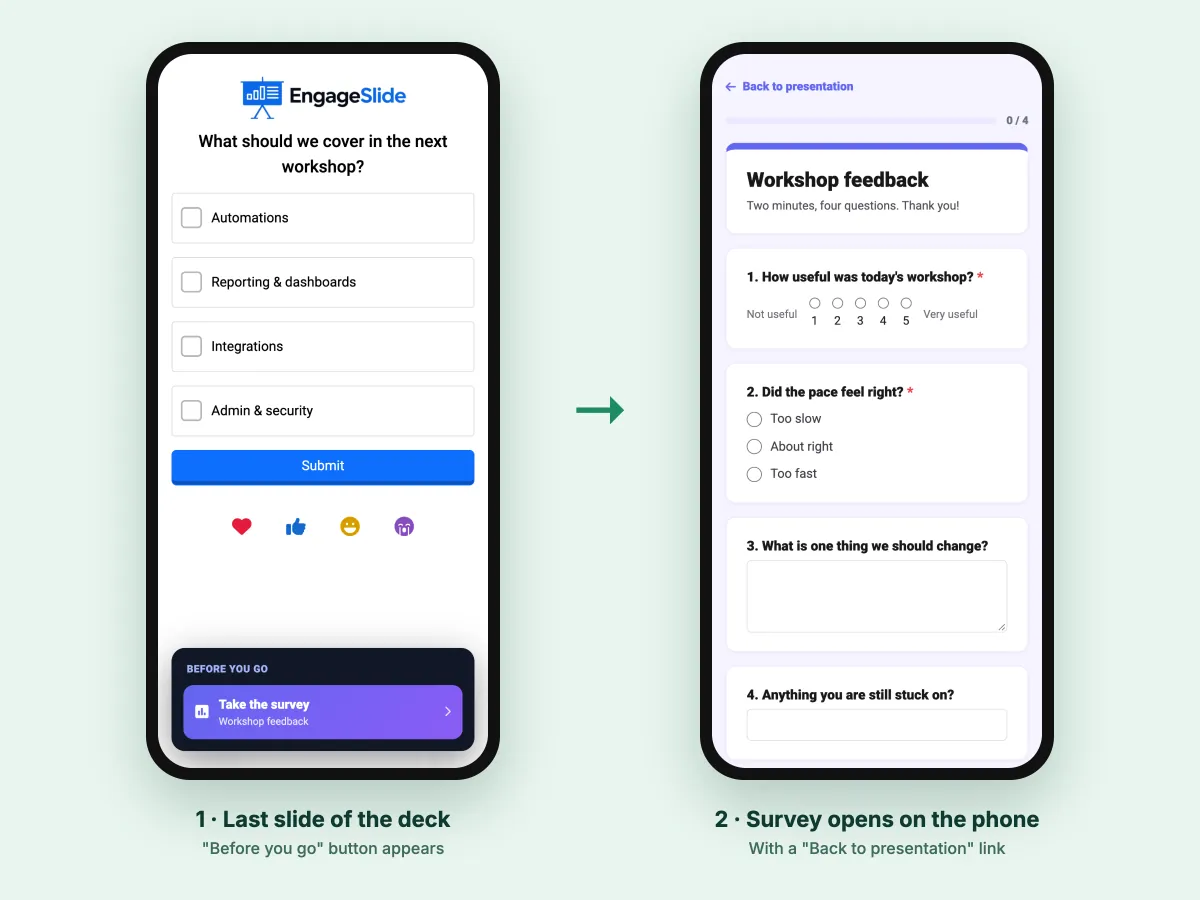
- Where people find it. When you turn on Show on last slide of your presentation, everyone who joined the session sees a "Before you go" card with a Take the survey button when you reach the final slide. The same survey is also listed in the audience menu on every slide, so latecomers and early leavers can still find it.
- Who answers. The link goes to the people who were actually in the session, not to a mailing list that includes people who never showed up.
- What you can see afterwards. The survey's Emails tab lists the audience who joined the original presentation — name, email and any extra fields you collected at join — and you can download that list as a CSV.
Attendees don't need a new code or a second QR scan. They are already connected to your presentation, so the survey is one tap away, and a Back to presentation link takes them straight back to the session when they finish.
Why the last slide beats the follow-up email
Feedback is a memory task. The longer you wait, the more people have forgotten what worked, what confused them and what they wished you had covered. Survey researchers have long known that response rates drop with every extra step you ask people to take, and a follow-up email adds several: open the inbox, find the message, click, remember the session, answer.
A survey on the last slide removes almost all of those steps. People are already holding their phones, they are already connected, and you can say out loud, "Please take two minutes before you go — I read every answer." That spoken ask, plus a live button on every screen, is usually the biggest difference between a survey a few people fill in and one most of the room completes.
A feedback survey is only as good as its timing. Put it where the audience already is — the last slide of your presentation — and ask for it before the room empties.
How to link a survey to your presentation in EngageSlide
The whole setup takes a few minutes. Do it while you build the deck, not the morning of the session.
1. Create the survey from your presentation
Open your presentation in the editor and click Survey in the header. This opens the list of surveys linked to that presentation. Click Create new survey. The builder shows a Linked to chip with your presentation's name, so you always know which session it belongs to.
2. Add a few focused questions
The EngageSlide survey maker supports nine question types: short answer, paragraph, multiple choice, checkboxes, dropdown, linear scale, file upload, date and time. For end-of-session feedback you rarely need more than three or four:
- One linear scale for the headline number, e.g. "How useful was today's session?" from 1 (Not useful) to 5 (Very useful).
- One multiple-choice question about something you can change, such as pace or level: "Too slow / About right / Too fast".
- One open paragraph question for the real insight: "What is one thing we should change?"
- Optionally, one short answer for follow-up needs: "Anything you're still stuck on?"
Mark only the scale and the multiple-choice question as Required. Forcing people to write a paragraph produces "n/a" and "good", not insight. For more question ideas, see our list of event feedback survey questions.
3. Turn on "Show on last slide"
Go to Share & settings and switch on Show on last slide of your presentation. From then on, when you move to the final slide during a live session, every connected participant sees the survey card on their phone. While you are here, consider:
- Show progress bar — reassures people the survey really is short.
- Confirmation message — replace the default with something human, like "Thanks — we read every answer and will share what we change."
- Collect email addresses — only if you plan to reply to people individually. For honest feedback, anonymous usually works better.
- Accepting responses — leave it on during and after the session, then switch it off when you stop collecting. A closed survey no longer shows on the last slide.
4. Plan the last slide itself
The survey card sits at the bottom of the audience's screen on your final slide, so that slide can still be interactive. A short poll such as "What should we cover next time?" works well: people vote, see the survey button right underneath and keep going. Avoid a last slide that needs a long answer, because then you are competing with your own survey.
5. Ask for it out loud, then give people time
When you reach the last slide, say what the survey is for and how long it takes, then pause. Two quiet minutes at the end of a session feels long to a speaker, but it is the reason the response rate is high.
Linked or standalone: which one should you use?
Both kinds use the same builder and the same question types. The difference is how the survey reaches people and what it is connected to.
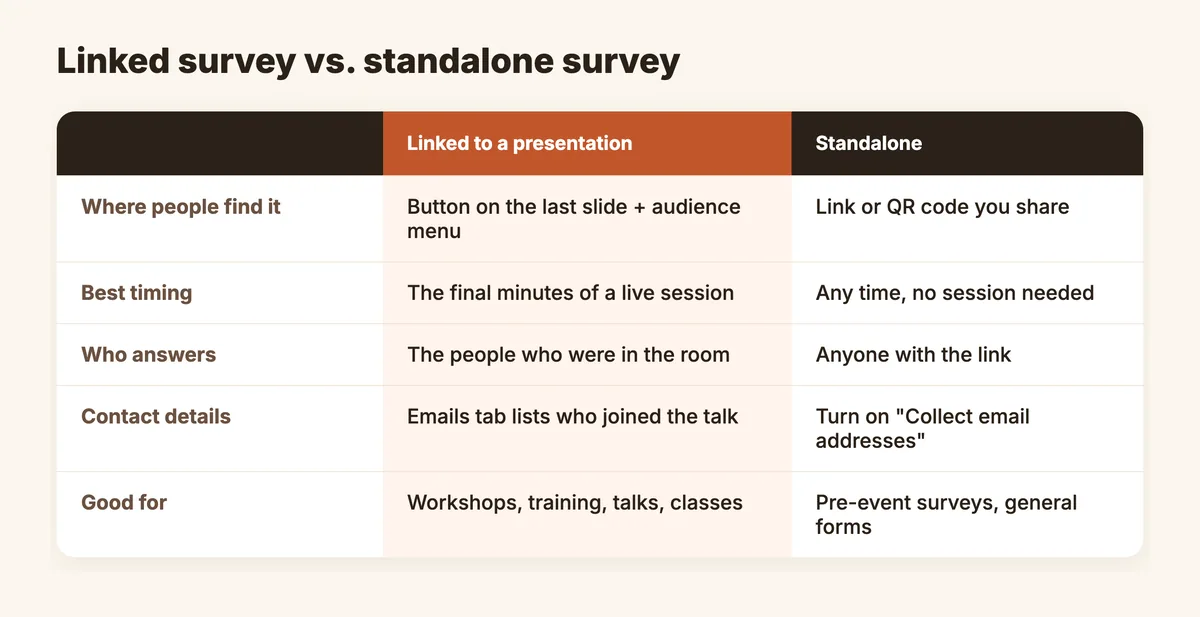
Use a linked survey whenever the feedback is about one specific session: a workshop, a training module, a class, a conference talk or an all-hands. Use a standalone survey for things that aren't tied to a live session, like a pre-event registration questionnaire or a quarterly pulse survey. You can also create standalone surveys from the global Surveys page and share them with a link or QR code.
Reading the results
Responses appear in the survey's Responses tab as they come in. The Summary view charts each question, so you can glance at the average usefulness score and the pace split while people are still leaving the room. The Individual view shows each submission in full, which is where the open answers live. When you want to analyse or archive the data, use Export CSV.
A few habits make the results far more useful:
- Read the open answers first. The score tells you whether something went wrong; the comments tell you what.
- Look for repeats, not outliers. One person saying "too fast" is a preference. Eight people saying it is a pattern.
- Close the loop. Start your next session with "Last time you told us…" and one thing you changed. People answer surveys much more willingly when they have seen that someone reads them.
Where a linked survey works especially well
- Training and onboarding. Measure usefulness and pace per module, and use the "still stuck on" answers to plan the next session.
- Conference and meetup talks. Speakers get feedback from the actual room instead of relying on the organiser's generic event survey.
- Customer workshops and demos. Pair the survey with the join form's information fields to see which accounts found the session valuable. Our guide to collecting leads during a presentation shows how to set that up.
For the bigger picture of designing a survey people actually finish, read how to build a post-event survey.
A quick checklist before your next session
- Create the survey from the presentation's Survey button so it is linked.
- Keep it to three or four questions; make only one or two required.
- Switch on Show on last slide and the progress bar, and write a friendly confirmation message.
- Make your final slide a quick poll, not a long task.
- Ask for the survey out loud and give the room two minutes.
- Read the open answers the same day, and tell the next audience what you changed.
Feedback doesn't have to be a chore you chase by email. When the survey is part of the presentation, it becomes the natural last step of the session — and you walk out with answers from the people who were actually there.