
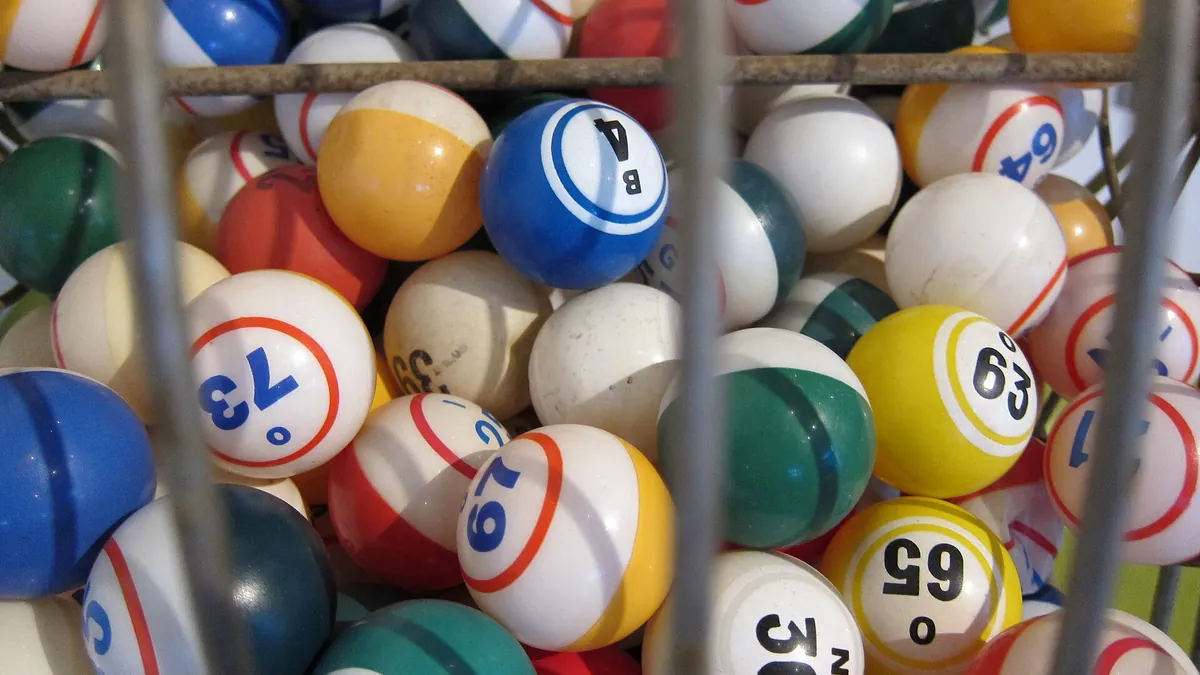
Bingo is one of the few games that everyone already knows how to play. Grandparents know it, eight-year-olds know it, and every office has someone who secretly plays buzzword bingo during long meetings. What has always made bingo hard to run with a group is the material: printed cards, a caller, someone checking the winning card. EngageSlide's Bingo slide removes all of that. Every player gets their own random card on their phone, a glass ball drum draws the calls on the big screen, and the screen checks every BINGO before it crowns a winner.
This guide covers how the game works, the three kinds of cards you can play, the settings worth knowing, and ideas for classes, meetings and events.
How live bingo works in EngageSlide
Add a Bingo slide, present it, and let people join with your code or QR code — no app or account needed. Before the game, the big screen shows the game name, the prize ladder, everyone who has joined and a sample card. Press START, then Draw (or Enter): the drum spins, a ball rolls down the chute and the call appears in a big card on the screen.
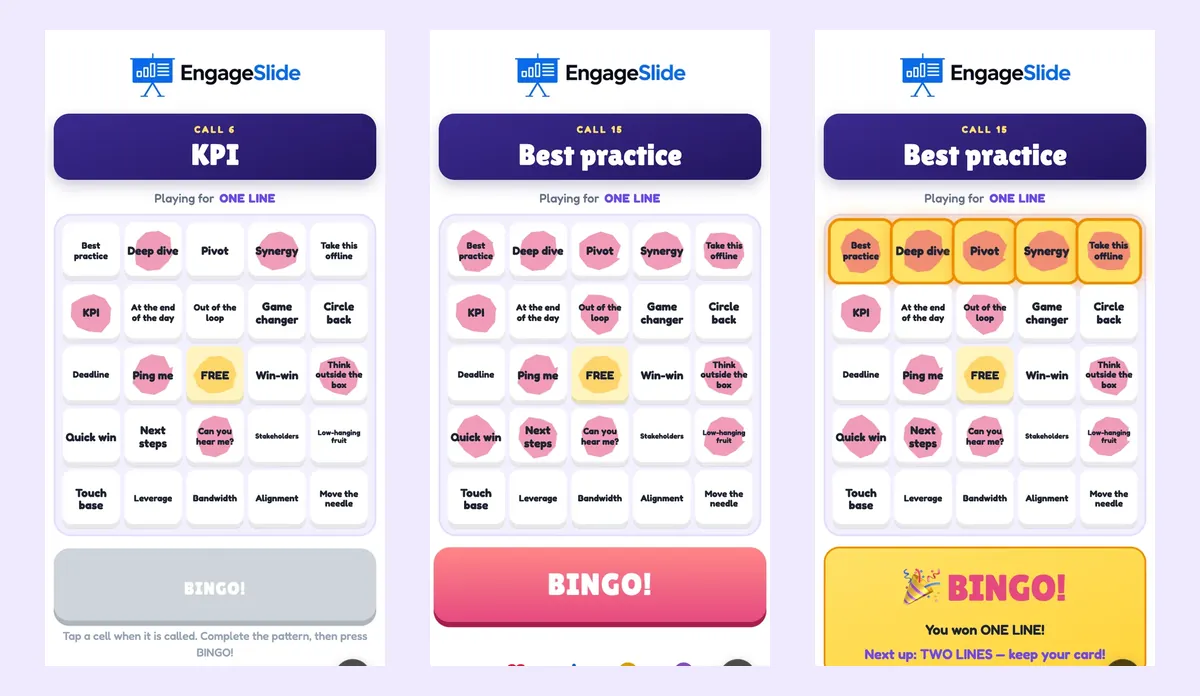
- Every player has a different card. Cards are dealt at random from your list, so nobody can copy a neighbour.
- Tap to daub. Players tap a cell on their phone to mark it. Only cells that have been called can be daubed — tap anything else and the phone says Not called yet!
- The BINGO! button lights up only when the daubed cells complete the pattern for the current prize. A One more for BINGO! tag appears when a player is a single call away.
- The big screen checks the card — Checking the card… — then puts the winner in the spotlight with their card and the winning line glowing.

The tension: "3 players need one more!"
The best moment in bingo is the wait for the last number. EngageSlide makes that visible: when players are one call away, a banner on the big screen says Ben needs one more! or 3 players need one more!. Every draw after that is a small drum roll for the whole room.
The prize ladder
One game can award several prizes with the same cards: One line, then Two lines, then a Full house. A line is any full row, column or diagonal, and the FREE space in the middle counts as daubed. After each win, press Play on to continue to the next prize. If two players press BINGO at almost the same moment, every valid BINGO within that moment shares the prize and they appear in the spotlight together — no arguments about who was first.
Three kinds of cards
1. Words
Type one word or short phrase per line. This is the format for buzzword bingo (the ready-made Meeting Bingo template has 30 buzzwords like Synergy, Deep dive and Circle back), people's names, product features or conference topics.
2. Numbers 1–75
The Classic Bingo template plays like a bingo hall: a 5×5 card with B-I-N-G-O columns, where each column has its own range — B 1–15, I 16–30, N 31–45, G 46–60, O 61–75. The board on the big screen shows a 1–75 grid with the latest number ringed.
3. Quiz bingo with clues
This is the format teachers love. Write each line as word | clue, for example Gravity | The force that pulls objects towards Earth. The big screen shows only the clue, and players have to find the matching word on their card. A wrong guess freezes the card for three seconds, so nobody can find the answer by tapping every cell. The Science Vocabulary template (22 words with definitions on a 4×4 card) shows how it works.
Set up a bingo game
- Add the slide. Click New Slide and choose Bingo from the Games tab.
- Start from a template: Meeting Bingo, Science Vocabulary, Classic Bingo or Your own words.
- Name the game. The name appears on the start screen, at the top of the big screen and on every phone.
- Choose the card content: Words or Numbers.
- Choose the card size: 3×3, 4×4 or 5×5. Odd sizes can have a FREE space in the middle (on by default).
- Check the word count. A card needs at least as many items as cells — 24 for 5×5 with a FREE space, 16 for 4×4. Add a few more than the minimum so the cards are more different from each other.
Settings worth knowing
- Drawing the calls. I press Draw (default) lets you set the pace — perfect when you want to talk about each call. Automatic draws a new call every 5, 8, 10, 15 or 20 seconds, and you can pause at any time.
- Prizes. One line; one line then full house (default); one line, two lines then full house; or full house only.
- Highlight called cells. Off by default, so players have to spot the called items themselves. Turn it on for young players: called cells glow until they are daubed.
With clues on the screen and answers on the card, bingo stops being luck and becomes retrieval practice — every call is a small question the whole room answers at once.
Ideas for your next bingo
- Language class: a word in the target language as the clue, the translation on the card.
- Science and history: definitions, dates or events as clues; terms and names on the card.
- Training recap: a short question as the clue ("What does KPI stand for?"), the answer on the card.
- Onboarding: team names, tools and office places — new starters learn them while they play.
- Meetings: run Meeting Bingo in the background and draw a call whenever someone says a buzzword. It is a light-hearted way to make a long review more fun — and to notice how much jargon you use.
- Conferences: topics and speakers of the day, daubed as they come up.
- Socials and fundraisers: Classic Bingo with numbers, or the names of everyone in the room.
Tips from the bingo hall
- Use a 4×4 card for short sessions. Lines come faster and a game fits in ten minutes.
- Talk about the calls. In quiz bingo, pause after a clue that most people missed and explain it.
- Announce prizes up front. Even a small prize for the full house keeps people playing after the first line is gone.
- Use Play again for a second round. Everyone gets a new card and the game starts over.
Frequently asked questions
Can players join late?
Yes. A late player gets a card straight away and can daub everything that has already been called.
What if I refresh the presenting window?
Everyone who joined shows up again straight away. If the slide is still open in another window — the editor or a second presenting window — the game carries on from the same call with everyone's cards and daubs.
Does bingo change quiz scores?
No. Bingo announces winners for each prize but leaves your quiz leaderboard untouched. For a game where every answer counts towards a team result, try Tug of War; for a quick race, the Zombie Race.
Bingo is one of the games in EngageSlide's interactive presentation tool, next to polls, quizzes, word clouds and Q&A. Every setting is explained in the Bingo guide in the Help Center, and you can try it on the Bingo slide page.
Cover photo: "Bingo balls in bingo drum" by elizaIO, Wikimedia Commons, licensed CC BY-SA 2.0.