
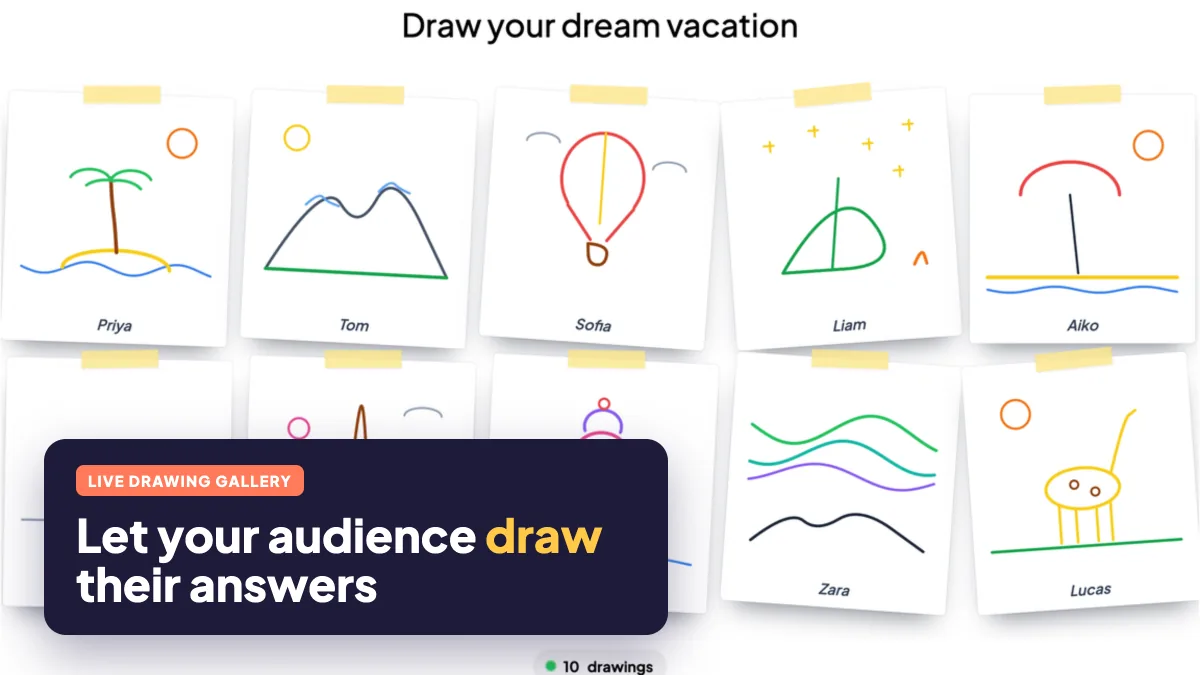
Most interactive presentations ask people to click or type. That works, but it also means the same confident few do most of the talking, and the answers all start to look alike. Ask a room to draw instead and something changes: people lean in, laugh at their own stick figures, and share ideas they would never have put into words. A live drawing activity is one of the quickest ways to wake up a quiet audience, and with EngageSlide's Draw slide it takes about a minute to set up.
This guide covers what a live drawing activity is, when it works best, how to run one in EngageSlide, and a set of prompts you can use tomorrow.
What is a live drawing activity?
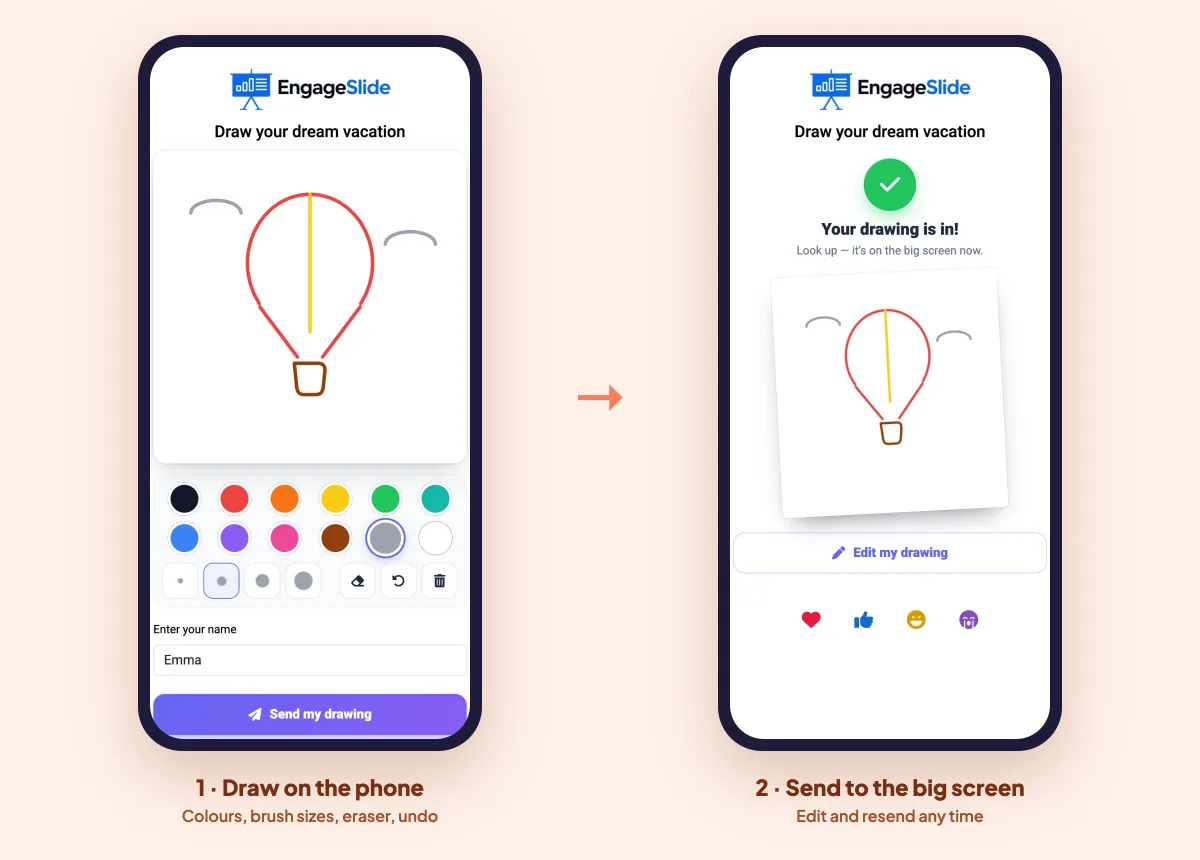
In a live drawing activity every participant sketches an answer to a prompt on their own phone and sends it to the shared screen. Unlike a whiteboard, where the whole room works on one canvas, each person gets their own blank page, so nobody draws over anyone else and quieter people don't have to fight for space.
In EngageSlide this is the Draw slide. Participants join with the usual code or QR code (no app, no account), draw with their finger, and tap Send my drawing. Each drawing pops into a live gallery on the big screen the moment it arrives.
Why drawing works so well with an audience
Drawing isn't just a gimmick. The picture superiority effect describes how people remember images better than words, and turning an idea into a picture yourself forces you to think about what it actually means. In a presentation you get three practical benefits:
- Everyone takes part at once. Twenty people can draw at the same time; they can't all speak at the same time.
- Low pressure, high honesty. Nobody expects a masterpiece, and a quick sketch often shows what people really think more clearly than a polished sentence.
- Instant energy. A wall of drawings appearing on screen gets a reaction from the room every time, which is exactly what you want at the start of a session or after lunch.
Words tell you what people think they should say. A 30-second drawing shows you what they actually picture.
How to run a drawing activity in EngageSlide
1. Add a Draw slide and write your prompt
In the editor, click + New Slide and choose Draw from the Interactive Questions group. The slide title is your prompt, so make it short and concrete, for example "Draw your dream vacation" or "Sketch how our onboarding feels today".
2. Pick the paper and pen colours
Under Settings, choose the paper people draw on: White, Cream, Dotted or Chalkboard. Then choose the pen palette: Vivid, Pastel or Black & white. Chalkboard with Black & white feels great in a classroom, while White with Vivid colours suits a team social.
3. Decide how many drawings each person can send
Drawings per person controls the flow. With 1, people can edit and resend and the new drawing replaces the old one, which keeps the gallery tidy. Choose 2, 3, 5 or Unlimited when you want lots of ideas, for example in a brainstorm.
4. Choose how the gallery looks
A Grid is clean and easy to scan. A Polaroid wall shows each drawing as a taped, slightly tilted photo, which feels warmer and more playful. Either way the gallery resizes itself as drawings arrive, so everything fits the screen without scrolling.
5. Collect names, set a timer, or build suspense
Turn on collect name if you want to show who drew what; leave it off for anonymous drawings. Add a time limit so people know when to finish. For a big reveal, switch on Hide drawings until I reveal: the screen shows a stack of face-down cards and a counter while people draw, then you click Reveal drawings and they all pop in at once.
6. Present, zoom in and replay
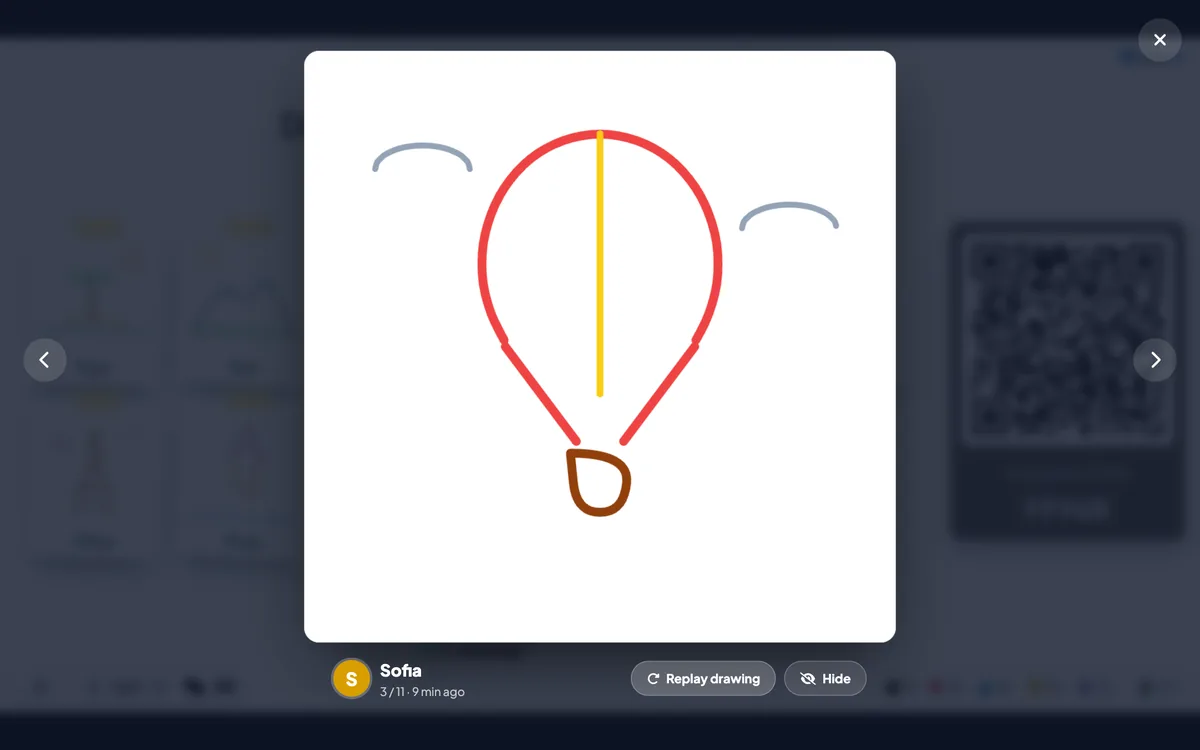
When you present, click any drawing to open it full screen. Use the arrow keys to move between drawings (they won't change your slide while a drawing is open), click Replay drawing to watch it being drawn stroke by stroke, or click Hide if something shouldn't be on screen.
12 prompts that get great drawings
The best prompts are specific enough to start drawing straight away, but open enough that everyone's answer is different.
Icebreakers and team socials
- Your dream vacation in one picture.
- Your weekend as a single drawing.
- Your job, explained to a five-year-old.
- Your energy level right now, as weather.
Workshops and brainstorming
- The customer's biggest problem, drawn as a scene.
- What success looks like in six months.
- Our process, as a road trip with bumps along the way.
- A new feature, as a rough sketch of the screen.
Classrooms and training
- Draw the water cycle (or any process you just taught).
- Draw a word from today's vocabulary without writing it.
- Draw a graph of how you think the experiment will turn out.
- Draw one thing you learned today.
Tips for running it smoothly
- Give people 60 to 90 seconds. Long enough to finish, short enough to keep the energy up. The time limit setting does this for you.
- Say "stick figures welcome". Lowering the bar out loud gets far more people drawing.
- Talk through a few drawings. Zoom in on three or four and ask the artist to explain. That's where the real conversation starts.
- Use replay for a laugh or a lesson. Watching how someone built a drawing is surprisingly entertaining, and in a classroom it shows how a student approached a diagram.
- Close the slide when you're done. Turn on Stop submission so late drawings don't pop in while you move on.
Draw vs. Draw & Guess vs. Whiteboard
EngageSlide has three drawing tools, and each fits a different moment:
- Draw gives everyone their own canvas and collects the results in a gallery. Best for icebreakers, creative prompts and checking understanding.
- Draw & Guess is a Pictionary-style game where one person draws and everyone else races to guess the word. Best for energy and competition. See our guide to running a live Draw & Guess game.
- Whiteboard is one shared board the room builds together. Best for clustering ideas. See how to brainstorm on a live whiteboard.
You can combine them in one session: open with a Draw icebreaker, brainstorm on the Whiteboard, and finish with a Draw & Guess round. All of them are part of the same interactive presentation tool, so the audience stays on the same join code the whole time.
Try it in your next session
A drawing activity takes a minute to set up and gives you a gallery your audience will remember. Pick one prompt from the list above, add a Draw slide, and watch the screen fill up. For more ideas, browse the rest of the EngageSlide blog.