
If you have ever watched an audience quietly nod along to a presentation with no way of knowing whether they actually agreed, understood, or even stayed awake, live polling is the fix. A live poll turns that silent, one-way moment into a real-time conversation: you ask a question on screen, everyone answers from their phone, and the results appear instantly for the whole room to see. This beginner's guide explains what live polling is, why it works, and exactly how to run your very first poll — no special equipment, no technical skills, and no awkward "raise your hand" moments required.
What is live polling?
Live polling (sometimes called an audience response system) is a way to collect answers from a group of people at the same moment and show the combined result live. Instead of physical clickers or a show of hands, modern tools use the devices everyone already carries. You display a question, people scan a QR code or open a join link, they tap their answer, and a bar chart fills up in real time.
The key word is real-time. A survey you email after an event tells you what people thought yesterday. A live poll tells you what the room thinks right now — while you can still act on it. That immediacy is what makes polling feel less like a form and more like a genuine back-and-forth with your audience.
Why live polling works
There is solid reasoning behind why polls hold attention. When people know a question is coming, they listen differently — they process the content instead of passively receiving it, which is the core idea behind active learning. A few practical reasons live polls are so effective:
- Everyone participates, not just the loud few. In any group, two or three confident people tend to answer out loud. A poll gives all 10, 100, or 1,000 people an equal, low-pressure way to contribute.
- Honesty goes up when it's anonymous. People will admit they're confused, or vote for the unpopular option, when no name is attached to their answer.
- It resets attention. A poll every 8–10 minutes breaks the monotony and pulls drifting minds back into the room.
- You get instant proof of understanding. If 60% pick the wrong answer, you know immediately to slow down and re-explain — before you move on.
A live poll is the difference between hoping your audience is with you and knowing it — measured in seconds, not surveys.
How a live poll works, step by step
The mechanics are simpler than most beginners expect. With a tool like EngageSlide's interactive presentation tool, running a poll takes four steps from start to finish.
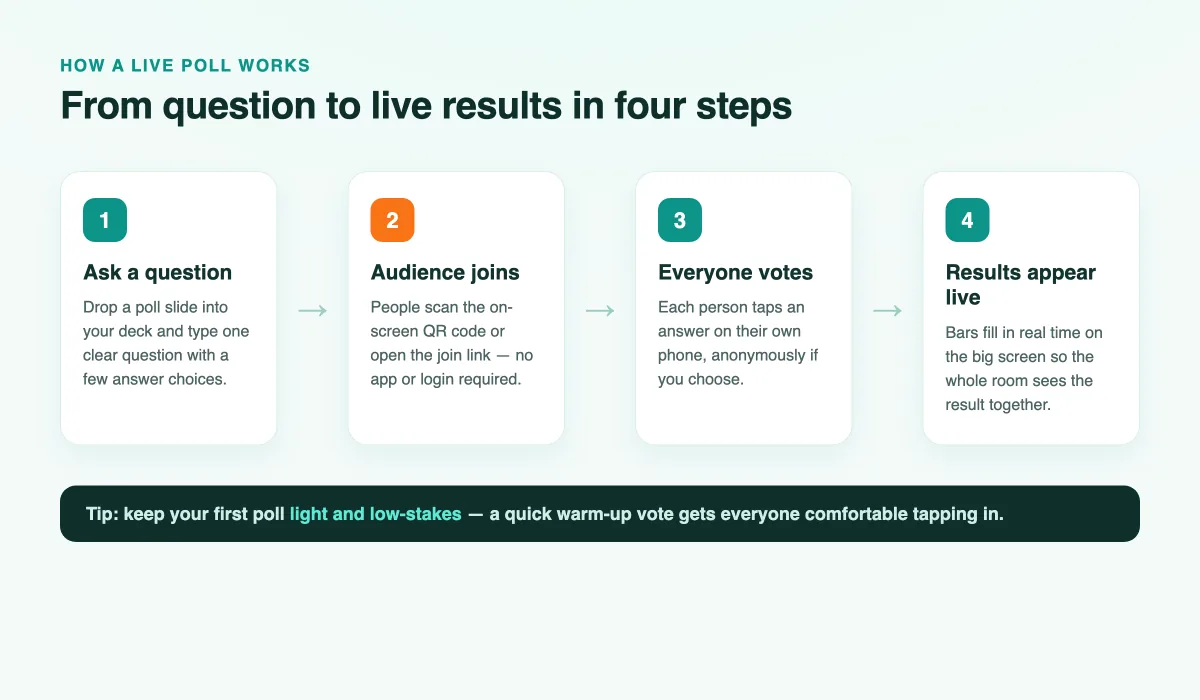
Here's what each step looks like in practice:
- Ask a question. Add a poll slide to your deck and type one clear question with a handful of answer choices. Multiple choice is the friendliest place to start.
- Let the audience join. EngageSlide shows a QR code and a short join link on screen. People scan it with their camera — no app to download and no account to create.
- Everyone votes. Each person taps their answer on their own phone. You decide whether responses are named or fully anonymous.
- Watch results appear live. The bar chart updates on the big screen as votes arrive, so the whole room discovers the answer together. That shared "oh, interesting" moment is the payoff.
When to use a live poll (and when not to)
Polling is versatile, but it shines in specific moments. As a beginner, reach for a poll when you want to:
- Break the ice. Open with a light, low-stakes question ("Coffee or tea?", "Where are you joining from?") to get everyone comfortable tapping in before the stakes rise.
- Gauge opinion. "Which of these three priorities matters most to your team?" surfaces the room's real position in seconds.
- Check understanding. A quick knowledge-check poll after a complex point tells you whether to move on or circle back.
- Make a decision together. Let the group vote between options so the outcome feels shared, not imposed.
Polls are less useful when a question needs a long, nuanced written answer — that's a job for open-ended questions, a word cloud, or a follow-up survey. The skill isn't polling everything; it's polling the right moments.
Your first poll: a 5-minute starter recipe
Ready to try it? Here is a foolproof first run:
- Create a presentation in EngageSlide and add a single poll slide.
- Type an easy warm-up question with 3–4 answer options.
- Turn on anonymous responses so no one feels exposed.
- In your session, display the slide and read the question out loud while pointing to the QR code.
- Give people 20–30 seconds, then read the live results and react: "Interesting — most of you said X. Here's why that matters…"
That last step — talking about the result — is what turns a poll from a gimmick into a conversation. Never let a result sit on screen in silence; always connect it back to your point.
Common beginner mistakes to avoid
- Too many options. Stick to 3–5 answers. A wall of ten choices splits the vote into meaningless slivers.
- Asking two things at once. "Was the session clear and useful?" is really two questions — keep each poll to a single idea.
- Forgetting to react. The magic is in your response to the data, not the data itself.
- Polling too often. One thoughtful poll every several minutes beats a poll on every slide, which quickly feels like homework.
Where to go from here
Once you're comfortable with basic multiple-choice polls, you can layer in richer formats — word clouds to capture a mood, ranking and rating questions for deeper insight, live Q&A so people can ask as well as answer, and quizzes with a leaderboard for a competitive edge. Each builds on the same simple loop you just learned: ask, join, vote, reveal. For a broader look at running polls in real sessions, see our guide to real-time engagement with live polling, and if you want to embed polls directly into your slides, read how to add live polls to any presentation in under 5 minutes.
Live polling has a genuinely tiny learning curve, and the payoff is immediate: a room that leans in instead of tuning out. Add one poll to your next talk, watch the bars fill in, and you'll never want to present to silence again. Browse more practical guides on the EngageSlide blog to keep leveling up.