
Some ideas are hard to put into words. A new onboarding flow, a store layout, a customer journey, the shape of a product screen — people explain these much faster with a quick sketch than with a paragraph. That’s why the best workshops still end up around a whiteboard. The problem is that a physical whiteboard only works for the five people standing closest to it, and a shared online board with thirty cursors often turns into chaos.
A live whiteboard inside your presentation fixes both problems. Everyone sketches on their own phone, the host collects and organises the drawings on the big screen, and the group decides together. This guide shows how to run a whiteboard brainstorm in EngageSlide, step by step, with prompts and facilitation tips you can use in your next meeting, class or workshop.
Why sketching beats talking in a brainstorm
Classic spoken brainstorming has a well-known weakness: only one person can talk at a time. While one person explains an idea, everyone else waits, forgets their own thought or quietly drops it. The loudest voices set the direction, and quieter people rarely get heard.
Sketching removes most of this friction:
- Everyone works at once. Thirty people drawing for five minutes produce thirty ideas, not the six that fit into a spoken round.
- Pictures carry more detail. A rough box-and-arrow drawing shows order, layout and relationships that take minutes to describe.
- Drawing lowers the pressure. Stick figures are supposed to be rough. Nobody expects art, so people share ideas they would not say out loud.
- Visuals are easier to compare. When all sketches sit side by side, patterns jump out quickly.
If your group prefers words over pictures, a live word cloud brainstorm works on the same principle — everyone contributes at the same time. Use the whiteboard when the idea has a shape.
How the whiteboard slide works in EngageSlide
The Whiteboard is one of the slide types in the EngageSlide interactive presentation tool. It has two parts:
- The host board. On the big screen you get a full whiteboard with shapes, arrows, lines, free drawing, text, images and an eraser. You can draw on it live while you talk, just like a real whiteboard.
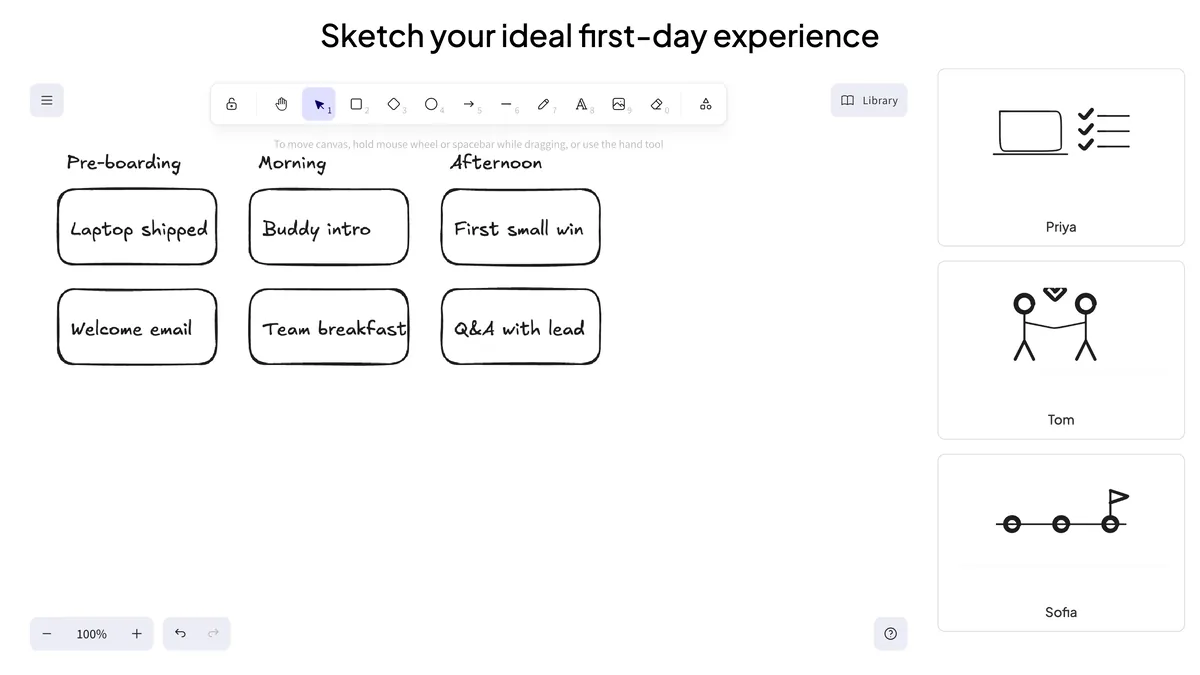
- Audience drawing. Turn on Enable Audience draw in the slide settings and every participant gets their own drawing canvas on their phone. When they tap Submit, their sketch appears in a panel next to your board with their name.
You can click any submission to open it full size, collect names (and emails, if you need them), add a countdown timer so the drawing round has a clear end, and stop submissions when you are ready to move on.
Step by step: a 25-minute whiteboard brainstorm
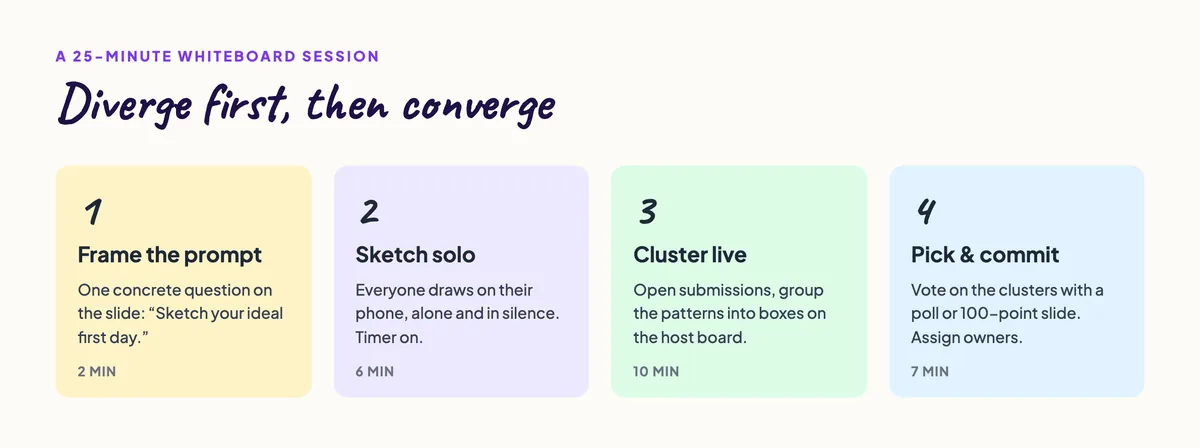
The structure that works best is simple: diverge first, then converge. Collect many ideas independently, then organise and decide together.
1. Frame the prompt (2 minutes)
Add a Whiteboard slide and write a single, concrete question as the slide title. “Ideas for onboarding?” is too vague. “Sketch your ideal first day for a new hire” gives people something to draw. Show a quick example on the host board — one rough sketch — so everyone understands the level of effort you expect.
2. Sketch solo (5–7 minutes)
Turn on audience drawing and start the countdown timer. Ask for silence and independent work: this is the most important rule of the whole session. When people see other people’s ideas too early, they copy them, and you lose variety. Remind the room that stick figures and boxes are perfect.
3. Cluster live (8–10 minutes)
Stop submissions and open the sketches one by one. As you review them, capture the recurring themes on the host board — draw a box for each theme and write a short label. In our example, the themes “Pre-boarding”, “Morning” and “Afternoon” each collect two concrete ideas from the sketches. This is essentially building an affinity diagram live, in front of the group.
Invite the author to explain a sketch in one sentence when it isn’t obvious. Keep it short — the goal is to understand, not to debate yet.
4. Pick and commit (5–7 minutes)
Now converge. Add a poll with your clusters as options, or use a 100-point slide so people can spread points across the ideas they care about most. Finish by assigning an owner and a next step to the top one or two ideas. A brainstorm without a decision is just a nice conversation.
Diverge alone, converge together. The whiteboard collects everyone’s ideas at the same time; the host board and a quick vote turn them into a decision.
Prompts that work well on a whiteboard
The best whiteboard prompts ask for something with a shape, a sequence or a layout:
- Product and UX: “Sketch the home screen you wish our app had.” “Draw the checkout in three screens.”
- Process and operations: “Draw how a support ticket moves through the team today.” “Map the steps from order to delivery.”
- People and culture: “Sketch your ideal first day.” “Draw what a great team meeting looks like.”
- Teaching: “Draw the water cycle from memory.” “Sketch the forces acting on the bridge.”
- Strategy: “Draw where our product sits compared to two competitors.” “Sketch our customer’s week.”
Facilitation tips for better sketches
- Show a bad example first. Draw something deliberately rough on the host board. It gives everyone permission to be imperfect.
- Use a timer every time. An open-ended drawing round drags. Five or six minutes is usually enough.
- Ask for their best idea. Each person has one submission per slide, and submitting again replaces the earlier sketch — so ask people to pick the idea they believe in most.
- Name, don’t judge. While clustering, describe what you see (“three of you drew a buddy system”) rather than rating ideas.
- Keep the board visible. Leave the clustered host board on screen during the vote so people remember what each option means.
Using the whiteboard in classrooms and training
Teachers can use the same flow for quick visual checks. Ask the class to draw a diagram from memory, then review a few submissions together to spot misconceptions. Because each drawing comes with a name, you see at a glance who understood the concept and who needs help — something a show of hands never tells you.
Trainers can use it as an activity between content blocks: sketch a process, compare drawings, then discuss the differences. It is a fast way to make a session active instead of passive.
Remote and hybrid teams
The whiteboard works the same whether people are in the room or on a video call. Remote participants join with the code or QR on their own device, draw on their phone or laptop, and their submission lands next to everyone else’s. Nobody needs to fight for control of a shared screen, and nobody needs a separate whiteboard account.
If you have used a whiteboard mainly as a presenter tool, our overview of the interactive whiteboard for presentations covers that side in more detail. This guide is about turning it into a collaborative brainstorm.
Your next brainstorm, in one list
- Add a Whiteboard slide with one concrete, drawable prompt.
- Enable audience drawing and set a countdown timer.
- Let everyone sketch alone and in silence.
- Review submissions and cluster the themes on the host board.
- Vote with a poll or 100-point slide and assign owners.
Give it a try in your next meeting — it takes about 25 minutes and usually produces more ideas than an hour of discussion. For more workshop and engagement ideas, explore the EngageSlide blog.