
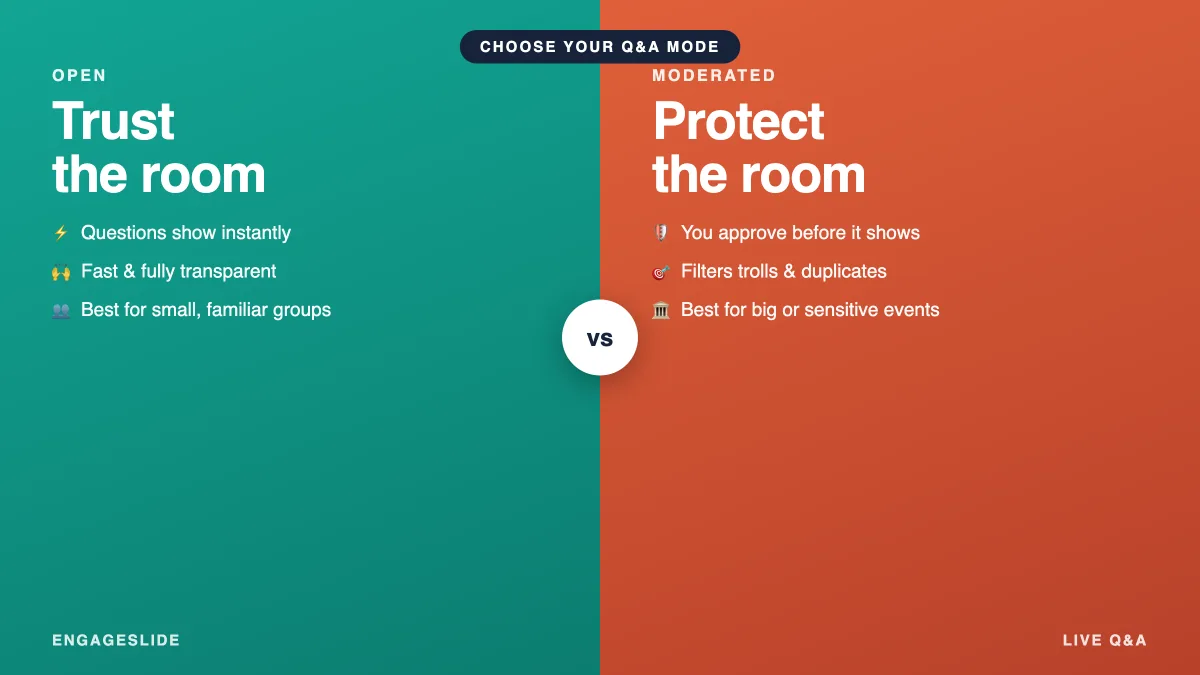
Before you open the floor to questions, you face one quiet but important decision: should every question go straight onto the screen, or should you approve them first? That's the choice between an open Q&A and a moderated one, and it shapes the entire feel of your session. Get it right and questions flow naturally to the people who need answers; get it wrong and you either drown in noise or kill the spontaneity that makes live Q&A worth doing. This guide breaks down both modes, when each one wins, and how to switch between them in EngageSlide.
What the two modes actually mean
In an open Q&A, every question your audience submits appears on the board immediately. There's no gatekeeper. It's fast, spontaneous, and completely transparent — what people ask is what everyone sees.
In a moderated Q&A, incoming questions land in a private queue first. You (or a co-host) review each one and choose whether to show it, park it, or skip it. Nothing reaches the big screen without your approval. It's slower by a beat, but you control exactly what the room sees.
Open Q&A trusts the room; moderated Q&A protects it. The best facilitators know which their event needs.
When open Q&A wins
Open mode shines when trust is already high and speed matters:
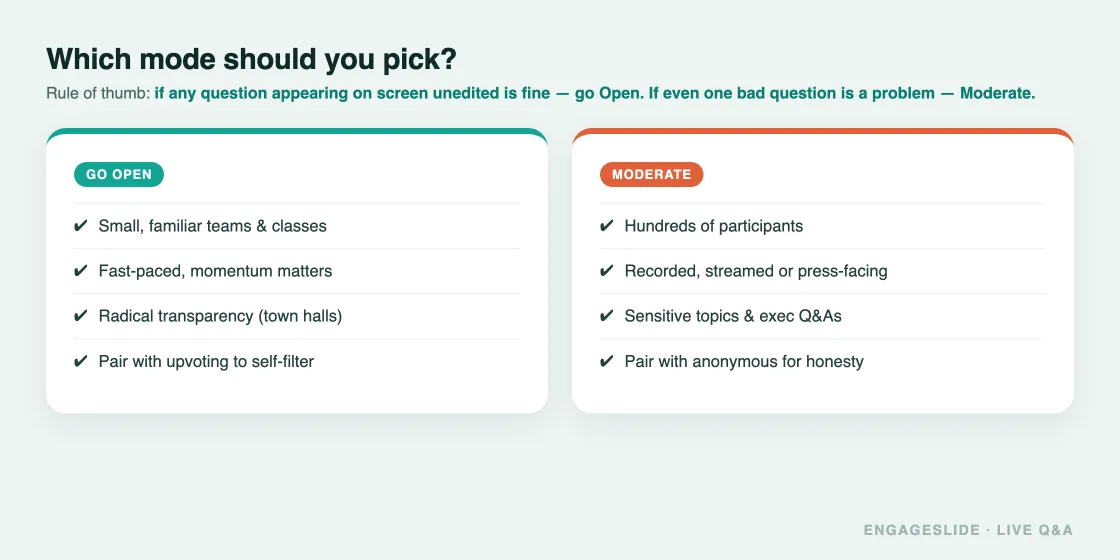
- Small, familiar groups. Team meetings, workshops, and classes where everyone knows each other and bad-faith questions are unlikely.
- Fast-paced sessions. When you want momentum and can't afford a moderator adding latency between question and screen.
- Maximum transparency. Town halls where visibly showing every question — unfiltered — is itself the point and builds credibility.
The trade-off: with no filter, you may get duplicates, off-topic detours, or the occasional troll. Pairing open mode with upvoting mitigates most of this, because the crowd naturally pushes the best questions up and lets weak ones sink.
When moderated Q&A wins
Moderation earns its extra step whenever the stakes, the size, or the sensitivity rise:
- Large audiences. Conferences and webinars with hundreds of participants, where an unfiltered feed becomes unreadable.
- High-stakes or public events. Anything recorded, streamed, or press-facing, where a single inappropriate question on screen is a real risk.
- Sensitive topics. Layoffs, policy changes, or controversial subjects where you want honest questions but need to manage tone and duplicates.
- Executive Q&As. When a leader's time is limited and every question shown needs to count.
The trade-off: moderation adds a small delay and requires someone watching the queue. For big events, assign a dedicated co-host to moderate so you can focus on answering.
How to set it up in EngageSlide
EngageSlide lets you run either mode — and switch mid-session — from the same interactive presentation that holds your polls and quizzes.
Open mode (default)
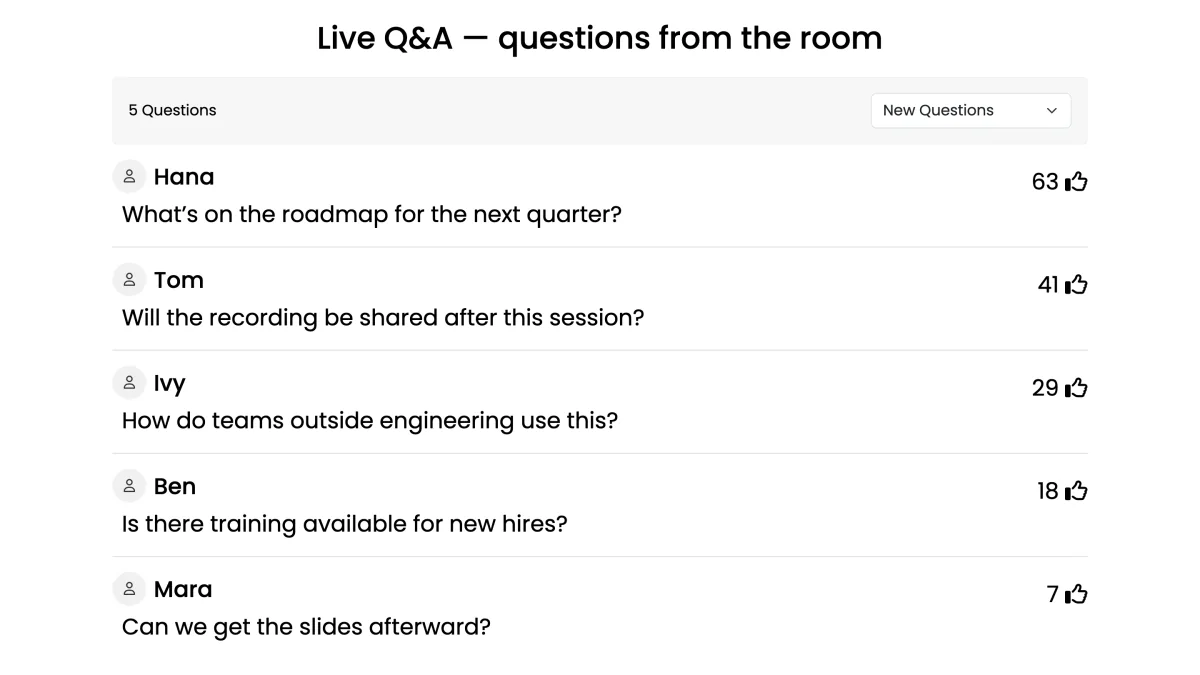
Add a Q&A slide and share the join code or QR. Questions your audience types appear on the board right away, sorted by upvotes so the most-wanted rise to the top. You answer from the top down, tap to highlight, and mark each as done. Nothing else to configure.
Moderated mode
Turn on moderation in the Q&A settings. Now every submission waits in your queue until you approve it. You'll see pending questions privately, approve the good ones onto the screen, and quietly leave duplicates or abuse unapproved. This is also your best tool for handling tricky moments — see our guide to handling difficult questions in a live Q&A. Combine moderation with anonymous questions and you get the honesty of anonymity with the safety of a filter.
The hybrid approach: start open, moderate when needed
You don't have to pick once and live with it. A practical pattern for many events:
- Open the early part. Let questions flow freely while the group warms up and the stakes are low.
- Switch to moderated for the sensitive segment. When you hit the executive update or the touchy topic, turn moderation on so you can manage what's shown.
- Lean on upvoting throughout. In either mode, votes do half the prioritization for you, surfacing what the room cares about most.
This flexibility is exactly why deciding your default ahead of time — and knowing you can flip it — matters more than treating it as a permanent setting.
A quick decision guide
Not sure which to choose? Use this rule of thumb: if you'd be comfortable with any question in the room appearing on screen unedited, go open. If even one bad question would be a problem, moderate. Small internal meeting? Open. Recorded webinar with 400 strangers? Moderated. Company all-hands on a sensitive quarter? Moderated with anonymous on. For the full walkthrough of running the session start to finish, see our complete guide to running a live Q&A session.
Choose the mode, then focus on the answers
The moderated-versus-open decision isn't about which is better — it's about matching the setup to your room. Open mode rewards trust and speed; moderated mode rewards control and safety. EngageSlide gives you both, plus upvoting and anonymity to layer on top, so once you've picked your mode you can stop worrying about logistics and put your energy where it belongs: giving great answers. Set up your Q&A slide, choose your default, and open the floor with confidence.