
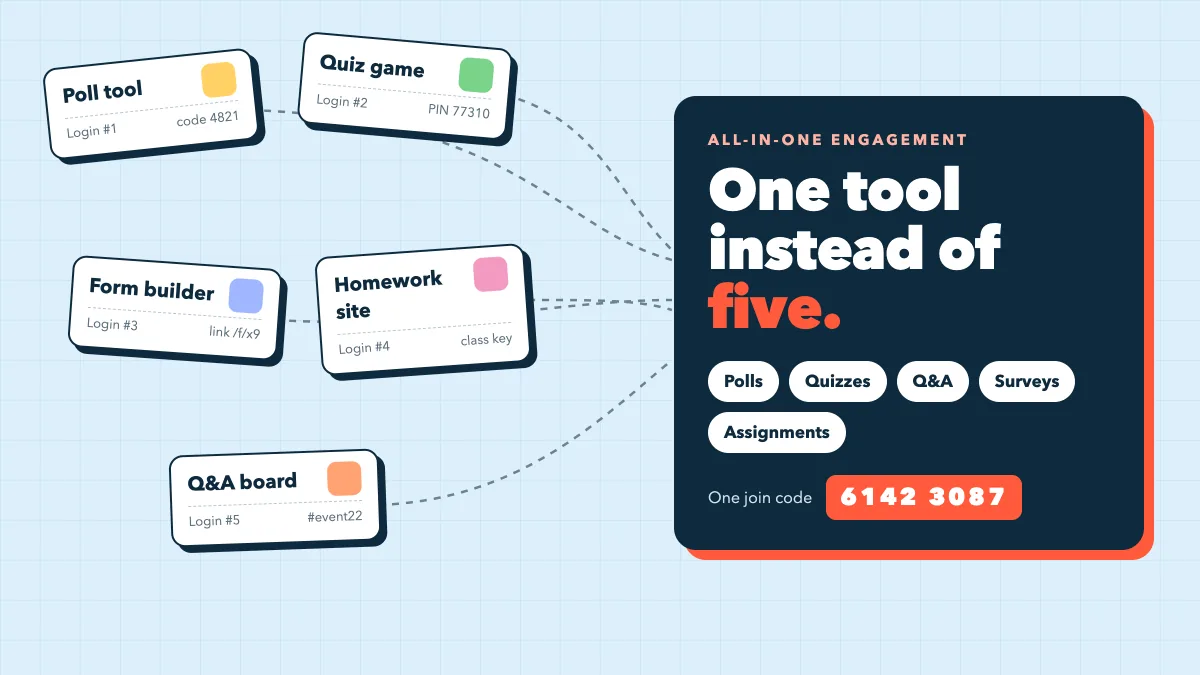
Look at the browser tabs of anyone who runs training, classes or events and you will usually find the same stack: a poll tool for the warm-up, a quiz game for the knowledge check, a form builder for feedback, a homework platform for follow-up work, and a separate Q&A board for questions. Each one does its job, but together they mean five logins, five join steps and five places your results end up. This guide is about the alternative, an all-in-one audience engagement tool that covers all five jobs from one presentation, and how to move to one without disrupting your next session.
The hidden cost of a five-tool stack
Nobody plans a five-tool stack; it grows one problem at a time. The costs show up on the day of the session:
- Five join steps for your audience. Every new tool means a new link, code or PIN. Each switch loses a few people to their email.
- Context switching on stage. Leaving your slides to share another window breaks your flow and the room's attention. Research on task switching shows that every switch carries a cost in time and focus, and that applies to presenters as much as to anyone.
- Results scattered across dashboards. Poll answers in one tool, quiz scores in another, feedback in a spreadsheet, homework grades somewhere else. Answering a simple question like "who struggled with module 2?" means exporting and matching lists by hand.
- Five learning curves and five sets of limits. Each tool has its own editor, its own settings and its own free-plan ceiling, and you hit a different one in every session.
What "all-in-one" should actually mean
Before you consolidate, test any candidate against five practical questions:
- One join code. Can the audience join once and stay connected for every poll, quiz, Q&A and game in the session?
- Live and self-paced in one place. Can it run things during the session and also collect work afterwards, such as surveys and graded assignments?
- Your slides stay central. Does it work with the deck you already have, or does it force you to rebuild it?
- One place for results. Can you see who joined, what they answered and how they scored without stitching exports together?
- No feature walls on the basics. Are the core activity types available to everyone, rather than spread across paid tiers?
If you are still comparing options, our roundup of the best free interactive presentation tools and their limits covers the free plans side by side. The rest of this guide shows how the five jobs map onto a single presentation in EngageSlide.
How the five jobs fit into one EngageSlide presentation

In EngageSlide, everything starts from a presentation. Interactive activities are slides, and surveys and assignments are linked to the same presentation from the editor's top bar. The audience joins once, by QR code or join code, with no app and no account.
1. Live polls and open questions
The poll tool's job is covered by Poll, Word Cloud, Open Ended, Scale and Ranking slides, plus decision formats like 2x2 Grid and 100 Points. Results build live on the big screen as people answer from their phones.
2. Quizzes and games with a leaderboard
The quiz game's job is covered by quiz slides such as Select Answer, True or False, Type Answer, Match Pair, Fill in the Blank and Estimate. They award points that roll up into a Leaderboard slide. For energy breaks there is a separate Games group, including Duck Race, Tug of War, Spinner Wheel and Bingo, all running on the same join code.
3. Live Q&A
The Q&A board's job is covered by the Q&A slide: participants submit questions from their phones, can ask anonymously, and upvote the questions they want answered, so you can take the most popular first.
4. Surveys
The form builder's job is covered by EngageSlide Surveys, a Google Forms-style builder with nine field types: short answer, paragraph, multiple choice, checkboxes, dropdown, linear scale, file upload, date and time. You can also collect email addresses. A survey can stand alone with its own link and QR code, or be linked to your presentation with Show on last slide, so the live audience sees a button to open it as the session ends. Responses appear as automatic charts, with Summary and Individual views and a CSV export.
5. Graded assignments
The homework platform's job is covered by EngageSlide Assignments. You can build questions yourself or upload a photo, PDF or Word file of an exam and let AI draft them, answer key included. Multiple choice, checkboxes, short answer, numeric (with a tolerance) and math expression questions are graded automatically; essays and file uploads go to a needs-grading queue. You set time limits and attempts, and choose when students see correct answers and explanations. During a live session, Open assignment pushes it straight to the devices of everyone in the room.
And the deck itself? You can build slides in EngageSlide, import a PPT or PDF, or keep presenting from PowerPoint or Google Slides through the add-ins. You don't have to give up the slides you already have.
One session, start to finish
Here is how a 60-minute training session runs on one tool instead of five, all from a single presentation:
- Join (minute 0). The first slide shows the QR code and join code. Everyone joins once.
- Warm-up (minutes 1–5). A Word Cloud asks, "One word for how onboarding felt for you."
- Content plus pulse checks (minutes 5–30). Your normal slides, with a Poll or Scale slide after each section to check where people are.
- Knowledge check (minutes 30–40). Five quiz questions with points, then a Leaderboard slide to crown the top three.
- Questions (minutes 40–50). Open the Q&A slide, which has been collecting upvoted questions all session, and answer the top ones.
- Practice (minutes 50–55). Open a short graded assignment on everyone's phone, or leave it open with a due date as follow-up work.
- Feedback (minutes 55–60). The linked survey appears on the last slide, so people give feedback while the session is still fresh.
Nobody switched apps or typed a second code. For a deeper look at that last step, see how to link a survey to your presentation. For teachers, the same pattern works in reverse: assign the work before class and discuss it live.
One place for the results
Consolidation pays off most after the session. Each presentation has a report showing total participants, peak online, submissions, reactions and feedback, with a results chart for every slide. The Participants tab shows each person's activity history across the session.
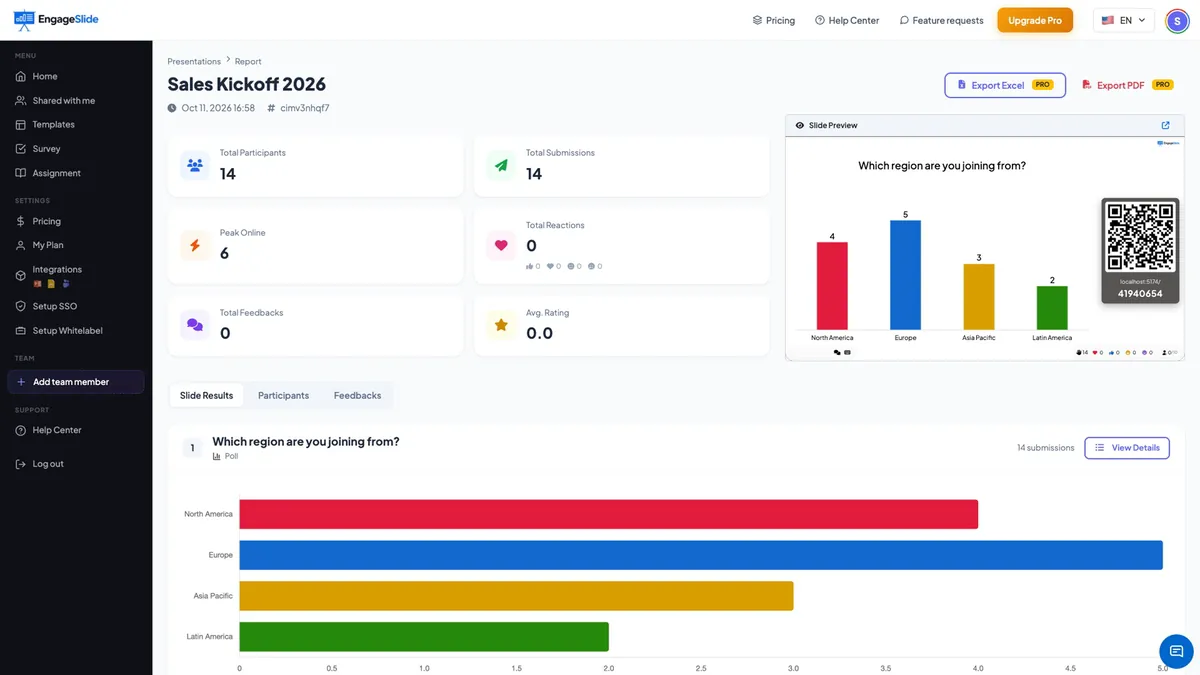
Survey responses live in the survey's Summary and Individual views, and assignment submissions fill a live gradebook with a score distribution and the most-missed questions. Both export to CSV, and on Pro plans the presentation report can be exported to Excel or PDF. They are separate views, but in one account and attached to one presentation.
The real cost of a five-tool stack isn't the subscriptions. It's the audience you lose at every new join code and the results you never manage to piece together. One join code, one presentation and one report fix both.
How to consolidate without disrupting your next session
You don't need a big migration. Move one recurring session at a time:
- Audit your stack. List every tool you open in a typical session and the one job it does there. Most people find three to five.
- Rebuild one session first. Pick a session you run often, import its slides, and replace each outside tool with the matching slide, survey or assignment.
- Test, then run it. Join from a second phone to check the flow, then compare participation with last time.
- Move your recurring formats. Turn the weekly quiz, the standard feedback form and the regular homework set into reusable copies you can duplicate.
- Check your audience size. The free plan includes every slide type and integration for up to 10 live participants. For bigger rooms, compare the plans on the pricing page.
What one tool won't replace
An engagement tool works alongside your video platform: you still run the call in Zoom or Microsoft Teams, and EngageSlide handles the interaction on top. If your school or company keeps grades in an LMS as the official record, keep doing that and use the assignment CSV export to bring scores in. The goal isn't one tool for everything. It's one tool for everything your audience does during and after a session.
If your tabs look like the stack at the top of this article, start with one session. Build it as an interactive presentation in EngageSlide with polls, a quiz, Q&A, a linked survey and a short assignment. For more formats and ideas, browse the EngageSlide blog.