
Most lectures and training sessions run on a hopeful assumption: if the explanation was clear, people understood it. Then the test comes back and a third of the room still believes the misconception you spent ten minutes taking apart. In the 1990s, Harvard physics professor Eric Mazur found exactly that in his own classes and changed how he taught. His method, Peer Instruction, is simple: ask a conceptual question, let everyone vote alone, have them convince a neighbour who answered differently, then vote again. The second vote is almost always far more accurate than the first — and the students did the teaching.
EngageSlide's Vote · Discuss · Revote slide turns that whole routine into one slide you can run in any classroom, lecture hall or meeting. This guide explains how it works, how to write questions that spark a real argument, and how to read what the room tells you.
The three steps on one slide

Add a Vote · Discuss · Revote slide from the Quizzes tab, write a multiple-choice question with 2–6 answers, tick the right one, and present. People join with your code or QR code on their phones. When you press Start Game, the slide walks the room through three steps.
1. Vote alone — no points
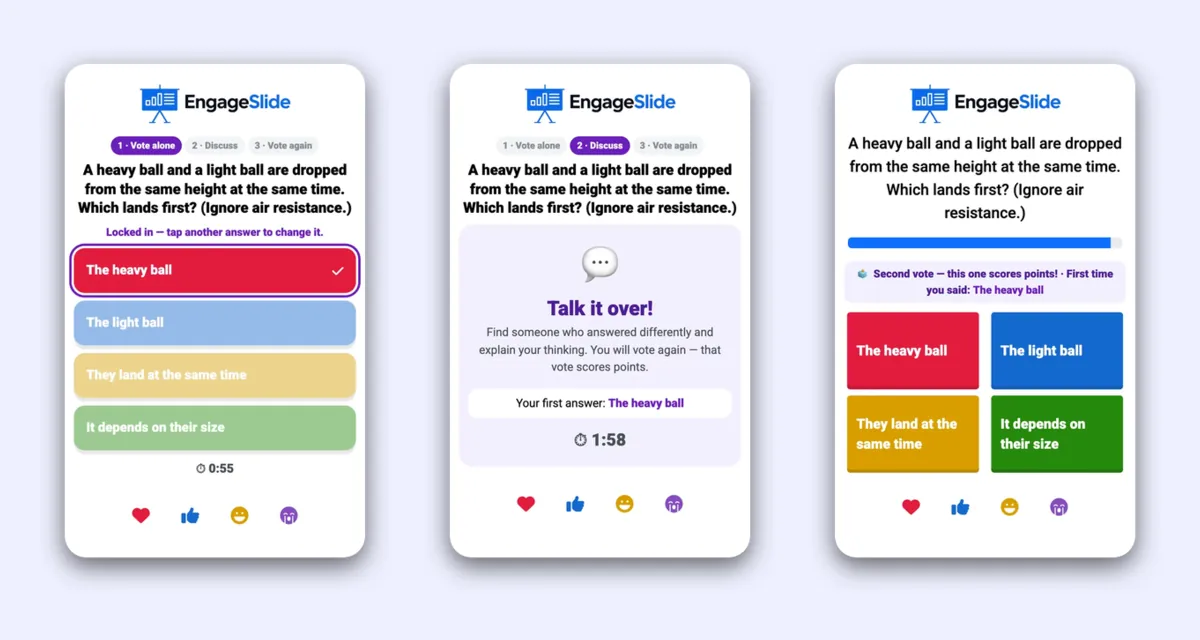
Every phone shows 1 · Vote alone with the question and the answers, plus a reminder that this first vote gives no points. People can change their mind until the vote closes. The big screen shows the question and a countdown with the number of votes — but no counts and no right answer, so nobody follows the crowd.
2. Discuss — find someone who disagrees
Press Close vote & discuss (or let the timer run out). The big screen says Find someone who answered differently — and convince them! and, if you want, shows how the first vote split, still without revealing the right answer. Each phone says Talk it over! and reminds the player what they voted. A visible split is what gets people talking: when the room sees that 40% chose one answer and 35% another, everyone wants to know who is right.
3. Revote — this one scores
Press Vote again. Now it is a normal quiz question: faster right answers score more points, and the points go to the Leaderboard. Each phone carries a banner — Second vote — this one scores points! First time you said: … — so people commit to their new thinking.
The moment everyone remembers: before → after
At the reveal, the chart shows the second vote with the right answer, and a Before → after discussion panel shows what happened in the room: the share of right answers before and after the discussion (for example 21% → 84%), how each answer gained or lost votes, and how many people changed their mind — and to the right answer. Every phone shows the player's own story too: You changed your mind: The heavy ball → They land at the same time.
A jump from 21% to 84% is not you explaining better. It is the room explaining to itself — and people remember what they argued for.
Reading the first vote: Mazur's rule of thumb
During the discussion, tap 💡 Teacher tip to see a recommendation based on the first vote. It follows the rule of thumb from Peer Instruction research:
- Under 35% right: most of the room is missing the idea. Re-explain briefly, then let them vote again.
- 35–80% right: the sweet spot. Enough people know the answer to convince the others — let the discussion run.
- Over 80% right: almost everyone has it. Explain quickly and move on.
The tip only appears when you tap it, so the room never sees it on the big screen.
Writing questions that start an argument
The method lives or dies on the question. Mazur called them ConcepTests: questions that test understanding rather than recall, with wrong answers that match the mistakes people really make. A few guidelines:
- Build around a misconception. The classic example comes ready on every new slide: A heavy ball and a light ball are dropped from the same height at the same time. Which lands first? Most people's gut says the heavy one.
- Make every wrong answer tempting. If one option is obviously silly, it does not create a discussion.
- Keep it short. The question should fit on the big screen and be answerable in under a minute of thought.
- Aim for 35–70% right on the first vote. If nearly everyone is right, skip the discussion; if nearly everyone is wrong, explain first and use the method on the next question.
Some proven ideas: Is 0.999… equal to 1? · Which is bigger: 0.25 or 0.205? · Where does most of a tree's mass come from? (the air) · in training, Which of these emails is phishing? or Which step comes first in our process?
The settings
- First vote: 10, 15, 20 (default), 30, 45 or 60 seconds. No points.
- Discussion: 30 seconds, 1, 1½ (default), 2 or 3 minutes. You can start the second vote earlier with Vote again.
- Show the first vote while discussing: on by default — bars show the split without the right answer. Turn it off if one strong majority might simply be copied.
- Second vote: uses the normal quiz settings — Seconds to answer, Min / Max Point and More points for fast correct answers.
Five places it works
- Science and maths lectures. Where Peer Instruction started. One question every 15–20 minutes breaks a lecture into chunks and shows you where understanding breaks.
- Large classes. Two hundred students discussing in pairs is loud, and that is the point — everyone talks, not just the front row. It complements live Q&A in large lectures.
- Flipped classrooms. Students read before class; a revote question checks whether the reading landed before you build on it. See assign before, discuss live.
- Compliance and safety training. Scenario questions (What do you do first?) surface the real disagreements on a team.
- Onboarding. New hires often arrive with assumptions from their last job. A question like Which refund can a support agent approve without a manager? brings them out, and the discussion fixes them faster than a slide of rules.
Tips for running it live
- Say the rule out loud: "Find someone who voted differently." Without it, friends just agree with each other.
- Do not hint during the discussion. Walk around and listen; the arguments you overhear tell you which misconception is strongest.
- Read the before → after panel aloud. Telling the room that 13 people changed their mind to the right answer is a small celebration of thinking.
- Close with a quick explanation. Even at 85% right, a 30-second "here is why" helps the last 15%.
- Mix formats. Use a quick True or False round for recall and save Vote · Discuss · Revote for the one or two ideas that matter most.
Frequently asked questions
Does the first vote give points?
No. Only the second vote scores and counts on the Leaderboard — that is why people answer the first one honestly.
What if someone did not vote the first time?
Their phone asks them to listen in during the discussion, and they can still answer the second vote for points.
Does it work in self-paced mode?
Self-paced players have no shared discussion moment, so in self-paced mode the question plays like a normal Select Answer question.
Where can I see the full setup?
The Vote · Discuss · Revote help article covers every setting with screenshots and a short video, and the slide page shows it in action.
Cover photo: "Four Tulane University Students Studying" by Tulane Public Relations, Wikimedia Commons, CC BY 2.0.