
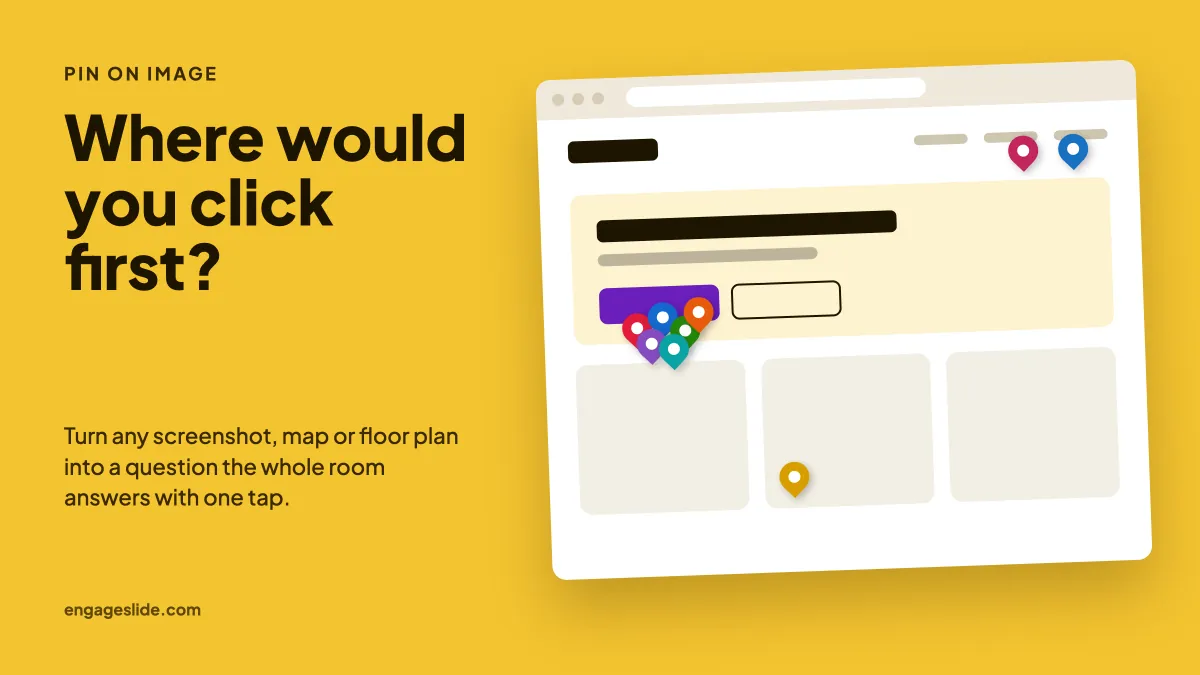
Some questions are hard to ask in words. "Which part of the checkout page confused you?" turns into a long thread of "the bit near the top, under the logo, sort of on the left." "Where in the building do people get lost?" gets ten different descriptions of the same corridor. Put a picture on the screen instead, let everyone tap the spot they mean, and the answer appears in seconds as a cloud of pins. That is what the Pin on Image slide in EngageSlide does: it turns any map, floor plan, diagram, photo or screenshot into a live question the whole room answers on their phones. This guide covers what it is good for, how to set it up, and how to run the reveal so the pins start a real conversation.
What a Pin on Image question is
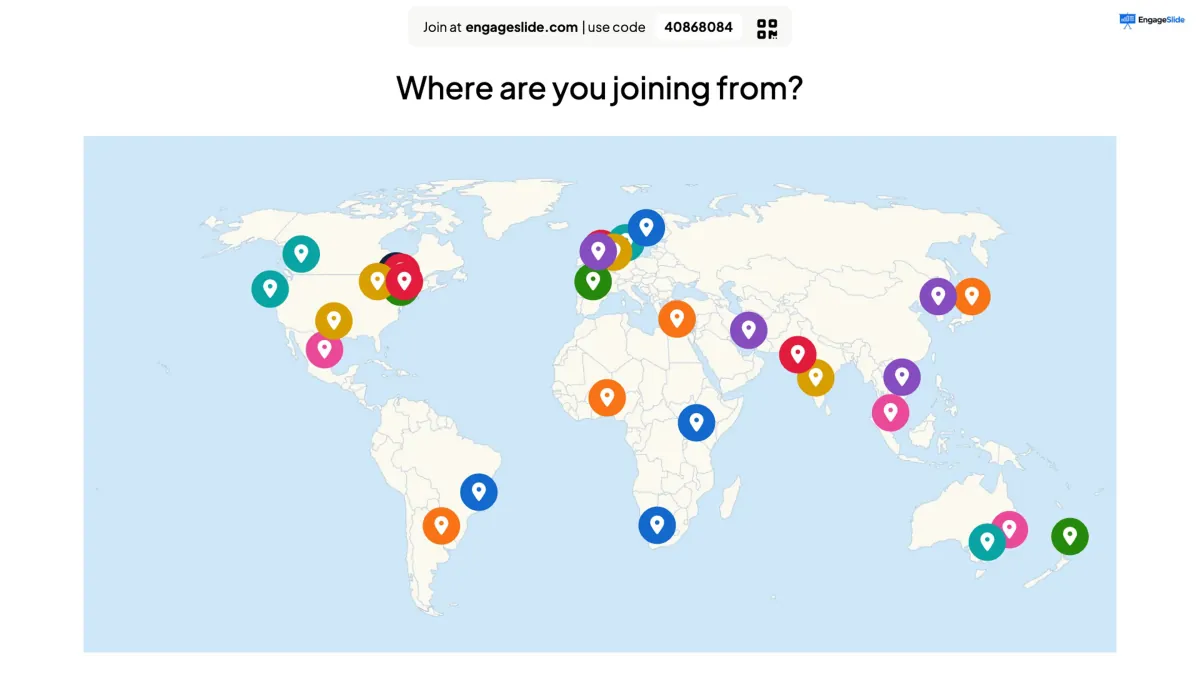
A Pin on Image slide shows one picture and one question. Each participant opens the slide on their phone, taps the spot that answers the question and presses Submit. They can move the pin as often as they like before submitting; after that it is locked, and each person places one pin. On the big screen, every pin drops onto the same picture in the participant's colour as soon as it arrives, so the room watches the pattern build up live.
The important part: there is no right answer and no score. A Pin on Image question is closer to a poll than to a quiz. It collects where people think, feel or look, and shows it all at once. That makes it the right tool for opinions, experiences and first impressions about anything visual.
Pin on Image, Pin Answer or a normal poll?
EngageSlide has two pin slides, and they do different jobs:
- Pin on Image is for opinions and experiences. "Where would you click first?", "Where do you sit in the office?", "Which step in this process slows you down?" Nobody is wrong, so people answer honestly.
- Pin Answer is a scored quiz question with a correct zone, points and a leaderboard. "Where is Austria?" has one right answer. We covered it in detail in Pin Answer: hotspot quiz questions.
- A normal poll is better when the options are easy to name. If you can write the answer as four words, use a poll. If people would have to describe a location, use a picture.
A simple test: if your question contains the word "where", or the options would need arrows to explain them, it probably belongs on an image.
Eight questions that work better as a picture
- Where are you joining from? A world or country map is the classic opener for webinars and remote meetings. It takes ten seconds and gives the host something to talk about.
- Where would you click first? Show a homepage, an app screen or a form. The pins are a quick first-click test with real users or colleagues, run in the middle of a review meeting.
- Which part of this screen confused you? After a demo or a pilot, ask testers to pin the one place they got stuck. Clusters point straight at the problem.
- Where does this process slow down? Put a flow chart or a value-stream map on screen and ask the team to pin the biggest bottleneck. It is faster and more honest than a round of opinions.
- Where on this floor plan do you feel unsafe or lost? Facilities, events and safety teams get a map of real experiences instead of a pile of comments.
- Point to the part you understand least. In class, show a diagram of the heart, a cell or an engine and ask students to pin the part they would like explained again. The cluster tells you where to spend the next ten minutes.
- Where do you see our team on this chart? Any chart works as a background: an effort-versus-impact grid, a maturity model, a timeline. Each person places the team where they think it is.
- Where would you go? A holiday map, a campus map or a city map for event planning. Light, fun and useful at the same time.
How to set one up in EngageSlide
- Open your presentation, add a new slide and choose Pin on image in the slide picker.
- Type your question, for example "Where would you click first?". Add a short description if people need instructions, such as "Tap the spot, then press Submit."
- Click Add Question Image and upload the picture people will pin on. This image is the pin board.
- Open Settings and decide three things: Hide result (keep pins hidden until you reveal them), Time limit (a countdown that closes the slide automatically) and Stop Submission (close the slide by hand).
- Click Present. People join with the code or QR code, and the pins start to land.
The full list of settings, with defaults, is in the Pin on Image help article.

On the phone it is one tap and one button. Participants see your question and the picture, tap to drop a pin, tap again somewhere else to move it, and press Submit when they are happy.
Running the reveal
How you show the pins matters as much as the question. Two ways work well:
Live: let the pattern build
Leave Hide result off and the pins drop in one by one as people submit. This is good for light questions like "Where are you joining from?", where watching the map fill up is half the fun.
Hidden: reveal everything at once
For opinions, turn Hide result on. People pin without seeing anyone else's answer, so the first pins do not pull the rest towards them. When everyone has answered, click Show result and every pin appears together. The difference between "I thought it was just me" and "half the room pinned the same button" is a strong moment in a meeting.
Once the pins are up, use them:
- Name the cluster. "Most of you pinned the shipping step. Let's look at that first."
- Ask about the outliers. A lonely pin in a corner is often the most interesting answer in the room. If people joined with a name, hover over a pin on the big screen to see whose it is, and only invite them to explain if the setting is comfortable for that.
- Ask again after the discussion. Duplicate the slide and run the same question a second time to see whether the picture changed.
A picture question removes the hardest part of giving feedback: finding the words. People only have to point.
Tips for images that pin well
- Keep it simple. A clean screenshot or a plain floor plan works better than a busy photo. People must be able to see what they are pointing at on a small phone screen.
- Label the landmarks. Room names, step numbers or country borders help people find their spot quickly.
- Use a landscape picture. It fills the big screen and stays readable on phones.
- Ask one thing per image. "Where would you click first?" and "What confused you?" are two different slides. Mixing them makes the pins impossible to read.
- Give a time limit for big groups. Thirty to sixty seconds is plenty for one tap, and the countdown keeps the session moving.
There is good reason to lean on pictures: people process words and images through different channels, and combining them helps understanding and memory. Psychologists call this dual-coding theory. A question that sits on a picture asks people to think about the thing itself, not about how to describe it.
After the session
The pins are not lost when you close the presentation. The presentation report shows the image with every pin on it and each participant's pin position, so you can screenshot the result for a design review, a facilities report or your lesson notes. To run the same slide with a new group, use Clear result this slide under Actions and the board is empty again.
Pin on Image works well next to the other question types. A short poll sets up the topic, a pin question finds the hot spot, and an open question collects the "why". If you want ideas for presenting results so they land with the audience, read our guide to visualizing poll results, and browse the rest of the EngageSlide blog for more formats.
Ready to try it? Open the EngageSlide interactive presentation tool, add a Pin on image slide to your next meeting, and let the room point.