
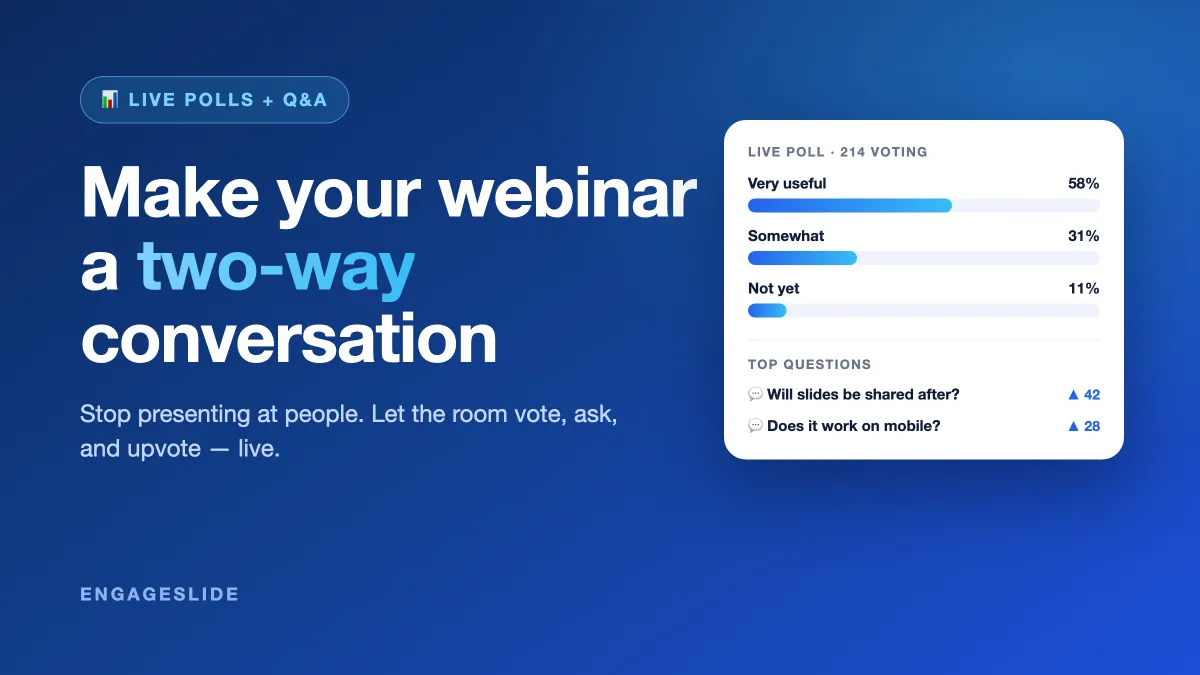
Most webinars are a monologue with a chat box. The presenter talks for 45 minutes, a few questions trickle in at the end, and half the audience has quietly opened another tab. The fix is not a better slide deck — it is turning the webinar into a two-way conversation, where the audience votes, asks, and shapes where the session goes. The two tools that do this best are live polls and live Q&A, and used together they change the entire feel of a webinar.
This guide shows how to combine live polls and live Q&A to make webinars genuinely interactive using EngageSlide's interactive presentation tool. Rather than another list of "webinar engagement tips," we focus on the specific mechanic that makes a webinar two-way: give the audience a way to answer and a way to ask, and give both a visible home on screen.
Why one-way webinars lose the room
Attention is the scarce resource in any web conference. When people have no way to participate, they drift — and once they drift, they rarely come back. A two-way format keeps them anchored because it repeatedly asks them to do something: cast a vote, type a question, upvote someone else's. Every interaction is a small commitment that pulls attention back to the screen.
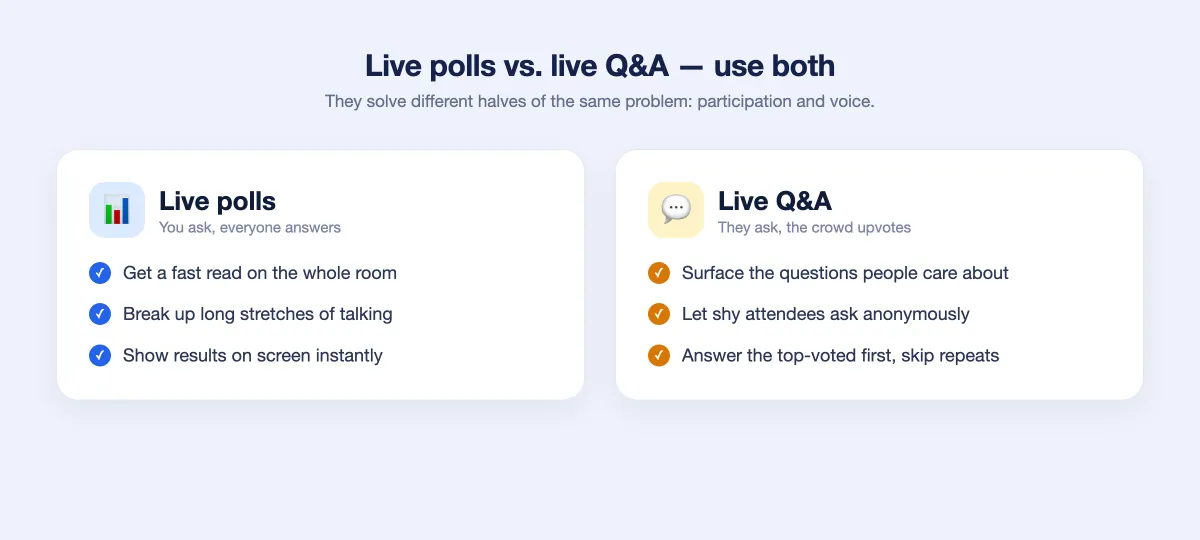
Polls and Q&A solve two different halves of the engagement problem. Polls let you pull a response from the whole audience on demand. Q&A lets the audience push their own questions up to you — and vote on which ones matter most. You need both: one without the other still leaves half the conversation missing.
Live polls: pull a response from everyone
A live poll is the fastest way to wake up a passive audience. You ask a question, the results appear on screen in real time, and suddenly the session is about them, not just your slides. In a webinar, polls do three jobs at once:
- They break the monologue. A poll every 8–10 minutes resets attention and gives the audience a reason to stay present.
- They give you a read on the room. "How many of you have shipped this already?" tells you instantly whether to speed up or slow down.
- They create shared moments. Watching results populate live — and reacting to a surprising split — is genuinely fun, even over video.
With EngageSlide, participants join by scanning a QR code or opening a link; there is nothing to install. Results render live as a bar chart on your slide, so you can talk to the numbers as they move. If you are brand new to this, live polling 101 covers the basics, and using polls to break the ice has ready-made opener ideas.
Live Q&A: let the audience set the agenda
Where polls let you ask, Q&A lets the audience ask back — and it is the single biggest upgrade you can make to a webinar. Instead of questions buried in a scrolling chat, a dedicated Q&A board collects them in one place, and the audience upvotes the ones they want answered. The most-wanted question rises to the top, so you spend your time on what the room actually cares about.
Two features make this work at webinar scale. First, upvoting surfaces the best questions democratically — you answer the top-voted first and skip the duplicates. Second, anonymous mode lets nervous attendees ask the thing everyone is wondering but no one wants to say out loud. For a full walkthrough of facilitating the board itself, the complete guide to running a live Q&A session goes deeper.
A one-way webinar answers the questions you prepared. A two-way webinar answers the questions your audience actually has — and they will remember the difference.
Plan a two-way run of show
The mistake most presenters make is treating interaction as an afterthought — "we'll take questions at the end." By then the energy is gone. Instead, plan your interaction points in advance, the same way you plan your slides. A simple 45-minute webinar might look like this:
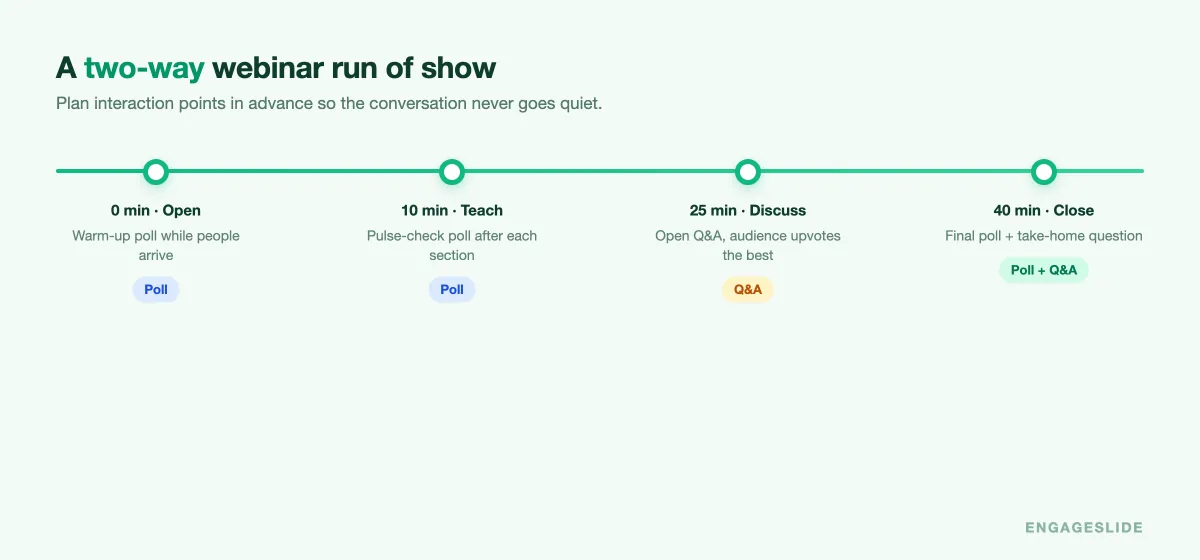
- Open with a warm-up poll while people are still arriving — a low-stakes question gets them clicking before you have even started.
- Drop a pulse-check poll after each main section to keep attention high and gauge understanding.
- Open the Q&A board early, not at the end. Let questions accumulate and upvotes sort them while you present, so you hit the ground running when it is time to answer.
- Close with a final poll or take-home question to leave people thinking — and to give you a last data point on how the session landed.
Keeping the Q&A board open throughout is the key move: it means the two-way channel is always live, not switched on for the last five minutes. This is exactly how one trainer managed live Q&A for 300 attendees without the session descending into chat chaos.
Make both visible on screen
Interaction only works if the audience can see it happening. Show poll results live so people watch the bars fill in, and put the top Q&A questions on screen so everyone knows their vote counted. That visibility is what makes a webinar feel like a conversation rather than a survey — the audience sees its own input reflected back in real time.
Because EngageSlide runs polls, Q&A, quizzes, and word clouds inside the same presentation, you are not juggling separate apps or tabs. You add an interactive slide where you want it, and the audience uses one link for everything. That simplicity is what lets you keep both channels open without the session getting fiddly to run.
Bring it together
A two-way webinar is not more complicated to run than a one-way one — it just requires deciding, up front, where the audience gets to speak. Use polls to pull responses and keep energy up, use Q&A with upvoting to let the audience steer the agenda, and keep both visible on screen so people can see the conversation happening. Do that, and the tab-switching stops, the questions get better, and people leave feeling like they were part of the session instead of an audience for it.
Ready to try it? Add a poll and a Q&A slide to your next deck with the interactive presentation tool, and browse more engagement playbooks on the EngageSlide blog.