
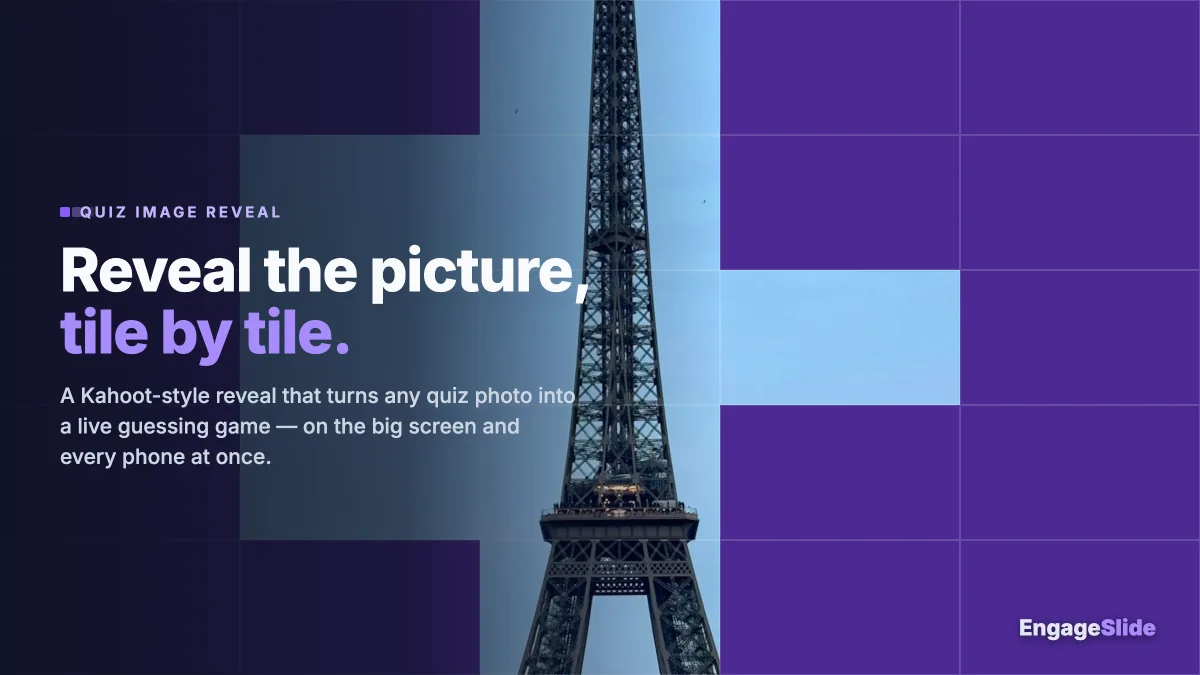
There is a special kind of noise a room makes when a picture is slowly uncovering on the screen. A few tiles disappear, someone half-shouts a guess, everyone leans in, more tiles vanish — and then the whole image snaps into view and the room erupts. That build-up is exactly what EngageSlide's new image reveal brings to your quizzes: instead of showing a question picture all at once, the image starts hidden behind a grid of tiles and uncovers piece by piece as the answer timer counts down. It is a small change that turns an ordinary "what is this?" question into a genuine, edge-of-your-seat guessing game — Kahoot-style, but built right into your live quiz slides.
What image reveal actually does
Any quiz slide in EngageSlide can carry a question image. Normally that image simply appears above the answer options. With image reveal switched on, the picture is covered by an evenly spaced grid, and the tiles disappear gradually while players are answering. By the time the clock hits zero, the full image is showing. The reveal happens on the presenter's shared screen and on every participant's phone at the same time, kept in sync so nobody sees the answer early. Faster, braver guesses earn more points — so the reveal isn't just decoration, it changes how people play.
Crucially, it is completely optional and per-slide. Leave a slide on "Original" and it behaves exactly as before. Turn reveal on for the questions where a slow uncover adds drama — a landmark, a movie still, a product close-up, a historical figure, a company logo — and leave it off for the rest.
Why a slow reveal makes quizzes more fun
The pull you feel watching an image uncover isn't an accident. Psychologists call it the curiosity gap: once your brain senses it is close to knowing something, it desperately wants to close the loop. A half-revealed picture is a puzzle your audience can't help trying to solve, and that itch keeps people looking at the screen instead of their inbox. It is closely related to the Zeigarnik effect, our tendency to fixate on unfinished tasks. A slow reveal deliberately leaves the task unfinished for twenty seconds — and in a quiz, twenty seconds of undivided attention is gold.
There is a social payoff too. Because everyone is guessing against the same shrinking grid, the reveal creates shared suspense. People blurt out answers, laugh at wrong guesses, and cheer when someone nails it early. That collective energy is the whole point of running a live quiz in the first place, and image reveal manufactures it on demand.
How to turn it on
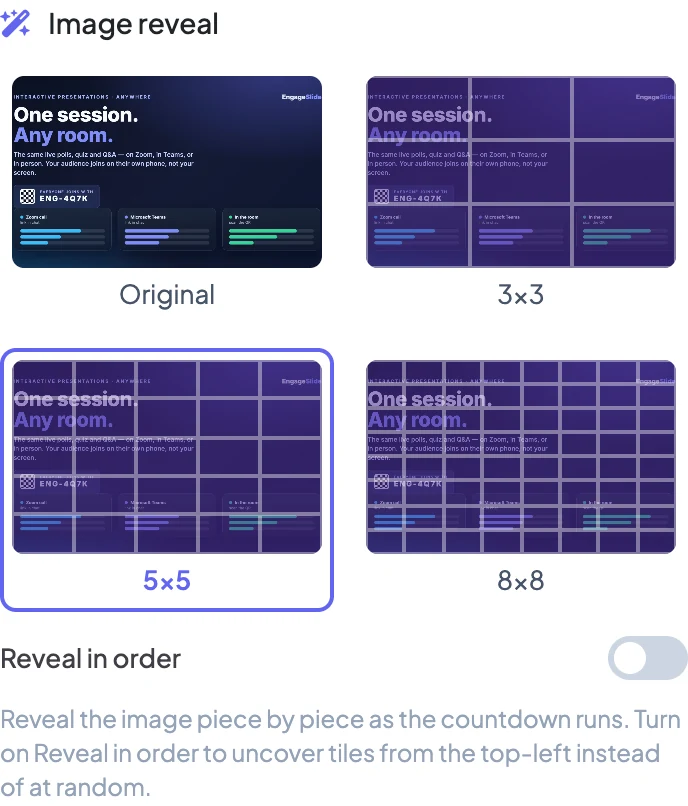
Setup takes about ten seconds. On any quiz slide, add a question image as you normally would, and an Image reveal panel appears right below it. You get four options:
- Original. No reveal — the picture shows normally. This is the default, so nothing changes unless you choose otherwise.
- 3×3. A coarse nine-tile grid. Big chunks of the image appear quickly, so it's forgiving and fast.
- 5×5. The sweet spot for most quizzes — twenty-five tiles give a satisfying, gradual uncover.
- 8×8. Sixty-four small tiles for a slow, teasing reveal that keeps even easy images a mystery until the end.
You can build the whole thing without any technical setup inside EngageSlide's interactive presentation tool — pick a grid, and you're done.
"Reveal in order" vs. random
Below the grid choices sits one more switch: Reveal in order. Leave it off (the default) and tiles uncover in a random order, scattering little windows across the image so clues appear all over the place. Turn it on and the tiles clear neatly from the top-left, like reading a page — the picture wipes into view row by row.
Random is the more playful, harder mode: because the revealed patches are unpredictable, players have to piece the image together from fragments. Ordered is gentler and more cinematic, and it's handy when the giveaway detail lives in a predictable spot (a face at the top, a logo in a corner) and you want to control roughly when it shows. A good rule of thumb: random for "make them work for it," ordered for a smoother, more theatrical unveil.
How a reveal round plays out
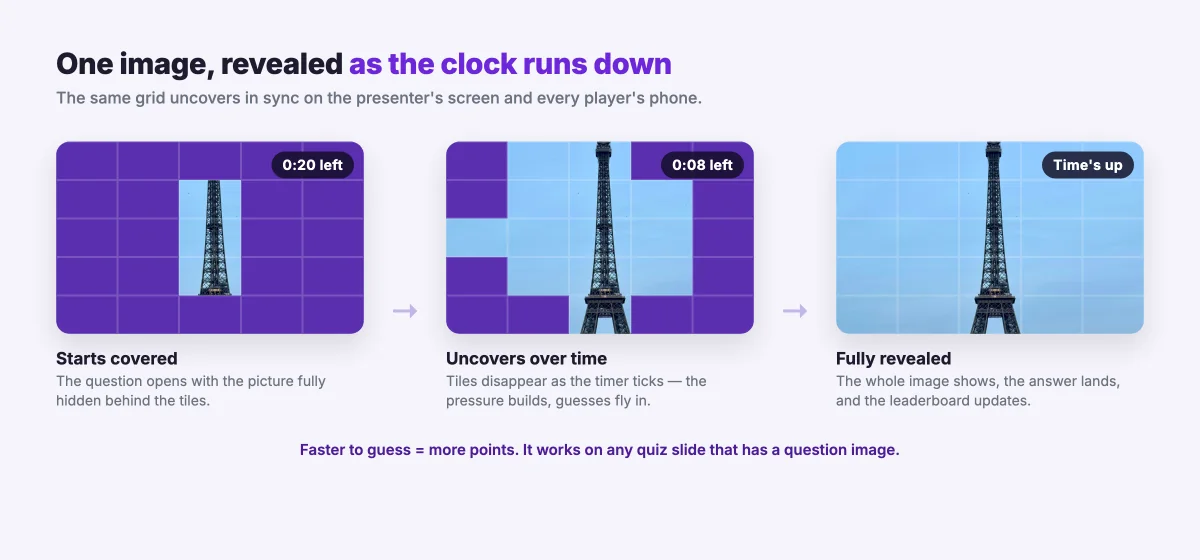
When the question starts, the image is fully covered and the countdown begins. As the seconds tick away, tiles vanish at a steady pace, and the picture becomes progressively easier to identify. Players lock in answers on their phones the moment they're confident — and because scoring rewards speed, there's real tension between guessing early on thin evidence and waiting for certainty. When time runs out, the image is fully revealed, the correct answer is shown, and the leaderboard updates. Then it's on to the next question.
The magic is in the pacing: the picture and the clock move together, so the pressure to guess ramps up naturally. Nobody has to explain the rules — the shrinking grid does all the work.
Grid size: which one should you pick?
Match the grid to how recognizable your image is and who's in the room. A 3×3 grid reveals large regions fast, which suits younger classrooms, warm-up questions, or images that are tricky even when half-shown. A 5×5 grid is the reliable default and works for almost everything. An 8×8 grid is your "hard mode" — reach for it when the image is iconic and you want to stretch the suspense, or when you're playing with a competitive crowd that will happily argue over three visible tiles. You can mix grid sizes across a quiz to vary the rhythm: an easy 3×3 opener, a couple of 5×5 mid-rounds, and a brutal 8×8 finale.
Fun ways to use image reveal
- Classrooms. "Guess the historical figure," "name the country from its map," or "identify the cell diagram." The reveal turns rote recall into a game students actually want to win.
- Corporate training. Slowly uncover a piece of equipment, a screenshot of your app, or a safety hazard and ask what it is — a memorable way to check knowledge.
- Team socials and pub quizzes. Movie stills, album covers, celebrity faces, or "guess the office landmark" rounds are instant crowd-pleasers, whether your team is in one room or spread across a video call.
- Marketing and events. Tease a new product by revealing it tile by tile, or run a branded "guess the logo" round to warm up a webinar audience.
Because the image reveal lives inside a normal quiz, you can chain it with everything else EngageSlide does — open with a word cloud, run a few reveal rounds, then push a feedback poll — all from the same session. For more inspiration on structuring a session like this, browse our interactive presentation blog or the roundup of interactive presentation ideas for every kind of speaker.
It works wherever you present
One of the quiet strengths of image reveal is that it needs no special screen. Because the reveal is synchronized across the presenter view and every phone, it looks identical whether you're presenting in a lecture hall, sharing your screen on Zoom, or running a Microsoft Teams meeting — the same tiles clear at the same moment for everyone. If your sessions bounce between rooms and video calls, it pairs naturally with our guide to running an interactive presentation on Zoom, Teams, or in person. The venue changes; the guessing game doesn't.
Image reveal is the kind of feature that sounds like a gimmick and turns out to be a genuinely reliable way to win back a distracted room. It costs you nothing to try: add a picture to a quiz question, pick a grid, and watch what happens when your audience can almost see the answer. Add your first image reveal to a quiz today and turn "next slide" into "wait — what is that?"