
Most lead magnets are PDFs nobody opens. Someone trades an email for a 40-page ebook, the file sits in their downloads folder, and your follow-up email lands with no context at all. A quiz works differently. People take it because they want to know something about themselves — how mature their process is, how they compare to peers, which mistakes they are making — and every answer they give tells you what they need. That makes a quiz lead magnet one of the few lead-generation assets that both earns the email and qualifies the person behind it.
This guide walks through building one, step by step, using tools that already exist in EngageSlide: quiz slides, Self-Paced mode, audience information fields and linked surveys. If you are still comparing quiz builders, our roundup of the best free quiz tools for lead generation covers the landscape. This post is the build.
Why a quiz beats a static lead magnet
A classic lead generation offer gives value once and learns nothing. A quiz turns the exchange into a conversation:
- It is self-interested curiosity. "What's your meeting health score?" is a question people want answered. "Download our guide to meetings" is homework.
- It qualifies while it engages. Each question can double as a signal — team size, current tools, biggest pain — without feeling like a form.
- It creates a natural follow-up. You are not emailing "just checking in". You are sending the fixes for the questions they got wrong.
- It works live and on demand. The same quiz can run as a game in a webinar, at a conference booth, or as a link in your newsletter that people take whenever they like.
A good quiz lead magnet doesn't ask for an email in exchange for content. It asks for an email in exchange for an answer the person already wants.
The 5-step quiz lead magnet funnel
Before you open any tool, map the funnel. Every step has one job, and skipping one is usually why quiz funnels collect plenty of emails but very few customers.
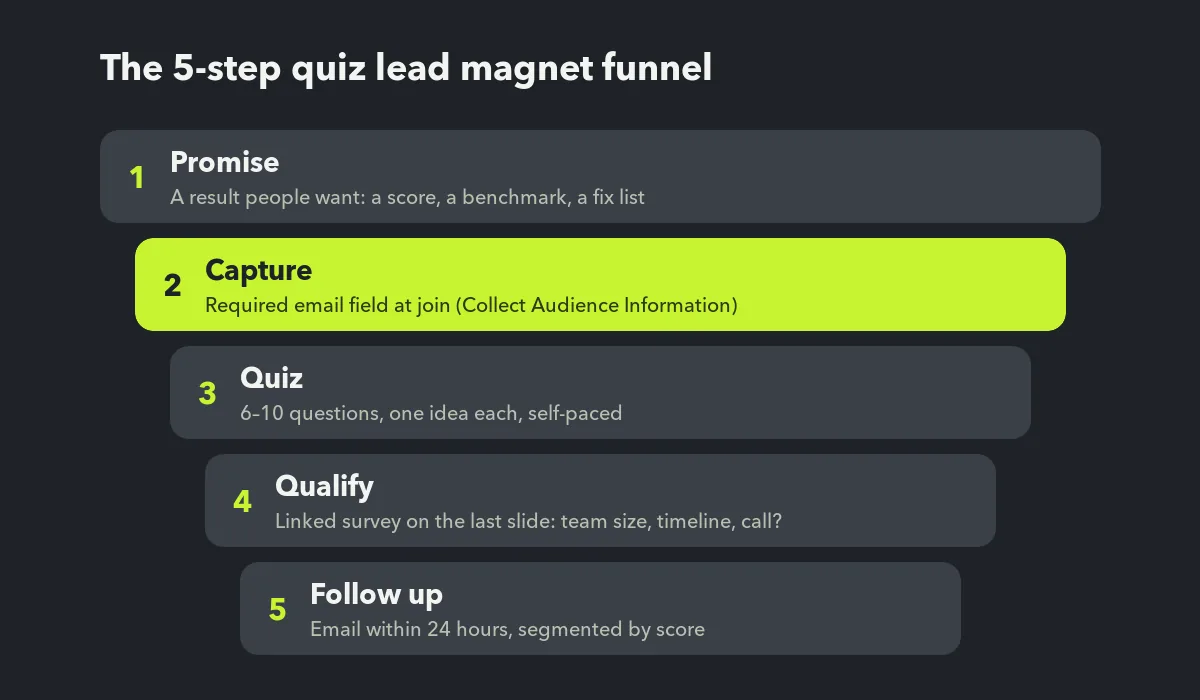
Step 1: Make a promise people actually want
The title of your quiz is your offer. Strong quiz lead magnets promise one of three things:
- A score. "How healthy are your team meetings? Score yourself in 3 minutes."
- A benchmark. "Is your onboarding better than average? Find out how you compare."
- A diagnosis. "Which of these 5 webinar mistakes are you making?"
Tie the promise to the problem your product solves. A quiz about "how much time your team loses to status meetings" attracts exactly the people you want to talk to.
Step 2: Decide where you capture the email
EngageSlide gives you two honest options, and both are built in.
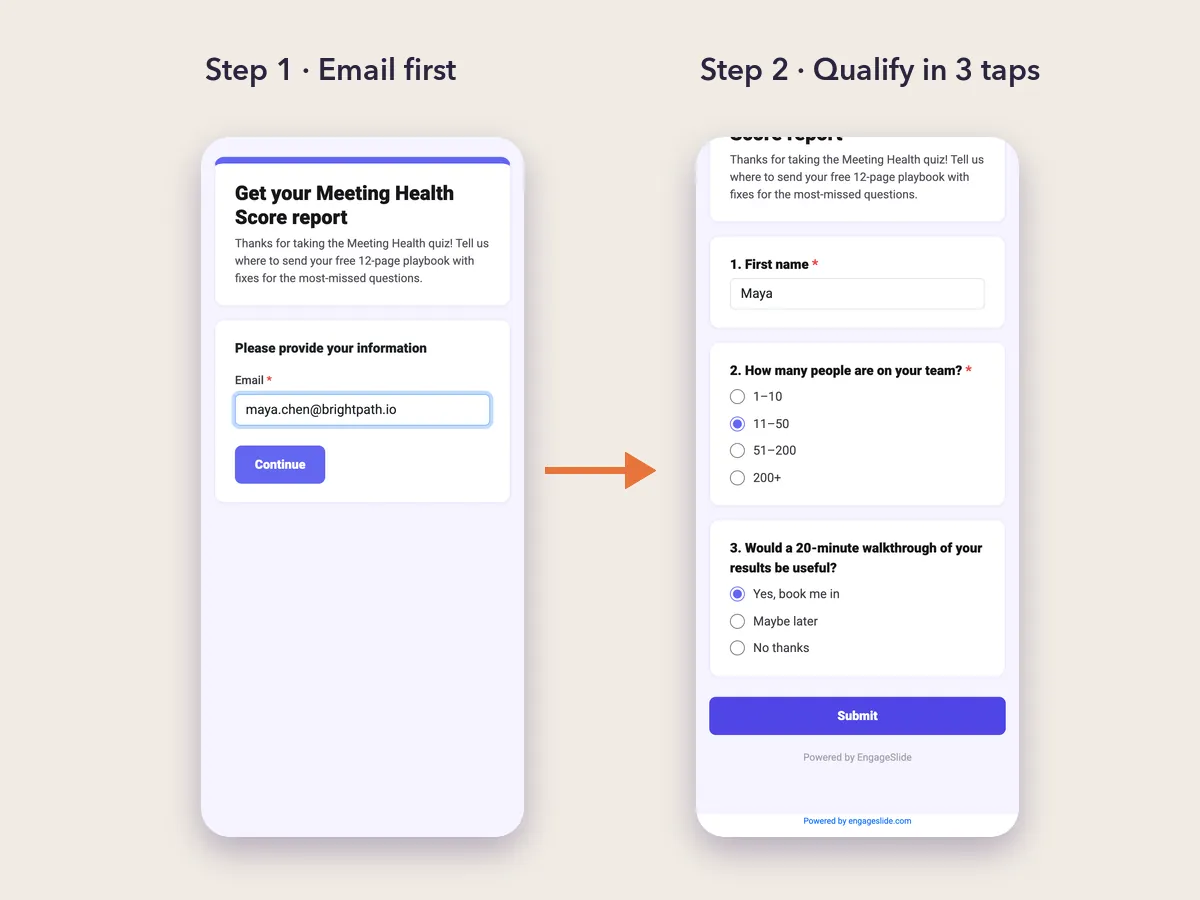
- Gate at the door. In your presentation settings, turn on Collect Audience Information and add an email field marked Required (keep the name field, skip everything else). Participants fill it in before the first question appears. This gives you the highest capture rate and ties every quiz answer to a known person.
- Ask at the end. Leave the quiz open and put the email request in a linked survey on the last slide (see Step 4). Fewer people leave an email, but the ones who do have finished the quiz and are warmer.
For most B2B quizzes, a light gate works best: one required email field and a one-line reason on the first slide — "We'll email your score breakdown and the fixes for anything you missed." Asking for phone number or budget up front is the fastest way to lose people.
Step 3: Build the quiz (6–10 questions)
Create a new presentation and add quiz slides. Keep it short: six to ten questions is enough to feel substantial and still finish in three or four minutes. A few rules that keep completion high:
- One idea per question. If a question needs a paragraph of setup, split it or cut it.
- Mix question types. Multiple choice is the backbone, but a True or False statement or a quick Type Answer question breaks the rhythm and keeps people moving.
- Make the "wrong" answers realistic. The best distractors are the habits your prospects actually have. When they pick one, you have learned something worth following up on.
- Hide one qualifying question inside the quiz. "How many people usually attend your weekly meeting?" is both a fair quiz question and a company-size signal.
If you are short on time, EngageSlide AI can draft the questions from a topic or a document, and you edit the wording and correct answers afterwards.
Then open the presentation settings and switch Who takes the lead from Presentation to Self-Paced. In this mode the audience controls the flow: participants enter their information like a survey and play the quiz at their own pace through the audience app. That is what turns a live quiz deck into an always-on lead magnet you can share as a link or QR code.
Step 4: Qualify with a linked survey
The quiz tells you what people know. A short survey tells you whether they are ready to buy. Create a survey in the EngageSlide online survey maker, link it to your quiz presentation, and turn on Show on last slide of your presentation. When participants reach the final slide, they see a "Before you go — Take the survey" button that opens it.
Keep this survey to three questions or fewer. Good choices:
- First name (short answer), so your follow-up email doesn't start with "Hi there".
- Team or company size (multiple choice), for routing.
- "Would a 20-minute walkthrough of your results be useful?" with Yes / Maybe later / No thanks — your clearest buying signal.
If you chose to ask for the email at the end rather than the door, turn on Collect email addresses in the survey settings. When the survey is linked and the person already gave their details at join, EngageSlide reuses that profile instead of asking twice.
Step 5: Follow up within 24 hours
A quiz lead goes cold faster than a webinar lead, because the curiosity that drove the click fades quickly. Send your follow-up the same day. Open the presentation's Report to see each participant, their audience information and how they answered every question, including which answers were correct. Survey responses appear in the survey's Responses tab and can be exported to CSV.
Use that data to segment, even roughly:
- High scorers. Congratulate them, share one advanced tip, and invite them to a community or newsletter.
- Middle scorers. Send the fixes for the two or three questions most people in this group missed. This is your biggest and most valuable segment.
- Low scorers who said "Yes, book me in". These are your hottest leads. A personal email from a human beats any automated sequence.
Make sure your consent wording matches the rules that apply to your audience, such as the EU's General Data Protection Regulation. Say on the first slide what you'll send and how often.
Where to put your quiz lead magnet
Because Self-Paced mode runs on a shareable link, the same quiz can work across channels:
- Newsletter and social posts. "Score yourself in 3 minutes" outperforms "read our new article" as a call to action.
- Events and booths. Print the QR code on a stand. People scan, play on their phone, and you leave with qualified contacts instead of a fishbowl of business cards.
- Live webinars. Switch back to Presentation mode and run the quiz live with points and a leaderboard. For the live-session version of this playbook, see how to collect emails and leads during a live presentation.
Common mistakes to avoid
- Too many questions. Every question past ten costs completions.
- A gate that asks for everything. Email only at the door. Everything else goes in the optional survey.
- A topic disconnected from your product. Viral quizzes bring viral, unqualified traffic.
- No reason to give the email. State the payoff — score breakdown, fixes, benchmark — right next to the field.
- Slow follow-up. If your first email goes out next week, the quiz did its job and you didn't do yours.
A quick launch checklist
- Write a quiz title that promises a score, benchmark or diagnosis.
- Turn on Collect Audience Information with one required email field.
- Add 6–10 quiz slides, including one hidden qualifying question.
- Switch Who takes the lead to Self-Paced.
- Link a 3-question survey and enable Show on last slide.
- Test the full flow on your own phone, then share the link and QR code.
- Check the Report daily and follow up within 24 hours.
Start with one quiz on the topic your best customers care about most, run it for a month, and look at which answers your buyers had in common. For more ideas on engaging your audience before and after the sale, browse the EngageSlide blog.