
Everyone already knows how to play rock paper scissors. That is exactly why it works so well with a crowd: there are no rules to explain, no trivia to know and nothing to prepare. The only problem has always been scale — you can play it with one person, not with a room of 80. EngageSlide fixes that. With the Rock Paper Scissors slide, the whole room plays the big screen at the same time from their phones. Beat the screen or tie and you stay in; lose and you are out. Two minutes later, one player is left standing.
This guide explains how the game works, what players see on their phones and on the big screen, the two settings worth knowing about, and when to use it in classes, meetings and events.
How the game works
Add a Rock Paper Scissors slide from the Games tab of the slide picker, present it, and let people join with your code or QR code — no app or account needed. When everyone is in, press START. Each throw follows the same rhythm:
- Pick. Every phone shows three big buttons: Rock ✊, Paper ✋ and Scissors ✌️. A time bar runs down. Players can change their mind as often as they like until the throw.
- Chant. The big screen shakes its fist and chants Rock… paper… scissors… Nothing is revealed during the chant, so nobody can copy a neighbour at the last second.
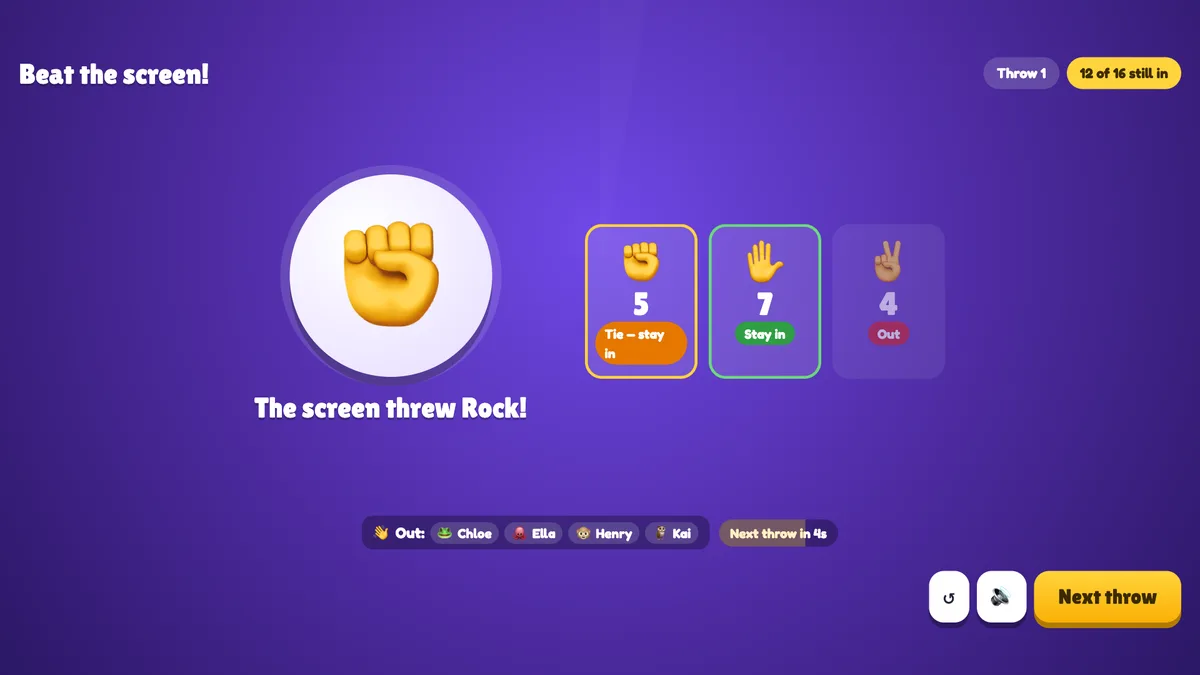
- Throw. The screen throws its own hand — chosen at random at the moment picking closes, so not even the host knows it. Three columns show how many players picked each hand and what happened to them: Stay in, Tie — stay in or Out.
Players who beat the screen or tie stay in. Players who lose — or who did not pick in time — are out and listed under Out: on the big screen. The next throw starts by itself after five seconds, or you can press Next throw to keep the pace up.
Nobody loses everyone
There is one safety rule that makes the game feel fair: if every player still in would lose on the same throw, nobody goes out and the room simply throws again. A game can never end with no winner, and a lucky screen can never wipe out the whole room in one go.
The final duel
Playing the screen is fun with a crowd, but a game needs a climax. When only two players are left (of a game that started with three or more), they stop playing the screen and face each other in a final duel. The two players stand side by side on the big screen with their points and their hands. A win scores a point, a tie scores nothing, and the first to two points wins the game. In a hall or classroom, this is the moment everyone leans forward — two names on screen, a best-of-three, and the room cheering for a side.
What players see on their phones
The phone does just enough to keep everyone in the game without needing to look at the big screen all the time:
- Before the game: You're in! and a reminder of who beats whom (✊ beats ✌️, ✌️ beats ✋, ✋ beats ✊).
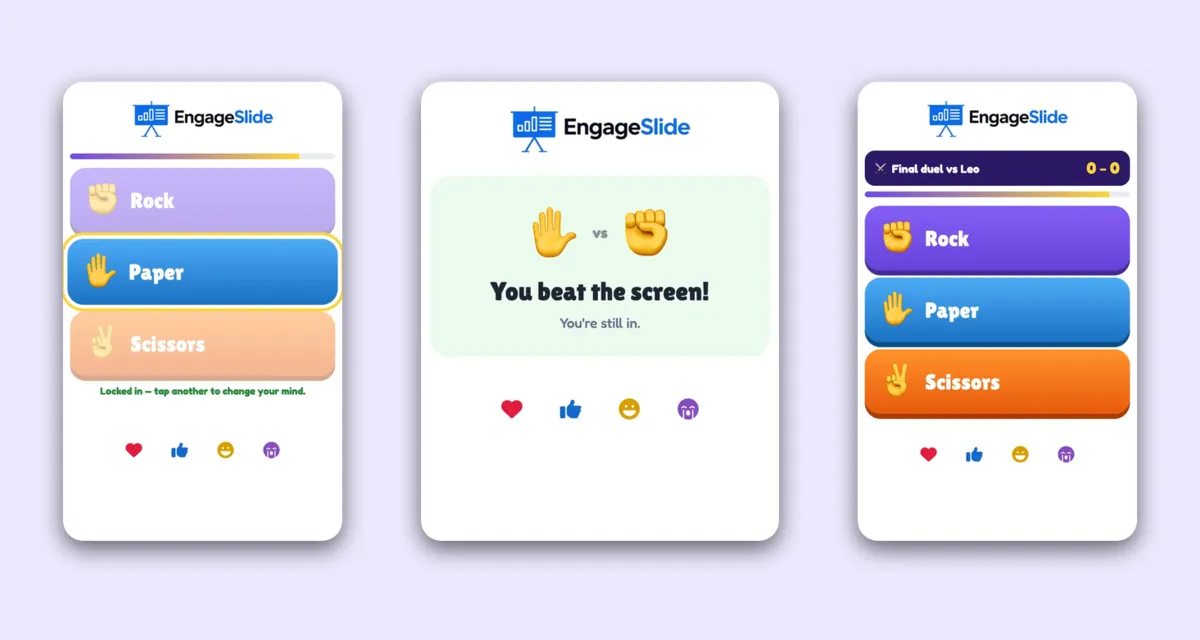
- During a throw: the time bar and the three buttons. A tapped hand is locked in, with the hint Locked in — tap another to change your mind.
- After the throw: both hands and the result — You beat the screen!, Tie! or You're out!
- In the final duel: the opponent and the score, for example Final duel vs Leo — 1 – 0.
- At the end: the winner sees You won Rock Paper Scissors! and everyone else sees their place.
Players who are out keep watching on the big screen, and anyone who joins after the start watches the current game and plays when you press Play again.
What the big screen shows
The big screen is built to be read from the back of the room. Before the game it shows your title, the rules, the time to pick, whether there is a final duel, and everyone who joined. During a throw, a big white circle holds the screen's fist with Pick on your phone! and a countdown ring. Chips at the top show the throw number, how many players are still in and how many have picked; the avatars of the players still in line up at the bottom with a green ring once they have picked. If everyone has picked early, the throw happens straight away — or you can press Throw now.
After the last throw, press See results. The winner gets a crown, and everyone else is listed by the throw they went out on (players who went out together share a place). Play again starts a new game with the same players — perfect for a best-of-three tournament.
Setting it up in two minutes
- Add the slide from the Games tab. There are no questions or options to write.
- Type a title for the big screen, such as Beat the screen! or Who presents first?
- Open Settings and choose the time to pick: 3, 5 (default) or 8 seconds per throw. Short times keep a big group energetic; 8 seconds suits younger players or a remote audience with a delay.
- Decide on the final duel. It is on by default. Turn it off if you'd rather the last players keep playing the screen until one is left.
- Present, let everyone join, and press START (or Enter).
The full step-by-step guide with screenshots of every screen is in the Help Center: how to use Rock Paper Scissors. You can also see the slide in action on the Rock Paper Scissors slide page.
Rock Paper Scissors is the rare game where the person who has never used EngageSlide and the person who built the deck have exactly the same chance of winning. That is what makes it such a good opener.
When to use it
As an energizer
After a break, a long talk or a heavy topic, one game resets the room. It takes about two minutes, it is loud, and everyone gets their phone out — which means they are ready to answer your next poll or quiz.
As an icebreaker
Traditional icebreakers often ask people to share something personal, which not everyone enjoys. Rock Paper Scissors asks for nothing. Nobody needs to know anything, say anything or be good at anything, so even the quietest participant joins in from the first throw.
As a fair way to decide
Who presents first? Which team picks the topic? Who gets the last prize? A final duel on the big screen is quicker than a debate and far more fun than a coin toss — and because the screen's hand is random, nobody can accuse the host of favouritism.
At big events
The game scales to the whole hall. Hundreds of people play the screen at once, the room shrinks throw after throw, and the final duel puts two people from the audience on stage — virtually or for real. It pairs well with a Quick Draw reaction round or a Stop the Clock timing game if you want a short games block between sessions.
Tips for a great game
- Explain nothing. Say "Beat the screen, ties are safe" and press START. The phone shows the rules anyway.
- Keep the 5-second default for most rooms. It is long enough for everyone and short enough to keep the tension.
- Narrate the throws. "Half the room picked rock — big mistake!" Your commentary is half the fun.
- Use the final duel for prizes. Two names on screen and a best-of-three is a natural on-stage moment.
- Play a second round. Play again keeps the same players, so a quick rematch costs nothing.
Frequently asked questions
How does the screen choose its hand?
At random, at the moment the picking closes. Nobody — including the host — knows it in advance.
What happens if a player doesn't pick?
No pick counts as a loss, so that player goes out — unless everyone still in loses on the same throw, in which case nobody does. In the final duel, a missing pick loses that throw.
Can I try it alone before my session?
Yes. With one player you play the screen throw after throw until you lose, which is a quick way to rehearse.
Does it affect quiz scores?
No. Rock Paper Scissors has its own results and leaves your quiz leaderboard untouched.
Rock Paper Scissors sits alongside quizzes, polls, word clouds and Q&A in EngageSlide's interactive presentation tool. Add it to your next deck, put it on the big screen and let the room find out who really is the best at the oldest game in the playground.