
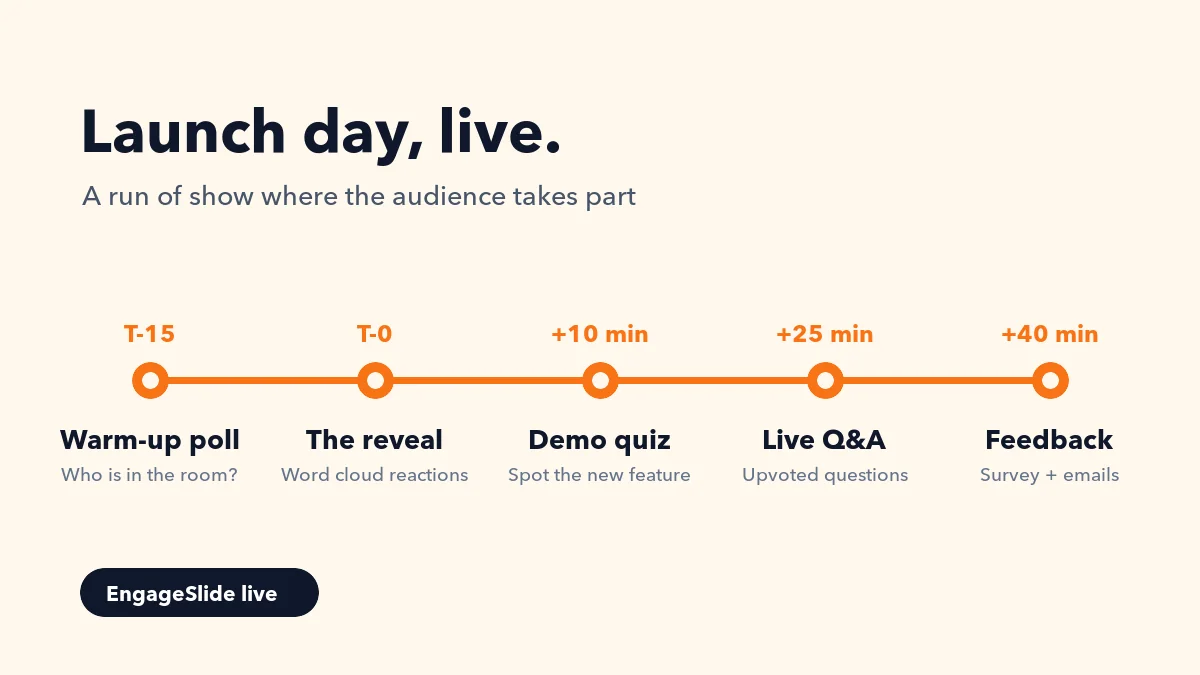
A live product launch is one of the few moments when customers, partners, press and your own team all look at the same screen at the same time. Most launches waste that attention. The presenter talks for forty minutes, the audience films a slide or two, and the only feedback you get is the applause. A launch that wows works differently: the audience takes part. They guess, vote, react, ask, and leave their email before they leave the room. This guide is a practical run of show for a live product launch — in a hall or online — with the interactive moments that turn viewers into participants, and how to build each one in EngageSlide.
Why launches fall flat
Harvard Business Review's classic analysis of why most product launches fail points to familiar causes: unclear positioning, poor preparation and not enough attention to the people you are launching to. The launch event itself is your best chance to fix the last one, because it is the only time you can listen to the audience while they are still forming their first opinion. Three problems show up again and again:
- One-way talking. A keynote with no audience moment loses people after ten minutes, especially online.
- No signal. You leave the stage without knowing which feature excited people and which one confused them.
- No follow-up. Interested people walk out without telling you who they are.
Each of these has a simple fix you can build into the slides themselves.
A launch run of show, minute by minute
T–15: doors open with a warm-up poll

Put a poll on the screen while people find their seats or join the stream: How do you use [product category] today? or What is your biggest headache with [problem]? People join by scanning the QR code or typing the code — no app or account needed — and the bars move as the room fills up. You learn who is in the room before you say a word, and the audience is already holding their phones for later. A Countdown slide next to it builds anticipation and tells everyone exactly when the show begins.
T–0: the reveal and the first reaction
The reveal is your headline moment. Straight after it, ask the room for one word: Describe what you just saw in one word. A word cloud fills the screen with the audience's reaction, and the biggest words become your first quote for social media. Use Hide result to keep the cloud empty while people type, then show it all at once for a bigger effect.
+10 minutes: the demo, as a quiz
Demos are where attention drops. Turn the demo into a game: before each feature, ask a quick quiz question — How long do you think this report takes to build? — then show it live. A quiz with points and a leaderboard gives a hall of strangers something to compete for, and a prize for the top three keeps people watching the screen instead of their email. If you show a screenshot, a Pin on Image question (Where would you click to share this?) tests whether your new design is as obvious as you think.
+25 minutes: live Q&A, sorted by the room
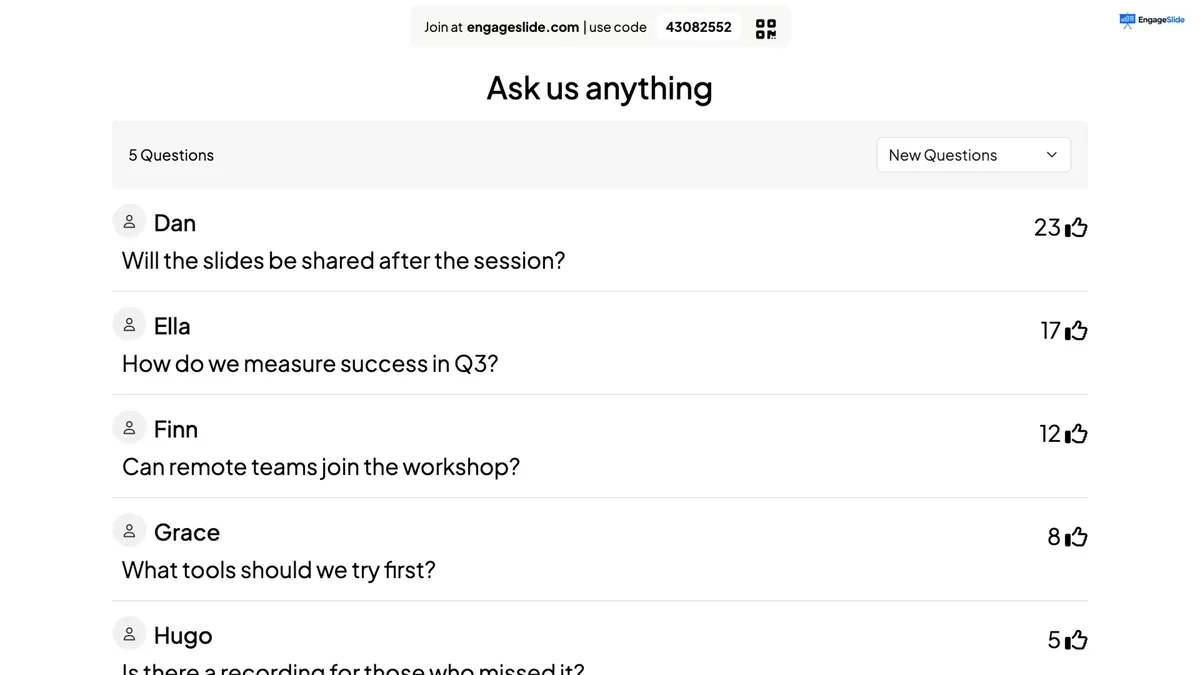
Do not leave questions to the end and a roaming microphone. Open a Q&A slide early and let people ask from their phones during the whole talk. Everyone can give a thumbs-up to the questions they want answered, so the list on the big screen sorts itself by votes and you answer what matters most to the room. Questions can be anonymous, which brings out the honest ones about pricing, migration and the things your competitors will say. With moderation switched on, nothing appears until a colleague approves it from a shared link.
+40 minutes: close with feedback and contact details
Your last slide should collect two things: what people thought, and who they are. A Quick Form slide puts a short form on every phone — Audience Name and Audience Email are always included, and you can add fields such as Company or Job title. The big screen only shows a live count of responses; the answers stay private for your sales team. For deeper feedback, link an EngageSlide survey to the presentation so it appears at the end, with rating, multiple-choice and open questions people can answer at their own pace. Our guides to capturing leads at virtual events and building a post-event survey go deeper on both.
Every interactive moment in a launch should answer a question you have about your audience. If it does not, it is decoration.
A giveaway that people stay for
If you have prizes, draw them live with a Spinner Wheel at the end of the show, or give them to the top of the quiz leaderboard. Announce the giveaway at the start: it is the simplest way to keep people in the room — or on the stream — until your final call to action.
Running it smoothly on the day
- Present from where you already work. EngageSlide runs in the browser, and there are add-ins for PowerPoint and Google Slides, so interactive slides can sit inside the deck your design team already built.
- Use your phone as a remote. The remote control lets you move slides, show results and manage Q&A from your phone, so you can walk the stage instead of standing behind a laptop.
- Put the QR code on screen early and often. The join code stays visible on interactive slides, so latecomers can join at any point.
- Rehearse with real phones. Join from two or three devices during the rehearsal, answer every slide and check what the results look like with a handful of votes.
- Assign a moderator. One person approves Q&A questions and watches the chat, so the speaker can focus on the stage.
Hybrid and online launches
Everything above works the same for people in the hall and people watching a stream: they all join with the same code and appear in the same results. That matters more than it seems. Online viewers usually feel like spectators; when their votes show up next to the hall's, they are part of the event. For webinar-style launches, our guide to polls and Q&A for two-way webinars covers the online side in more detail.
After the launch: use what the room told you
The interactive moments are not just for show. After the event, open the presentation report and look at:
- The warm-up poll — who was really in the room, compared with who you expected.
- The word cloud — the words people used for your product, which are often better than the ones in your messaging.
- The quiz results — which feature questions most people got wrong, a clue about what needs a clearer explanation.
- The top Q&A questions — the beginning of your launch FAQ and your sales team's objection list.
- The form and survey responses — your follow-up list, ready to export.
Your launch checklist
- Write down the three things you want to learn from the audience.
- Add one interactive slide for each: poll, word cloud, quiz, Q&A, form or survey.
- Place them at the natural breaks: doors open, after the reveal, in the demo, before the close.
- Rehearse with real phones and a moderator.
- Announce the giveaway at the start and draw it at the end.
- Read the report the next morning and send the follow-up the same day.
All of these slides are part of EngageSlide's interactive presentation tool, free to start. Build your run of show, put the QR code on the first slide, and let your next launch be one the audience helps to tell. For more ideas, browse the EngageSlide blog.