
Most teams hold retrospectives. Far fewer can name a single thing that changed because of one. The pattern is familiar: the same complaints appear sprint after sprint, the action items list grows, and the retro slowly turns into a ritual people sit through rather than a meeting that improves how they work. This guide is about the other kind of team retrospective, the one that drives real change. You will get a five-phase structure, the facilitation habits that keep it honest, and a simple system for making sure action items actually get done.
Why most retrospectives don’t change anything
The Agile Manifesto principles ask teams to reflect at regular intervals on how to become more effective, then tune and adjust their behaviour. The reflecting part is easy. The adjusting part is where retros fail, usually for one of four reasons:
- The loudest voices set the agenda. Two or three people talk, everyone else nods, and the real issues stay unspoken.
- Too many topics, no priorities. The team discusses twelve things for five minutes each and fixes none of them.
- Action items without owners. “We should improve code reviews” is a wish, not an action.
- No follow-up. Nobody checks last sprint’s actions, so the team quietly learns that retro promises don’t matter.
Every step below is designed to fix one of these problems.
The five phases of a retro that works
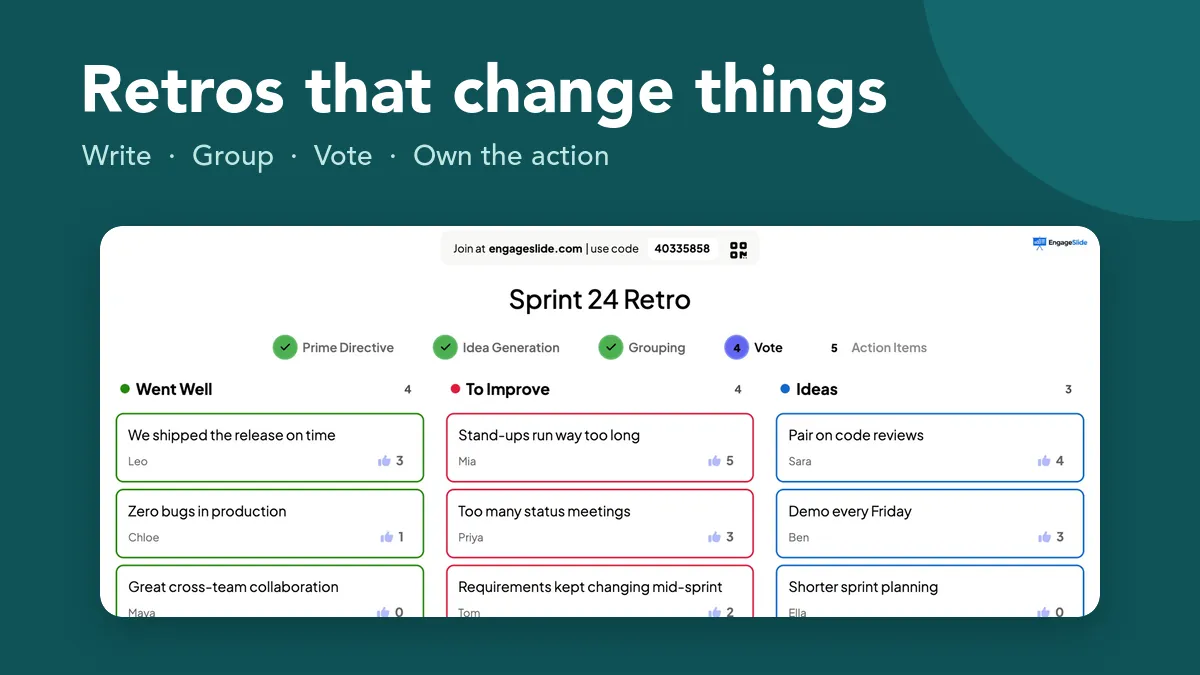
A Remote Retro slide in EngageSlide runs the whole retrospective on one slide, guided step by step: Prime Directive, Idea Generation, Grouping, Vote and Action Items. You control the pace from the big screen and every participant’s phone follows along, whether the team is in one room or spread across time zones.
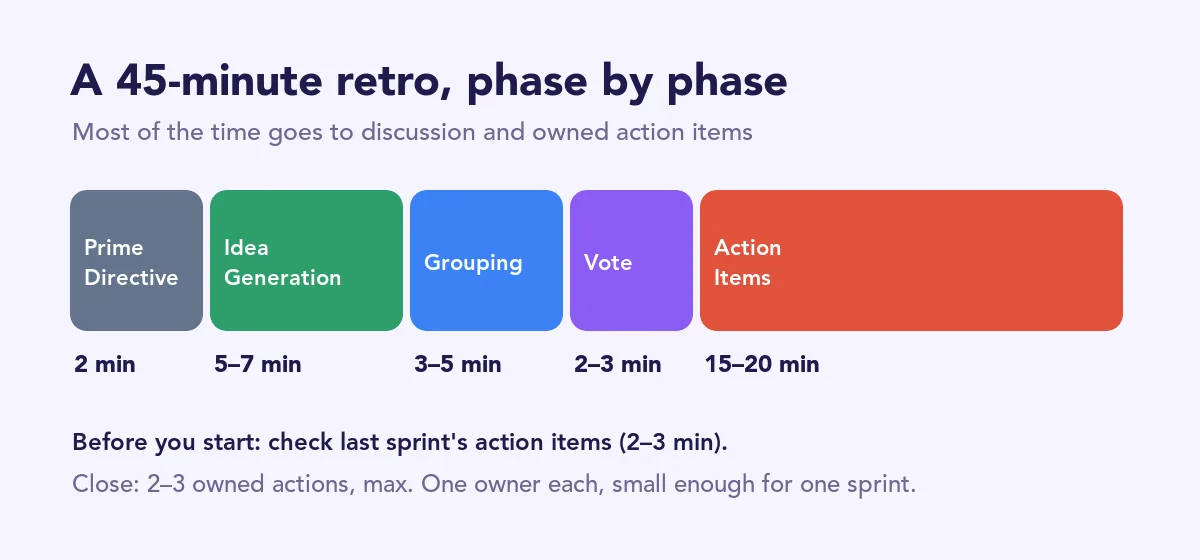
1. Prime Directive: set a safe tone (2 minutes)
Open by reading the Prime Directive aloud: the reminder that everyone did the best job they could with what they knew at the time. It sounds like a formality, but it reframes the meeting from blame to learning. Teams with high psychological safety are more willing to admit mistakes, which is exactly the raw material a retro needs.
If your team is new to honest feedback, or there is tension after a hard sprint, switch on Anonymous Mode. Names disappear from every note on the big screen and on the phones, which makes it much easier to write “requirements kept changing mid-sprint” about your own manager. For more on this, see how to gather honest feedback in meetings.
2. Idea Generation: everyone writes, nobody talks (5–7 minutes)
This is the single biggest fix for the “loudest voices” problem. Instead of an open discussion, everyone writes notes on their own phone at the same time. Each person picks a column tab, types a note and presses Enter. They can add as many as they like, and the notes pop into the columns on the big screen live.
Silent writing gives quieter team members the same airtime as the most confident ones, and it stops early comments from anchoring everyone else’s thinking.
3. Grouping: turn twenty notes into five themes (3–5 minutes)
As facilitator, you tidy the board while the team watches. Drag a note to another column if it landed in the wrong place, or select two or more similar notes and press Group Selected to stack them under one card with a count. “Stand-ups run too long” and “too many status meetings” are really one theme about meeting load.
Grouping is where a retro starts to show patterns. A theme with five notes behind it is a stronger signal than five separate complaints.
4. Vote: let the team choose what matters (2–3 minutes)
This step fixes the “too many topics” problem. Each person gets a fixed number of votes (three by default, adjustable from one to ten under Max Votes Per Person) and can give each note at most one vote. Tapping a note again takes the vote back, so people can change their minds until you move on.
When voting closes, each column is sorted by votes. Your agenda for the rest of the meeting is now set by the team, not by whoever spoke first.
5. Action Items: discuss the top notes and assign owners (15–20 minutes)

Work down the list from the most-voted note. For each one, ask three questions: what is really happening, what could we try, and who will own it. Mark each note as Discussed when you are done; the bar at the bottom shows progress, such as 4/12 Discussed, which helps you keep time.
Then type the action into the Action Items panel with an Owner. Every participant sees the agreed actions and owners on their phone, so there is no ambiguity about what was decided.
How to write action items that actually happen
An action item is the only output of a retro that matters. Good ones share four traits:
- One owner, not “the team”. The owner doesn’t have to do all the work, but they are responsible for making sure it happens.
- Small enough for one sprint. “Fix our testing culture” will roll over forever. “Add a 15-minute bug triage slot to Monday’s stand-up” can be done this week.
- Specific and visible. If someone outside the team read it, would they know what changes?
- Few in number. Two or three actions per retro is plenty. Teams that commit to eight usually finish none.
A retrospective drives real change when it ends with two or three small, owned actions, and the next retro starts by checking whether they happened.
Close the loop: start every retro with last sprint’s actions
This is the habit that separates teams that improve from teams that just meet. Before you open Idea Generation, review the previous actions. In EngageSlide this is built in: when you reuse the same slide, click Clear result this slide to delete the old notes and votes, and the previous action items stay in the Action Items panel until you remove them. Tick the ones that are done, discuss the ones that aren’t, and remove them with × once settled.
If an action has rolled over twice, treat that as a signal: either it is too big, the owner lacks time, or the team doesn’t truly want it. Say so openly and decide whether to shrink it or drop it.
Keep the format fresh
Running the same three columns every two weeks gets stale. Switch the Template now and then to change the questions people think about:
- Default (Went Well / To Improve / Action Items) for a quick, classic sprint retro.
- 4Ls (Liked / Learned / Lacked / Longed For) after a project, a release or a training course.
- Starfish (Keep Doing / Less Of / More Of / Stop Doing / Start Doing) when the team wants finer-grained change.
- Custom columns for formats like Start / Stop / Continue, Mad / Sad / Glad, or a Sailboat retro with Wind, Anchors, Rocks and Island. You can have two to six columns, each with its own colour.
Facilitation tips for in-room and remote teams
- Timebox every phase. Most of the meeting should go to discussion and action items, not to writing notes.
- Facilitate, don’t dominate. If you are the team lead, consider rotating the facilitator role so the retro doesn’t become a status review with the boss.
- Use one screen for everyone. Hybrid teams should all write on their own devices, even people in the room, so remote colleagues aren’t second-class participants.
- Protect the time. A 45–60 minute retro every sprint beats a three-hour “big retro” once a quarter.
- End on energy. Close by asking each person for a one-word reaction or a quick poll on how useful the retro felt, and use the answers to improve the next one.
If your stand-ups keep showing up as a “To Improve” note, you may also like how to keep stand-up meetings short and useful. For the full setup reference, see the Remote Retro help article, and explore other ways to run better meetings with the EngageSlide interactive presentation tool.