
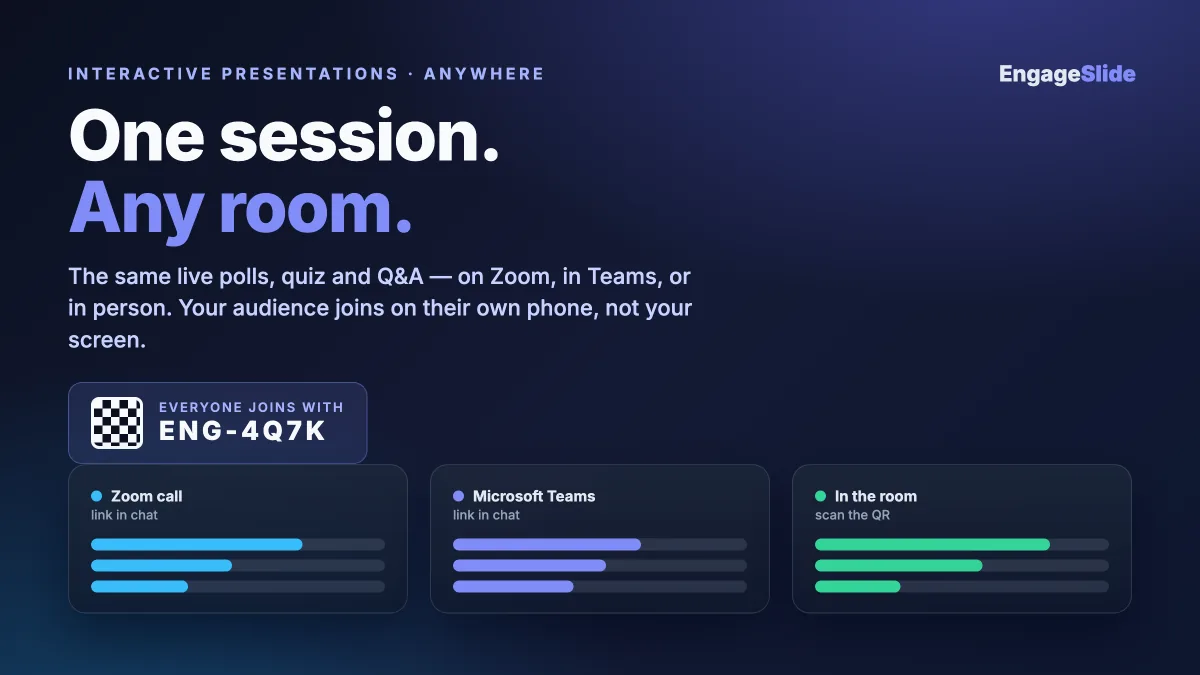
You built a genuinely interactive session — live polls, a quiz, a word cloud, an open Q&A — and it landed beautifully in the room. Then next week the same talk is on Zoom, and the week after it's in a Microsoft Teams meeting. Do you rebuild everything for each venue? You shouldn't have to. The interaction layer that makes a presentation feel alive is the same whether people are sitting in front of you or scattered across time zones. What changes is small and mechanical. This guide walks through running an interactive presentation on Zoom, Teams, or in person using one setup that travels across all three.
The venue changes the logistics, not the engagement
Here is the mindset shift that makes this easy: your slides, your poll questions, your quiz, and your Q&A board don't care where the audience is. A good question is a good question in a boardroom or a browser tab. What actually differs between a Zoom call, a Teams meeting, and a physical room is three practical things — how you share your screen, how people join the interaction, and where you look to read the results. Solve those three once and the same session runs anywhere.
With EngageSlide, every interactive slide is backed by a single audience app that participants open on their own phone or laptop. That decoupling is the whole trick. The presenter view lives on your screen; the audience joins on their own device. Because the two are separate, it no longer matters whether "your screen" is a projector, a shared Zoom window, or a Teams tab.
The one thing that makes it work everywhere: the join link
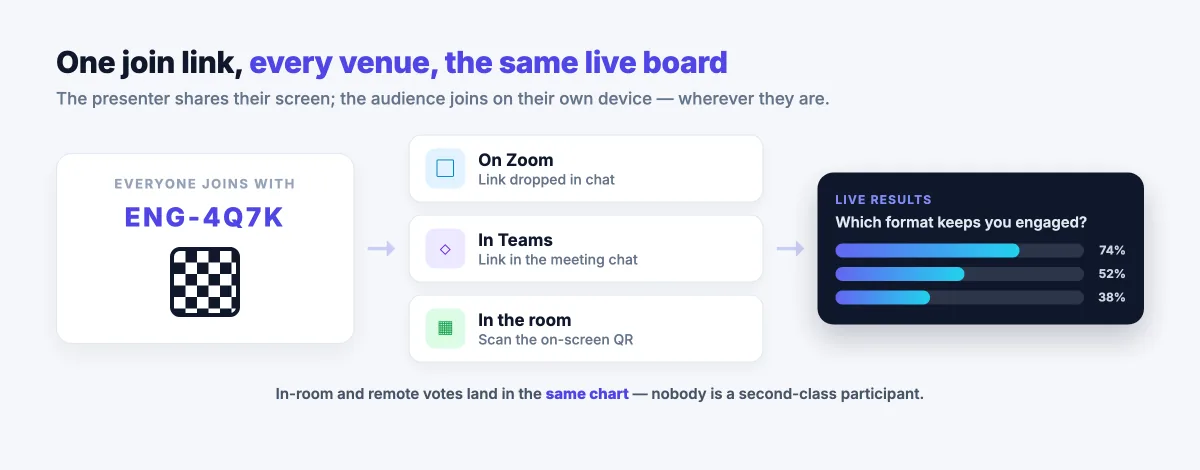
Across all three venues, people join the same way — with a short code or a QR code that opens the audience app. In the room, they scan the QR on the slide. On Zoom or Teams, they click the join link you drop in chat, or type the code at your join URL. Same session, same live results, regardless of how they got there.
This is worth over-communicating. The single biggest cause of a flat interactive moment is people not knowing how to join, so say it out loud and show it on screen: "Scan the code, or go to the join page and enter these six characters." Leave the join slide up for a few seconds longer than feels necessary — remote attendees are often on a second screen and need the beat to catch up.
Running it on Zoom
On Zoom, share the presenter view with Share Screen and pick the window running your presentation rather than your whole desktop, so notifications stay private. Paste the join link into the Zoom chat the moment you reach your first interactive slide, and repeat it once — chat scrolls fast and latecomers miss it. When results roll in, glance at your presenter screen, not the gallery of faces; the live chart is where the energy is.
One Zoom-specific tip: presenting from your phone as a remote is a quiet superpower. EngageSlide's remote control lets you advance slides and reveal answers from your phone, so you can stand up, walk around, and actually watch your audience's reactions instead of being pinned to the keyboard while you screen-share.
Running it in Microsoft Teams
Teams works the same way, with one nice bonus: you can keep the whole flow inside the tools your company already lives in. Share your presenter window, drop the join link in the Teams chat, and let people vote, ask questions, and take the quiz from their phones while the meeting runs on their laptops. If your organization runs most of its meetings in Teams, it's worth setting up the EngageSlide integration for Microsoft Teams so launching an interactive session is part of your normal meeting muscle memory rather than a separate app to remember.
Because Teams meetings often blend a few people in a conference room with others dialing in, treat every Teams session as a hybrid one (more on that below) — put the QR code on screen for the room and the join link in chat for the remote folks, every time.
Running it in person
In a physical room, the interaction is at its most tactile: the QR code goes up on the big screen, phones come out, and the results wall builds in front of everyone. There's no chat box to paste a link into, so the on-screen QR does all the heavy lifting — make it large and give people a moment to scan. A word cloud is a fantastic opener here because the room can literally watch their collective answer take shape on the shared display.
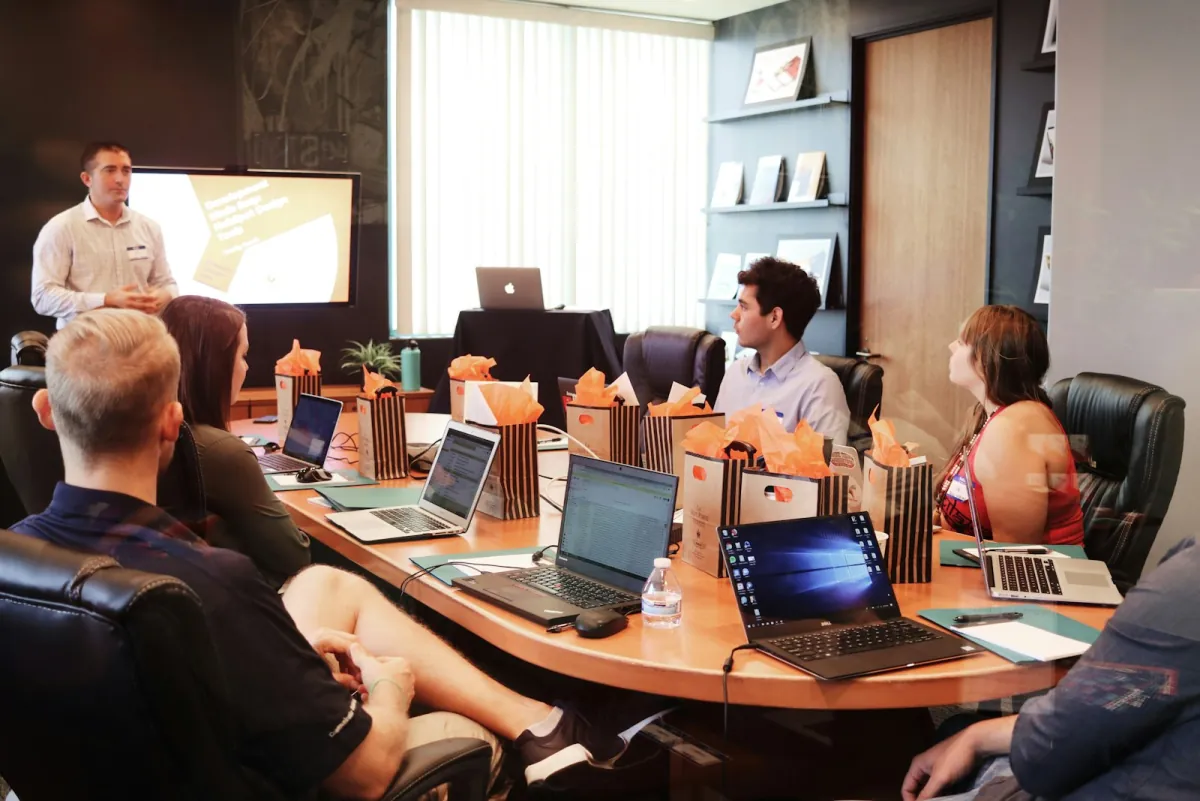
In person you also get the richest read on the room, so lean into it. Ask a live poll, let the bars fill, then react to what you see out loud: "Interesting — most of you picked option B, let's dig into why." That call-and-response is what separates a presentation from a lecture, and it's exactly the muscle described in our guide to turning a one-way lecture into a two-way conversation.
Hybrid: doing all three at once
The real test is the hybrid session — some people in the room, some on a call. This is where the single-join-link model quietly wins, because in-room and remote attendees land in the exact same live poll, quiz, or Q&A. Nobody is a second-class participant. The remote engineer's vote sits in the same bar chart as the person sitting three feet from you.
Two habits keep hybrid fair. First, show both entry points at once — QR on the screen for the room, link in the chat for remote. Second, read results from the shared data, not the loudest voice; when you say "the room is split 60/40," everyone is looking at the same numbers. An open, upvoted Q&A board is especially powerful in hybrid settings, because it surfaces the question the whole audience cares about most instead of whoever happens to unmute first — a small fix for the age-old problem of remote attendees never getting a word in.
A format that travels across all three
Because the mechanics are portable, you can design one interaction flow and reuse it in any venue. A reliable structure that works on Zoom, in Teams, and in a room:
- Open with a word cloud. One low-stakes prompt ("one word for how this quarter felt") warms up every voice in the first two minutes.
- Punctuate with live polls. Every few slides, ask a question, show the chart, and respond to it. This is the heartbeat that keeps attention from drifting.
- Add a quiz with a leaderboard for stakes. A short scored quiz turns passive watching into friendly competition — and works identically whether points are earned from a couch or a conference chair.
- Keep a Q&A board open the whole time. Let people submit and upvote questions throughout, then address the top ones. It captures the quiet participants the live mic never reaches.
Design the interaction once, and the venue becomes a detail. The same poll, quiz, and Q&A that light up a room work just as well shared into a Zoom window or a Teams tab — because the audience always joins on their own device, not yours.
Your quick pre-flight checklist
Whatever the venue, run through the same short list before you start:
- Test the join flow yourself. Open the audience app on your own phone and join your session before anyone arrives.
- Decide your two entry points. QR on screen for the room, link ready to paste for remote — even if you think it's an in-person-only session.
- Share the right window, not your whole desktop, so notifications stay private on Zoom and Teams.
- Have your phone remote ready so you can move and watch the audience instead of the keyboard.
- Over-explain how to join, once out loud and once on screen. It's the single highest-leverage thing you can do.
None of this depends on fancy equipment or a specific room — it's the same principle behind everything in our interactive presentation blog, and it's the reason a well-built session survives the jump from stage to screen. If most of your engagement happens remotely, our deeper playbook on keeping a virtual audience engaged for a full hour pairs well with this one. The underlying idea is simple and, once you internalize it, freeing: build for interaction, not for a venue. Do that, and running an interactive presentation on Zoom, in Teams, or in person stops being three different jobs and becomes one. For the science-minded, the practice of live audience response is well documented, and the shift toward video-based meetings is exactly why a venue-agnostic setup matters more every year.