
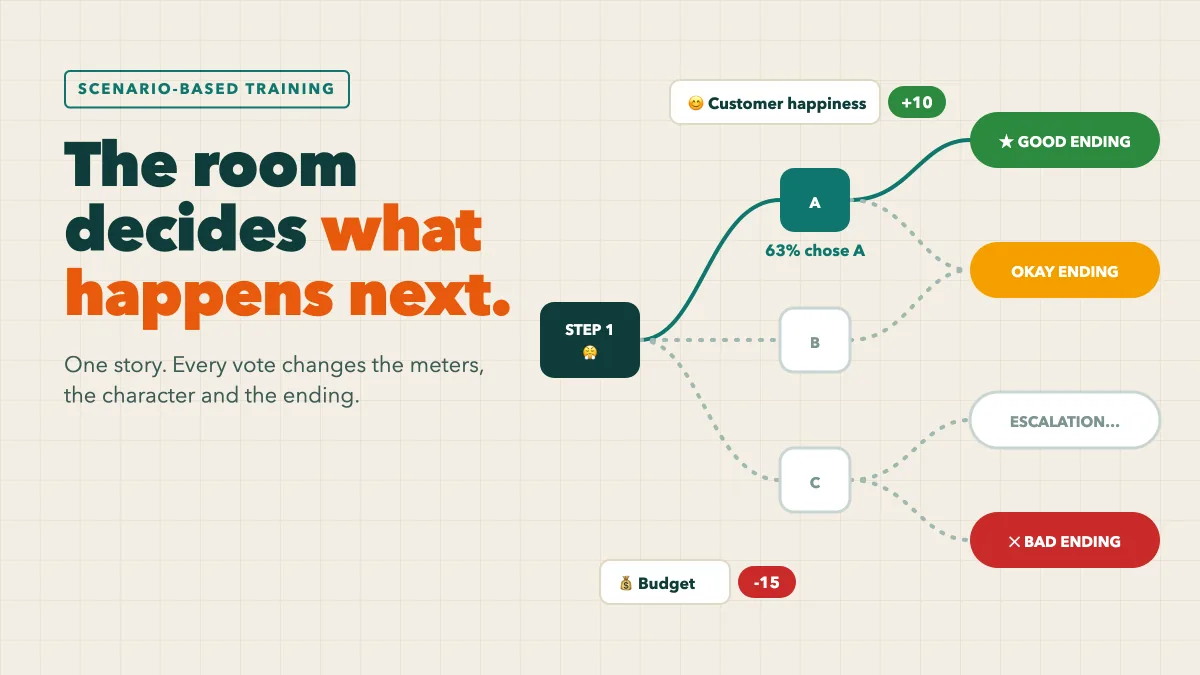
Most training tells people what to do. Scenario-based training makes them decide. Instead of a slide listing "five steps for handling an upset customer", the room meets one, picks a response, and watches what happens. Good choices open the next door. Poor ones make the rest of the story harder. People remember the consequences they caused far better than a list they were shown. This guide explains how scenario-based training works and how to run a branching story with the Scenario slide in EngageSlide, where the whole room votes on every step from their phones.
What is scenario-based training?
Scenario-based training puts learners inside a realistic situation and asks them to make the calls a real job asks for. Each decision leads somewhere: a calmer customer, a growing queue, a security incident, a near-miss on the warehouse floor. It is a practical form of experiential learning. People learn by doing, seeing the result, and thinking about it.
A branching story has three parts:
- Steps. A short situation (two or three sentences) and a person in it: the customer, a colleague, the IT team.
- Choices. Two to four realistic options. The wrong ones should be tempting, like the shortcut that looks sensible under pressure.
- Consequences. Every choice changes something you can see and leads to the next step, until the story reaches an ending.
Run live with a whole room, every decision also becomes a conversation.
Why live, group scenarios beat slides and quizzes
A quiz checks whether someone knows the answer. A scenario checks whether they would act on it under pressure. Running it live adds three things:
- Everyone commits. When each person votes privately on their phone, nobody can hide behind the loudest voice.
- The split starts the discussion. When 60% of the room picks one option and 30% picks another, you have a real question to talk about: why did a third of us think pointing at the returns policy was the right move?
- Consequences are shared. The room owns the path. If the majority makes a poor call early, everyone feels it when the next situation gets harder.
The learning happens after the vote. A short debriefing (what happened, why, what we would do differently) turns the experience into a habit.
How the Scenario slide works in EngageSlide
Here is what one step looks like in a live session:
- The scene appears. The big screen shows a setting (a shop counter, an office, a warehouse), a character with a mood, and the situation, for example Sam storming up to the counter with a broken blender.
- Everyone votes. Players see the situation and big A–D choice buttons with a countdown bar on their phone. A vote counts straight away, and they can change it until the vote closes. The screen shows a counter such as "4 of 12 voted".
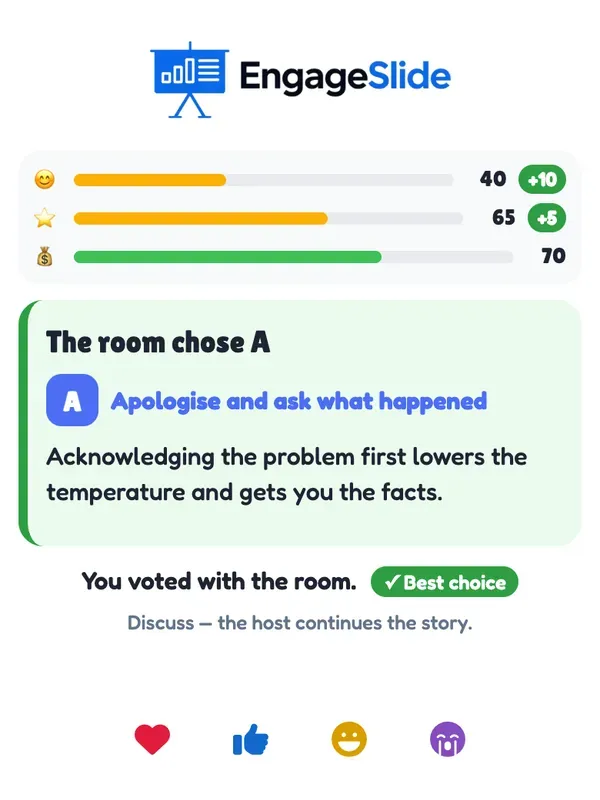
- The room's choice is revealed. The choice with the most votes wins and is highlighted with its share of votes. The character reacts, a short explanation says why the choice works (or does not), and the meters move with +10 or -15 chips.
- The story waits. Nothing moves on until you press Continue (or Enter). That pause is your debrief.

The meters are what make the consequences visible. You can set up to three, each with an icon, a name and a starting value from 0 to 100, such as Customer happiness, Team reputation and Budget. A fast full refund might raise happiness but cost budget. The meters do not decide the ending; the path does. So the room can protect the budget and still lose the customer.
On each phone, players see what the room chose, the explanation, the meter changes, and whether they voted with the room, with a Best choice badge when it was the right call.
Endings and the path recap
Every story ends in a good, okay or bad ending, announced with a ribbon on the big screen. Then press See the path for the recap: a map of the whole story with the room's path in orange and the best path in dashed green, a score such as 3/3 best choices, and each decision with how many people agreed. It shows the road not taken, which makes it a perfect debrief slide. Each player also sees their own numbers: how many times they voted, how often they agreed with the room, and how many best choices they made.
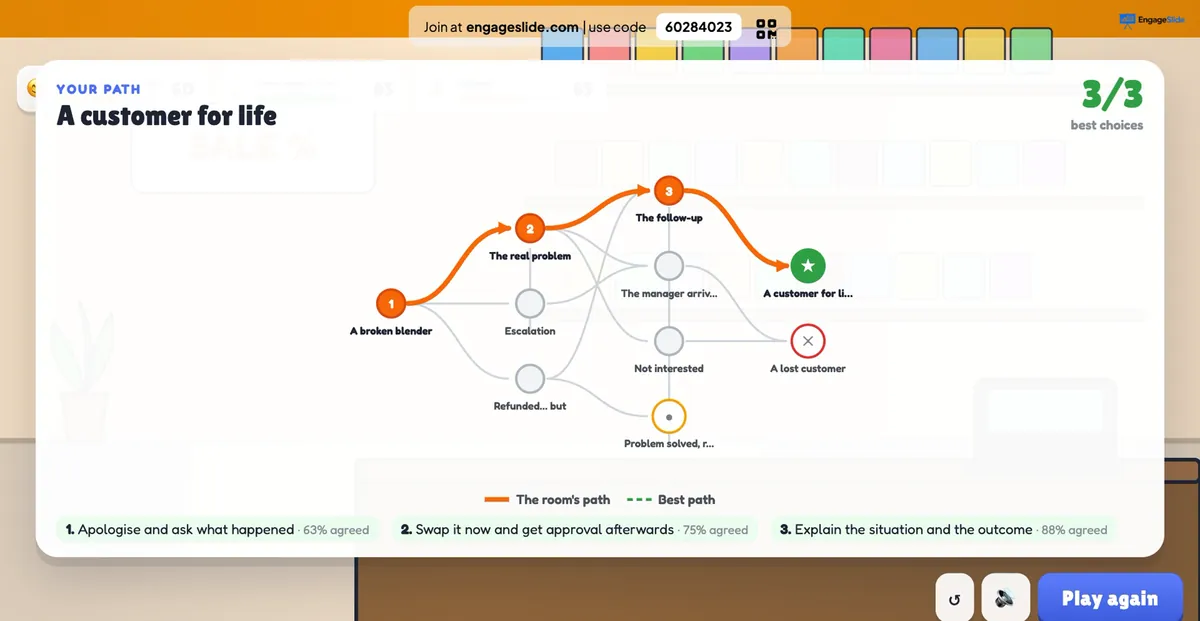
Press Play again to restart and explore another branch. Replaying the bad branch on purpose is a great way to show what would have happened. Every finished game is also saved: the Past games button inside the slide reopens earlier plays, and the session appears in your Report page, so you can compare groups that played the same story.
Three ready-made stories to start with
Under Start from a template you will find three stories:
- The Angry Customer (customer service). Sam's blender broke after two days and the party is tomorrow. Apologise and ask what happened, point to the returns policy sign, or refund straight away?
- Suspicious Email (security awareness). An "URGENT: password expires" email from a look-alike address. Report it, click to check, or forward it as a warning? Meters track Security, Productivity and Trust.
- Spill on the Floor (workplace safety). Oil in aisle 4, a forklift on its way and a deadline in 20 minutes. Meters track Safety, Productivity and Team morale.
Run a template once to learn the flow, then edit it to match your own products and policies.
How to write your own branching story
Pick Blank story, give it a Story name, set your meters and add up to four characters with + Add character (looks include glasses and a safety helmet). Then build it under Steps. Each step has a Title, a Scene, Who speaks, the character's Mood and the situation text. For every choice you set:
- Leads to. The next step or an ending. Branches can join up again, and a choice can even lead back to an earlier step for a "try again" moment.
- Reaction. The character's mood afterwards, from happy to angry.
- Meter changes. How much each meter moves, for example +10 or -15.
- Feedback. One sentence explaining why the choice works or does not.
- Best choice. Tick one per step. This draws the dashed green best path in the recap.
The editor warns you when the story has no ending, when a step cannot be reached from the start, or when a step has fewer than two choices that lead somewhere. A story can have up to 30 steps, but most good training stories need only 3–5 decisions and 3–4 endings.
Writing tips that make scenarios work
- Start from a real mistake. Make the wrong call managers see most often the most tempting choice.
- Keep situations short. Two or three sentences. Time is for deciding, not reading.
- Make feedback explain, not judge. "Policies matter, but leading with one sounds like 'not my problem'" teaches more than "Wrong".
Settings and facilitation tips
- Time to vote. 10 to 90 seconds (20 by default). Voting closes early once everyone has voted, or when you press Reveal now.
- Show votes while voting. Off by default, so people think for themselves. Turn it on only if you want the live split to add tension.
- On a tie. Pick at random, or Prefer the best choice when it is among the tied ones.
The vote is the hook; the pause after it is the lesson. Before you press Continue, ask one person from the majority and one from the minority why they chose what they did.
Use ⏸ to pause a vote if a good argument breaks out, and ↺ to restart for a second group. Scenario has no points or leaderboard, which is on purpose: it rewards judgement and discussion, not speed. If you want scores, follow the story with a short knowledge-check quiz (see knowledge checks that make training stick), or use a discuss-and-revote round like Vote, Discuss, Revote for tricky concepts.
Where scenario-based training fits
Beyond service, security and safety, branching stories work well for sales (a prospect pushes back on price), compliance (a supplier offers a generous gift during a tender), leadership (a team member misses a deadline again) and even classrooms ("You are the mayor in 1665 and the plague arrives"). Players join at engageslide.com with your code or the QR code. There is no app to install, and late arrivals join straight into the current step. Pair a scenario with other interactive presentation activities across a session, and see our guide to interactive presentations for trainers for more ideas. For a full walkthrough of every field, read the Scenario help article.