
If the only thing you really use Slido for is live Q&A, the audience asking questions, voting on the best ones and you answering from the top, then you may be paying for a lot of tool you never touch. Worse, the one Q&A feature most hosts need for a town hall or a conference, moderation, sits on a paid tier. This guide is for hosts who want a Slido alternative for Q&A specifically. It goes through each Slido Q&A feature, shows the matching feature in EngageSlide, is honest about the gaps, and walks you through running your first moderated Q&A in about ten minutes.
What you actually need from a live Q&A tool
A good audience Q&A comes down to five jobs:
- Easy to ask. People join from their phone in a browser, with no app and no account, and type a question in seconds.
- The crowd decides the order. Upvotes push the questions most people care about to the top, so you never answer a niche question while the big one waits.
- Safe to ask. Anonymous questions bring out the topics people are nervous to raise with their name attached.
- Safe to show. Moderation keeps off-topic, duplicate or rude questions off the projector until someone approves them.
- Easy to run. You can mark questions answered, put one on the big screen while you talk, and hand the screening to a colleague.
Slido covers all five. Its own Live Q&A page lists anonymous questions, upvoting, moderation, a present mode and co-hosts. Where it costs money is moderation: on Slido's community forum, a Slido employee confirmed that moderation features are included in the Professional plan or higher. If your events need screened questions, you need a paid Slido plan.
Slido Q&A features and their EngageSlide equivalents
Here is how the core Q&A features map, based on what each product actually ships today.
Asking and joining
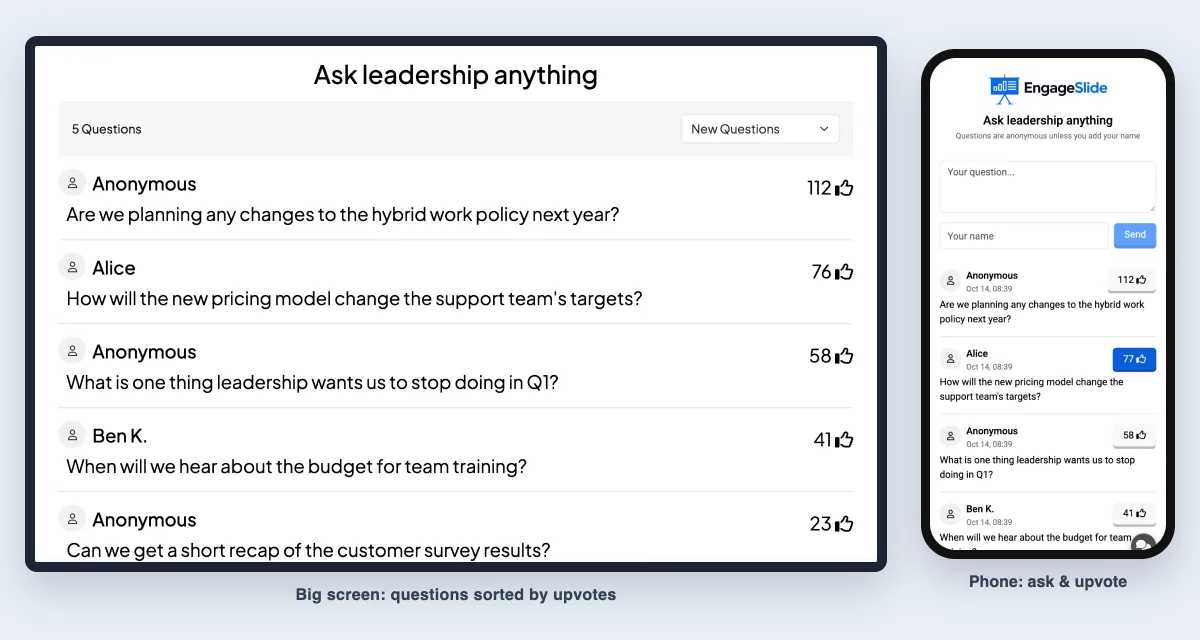
In EngageSlide, participants join at the code or QR shown on your screen. Phones open a box (Your question…), an optional Your name field and a Send button. Leave the name empty and the question shows as Anonymous. Nobody needs an account or an app. Add a short description under the title, for example "Questions are anonymous unless you add your name", so people know the rules before they type.
Upvoting and live sorting
Every phone shows the open questions with a thumbs-up button. Each phone gets one vote per question, and tapping again removes it. The big screen sorts by votes, with older questions first when votes are tied, and new questions and votes appear live.
Moderation
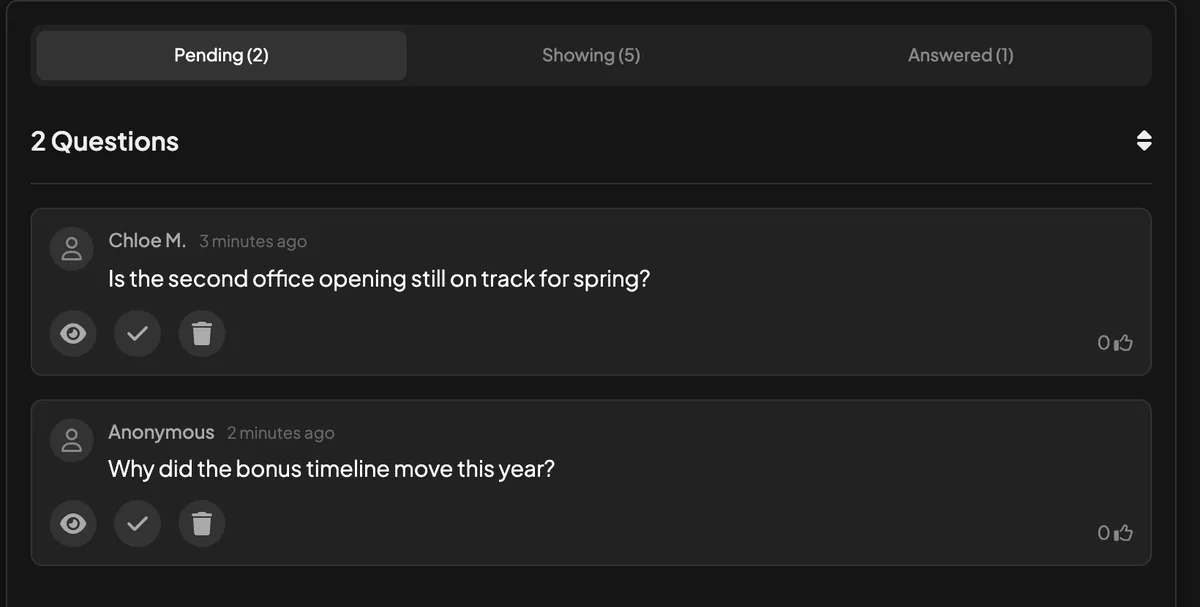
This is the biggest difference for budget-conscious hosts. EngageSlide's pricing page lists Moderate Q&A on the Free plan. Turn on Moderation Q&A in Presentation settings and new questions stay hidden until they are approved. The asker sees their own question with a Pending approval label, so they know it arrived. A moderator link appears under the setting. Copy it and send it to a colleague, who can screen questions without an EngageSlide account. The moderator page has three tabs (Pending, Showing and Answered) and three actions on each question: approve and show on the canvas, mark as answered, or delete.
You can also approve and answer from your phone through the remote control, which shows the same lists. For a step-by-step version, see the Help Center article on moderating Q&A and filtering bad words.
Running the session
- Spotlight a question. Click any question on the big screen to show it large while you answer, then go back to the list.
- Mark answered. The check button moves a question out of the open list and off the phones. A drop-down switches the screen between New and Answered questions.
- Profanity filter. With Enable Profanity Filter on, offensive words show as **** on the presentation. The original text stays in your results.
- Invite the asker to speak. If video calls are enabled, each question has a Call button so the person who asked can join the conversation.
- Ask from any slide. Turn on Questions are visible to everyone and phones get an Ask button on every other slide (except quiz slides). People can send questions during your talk, not only at the end.
Where Slido goes further
To keep this fair: Slido's Q&A page also lists question labels, host replies and participant comments on questions, sentiment analysis (marked beta), collecting questions in advance via a link, and SSO or passcode access controls. EngageSlide does not have labels, threaded replies or sentiment analysis on Q&A. If those are central to your event, for example a large company running Q&A in Webex with SSO, Slido may still be the better fit. EngageSlide does offer access codes and required login for audiences in its presentation settings, but it is not built as a replacement for enterprise single sign-on.
What "without the price tag" really means
Free never means unlimited for everything, so here are the actual numbers from the EngageSlide pricing page:
- Free: up to 10 live participants at a time, unlimited audiences per month, all slide types, Moderate Q&A, live video call and live chat.
- Basic: 100 live participants, plus export to PDF and Excel. $7.99 a month, or $4.79 a month billed annually.
- Pro: 5,000 live participants. $14.99 a month, or $8.99 a month billed annually.
So the free plan fits team meetings, small classes, workshops and trying out a full moderated flow before your big event. For a 300-person all-hands you would need a paid plan. The point is that moderation is not a premium upgrade: it is in every plan, including Free. Slido's prices vary by plan type, so check its pricing page for current numbers.
If live Q&A is your main reason for using Slido, compare plans on one question: what does it cost to get upvoted, anonymous and moderated questions for the number of people you expect? That one number tells you more than any feature grid.
Set up a moderated Q&A in ten minutes
- Create a presentation and add a Q&A slide. Give it a clear title such as "Ask leadership anything".
- Add a description that sets expectations: anonymous by default, one topic per question, the best-voted get answered first.
- Open Settings → General Settings. Turn on Moderation Q&A, copy the moderator link and send it to whoever will screen questions.
- Turn on Questions are visible to everyone if you want questions during the whole talk, and the Profanity Filter for large or public audiences.
- Do a dry run. Open the join link on your own phone, send one question, approve it on the moderator page and watch it reach the screen.
- Present. Put the join code on screen early, seed one question yourself if the room is quiet, and work down the list from the top.
The full slide walkthrough, with every setting, is in the Help Center article on the Q&A slide.
Tips for a Q&A that people trust
- Say out loud how moderation works. "We hide duplicates and off-topic questions, not hard ones." If people suspect filtering, they stop asking.
- Answer the top question even when it is awkward. Skipping the most upvoted question is the fastest way to lose a room. Our guide to upvoting questions covers how to read the votes.
- Keep anonymity real. Anonymous Q&A works because it breaks the spiral of silence, where people stay quiet because they think they are alone in their view. Don't ask "who sent this?" from the stage.
- Close the loop. Mark questions answered as you go, and after the session open the report's Questions tab to follow up on anything you ran out of time for.
- Choose open or moderated on purpose. Small internal meetings rarely need screening, while public events usually do. See moderated vs open Q&A for how to decide.
Mix Q&A with the rest of your session
Q&A doesn't have to sit alone. Open with a word cloud check-in, run a quick poll before the leadership update, keep the Ask button live throughout, then end on the Q&A slide and a short feedback survey. One deck, one join code. The same deck runs from the PowerPoint add-in, Google Slides or Microsoft Teams if that is where you present.
Is it worth switching?
Switch if your Slido use is mostly Q&A, you want moderation without upgrading, or you want Q&A alongside quizzes and games in the same deck. Stay if you depend on labels, replies, sentiment analysis or enterprise SSO. If you are comparing more than Q&A, such as polls, quizzes, exports and integrations, our Slido alternatives buyer's checklist covers the wider picture, and the EngageSlide vs Slido page sums up the main differences. The quickest test is the dry run above.