
Review lessons have a familiar problem. You ask a question, three confident students answer, and the rest of the class waits for the next one. A one-question-at-a-time quiz keeps the pace of the slowest moment in the room, and the students who most need the practice answer the fewest questions. Treasure Hunt in EngageSlide flips that around: every student works through the questions on their own phone, at their own speed, and every right answer opens a treasure chest. In five minutes a class answers dozens of questions each instead of a handful together, and nobody is bored waiting.
Here is how it works, how to build a deck in two minutes, and why a little luck keeps the whole class playing.
How Treasure Hunt works

Add a Treasure Hunt slide, present it, and students join with your code or QR code — no app or account. The big screen shows a glowing treasure chest, the rules in one line (answer right → pick a chest → get rich), how many questions and minutes the game has, and everyone who has joined. Press START and the race begins.
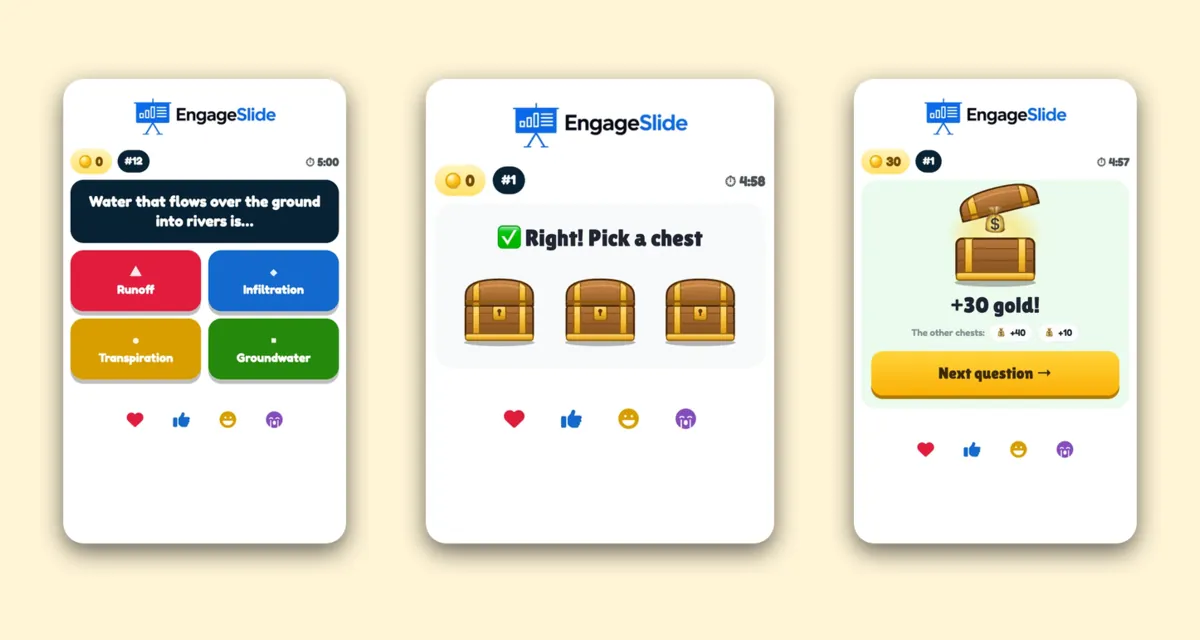
- Everyone plays at their own pace. Each phone shows its own question with big coloured answer buttons. Each student gets the deck in a different order, so copying a neighbour does not help.
- A right answer earns a chest. The phone says Right! Pick a chest and shows three shaking chests. The student taps one and it opens: +50 gold, ×2 or ×3 their gold, a chance to steal from or swap gold with another player, an empty chest, or a dragon that eats some of their gold. The phone then shows what the other two chests held.
- A wrong answer earns no chest — and comes back. The phone says Not quite!, marks the right answer in green, and the same question returns three questions later. That is a second chance to remember it while it is still fresh.
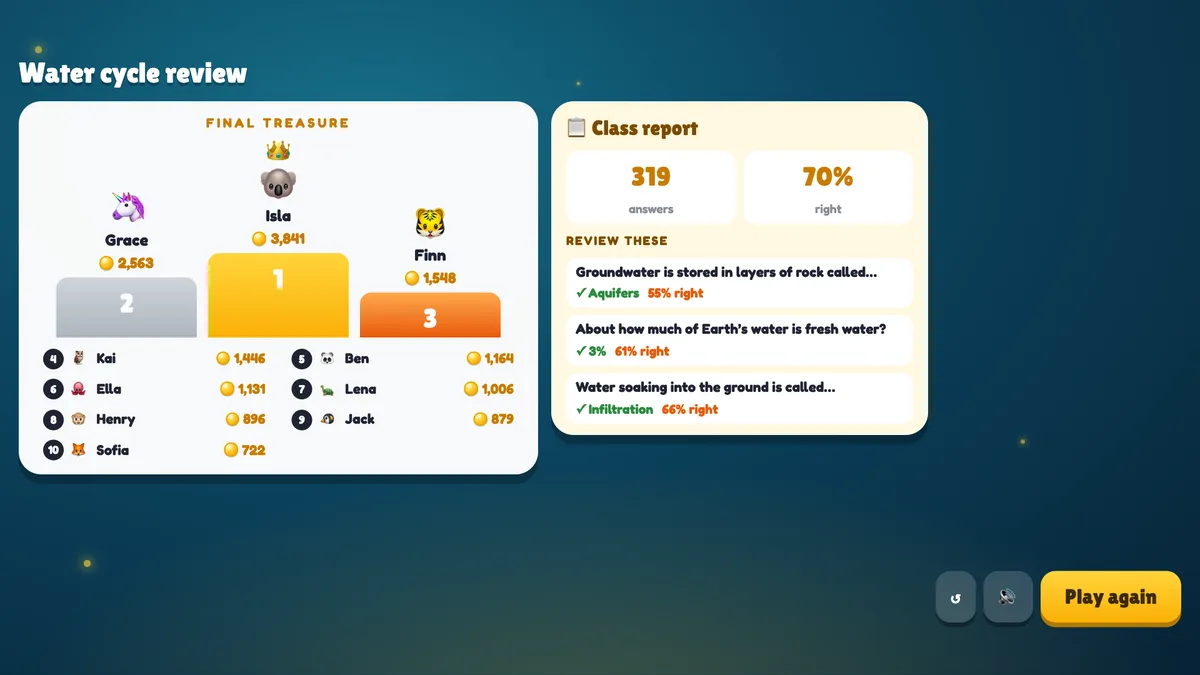
- The richest player wins. When the timer runs out, the podium shows the top three and the rest of the class.
While the class plays, the big screen keeps the energy up. The Richest players leaderboard shows the top ten with gold bars that grow and shrink as chests open, a big countdown ticks down, and a Treasure news feed reports what is happening: Ben found ×2 → +120 gold, Ivy stole 30 gold from Leo, A dragon took 25 gold from Maya. You will hear the room react to every line.
Why the luck matters
In a normal quiz, the strongest students usually win, and everyone else knows it by question three. Treasure Hunt still rewards knowledge — every chest has to be earned with a right answer — but what is inside the chest is partly luck. A student with fewer right answers can still win with a ×3 or a well-timed steal. That keeps every student trying until the very end, which is exactly when the most practice happens.
The questions do the learning; the chests keep everyone answering them. Luck is not a flaw in a review game — it is what stops half the class from giving up halfway.
There is solid research behind the format, too. Answering questions from memory is one of the most effective ways to learn — the testing effect — and bringing a missed question back a little later uses the spacing effect. A self-paced game simply lets every student do far more of both than a teacher-paced quiz can.
Build a question deck in two minutes
A new Treasure Hunt slide starts with a sample deck of 12 mixed questions, so you can try the game straight away. Then make it your own in the Question Deck:
- Generate with AI. Type a topic (for example The water cycle), pick the level — Primary school, Middle school, High school, University or Adults / training — and how many questions (5, 10, 15 or 20). The questions replace the sample deck. Always read them before you play.
- Paste a list. One question per line, in the format Question | *Right answer | Wrong | Wrong. The asterisk marks the right answer.
- Reuse your quiz slides. Already have Select Answer or True or False slides in the presentation? From quiz slides copies them into the deck.
- Edit anything. Click a question to change the text and its 2–4 answers, mark the right one, turn it into true / false, reorder or delete it.
A deck holds up to 50 questions, but 8–20 work best: students see each question more than once, and the repeats are where the learning sticks. If you run the same unit every year, keep the deck and reuse it.
The two settings that matter
Game time
Choose 3, 5, 8 or 10 minutes (5 is the default). Everyone plays until the time is up. While the game runs you can add a minute with +1 min or stop early with End game. For a lesson opener, 3 minutes is plenty; for revision before a test, try 8 minutes with 20 questions.
Kind mode
With Kind mode off (the default), chests can steal 10–25% of another player's gold, swap gold with someone, or let a dragon eat some of yours — so the race stays open until the last seconds. With Kind mode on, chests only give gold or multiply it, and nobody can lose anything. Switch it on for younger classes or a room where losing gold would sting more than it motivates.
What students see on their phones
The top of the phone always shows the student's gold, their live rank, the time left and a streak badge after three right answers in a row. If someone steals from them or swaps with them, a banner tells them who — which usually starts a friendly rivalry across the room. A steal or swap chest lists the richest players to pick a target from.
At the end, every phone shows the student's place, their gold, how many questions they got right and their best streak. Late arrivals are not a problem either: because the game is self-paced, a student who joins after START simply begins answering.
The class report: what to teach next
The most useful screen comes after the podium. Next to the winners, a Class report shows how many answers the class gave, the percentage that were right, and up to three Review these questions — the ones the class got wrong most often, with the right answer. That is your plan for the next ten minutes of the lesson, handed to you by the game.
Five ways to use Treasure Hunt
- Revision before a test. Generate 20 questions on the unit and play for 8 minutes, then spend the rest of the lesson on the Review these questions.
- Lesson opener. Three minutes on last week's material wakes up memory before you build on it.
- Homework check. Paste the homework questions; the class report shows what needs another lesson.
- Language classes. Vocabulary and grammar decks work perfectly — short questions, quick answers, lots of repetition.
- Training and onboarding. Turn product facts or policy rules into a five-minute game with Kind mode on. It pairs well with knowledge checks that make training stick.
Tips from the first games
- Read the AI questions first. They are a strong draft, not a final answer key. Fix anything ambiguous before the class sees it.
- Narrate the Treasure news. Reading out the best steal or the unluckiest dragon gives the room shared moments, even though everyone plays alone.
- Use the scores for fun, not for grades. Gold depends partly on luck, so Treasure Hunt has its own results and does not change your quiz leaderboard. For scores that count, use regular quiz slides with a leaderboard.
If you have played Blooket's Gold Quest, the idea will feel familiar. The difference is where it lives: Treasure Hunt is one slide inside your EngageSlide presentation, next to your polls, quizzes and other team or individual quiz formats, so the review game sits right in the middle of your lesson instead of in a separate tool.
Frequently asked questions
Can students see the right answer before they answer?
No. The phones only receive the question and the answers; the answer is checked in the presenter window, and only then does the phone show whether it was right.
Does the fastest student always win?
No. More right answers mean more chests, but chests are partly luck. That is deliberate — it keeps everyone motivated.
What if a student gets a question wrong?
They see the right answer, get no chest, and the same question comes back three questions later.
Where can I read the full setup?
The Treasure Hunt help article covers every setting with screenshots and a short video, and the Treasure Hunt slide page shows it in action.