
Every audience walks in with a few things it is sure about and wrong about. Goldfish forget everything in three seconds. Lightning never strikes the same place twice. You need to wait 24 hours before reporting a missing person. A true or false quiz is the quickest way to put those beliefs on the table, let everyone commit to an answer, and then correct them in a way people remember. This guide shows how the True or False slide works in EngageSlide, how to set one up in a couple of minutes, and how to get the most out of the reveal.
What a True or False quiz is (and why it works)
The format could not be simpler: you show one statement, and every player decides whether it is true or false. That simplicity is the point. There is nothing to read through, no four options to compare, and nobody is left behind. A room of 200 people can answer in a few seconds.
What makes it more than a filler question is the moment right after people commit. Once someone has picked a side, they want to know if they were right, so they pay attention to the answer. Research on the testing effect shows that retrieving an answer, even a wrong one, and then getting feedback helps people remember more than just being told the fact. A true or false question is the lightest possible version of that loop.
It is also a natural fit for myths. Lists of common misconceptions run to hundreds of entries because people repeat things that sound right. Asking the room to vote before you correct a myth gets a much stronger reaction than simply stating the correction.
How it looks in EngageSlide
The True or False slide is a quiz slide type, so it sits next to Select Answer, Type Answer and the other quiz games, and it scores into the same leaderboard. Here is what your audience sees at each step.
While players answer
The big screen shows your statement on a large card, framed in quotation marks, with two big sides underneath: one blue, one red. There are no vote counts while the timer runs, so nobody simply copies the crowd. On their phones, players see the same statement and two large buttons. One tap answers, and the phone then shows which side they picked while they wait.
The reveal
When time is up, the reveal plays in three short beats so you can talk over it:
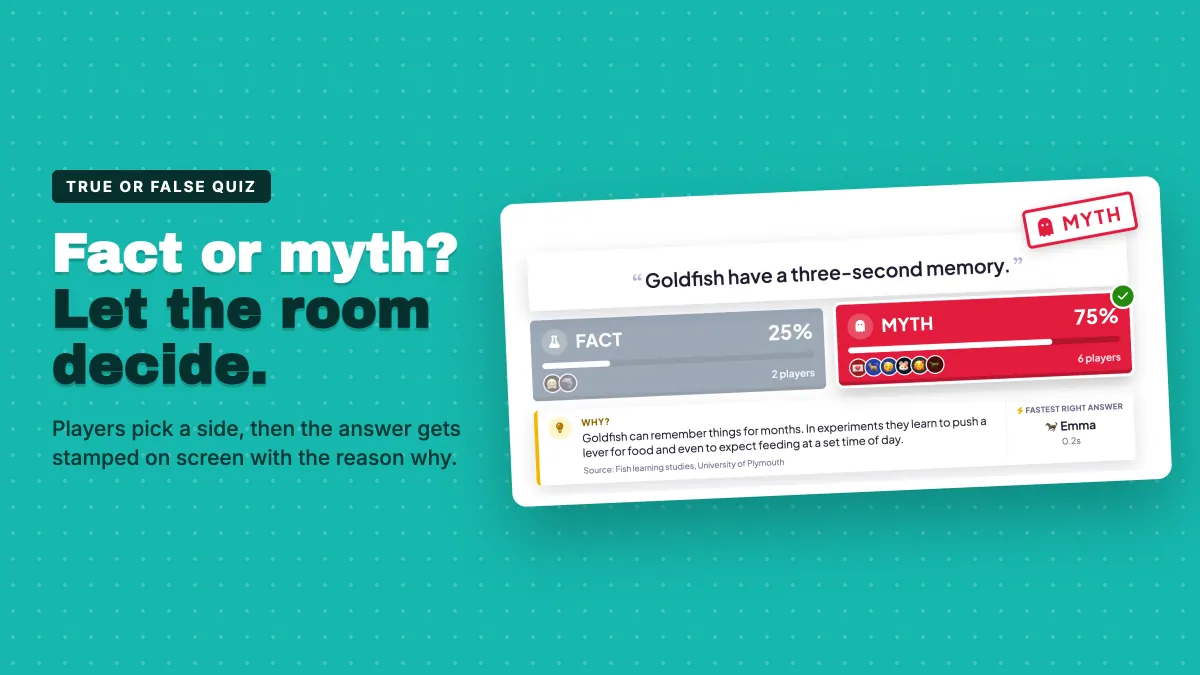
- The split. Each side counts up to its percentage, with the avatars of the players who chose it lined up underneath. The room instantly sees whether it agreed.
- The verdict stamp. A rotated stamp such as "MYTH" or "FALSE" lands on the statement card. The right side gets a green check and the wrong side fades to grey.
- The Why card. Your explanation appears below, with an optional source line, next to the name of the fastest player who got it right.
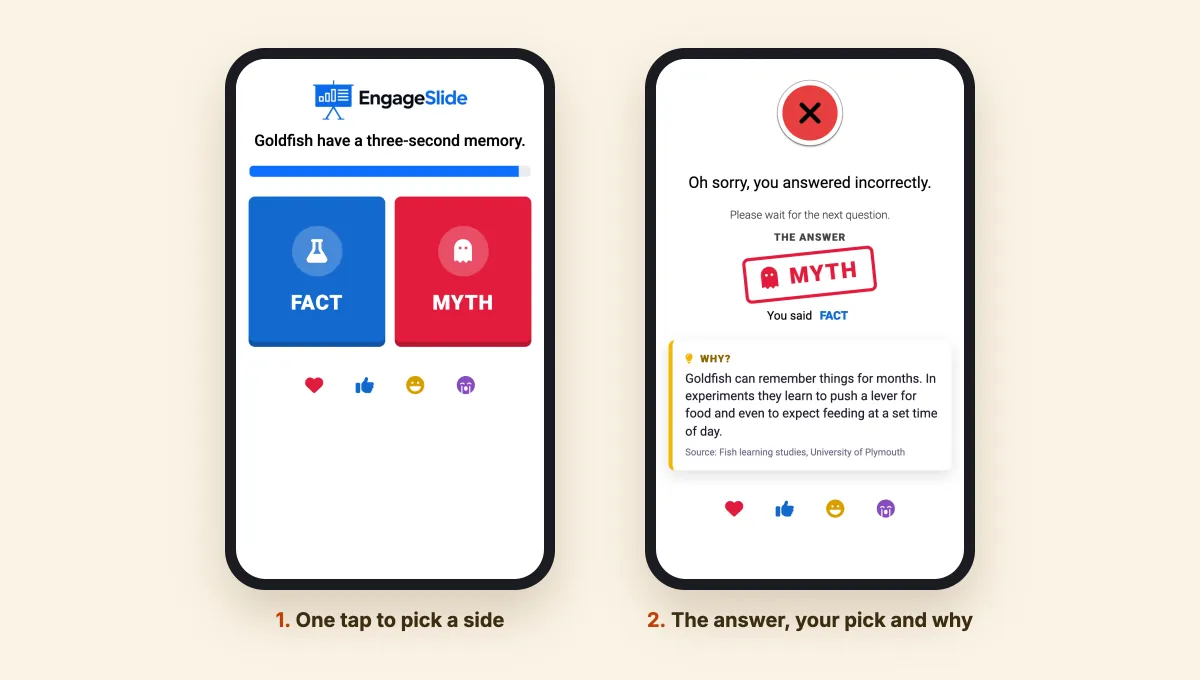
Players see the reveal on their phones too: whether they were right, the points they earned, the answer stamp, what they said, and the same Why explanation. The people who got it wrong are exactly the ones who need that explanation, and they get it in their hand, not only on a screen at the front of the room.
Four label sets for four kinds of statement
"True" and "False" are not always the most natural words. EngageSlide lets you pick one of four label pairs for the two sides. The game and the scoring stay the same; only the words and icons change.
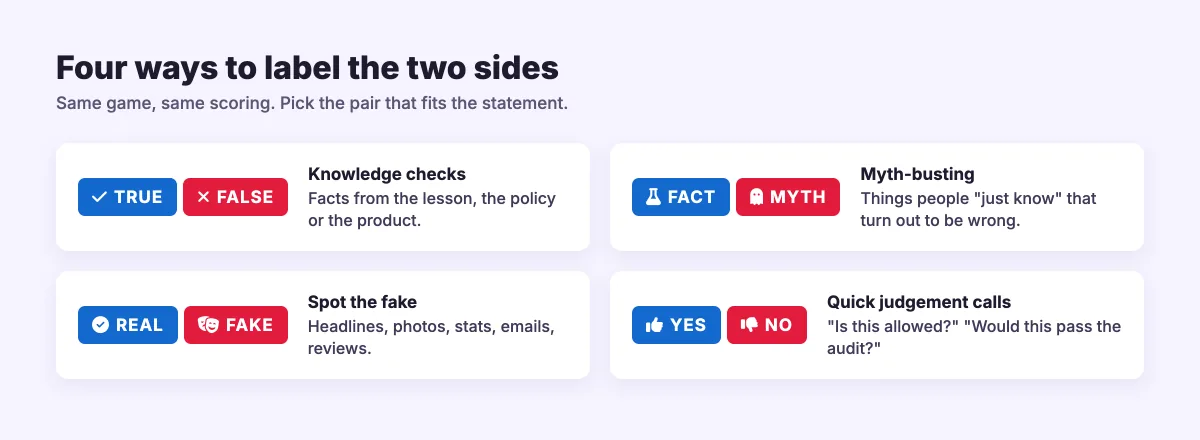
- True / False for plain knowledge checks: facts from a lesson, a policy or a product.
- Fact / Myth for myth-busting, where the interesting part is how many people believed the myth.
- Real / Fake for spotting fakes: headlines, photos, statistics, phishing emails or reviews.
- Yes / No for quick judgement calls such as "Is this allowed?" or "Would this pass the audit?"
How to set up a True or False slide
1. Add the slide
In the editor, click New Slide and choose True or False from the Quiz & Game group. The slide comes with a ready-made sample statement and explanation, so you can press Present and try it straight away.
2. Write the statement
Type your statement in the question field. Write it as a claim, not a question: "Humans only use 10% of their brains" works better than "Do humans only use 10% of their brains?" You can add a question image, and it is shown inside the statement card on the big screen.
3. Pick the labels and the right answer
In the True or False panel on the right, choose a label set, then click the side that is correct under "The statement is". The editor warns you if no side is marked.
4. Write the Why
Add one or two sentences that explain the answer (up to 400 characters), and optionally a source such as "NASA" or "World Health Organization". This is the part people remember, so give it a concrete detail. "Goldfish can remember things for months; in experiments they learn to push a lever for food" beats "This is a myth."
5. Set the timer and points
True or False uses the normal quiz settings: time to answer, points, and "More points for fast correct answers". Ten to fifteen seconds is plenty for a short statement. Add a leaderboard slide after a few statements to show who is ahead.
Everything is built into the EngageSlide interactive presentation tool, so players join with a code or QR on their own phones and nobody needs to install anything.
How scoring works
A True or False slide is scored like a single-answer quiz question. Pick the right side and you earn the question's points; with the speed bonus on, faster answers earn more, down to your minimum. Pick the wrong side, or run out of time, and you get nothing for that statement. Because it is a regular quiz slide, the results feed the leaderboard, the presentation report and the Excel export like every other quiz question.
The vote gets people to commit, the stamp gets the reaction, and the Why is what they take home. Write every statement with its explanation already in mind.
When to use True or False
- Opening a session. Three statements about your topic make a warm-up that shows you where the room already stands.
- Busting myths in training. Onboarding, safety and compliance sessions are full of "everyone knows" rules that are half right.
- Checking understanding in class. A 70/30 split on a statement is a clear signal that a misconception needs another look.
- Media literacy. Switch to Real / Fake and show headlines or images.
- Fast rounds in a longer quiz. Mix a few True or False slides between harder questions to reset the pace.
If you want to compare formats before you build the quiz, our guide to quiz question types covers multiple choice, type answer and the rest.
Tips for better statements
- One idea per statement. If half the sentence is true and half is false, players are voting on a technicality.
- Avoid the giveaway words. "Always" and "never" usually mean false; people learn that fast.
- Make the false ones believable. The best myths are the ones a smart person would repeat.
- Balance the answers. Do not make every statement false, or players will stop thinking and just tap the red side.
- Pause on the split. Before you talk through the Why, ask someone from the losing side what made them believe it.
Try it in your next session
Write down five statements your audience probably gets wrong, add a one-line Why to each, and run them as True or False slides at the start of your next meeting, class or training. You will learn more about what the room believes in two minutes than in a whole slide of bullet points. For more ideas on building quizzes people enjoy, read how to create a live quiz or browse the rest of the EngageSlide blog.