
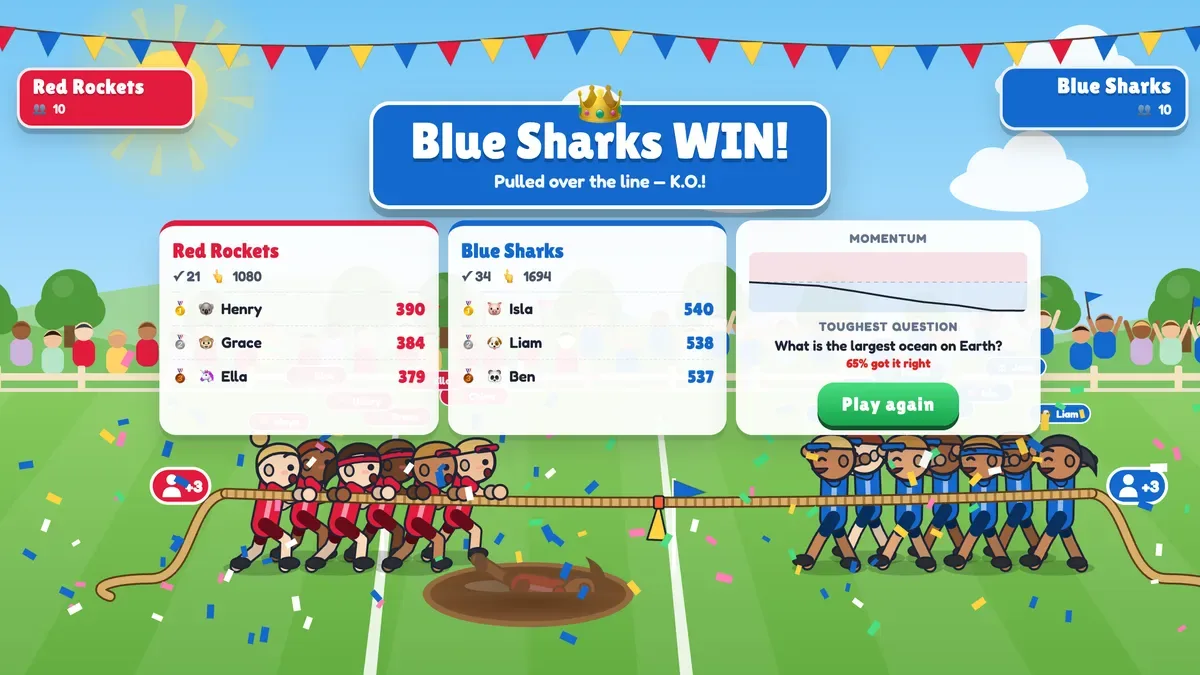
Most quiz games are a race between individuals: the fastest thumbs win and everyone else watches the leaderboard. Tug of war works the other way round. Nobody pulls the rope alone, every pair of hands counts, and the whole team wins or lands in the mud together. EngageSlide's Tug of War slide brings that feeling to a classroom, a training room or an all-hands. The room splits into two teams, every player becomes a puller on the big screen, and every right answer drags the rope a little further towards your side.
This guide explains how the game works, what players see on their phones and on the big screen, how to set it up in a few minutes, and when to pick the quiz battle or the tap battle.
What is the Tug of War slide?
Tug of War is a team game for the whole room. When people join with your code or QR code, they are placed in one of two teams — for example Red Rockets and Blue Sharks — and appear as pullers on a rope stretched across a cartoon field. A flag hangs from the middle of the rope. Drag the flag over your team's line and you win by K.O.: the other team's front puller dives into the pit.
There are two ways to play:
- Quiz battle. Questions decide the pull. Every correct answer adds pull power to the team, and faster answers pull harder. After each reveal, an optional HEAVE lets the whole team tap their phones to pull a little further.
- Tap battle. No questions at all — both teams tap as fast as they can for the whole battle. It is a pure energiser for the start of a session or the moment after lunch.
How a quiz battle plays
Press START and the first question appears on the big screen and on every phone. Players answer with four big colour buttons. The question closes when the time runs out, or earlier when everyone has answered. Then comes the moment the room waits for: a drum roll, the correct answer, and a yank of the rope towards the stronger team while the crowd cheers and the slipping team kicks up mud.

How the pull is worked out
For each question, every correct answer adds pull power — more for a fast answer — and the team's total is divided by the number of players on that team. That one rule keeps the game fair. A small team that answers well beats a big team that guesses, and nobody can win simply by bringing more people. Tap speed in a heave is averaged per player in the same way, and taps are capped at about 13 per second, so an auto-clicker gives no advantage.
The HEAVE
If Heave after each answer is on, every reveal is followed by a short tap frenzy of 4–10 seconds. The phone turns into one big HEAVE! button in the team colour, and the team banners on the big screen show each side's live tap speed. Heaves are where the quiet players join in: you do not need to know the answer to tap for your team.
How the game ends
A battle ends with a K.O. when the flag crosses a line, or on rope position when the questions run out. If the rope is dead centre at the end, both teams get a short SUDDEN DEATH heave to decide the winner — there is always a result.
What players see on their phones
The phone keeps every player in the game without having to look up at the big screen all the time:
- Before the start: their team, how many teammates they have and a mini rope with the flag's position.
- During a question: the question and four colour buttons, then Answer locked in!
- At the reveal: Correct! +87 pull power (or the right answer if they missed it) and how their team did.
- During a heave: the big HEAVE! button and their tap count.
- At the end: whether their team won, their correct answers, their taps and their rank in the team. The top player is the team MVP.
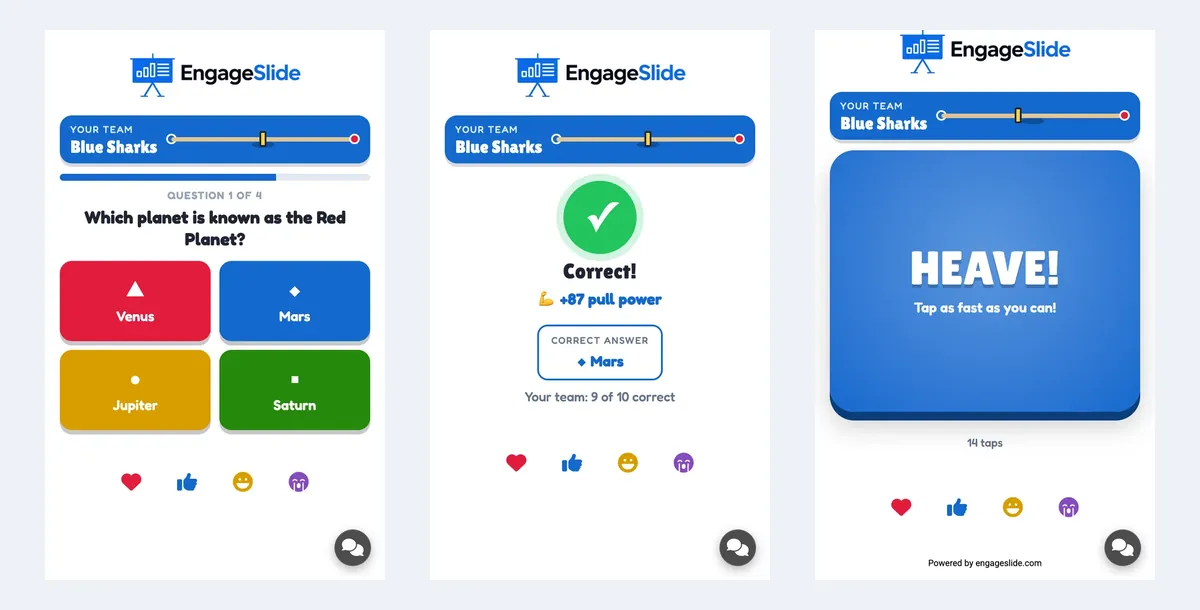
What the big screen shows
Each player is one puller on the rope — up to seven per team on screen, with a +N badge for the rest — and late joiners run in from the back of the line. The team banners show how many players have answered, the team's correct answers and pull power, and the tap speed during a heave. When the battle is over, the recap shows the winner, the top three pullers of each team, a momentum chart of the rope over the game and the toughest question — the one fewest players got right. That last item is a gift for teachers and trainers: it tells you exactly what to explain again.
Set up a Tug of War in five minutes
- Add the slide. In your presentation, click New Slide, open the Games tab and choose Tug of War.
- Pick the mode. Quiz battle for review and learning, Tap battle for pure energy.
- Name the teams. Give both teams a name and a colour. Departments, houses, "Morning shift vs Night shift" — a name people care about makes the cheering louder.
- Add questions. Each question has 2–4 answers with one correct answer ticked. To add many at once, click Paste list and paste one question per line: Question | *Correct | Wrong | Wrong.
- Choose the settings. Time per question (10–60 seconds), heaves on or off, and how teams are picked: Automatically (each new player joins the smaller team) or By players (people choose a side on their phone before the start).
- Pick a theme. Sunny Meadow with a mud pit, Beach Party with a water channel, or Snow Day with an ice hole.
- Present. Share the code or QR code, wait for the rope to fill up, and press START (or Enter).
Tug of War always has exactly two teams set on the slide, so it works even if your presentation does not use team mode. When the battle is over, Play again restarts with the same teams.
Five to eight short questions with 15 seconds each take about five minutes — long enough for a proper comeback, short enough that nobody checks their email.
When to use it
- End-of-lesson review. Answering questions from memory is one of the most effective ways to learn — the testing effect — and a rope makes it feel like a game rather than a test. Read the toughest question on the recap and you know where to start next lesson.
- Training recap. Split the room by table or by department and replay the key points of the session as a battle.
- Team building and all-hands. Sales vs Support, Office vs Remote, Team A vs Team B. Mixing departments by letting the game pick teams is a gentle way to break up the usual groups.
- Energiser. A 30-second tap battle wakes a room up faster than any stretch break.
Tips for a great battle
- Keep questions short. One line is ideal.
- Mix easy and hard. Easy questions keep everyone pulling; one or two hard ones create the swings that make a comeback possible.
- Leave heaves on for big rooms. They give every player something to do, even those who are unsure about the answers.
- Commentate. "Blue Sharks are one heave from the mud!" Your voice is half the fun.
- Use the recap. Thank the MVPs by name and spend a minute on the toughest question.
Frequently asked questions
What if the teams are uneven?
Pull power and tap speed are averaged per player, so uneven teams still play fairly. With automatic team picking, new players always join the smaller team.
Can players join late?
Yes. A late player joins the smaller team and can answer from the next question or tap in the current heave.
Does it need my presentation's team mode?
No. The two teams are set on the slide itself. If your presentation uses team mode, the team picker is skipped on this slide.
How is it different from a normal quiz?
A normal quiz ranks individuals on a leaderboard. Tug of War turns the same questions into one shared score per team, which suits rooms where you want collaboration more than competition. For the trade-offs between the two formats, see our guide to team quizzes vs individual quizzes. If you like racing games, the Zombie Race is its spooky cousin.
Tug of War sits alongside quizzes, polls, word clouds and Q&A in EngageSlide's interactive presentation tool. For every setting and screen, read the Tug of War guide in the Help Center or see it in action on the Tug of War slide page.