
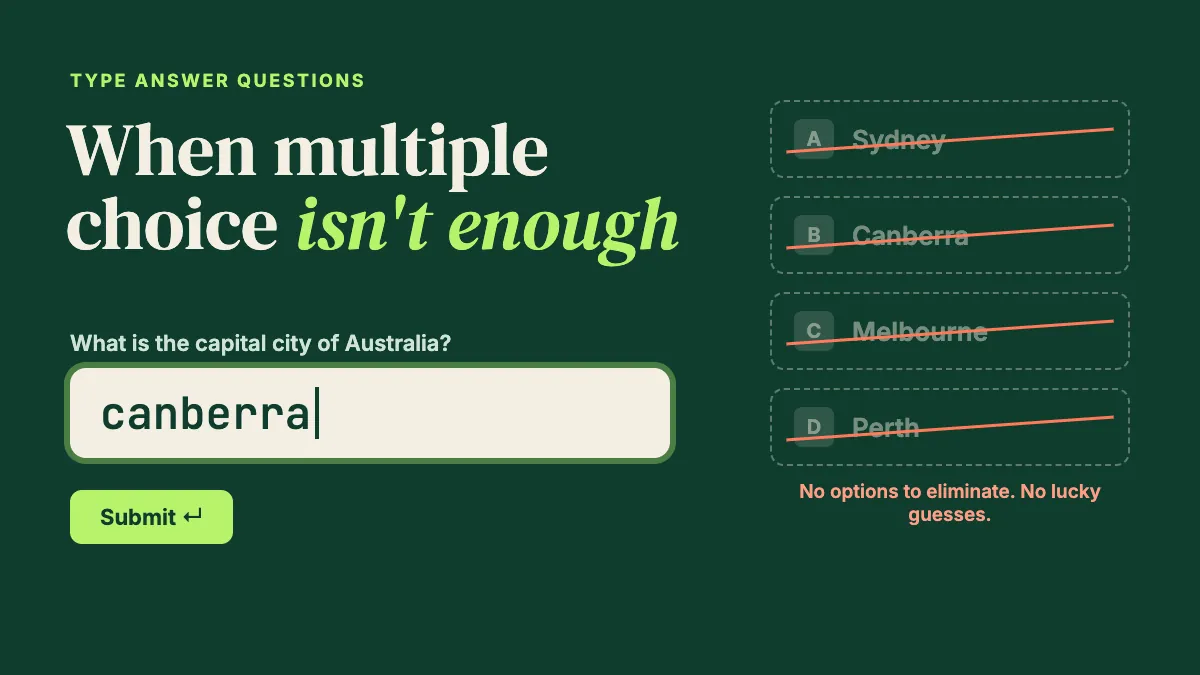
Multiple choice is the default quiz question for a good reason: it's fast to answer, easy to score and fun to reveal. But it has a blind spot. When the right answer is on the screen, players only need to recognise it, not remember it. They can rule out the obviously wrong options and guess between the last two. A type answer quiz question removes that option. Players see the question, an empty text box and a timer, and they have to produce the answer themselves.
This guide explains when a type answer question is the better choice, how to set one up in EngageSlide so correct answers aren't marked wrong for small differences, and how to use the results screen to fix unclear answers during a live session.
Recall vs. recognition: why typing changes the question
"Which of these is the capital of Australia?" and "What is the capital of Australia?" look like the same question, but they test different things. The first is a recognition task: seeing "Canberra" next to "Sydney" and "Melbourne" is often enough to jog someone's memory. The second is a recall task, where the answer has to come from memory with no hints.
Recall is harder, and that's useful. Research on the testing effect shows that pulling information out of memory strengthens it more than seeing it again. Recall is also more honest: a correct answer to a type answer question is much less likely to be a lucky guess. In a four-option multiple choice question, a pure guess is right 25% of the time. When players have to type the answer, a blind guess almost never scores.
When to use type answer instead of multiple choice
Type answer questions aren't better in every case. They work best when the answer is short, specific and has only a few possible spellings. Use them for:
- Key terms and vocabulary. "What do we call a word with the opposite meaning?" Players need to know antonym, not just recognise it.
- Names, places and dates. Capitals, historical figures, product names and years all have clear single answers.
- Numbers. "How many days is our standard refund window?" is a stronger training check when nobody can pick the middle option.
- Checking whether people really learned something. After a lesson or training module, a type answer question shows who can recall the answer and who was only recognising it.
- Tie-breakers. At the end of a trivia night, one type answer question separates the teams quickly.
Stick with multiple choice (or another format from our guide to quiz question types) when the answer is long, when it can be phrased many different ways, or when your audience is younger or answering in a second language, where spelling pressure can hide what they actually know. If you want recall inside a sentence, a fill in the blank quiz gives more context while still asking people to produce the answer.
How to create a type answer question in EngageSlide
Type answer is one of the quiz formats in EngageSlide's interactive presentation tool, next to multiple choice, match pair, puzzle and fill in the blank. Setting one up takes about a minute:
- Add a quiz slide and choose Type Answer as the question type.
- Write the question as the slide title. Make sure it asks for one clear answer ("What is the capital of Australia?", not "Tell us about Australia's capital").
- Enter the correct answer in the Correct answers field.
- Add accepted alternatives with + Add more answer. Include common alternate spellings, abbreviations and forms, such as "color" for "colour" or "usa" for "United States". Type the alternatives in lowercase so they match however players capitalise them.
- Set the timer and scoring. Choose how many seconds players get, and whether faster correct answers earn more points. Typing takes longer than tapping, so allow 20–30 seconds instead of the 10–15 you might give a multiple choice question.
Matching isn't case-sensitive, so "Canberra", "canberra" and "CANBERRA" all count as the same answer. Other differences do matter, though: an extra word, a typo or a different form of the word won't match unless you've added it as an alternative. So before the session, think about the two or three most likely variations and add them.
Reading the results: every answer on one chart
When the timer ends, EngageSlide groups the answers into a chart. Correct answers get a green tick and wrong ones a red cross, so the room can see right away how many people got it and what the most common wrong answers were.
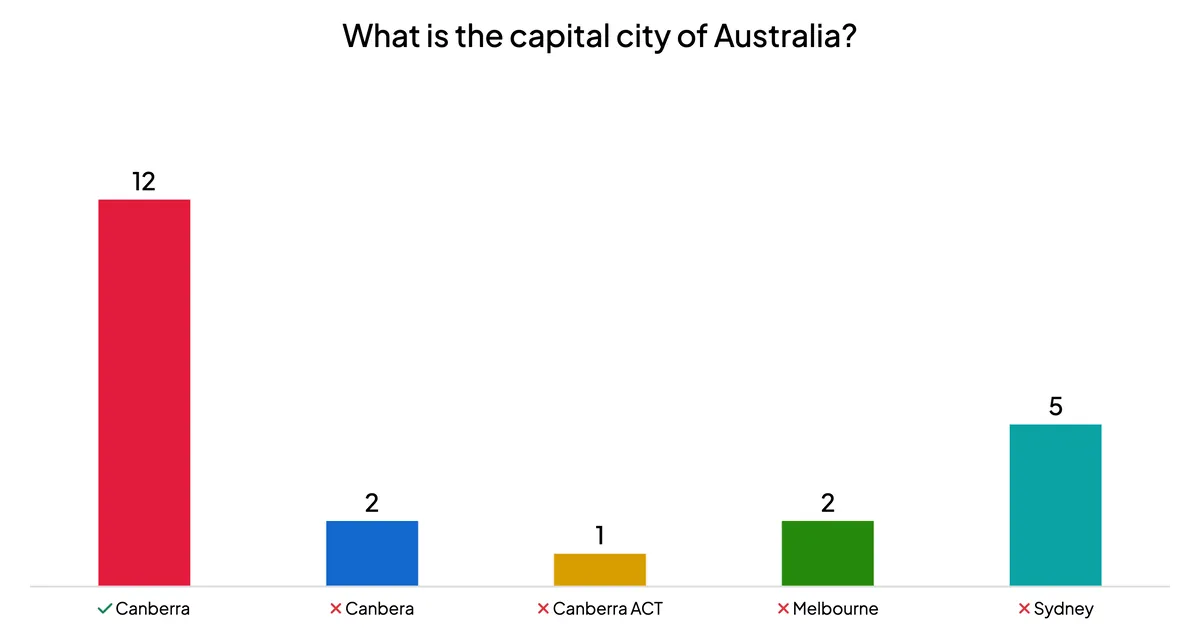
This chart is often more useful than a multiple choice result, because the wrong answers come from your audience, not from you. In the example above, five people typed "Sydney". That tells you a common misunderstanding exists (the biggest city is the capital), which is something you might not have thought to include as a distractor. Point it out, explain it, and you've turned a quiz question into a short lesson.
Accept More Answer: fix grading during the session
However carefully you prepare, someone will type an answer you didn't expect that is still correct. In the example, "Canberra ACT" is technically right, and "Canbera" is clearly the right city with one letter missing. You shouldn't have to explain to a disappointed player why their answer was marked wrong.
Click Accept More Answer below the chart to open the review list. It shows every unique answer, how many people submitted it and who they were. Turn the switch on for any answer you want to accept.
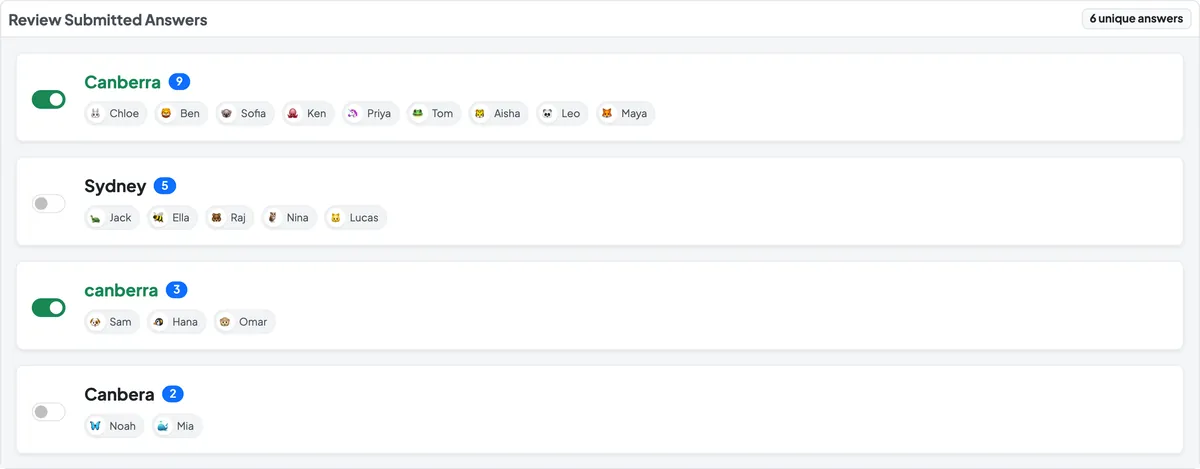
When you accept an answer, EngageSlide adds it to the question's accepted answers and recalculates points for everyone who submitted it, so the leaderboard updates too. Turn the switch off and the answer is marked wrong again. Because it's saved, the next time you run the same deck that answer is already accepted.
Decide on a rule before you start and say it out loud: for example, "small spelling mistakes count, wrong answers don't". Then the review is quick and fair, and nobody can say you're favouring anyone.
Multiple choice checks whether people recognise the answer. Type answer checks whether they remember it, and the answers they type show you exactly what they misunderstood.
Tips for writing good type answer questions
- Aim for one or two words. The longer the expected answer, the more ways people can type it, and the more of them you'll have to accept by hand.
- Put units and format in the question. "In what year…" or "How many minutes…" stops people typing "the 1990s" or "half an hour".
- Avoid tricky spellings unless spelling is the point. If you're testing a concept, don't let a hard-to-spell word decide the score. Add variants or pick a different question.
- Mix formats. A quiz made only of type answer questions is tiring. Put one or two between faster multiple choice rounds and add a leaderboard to keep the pace up.
- Use the wrong answers. Look at the chart for a few seconds before moving on. The most common wrong answer is usually the thing worth explaining.
Try it in your next quiz
Take a multiple choice question from your current quiz where the answer is short and there is only one clear correct answer. Change it to Type Answer, add two accepted alternatives, and run it. Compare the results: if fewer people get it right, you've found the gap between recognition and recall, and you know what to teach next. For more ideas on building a full session, see how to create a live quiz.