
There is a small, awkward gap in every interactive presentation: the moment between "I'd love to hear from you" and people actually being able to respond. Read out a URL and you lose the room to typos. Ask them to download an app and you lose them entirely. A QR code closes that gap — point a camera, tap a notification, done.
QR codes have gone from novelty to reflex, and modern phone cameras recognise them with no extra app. That familiarity is why a QR code is the fastest way to bring an audience into a live poll, quiz or Q&A. This guide covers how to display one properly, where to put it, what to say out loud, and the mistakes that quietly cost you participation.
Why a QR code beats every other way of joining
Consider the alternatives. Spelling out a URL produces a handful of people typing the wrong thing. A shortlink still requires typing. An emailed link means half the room never opens it. And asking people to install an app is the participation killer — nobody downloads software for a twenty-minute session.
A QR code removes that friction. Beyond speed, it does three things worth naming:
- It removes the fear of doing it wrong. There is no typing, so there is no wrong. People who would never risk looking silly in front of colleagues will happily point a camera at a screen.
- It makes joining a group behaviour. When one person lifts their phone, the people either side of them do too. A spoken URL produces a scattered trickle; a code on screen produces a wave.
- It survives a bad room. QR codes are built with Reed–Solomon error correction, so a code still reads when part of it is obscured or distorted — which is why they work at an angle, from the back row, or on a washed-out projector.
The eight-second join, step by step
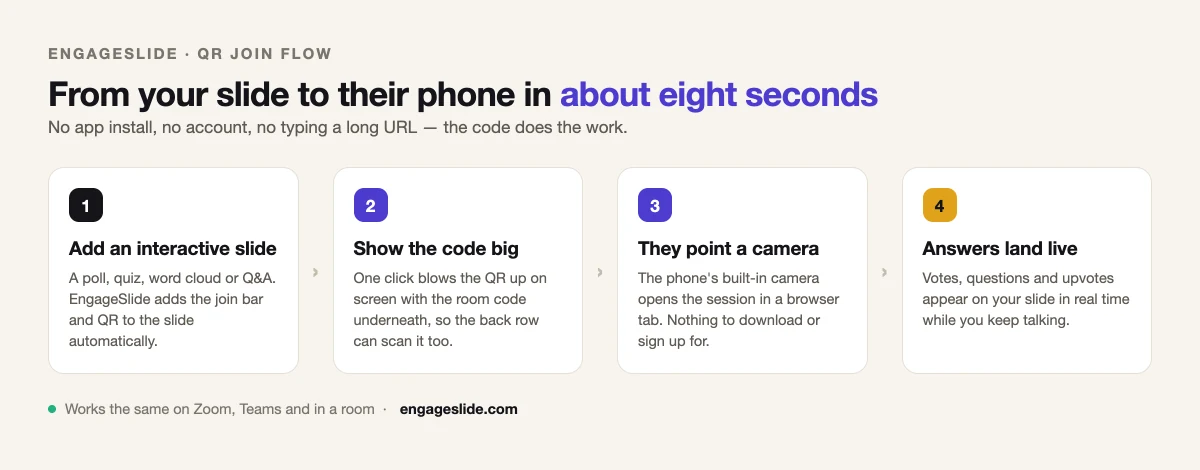
In EngageSlide the QR code isn't something you generate and paste in — it is attached to the session itself, so it appears automatically on every interactive slide and always points at the right room.
1. Build the interactive slide first
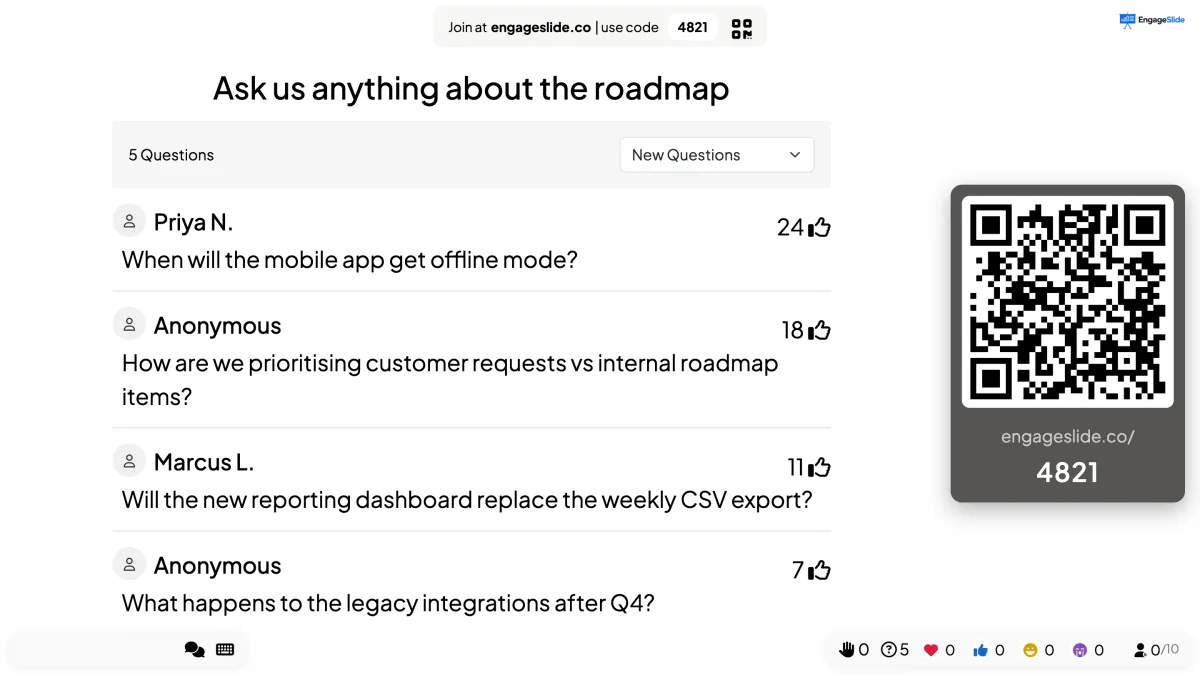
Add a poll, quiz, word cloud or Q&A slide to your deck. The join bar — "Join at engageslide.co · use code 4821" with a QR icon beside it — is added for you, so even a latecomer glancing up mid-session can get in. If you've never built one, how to add live polls to any presentation takes about five minutes.
2. Put the code where everyone can see it
The small join bar works as a persistent reminder, but at the moment you want people in, make the code big. One click on the QR button blows it up on screen with the room code printed underneath. That matters more than it sounds: the back row is scanning a target that is effectively smaller and dimmer than what you see on your laptop. Leave it up for a full thirty seconds — longer than feels comfortable.
3. Say the sentence that makes people scan
A code with no instruction gets scanned by the keen third of the room. Say something concrete: "Take your phone out, point the camera at the code, and tap the link that pops up — I'll wait." Then actually wait, in silence. The silence is the instruction; presenters who fill it with talking train the room to ignore the code. Two details reliably raise the join rate: say that nothing needs downloading, and say that responses are anonymous if they are. Those are the objections running through people's heads while they decide whether to bother.
What your audience actually sees after scanning
Scanning opens the session in the phone's normal browser — no install, no account, no password. Whatever slide you are on is what they land on, and it updates as you move. If you are running a Q&A, they get a box to type a question, a name field they can leave blank, and the live list of what everyone else has already asked, sorted by upvotes.
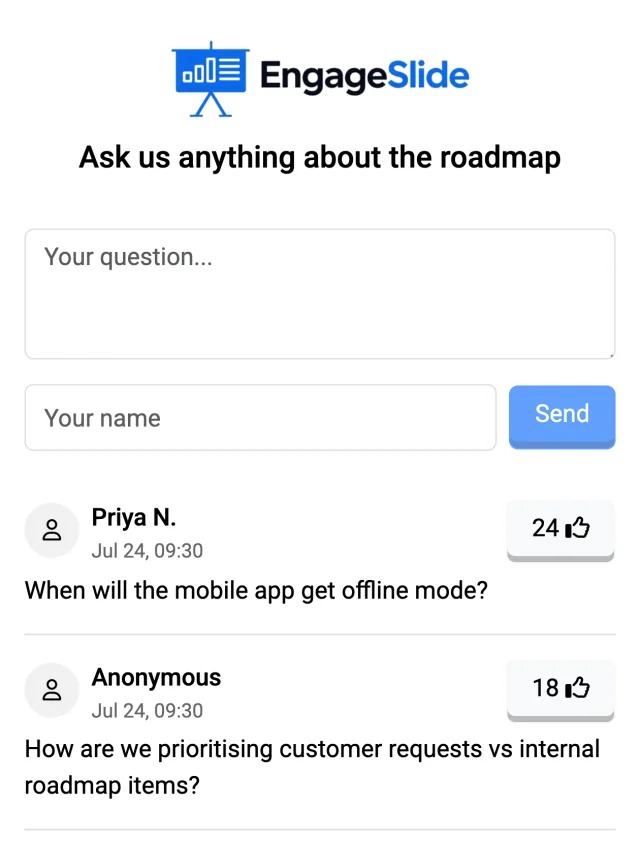
That last part is the underrated bit. Because everyone sees the same list on their own phone, the room self-organises: duplicates get upvoted instead of re-asked, and quiet people who would never raise a hand end up with the top-voted question of the session. There's more on running that well in the complete guide to running a live Q&A session.
Where QR codes earn their keep
Conferences and large rooms
Big rooms are where spoken URLs fail hardest. Put the code up during your introduction, before anyone needs it — people join while you're still saying who you are, and by your first poll the room is in. Leave the join bar visible all session so latecomers can catch up.
Classrooms and training
A code on the board at the start of the lesson becomes routine within a week — students scan on the way in the way they'd open a textbook. From there you can run an entry quiz, a word cloud on what they remember from last week, or a graded assignment, without five minutes of logistics each time.
Zoom, Teams and hybrid sessions
Remote participants can click the join link, but the QR still matters in hybrid rooms: people watching on a laptop often prefer to answer on their phone so the session stays full-screen. Remote and in-room attendees join the same way, which keeps your results in one pool instead of two.
Printed material and posters
The code doesn't only have to live on a slide. Put it on the handout, the table tent or the bottom of an event poster, and it keeps working when people are looking at paper.
Seven rules for a code that actually gets scanned
- Bigger than you think. Aim for at least a tenth of the screen height on a projector. If you can't read the room code under it from the back row, the QR is too small too.
- Keep the quiet zone. Leave clear space on all four sides — text crowding the edges is a common reason a scan fails.
- Dark on light, never inverted. Scanners expect dark modules on a light background. A white code on a dark slide looks stylish and scans badly.
- Don't stretch it. Resize proportionally; a squashed code is an unreadable code.
- Avoid the glare band. On projectors the top third catches the most washout, so bottom-right or centre is safer.
- Always show the code number too. Older phones and locked-down corporate devices exist. The room code is the fallback, and it should be visible whenever the QR is.
- Test it from the back row. Thirty seconds of walking before you start saves you the worst version of this: a room full of people who tried and failed.
A QR code is not a design decision, it is a participation decision. Every second between "here's the question" and "I'm in" is a second where someone decides not to bother.
Mistakes that quietly cost you participation
- Showing the code too late. If it appears at the same moment as your first question, everyone is joining instead of thinking. Get people in early, during a low-stakes moment.
- Taking it down too fast. Presenters get uncomfortable with the pause and click away after ten seconds, while half the room is still unlocking a phone.
- Explaining the tool instead of the question. Nobody needs a tour of the interface — they need to know what to point at and what you're about to ask.
- Using a static code from an external generator. It points wherever it pointed the day you made it. A session code always points at the live room — no expired links, no old decks circulating with the wrong QR.
After the session: the code keeps working
The scan doesn't have to be a one-time entry ticket. The audience is already in the session on their phones, so you can keep using that connection when the talk ends:
- Feedback while it's fresh. Attach a survey to the presentation and show it on the last slide — people already joined answer without scanning anything new, which beats an emailed form because nobody has to remember to come back.
- Collect emails properly. If you're capturing leads, an email field in a survey they're already looking at outperforms a sign-up sheet by the door.
- Send follow-up work. Teachers and trainers can push a graded assignment to the same audience without another round of logistics.
- Check what landed. The session report shows participation and answers per slide, so you can see whether people joined and drifted off or stayed to the end.
Start with one code
You don't need to redesign your deck. Add one poll to the presentation you're already giving this week, show the QR full-screen while you introduce yourself, and wait thirty seconds in silence. That single change is usually the difference between a presentation people watch and one they take part in — and it's the foundation for everything else in making your presentations interactive. More ideas are on the EngageSlide blog.