
Remote teams are great at getting work done and surprisingly bad at having fun together. The scheduled "virtual social" often turns into six people staring at a grid of faces, waiting for someone to talk. A live drawing game fixes that in about five minutes — everyone has something to do, everyone laughs at the same wobbly sketch, and for once nobody is quietly checking email. This guide shows you how to run a virtual Pictionary game for your remote team using EngageSlide, with no extra apps and no setup headaches.
Why a drawing game is perfect for remote teams
Distributed teams miss the small, unplanned moments that build trust in an office — the hallway jokes, the coffee-queue chatter. You cannot force those, but you can create a shared, slightly ridiculous experience that has the same effect. A drawing game is ideal because it is visual, fast, and impossible to take too seriously.
It also sidesteps the usual friction of remote games. Nobody installs software or makes an account; people join from the same phone or laptop they are already on. And because every person takes a turn drawing while the rest guess, there is no passive audience — the whole team is in it. Research on play and connection is consistent on this point: shared, light-hearted activity is one of the fastest ways to build rapport, which is exactly what remote teams are short on.
What you need to run it
Very little. You need a video call (Zoom, Google Meet, Microsoft Teams — anything with screen share), and one person to host the game from EngageSlide. Everyone else just needs the phone or laptop they already have. If your team enjoys this, the same setup runs a virtual pub quiz too, so it is worth getting comfortable with.
How to run virtual Pictionary, step by step
The whole thing takes a couple of minutes to set up and runs itself once it starts.
- Add the slide. In EngageSlide, create a presentation and add a Draw & Guess slide from the Quiz and Game Competitions group. (New to the format? Start with our overview of what Draw & Guess is and how a round works.)
- Set the pace. Choose the number of rounds and the drawing time. For a remote social, one round with a 20–30 second timer keeps energy high and the call short.
- Choose your words. Pick a ready-made theme, or switch to My own words and add inside jokes, project names or team references for an extra laugh.
- Share your screen and present. Put the big EngageSlide screen on the call so everyone sees the live canvas, the guesses and the timer.
- Have everyone join. Players scan the QR code or type the room code on their phones and pick a nickname. When it is their turn they draw; the rest of the time they guess.
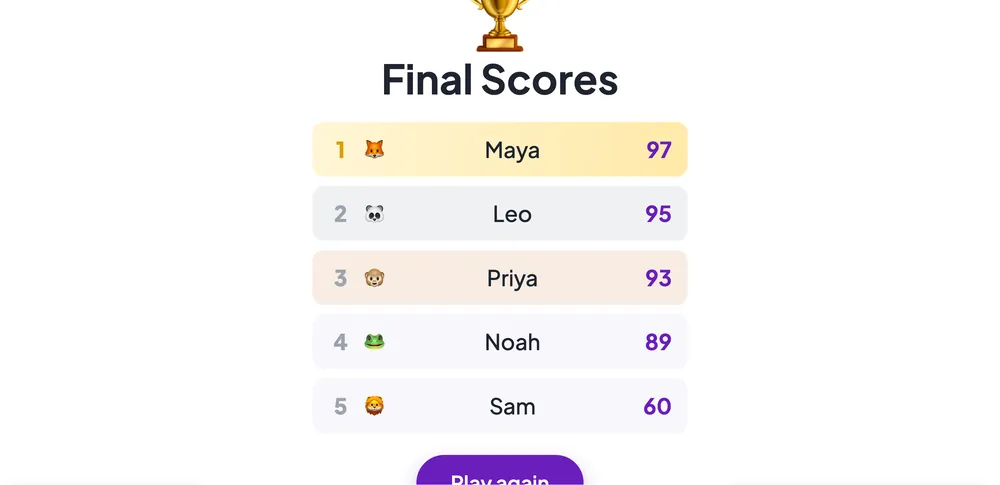
Points are awarded automatically for how quickly people guess, and a leaderboard appears at the end — a low-stakes bit of competition that gives the session a satisfying finish.
Set it up for your specific team
The custom word list is where a generic game becomes your team's game. A few ideas that always land:
- Inside references. Project code names, the office nickname for the coffee machine, that one recurring bug — anything only your team would recognise.
- Onboarding edition. For a new hire's first week, use tools, team rituals and product features so the game doubles as a gentle introduction.
- Themed rounds. "Things in our product", "famous customers", "this quarter's goals" — light enough to be fun, close enough to feel relevant.
The best remote team games are not about winning. They are about giving people a reason to show up as themselves for ten minutes — and a shared laugh does that faster than another round of "how was your weekend?".
Tips to keep it fun and inclusive
- Start with a practice round. Let everyone try the drawing tools before it counts so no one feels put on the spot.
- Keep words drawable. Concrete nouns beat abstract concepts, especially for people drawing with a trackpad.
- Encourage the chat. Half the fun is the running commentary as a "dog" slowly turns into something unrecognisable — let people react out loud on the call.
- Timebox it. Fifteen minutes is plenty. Ending while people still want more is better than dragging it out.
- Rotate hosts. Let a different person run it each time so it does not become one manager's job.
Word ideas to get you started
If you are not sure what to load into the game, start with concrete, easy-to-draw nouns and mix in a few team-specific terms. A good list is varied enough that every round feels fresh but never so obscure that people give up. Here are some categories that work well for a remote crowd:
- Everyday objects: umbrella, backpack, toothbrush, ladder, kettle, headphones. Simple shapes that anyone can attempt with a trackpad.
- Work-from-home life: coffee mug, houseplant, doorbell, delivery box, "mute button", the dreaded loading spinner. Instantly relatable to a remote team.
- Animals and food: penguin, octopus, pineapple, taco, cactus. Classic Pictionary fare that always gets a laugh.
- Your world: your product's logo, a feature name, a competitor, the meeting nobody likes. This is where a generic game becomes yours.
Keep the list to twenty or thirty words for a short session — the game shuffles through them, so you will rarely see a repeat, and you can always add more between rounds.
Make it a habit
A single game is fun; a recurring one becomes part of your team's culture. Drop a short Draw & Guess round into the last ten minutes of a monthly all-hands, or open your retro with one to loosen everyone up. Because it lives in the same place as your polls, quizzes and Q&A, it is easy to fold into meetings you already run. Browse more remote-friendly ideas on the EngageSlide blog, or just add a Draw & Guess slide before your next call and watch a quiet video grid turn into a room full of people actually enjoying each other's company.