
Most quiz questions ask one thing: do you know the answer? A wager quiz asks a second, sharper question first: how sure are you? Before the options appear, every player bets some of their points. Get it right and the bet pays out. Get it wrong and the bet is gone. That one extra decision turns a normal round into the loudest moment of the session, and it gives you something a plain quiz never shows: how confident your room really is.
This guide explains how the Bet / Wager question works in EngageSlide, how scoring is calculated, what each setting does, and how to use betting rounds in a class, a training session or a team event without the game taking over.
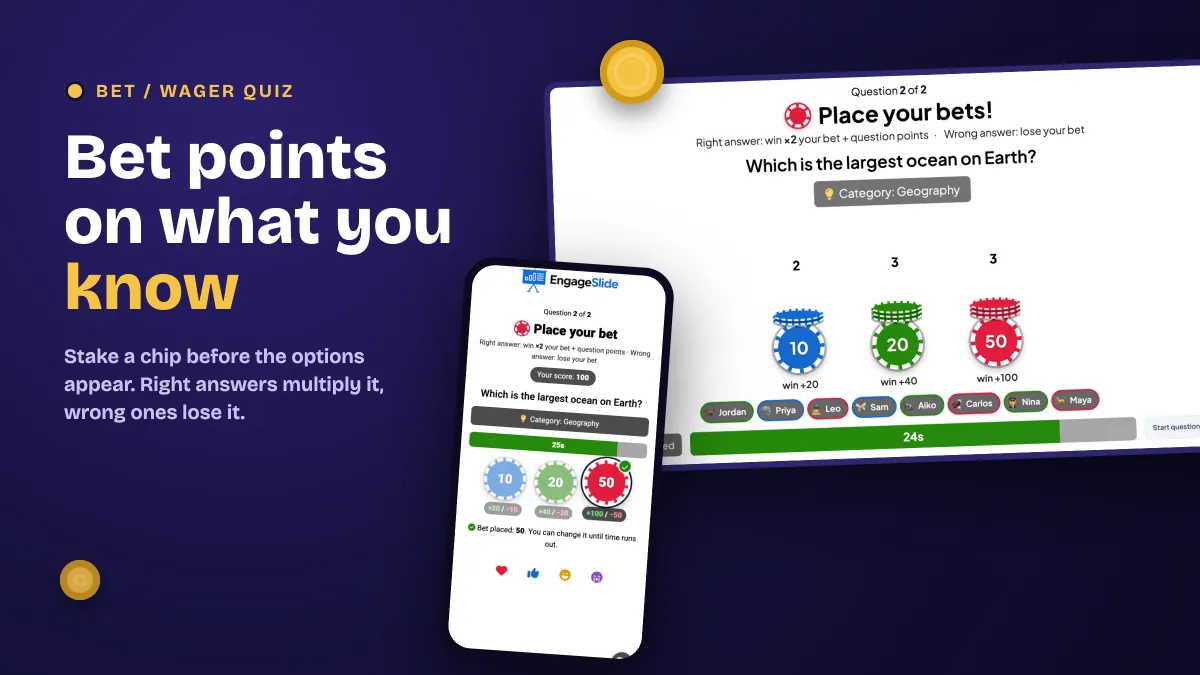
What is a wager quiz?
A wager quiz (also called a betting quiz or confidence quiz) adds a stake to each question. The idea is old and familiar. Game shows have used it for decades; the best-known example is Final Jeopardy, where contestants bet part of their winnings before they see the clue. In EngageSlide the same idea is built into a slide type, so you don't need a spreadsheet, paper tokens or a second screen to track bets.
The flow for one question is simple:
- Bet. A "Place your bets!" screen appears. Each player taps one chip on their phone, for example 10, 20 or 50 points.
- Answer. When betting time ends, the options appear and everyone answers, just like a normal multiple-choice quiz.
- Reveal. Right answers win the bet times the multiplier, wrong answers lose the bet, and the leaderboard updates with each player's gain or loss.
Why betting makes a quiz better
It rewards knowing, not guessing
In a normal quiz a lucky guess scores the same as real knowledge. With a wager, a player who is sure bets big and a player who is guessing bets small. Over a few rounds, the people who actually know the material pull ahead. Players also have to reflect on what they know before they answer, which is a small but real exercise in metacognition.
It raises the stakes of every question
People feel a loss more strongly than an equal gain. Once a player has put 50 points on the table, the reveal matters to them in a way a normal question rarely does. You hear it in the room: groans, cheers, and "I knew I should have bet more".
It keeps the leaderboard open
Fixed points per question often let one player run away with the game by the halfway mark. Bets create swings. A player in fifth place can climb with one confident, correct bet, so everyone keeps playing to the end. If leaderboards are new to you, start with our guide on how to add a leaderboard to your quiz.
How scoring works
The rule fits in one line: right answer = bet × multiplier + the question's normal points; wrong answer or no answer = minus the bet. There is no partial credit on the bet.
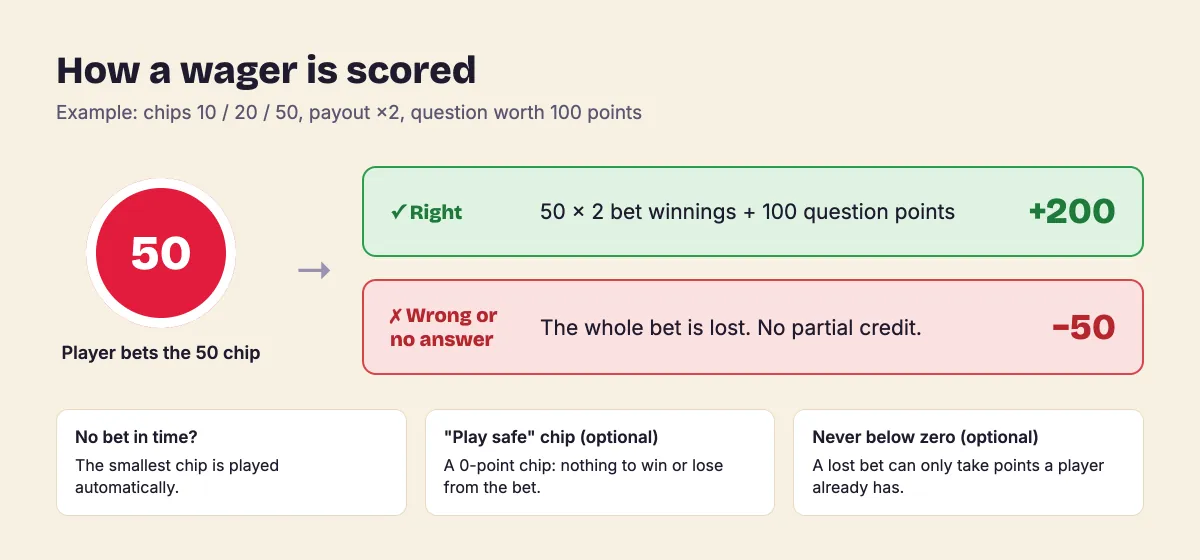
A worked example with the default settings (chips 10 / 20 / 50, payout ×2, question worth 100 points):
- Maya bets 50 and answers correctly: 50 × 2 = 100 bet winnings, plus 100 question points, so +200.
- Jordan bets 20 and answers correctly: 40 + 100 = +140.
- Leo bets 50 and answers wrong: −50.
- A player who never picks a chip: the smallest chip (10) is played automatically, so a wrong or missing answer costs −10. The phone tells them that no bet was chosen.
The question points behave exactly like any EngageSlide quiz, including the speed bonus if you turn it on. If you want a round where only the bet counts, switch question points off.
How to create a wager question in EngageSlide
1. Add the slide
Open your presentation, add a new slide and pick Bet / Wager from the quiz slide types. Write your question and options and tick the correct answer, the same way you would create a normal live quiz.
2. Set the chips
In the Betting panel on the right, set up to four bet amounts. The default is 10, 20 and 50. The panel shows the win and loss for each chip as you edit, so you can see the stakes before you present.
3. Choose the payout
"Correct answer pays" can be ×1, ×1.5, ×2 or ×3. ×2 is a good default. Use ×3 for a finale where you want big swings, and ×1 when you want betting without much risk.
4. Set the betting time
Pick 10, 15, 20 or 30 seconds. 15 seconds is enough for most rooms. On the big screen you can also press Start question to end betting early once everyone has placed a bet.
5. Decide what players see while betting
- The question: players read the question but not the options, then bet on how sure they are. This is a confidence bet.
- Hint only: a blind bet. Players see only an optional hint such as "Category: Geography", and the question appears after bets are locked.
6. Pick your safety rules
- Add question points: on by default. Turn it off to score the bet only.
- Add a 0-point "play safe" chip: lets unsure players sit a question out without losing points.
- Scores never go below zero: a lost bet can only take points the player already has. This is useful for younger students or a first round.
What happens live
When you start the question, the big screen shows Place your bets! with the rules, the question or hint, and a stack of chips for each bet amount. The stacks grow as bets come in, each player's name appears in a pill in their chip's colour, and a counter shows how many bets have been placed. On each phone, players see their current score and what every chip can win or lose. They can change their bet until time runs out.
Once the options appear, the round plays like a normal multiple-choice quiz. At the reveal, a Stakes panel sits next to the results chart:
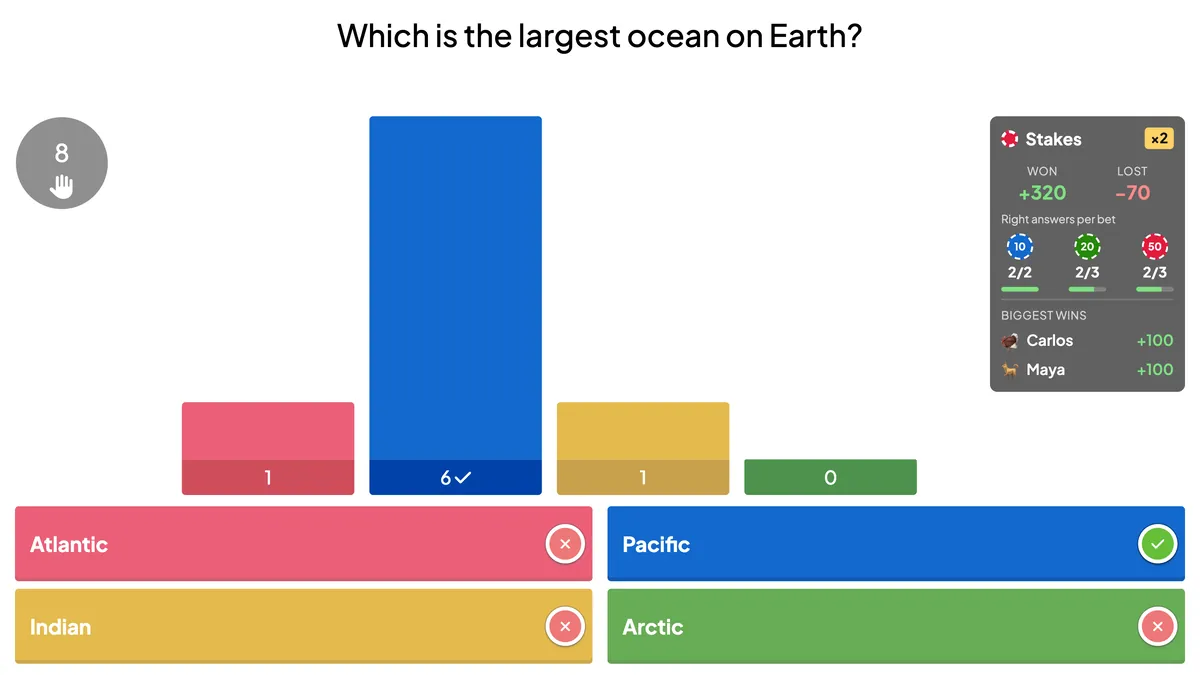
- Won and Lost: the total bet points gained and lost across the room.
- Right answers per bet: how many players at each chip size got it right. This shows whether the confident players were actually right.
- Biggest wins: the players who won the most on this question, which gives you people to call out on the mic.
Each phone then shows the player's result with the bet, the winnings or loss, and the new score. On the next leaderboard slide, every row shows the change from the wager (for example +200 or −50), so the swings are easy to see. Afterwards, the presentation report includes the wager details, and the Excel export has a Wager column.
A wager doesn't only test whether people know the answer. It shows whether they know that they know it. Watch the "right answers per bet" row: if the big bets are often wrong, that is the topic to teach again.
When to use a wager round
- As a finale. Make the last question a blind bet at ×3 so anyone can still win. This is the classic comeback round.
- In class revision. Students bet on each topic. Topics where they bet low, or bet high and lost, are where to spend review time.
- In training and onboarding. Confidence matters for things like compliance or product facts. A wager shows who is confidently wrong, which a normal quiz hides.
- At team events. Combine it with team mode so each person's bet counts toward the team score.
Tips for running a good betting round
- Don't bet every question. One or two wager questions in a 10-question quiz keeps them special. Put plain quiz questions before them so players have points to bet with.
- Explain the rule once, out loud. The bet screen shows the rule, but saying "right doubles your bet, wrong loses it" takes five seconds and avoids confusion.
- Match chip sizes to your points. If questions are worth 100, chips of 10 / 20 / 50 are safe and 50 / 100 / 200 are bold. Chips much larger than the question points make the round mostly about betting.
- Use the play-safe chip with beginners. It makes "I don't know" a valid, honest choice.
- Talk about the Stakes panel. A quick "three of you bet 50 and got it wrong, let's look at why" turns a game moment into learning.
Betting works best as one part of a wider points system. For more ideas on points, levels and rewards, read our guide to gamification in presentations, or see everything else you can build with the EngageSlide interactive presentation tool.