
EngageSlide allow presenters to transform traditional presentations into engaging, real-time interactive experiences. One of the most popular interactive slide types is the Word Cloud EngageSlide, which lets audiences submit words live and see results instantly on screen.
This guide explains how to create and use a Word Cloud EngageSlide step by step using EngageSlide.
What Is a Word Cloud EngageSlide?
A Word Cloud EngageSlide enables audience members to submit words or short phrases from their phones or laptops.
As more people submit the same word, that word becomes larger and more prominent, making trends and opinions instantly visible.
Word Cloud EngageSlide are commonly used for:
Icebreaker questions
Live feedback collection
Audience sentiment analysis
Interactive classes, meetings, and workshops
Step 1: Get Started with EngageSlide
Visit the EngageSlide website and click Get Started.
After logging in, you will enter the EngageSlide dashboard, where you can manage all your EngageSlide presentations.
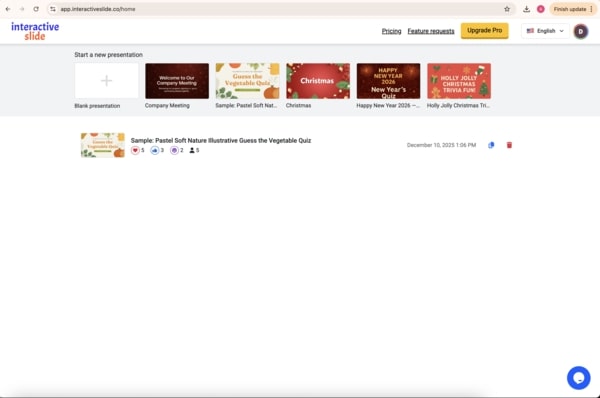
From the dashboard, create a new presentation to begin building your EngageSlide deck.
Step 2: Add a Word Cloud EngageSlide
Inside your presentation, click Add Slide and choose Word Cloud from the available EngageSlide types.
Next, enter a question for your Word Cloud EngageSlide Example questions include:
How do you feel today?
What comes to mind when you hear “innovation”?
Describe this session in one word.
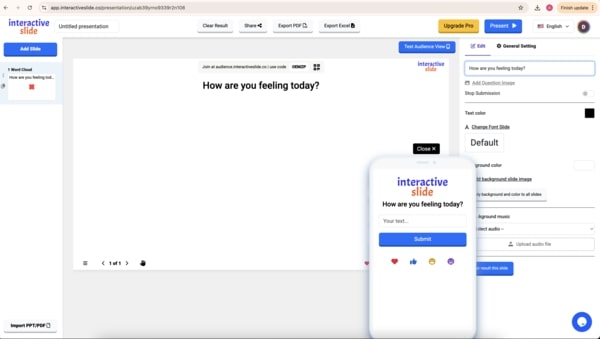
Once the question is set, your EngageSlide is ready for audience participation.
Step 3: Share the EngageSlide and Collect Responses
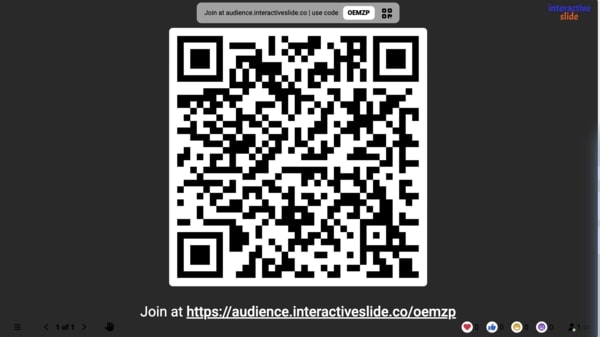
You can share your EngageSlide presentation with the audience using:
A QR code
An access code
Audience members join instantly using their mobile devices and submit words in real time.
As responses come in, the Word Cloud updates live on the presentation screen. Words submitted more frequently appear larger and more central, creating a clear visual summary of audience input.
Managing and Customizing Your Word Cloud EngageSlide
EngageSlide give presenters full control over the Word Cloud EngageSlide, including:
Stopping submissions when enough responses are collected
Customizing colors and appearance to match your presentation style
Clearing results to restart the activity from scratch
These options help you adapt the EngageSlide to different presentation formats and audience sizes.
When Should You Use a Word Cloud EngageSlide?
A Word Cloud EngageSlide is especially effective for:
Opening a presentation with audience engagement
Gathering instant feedback during meetings
Encouraging participation in classrooms or training sessions
Visualizing opinions in large audiences
Why Choose EngageSlide?
Using EngageSlide helps you:
Increase audience engagement
Turn passive viewers into active participants
Collect and visualize feedback instantly
The Word Cloud EngageSlide is a simple yet powerful way to enhance any EngageSlide presentation.
Conclusion
With EngageSlide, creating a Word Cloud EngageSlide is fast, intuitive, and highly effective.
Whether you are presenting in a classroom, meeting room, or conference, EngageSlide help you communicate better and keep your audience involved.
👉 Start using EngageSlide today and make your presentations truly interactive.