📝Content Slides 4 min read
Content
A free-layout slide for formatted text, images, GIFs and videos — start from a ready-made template or a blank canvas.
What is Content?
A Content slide is a normal, non-interactive slide that you design freely: text boxes, images, GIFs and videos that you can place anywhere on the slide, resize and rotate. Use it to open your session, introduce a topic, explain an idea, show a photo or close with a thank-you — then move on to your polls and quizzes. You can start from one of the ready-made Templates (title slides, section headers, lists, image layouts, numbers and closing slides) and just replace the text. Content slides always fill the whole slide edge to edge; the join code header and the control bar float on top.

Create a Content slide
- 1On Home, click + Create new presentation (or add a slide to an existing one).
- 2In Choose Slide Type, pick Content. You can also type it into Search slide types….
- 3The slide is created and the right panel opens on the Content tab.
Set up the content
- 1Optional: under Templates (Pick a layout to start — then just replace the text.), choose a category — Title slides, Section header, Text & lists, Image, Data & quotes or Closing — and click a layout such as Gradient hero, Checklist, Timeline, KPI cards or Thank you. The template sets the text boxes, images, background and text colour.
- 2If the slide already has content, EngageSlide asks Use this template? — click Replace to swap your content for the template, or Cancel to keep it.
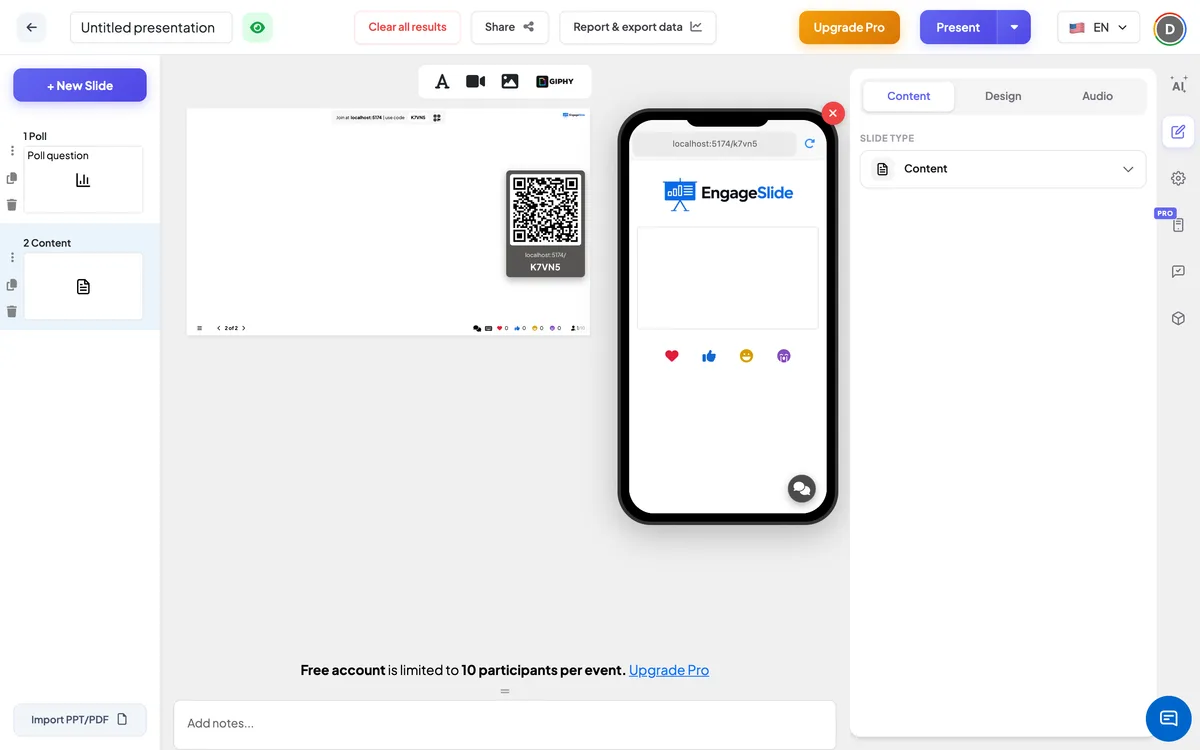
- 3Use the toolbar at the top of the slide to add items: the T icon adds a text box, the camera icon uploads a video, the picture icon uploads an image, and the GIPHY icon opens a search for GIFs and stickers (Search gif or sticker…).
- 4Click an item once to select it, then drag it to move it, pull the handles to resize it, or use the round handle to rotate it.
- 5Click a selected text box again (or start typing into a new one) to edit the text. The text toolbar has undo/redo, font size, line height, text colour, highlight colour, bold, italic, underline, alignment, and bulleted or numbered lists.
- 6Above a selected item you also get: Select Font (a font just for that text box), the up-arrow to bring it in front of other items, the bin to delete it, and — on images — Replace image. You can also delete a selected item with Backspace.
- 7Switch to the Design tab to change the slide’s Text color, font (Change Font Slide), Background color or background image (Add background slide image, with a Background visibility slider). Apply background and color to all slides copies the look to the whole deck.
- 8Optional: in the Audio tab, add Background music or a Custom audio file for this slide.
On the audience side
Participants who have joined see a smaller copy of the whole slide on their phone — the same text, images, background and colours, scaled to fit the screen. Videos can be played on the phone with their own controls. There is nothing to answer on this slide.
View results
No responses are collected — this slide is for showing information. While presenting, the items are fixed in place (they can’t be dragged or edited), videos play with their normal controls, and you move on with the next / back buttons or the arrow keys.
Ways to use a Content slide
- Opening slide: a Title slides template with the session name and your name.
- Section breaks: a Section header template before each new part of the session.
- Explain a concept: Definition, Timeline or Before & after, followed by a quiz to check understanding.
- Share results or numbers: KPI cards, Progress or Big quote.
- Close the session: Thank you, Call to action, Contact card or Q&A.
Frequently asked
Will applying a template delete my content?
Yes — a template replaces everything on the slide, including the background. EngageSlide asks you to confirm first when the slide is not empty. To keep your work, add a new Content slide and apply the template there.
Can I add a GIF or a sticker?
Yes. Click the GIPHY icon in the toolbar at the top of the slide, search, and click a result to add it.
How do I put one item in front of another?
Select the item and click the up-arrow above it — it moves in front of all the other items.
Can I use a different font for one text box?
Yes. Select the text box and click Select Font. To change the font for the whole slide, use Change Font Slide in the Design tab.
Can participants respond to a Content slide?
No, it is for showing information. Put a poll, quiz or Open Ended slide right after it to get the room involved.