📝Content Slides 3 min read
Countdown
A big on-screen timer for breaks, timed activities and transitions — start, pause and reset it while you present.
What is Countdown?
A Countdown slide shows a large timer in minutes and seconds (for example 1:30) counting down to zero, with a title above it. Use it for a coffee break, a “discuss with your neighbour” moment, silent thinking time, a timed group task, or to build a little suspense before a reveal. When the time runs out the slide shows Time is up!. You control it with buttons on the slide or with the keyboard, and you can set it to start by itself when the slide comes up.
Create a Countdown slide
- 1On Home, click + Create new presentation (or add a slide to an existing one).
- 2In Choose Slide Type, pick Countdown. You can also type it into Search slide types….
- 3The slide is created and the right panel opens on the Content tab.
Set up the content
- 1Type a title in the title field (Enter your question or title), for example Coffee break — back in 10 minutes. Use the buttons above it for alignment, bold, italic, size (in px) and colour.
- 2Optional: click Add description for a short note; it appears as a tooltip when you hover over the title on the slide.
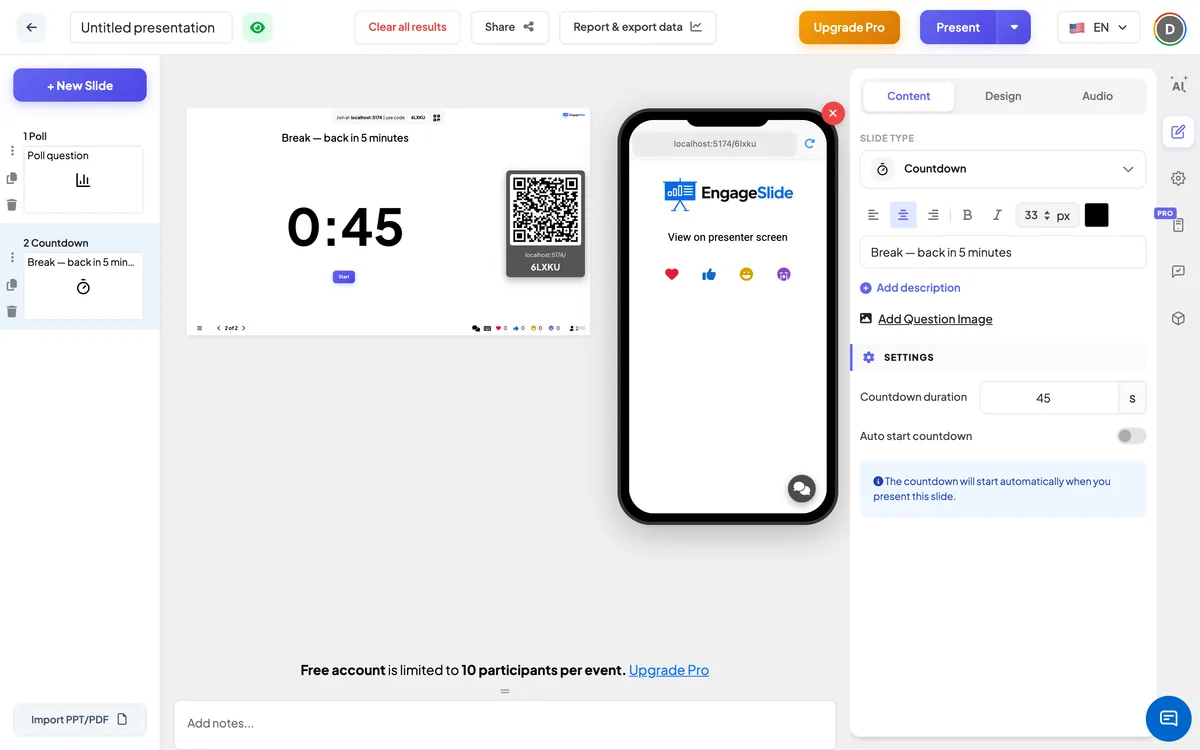
- 3Under Settings, type the Countdown duration in seconds — for example 300 for 5 minutes. The slide shows it as minutes and seconds.
- 4Switch on Auto start countdown if the timer should start by itself as soon as you present the slide.
- 5Want to check it? Click Start on the slide in the editor to run a test, then Reset.
Countdown settings
Countdown duration
How long the timer runs, in seconds (at least 1). A new Countdown slide starts at 45 seconds. Changing it resets the timer on the slide.
Auto start countdown
On: the countdown starts by itself when the slide is shown in presentation mode. Off (the default for a new slide): it waits until you click Start or press Space.
On the audience side
The countdown is shown on the big screen only. Participants’ phones show View on presenter screen while this slide is up, so everyone looks at the shared timer.
View results
No responses are collected. Below the timer you get Start; once it is running, Pause and Reset; when paused, Continue and Reset. While presenting, Space or Enter starts, pauses and continues the timer instead of moving to the next slide. At zero the slide shows Time is up! with a Restart button that runs the timer again, and Space / Enter go back to moving to the next slide. Leaving the slide and coming back resets the timer to the full duration (and starts it again if Auto start countdown is on).
Ways to use a Countdown
- Breaks: Coffee break — back in 10 minutes (600 seconds).
- Think time: 60 seconds of silent thinking before an Open Ended or Word Cloud question.
- Group work: Discuss with your table for 3 minutes (180 seconds).
- Before the session: a short countdown while people join and settle in.
Frequently asked
Can I set the time in minutes?
The duration is entered in seconds: 60 for one minute, 300 for five minutes, 600 for ten. The slide displays it as minutes and seconds.
How do I pause the timer?
Click Pause under the timer, or press Space or Enter while presenting. Click Continue (or press the key again) to carry on.
How do I run the countdown again after time is up?
Click Restart under Time is up! — the timer starts again from the full duration. Going to another slide and back also resets it.
Do participants see the timer on their phones?
No. Phones say View on presenter screen; the timer is on the shared screen.
Does the countdown move to the next slide by itself?
No. It stops at zero and shows Time is up!; you move on when you’re ready.