📝Content Slides 4 min read
Flip Cards
A grid of coloured cards: each shows a question and flips to reveal the answer — or hides a prompt behind a number. Optional timer.
What is Flip Cards?
Flip Cards shows a grid of coloured cards on the big screen. There are two card styles. With Question & answer (the default for new slides) every card shows its question; click a card and it flips over to reveal the answer — perfect for a quick review with five coloured question boxes. With Mystery cards each card shows a ? and a number and hides a prompt — a speaking question, a vocabulary word, a discussion topic or a task — until you click it. A timer can start automatically when a card opens, so every speaker gets the same time. It is ideal for revision, language speaking practice, icebreakers and workshop discussions.

Presenter creates the slide Click Present Share code / QR Audience enters code Respond & submit Real-time results
Create a Flip Cards slide
- 1On Home, click + Create new presentation (or add a slide to an existing one).
- 2In Choose Slide Type, pick Flip Cards. You can also type it into Search slide types….
- 3The slide is created and the right panel opens on the Content tab.
Set up the content
- 1Give the slide a title, for example Speaking cards.
- 2Under Options, each row is one card. In the Question & answer style type the Question (shown on the coloured card) and the Answer (shown when the card is flipped). In the Mystery cards style the fields are a short Card title (for example Card 1 or a topic) and the Question content that appears when the card is flipped.
- 3Pick a colour for each card with the colour square. Use the image buttons to add a cover image (shown on the closed card) and an image on the open card.
- 4Click + Add option to add more cards — up to 9.
- 5Under Settings, choose the Card style, the Timer and whether to Shuffle item order (Mystery cards also have Number Of Deal Places).
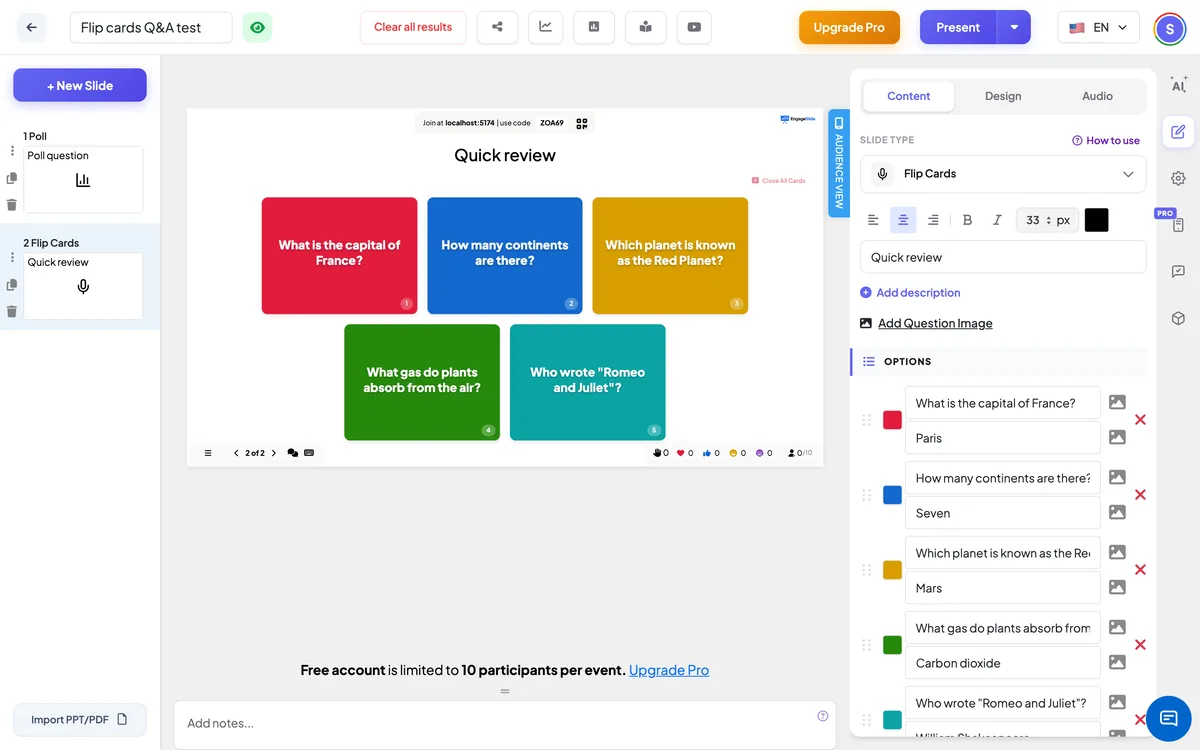
Flip Cards settings
Card style
Question & answer (default for new slides): each coloured card shows its question and flips to reveal the answer; every card opens and closes on its own. Mystery cards: cards show a ? and a number until you click them (Flip Cards slides made before this setting existed keep this style).
Timer
None (default), Count Up or Count Down (set minutes and seconds, 30 seconds by default). The timer starts when a card opens and pauses when every card is closed.
Number Of Deal Places
Mystery cards only. How many cards can be open at the same time (1–9). When the limit is reached, opening another card closes the oldest one.
Shuffle item order
Mixes the cards once, so the numbers no longer follow the order you typed them in. Turn it off to go back to your order.
Present & share the join code
- 1Click Present in the top bar to put the slide on the big screen.
- 2A join code and a QR code appear (e.g.
36Y56). - 3Participants open the Audience app at join.engageslide.com, type the code and press Enter — or simply scan the QR.
- 4When everyone has joined, the responses start flowing in live.
How the audience responds
Participants who have joined see the open card large on their phone — its title, the question and its image — so everyone can read it up close. A strip below shows all the cards, with the opened ones ticked, and the timer. Before the first card is opened, phones say Waiting for the presenter to reveal a card…. Only the presenter can flip cards.
View results
Click a card to flip it. The timer bar under the grid shows the time, with Pause and Reset buttons; when a count-down reaches zero the timer turns red. Close All Cards (top right) turns every card face down again and resets the timer. Nothing is scored — the cards are prompts for speaking or discussion.
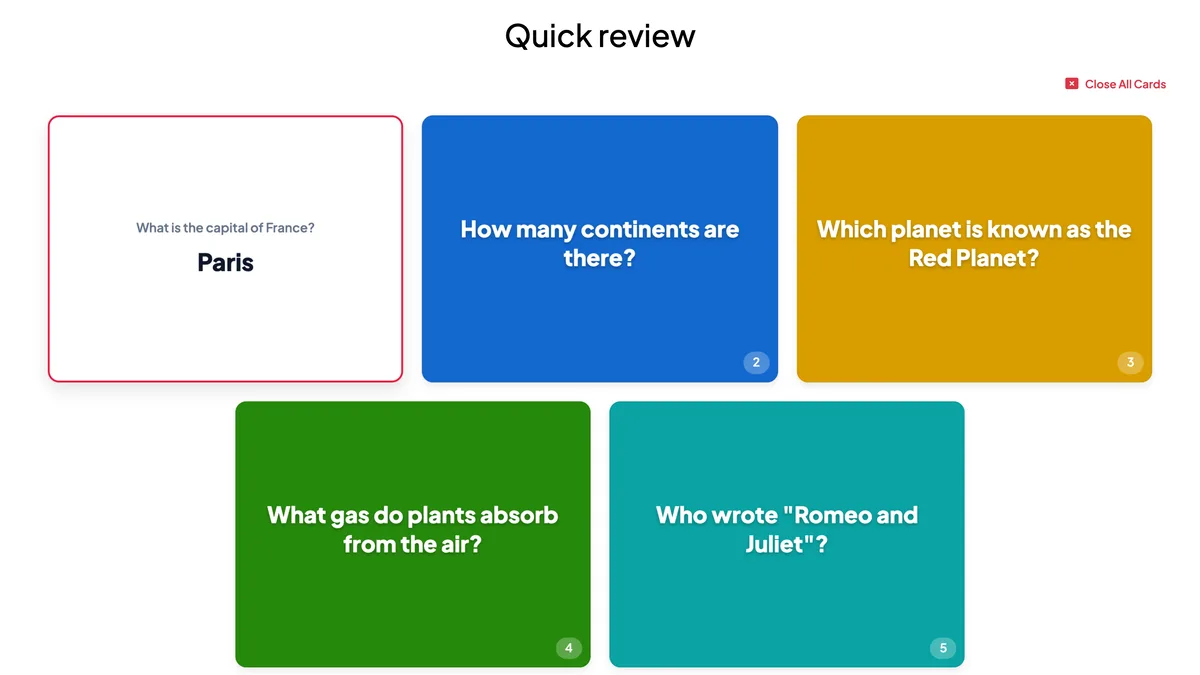
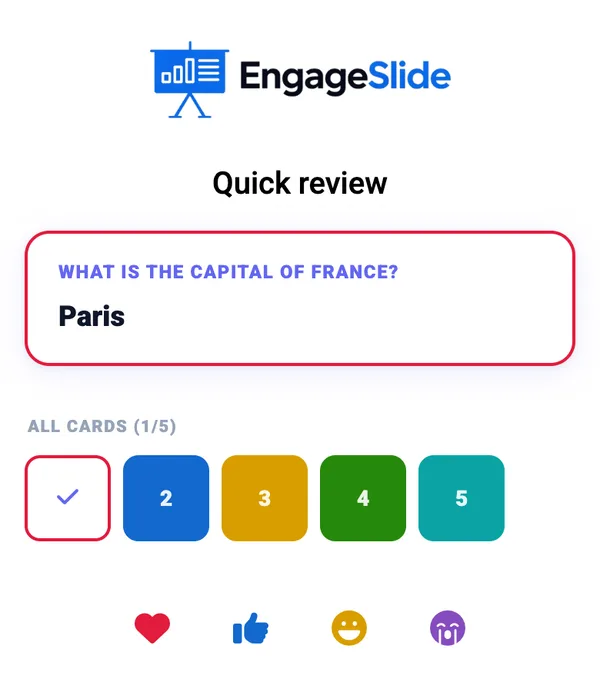
Ways to use Flip Cards
- Language class: speaking questions, picture description, “talk for 60 seconds about…”.
- Revision: a key term on each card — the student explains it before the timer runs out.
- Icebreakers: “Two truths and a lie”, “Your best holiday”, “A skill you could teach us”.
- Workshops: one discussion topic per card for each table or breakout group.
Frequently asked
Can participants flip the cards on their phones?
No. Only the presenter flips cards; phones show the open card and the timer.
How do I resume the timer after pressing Pause?
Open a card — the timer continues when a card is open. Reset sets it back to the start.
How many cards can I add?
Up to 9 per slide. For a longer deck, add a second Flip Cards slide.
Are answers saved?
No. Flip Cards is a presenting tool; it does not collect responses. Use Open Ended or Q&A if you want written answers.