📝Content Slides 3 min read
List
A bullet-point list in one or two columns, revealed one line at a time while you present.
What is List?
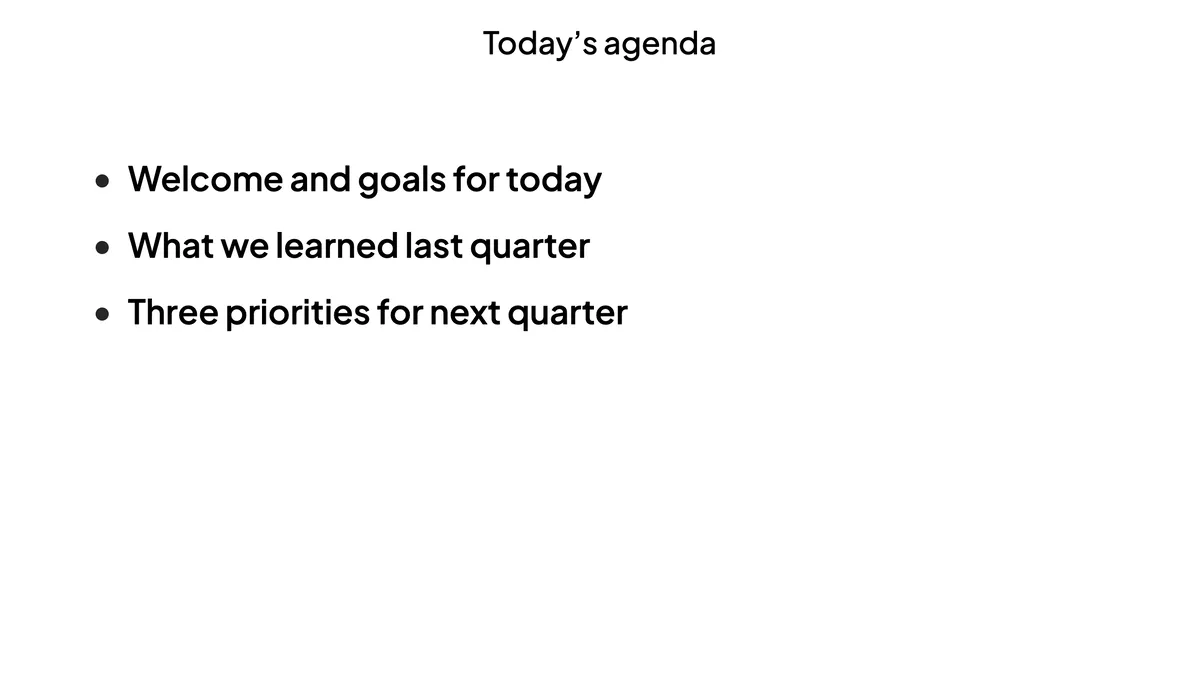
A List slide shows a title and a short bulleted list in big, readable text — an agenda, key points, rules or next steps. While you present, the lines are hidden at first and appear one at a time each time you press the arrow key, so the room listens to the point you are making instead of reading ahead. In the editor you always see the whole list.

Create a List slide
- 1On Home, click + Create new presentation (or add a slide to an existing one).
- 2In Choose Slide Type, pick List. You can also type it into Search slide types….
- 3The slide is created and the right panel opens on the Content tab.
Set up the content
- 1Type the title, for example Today’s agenda. You can change its alignment, size, bold, italic and colour with the toolbar above it.
- 2Under Options, type one line per item. Press Enter at the end of a line to add the next one, or click + Add option. A list can have up to 9 lines.
- 3Drag the handle on the left of a line to reorder it; click ✕ to remove it.
- 4Under Settings, choose 1 column or 2 columns. With two columns the first half of the lines goes on the left, the rest on the right.

List settings
Columns
1 column (default) for short lists, 2 columns for longer ones — the text is slightly smaller so everything fits.
On the audience side
Participants who have joined see the same title and list on their phone, following your reveal line by line. In a self-paced presentation they see the whole list at once. There is nothing to answer on this slide.
View results
No responses are collected. While presenting, press →, ↓, Space, Enter or Page Down to reveal the next line; when every line is showing, the same key goes to the next slide. ←, ↑ or Page Up hide the last line again, then go back a slide. Coming back to the list from a later slide shows every line.
Frequently asked
Can I show all the lines at once?
Press the arrow key until every line is visible, or come back to the slide from the next one — it then shows the full list.
Can I add pictures to the lines?
The List slide is designed for text. For pictures, use a Content slide.
How many lines can a list have?
Up to 9. Use two columns when you have more than five or six.