🔌Integrations 3 min read
Embed a web page
Show a live website, dashboard or online tool inside a slide — without leaving your presentation.
What is Embed a web page?
An Embed slide shows a live web page inside your presentation. Paste a link and the page loads in the slide, working just like it does in a browser — you can scroll it and click around while you present. Use it for a product demo, a live dashboard, an online map, a shared document, or any web tool you want to show between your polls and quizzes without switching windows. Optionally, participants can open the same page on their phones.
Create a Embed a web page slide
- 1On Home, click + Create new presentation (or add a slide to an existing one).
- 2In Choose Slide Type, pick Embed. You can also type it into Search slide types….
- 3The slide is created and the right panel opens on the Content tab.
Set up the content
- 1Type a title in the title field (Enter your question or title), for example Our live sales dashboard. Use the buttons above it for alignment, bold, italic, size (in px) and colour. Optional: click Add description for a short note that appears when you hover over the title.
- 2Paste the address of the page into Embed Link (Enter link here). Use the full address, starting with https://. The page appears on the slide straight away.
- 3Optionally switch on Show fullscreen and Display the embed link on the audience view. (see the settings below).
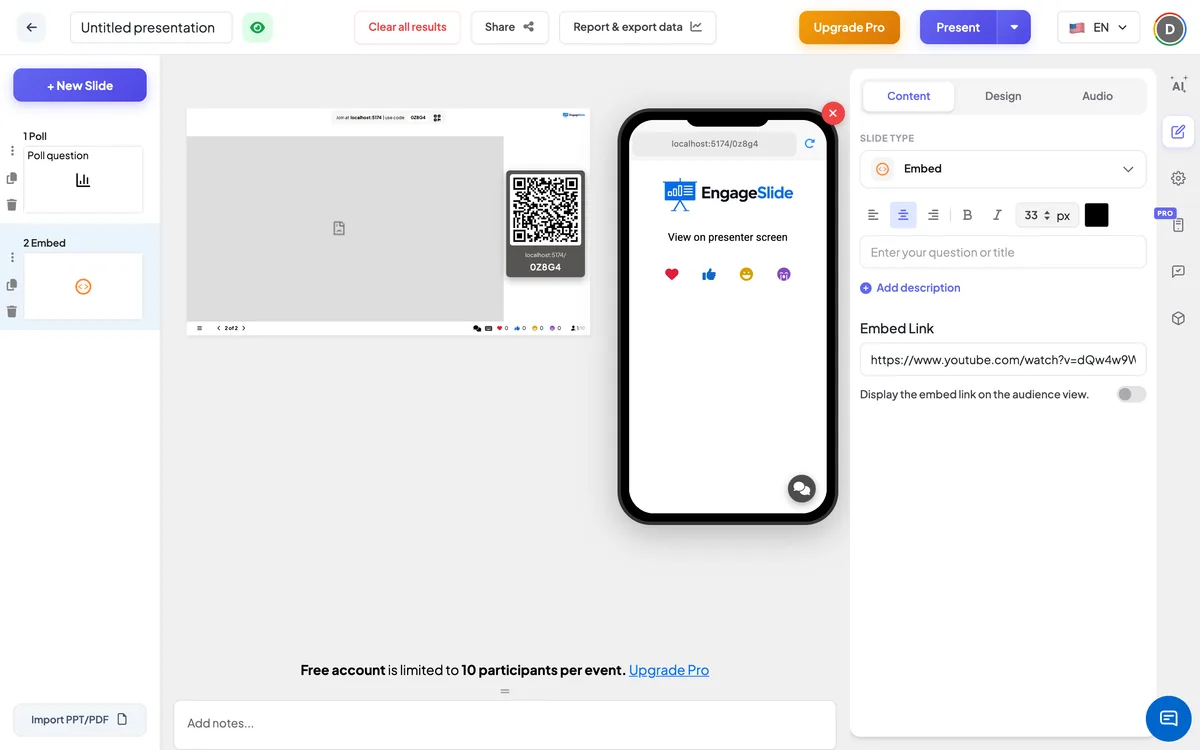
Embed a web page settings
Show fullscreen
Off (default): the title is shown above the page. On: the page fills the whole slide edge to edge, the title is hidden, and the header and control bar float on top so you can still move between slides.
Display the embed link on the audience view.
Off (default): participants’ phones show the slide title and View on presenter screen. On: phones show the title and the embedded page, so people can scroll and read it themselves.
On the audience side
By default, phones show the slide title and View on presenter screen. Switch on Display the embed link on the audience view. to load the same page on every phone — useful for long pages, small text, or a tool you want everyone to try. Each participant then uses their own copy of the page.
View results
No responses are collected on this slide. While presenting, click into the page to scroll or use it; use EngageSlide’s next / back buttons to move to your next slide, for example a poll about what you just showed.
Ideas for Embed slides
- Live data: a public dashboard, a scoreboard or a live results page.
- Demos: your product’s website or a prototype link.
- Teaching: an online simulation, a map or a reference page students can also open on their phones.
- Workshops: a shared online document or board the room can look at together.
Frequently asked
Some sites won’t embed — why?
A website can tell browsers not to show it inside other pages, usually for security. EngageSlide can’t override that. If a page stays blank, use the site’s own embed link if it has one, or share the link with participants another way.
Can participants use the page on their phones?
Yes. Switch on Display the embed link on the audience view. and the page loads under the slide title on their phones.
How do I hide the title and use the whole slide?
Switch on Show fullscreen. The page fills the slide and the title is hidden on the big screen.
Do I need to add the page again if it changes?
No. The page is loaded live each time the slide is shown, so it always shows the current version.