🔌Integrations 3 min read
Google Slides
Show a Google Slides deck inside your EngageSlide presentation, between your polls and quizzes.
What is Google Slides?
A Google Slides slide shows a Google Slides deck inside your EngageSlide presentation. Keep presenting the deck you already have, and put polls, quizzes and games between its sections without switching windows. The deck fills the slide and you click through it with Google’s own arrows. (Prefer working inside Google Slides itself? See the Google Slides add-on.)
Create a Google Slides slide
- 1On Home, click + Create new presentation (or add a slide to an existing one).
- 2In Choose Slide Type, pick Google slides. You can also type it into Search slide types….
- 3The slide is created and the right panel opens on the Content tab.
Set up the content
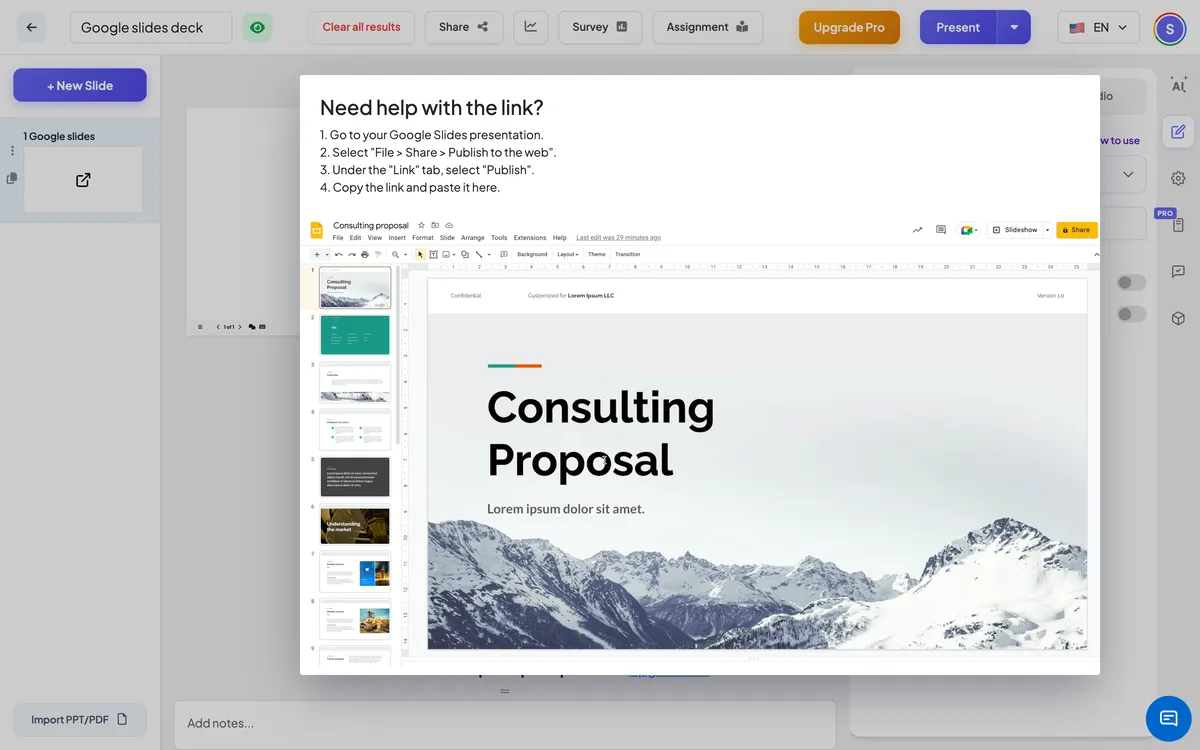
- 1In Google Slides, open your presentation and choose File → Share → Publish to the web.
- 2On the Link tab, click Publish and confirm, then copy the link. It looks like https://docs.google.com/presentation/d/e/…/pub?start=false….
- 3In EngageSlide, click New Slide, open the Integrations tab and choose Google slides.
- 4Paste the link into the field on the right. The deck appears on the slide straight away.
- 5Optionally switch on Show fullscreen and Display the embed link on the audience view.
- 6Not sure where the link is? Click Need help with the link? for the steps and a short video.
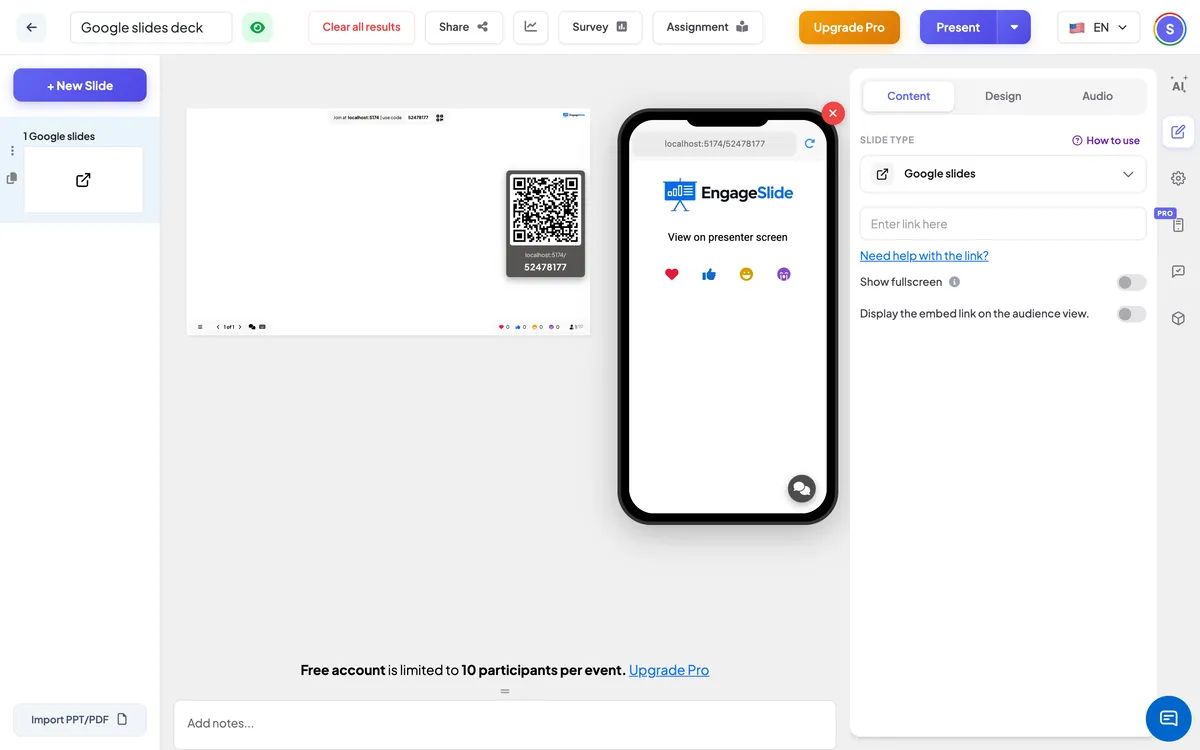
Google Slides settings
Show fullscreen
The deck fills the whole slide edge to edge; the header and control bar float on top.
Display the embed link on the audience view
On: participants can also see and browse the deck on their phones. Off (default): their phones say View on presenter screen.
On the audience side
By default, phones tell participants to look at the presenter screen. Switch on Display the embed link on the audience view to show the deck on their phones as well — useful for people at the back or for reading small text.
View results
No responses are collected on this slide. While presenting, click the arrows in the deck (or click into the deck and use its keys) to move through the Google Slides pages; use EngageSlide’s next / back to move to your next slide, such as a poll about what you just showed.
Frequently asked
Why does the slide show an error or a sign-in page?
The link is not a published link. In Google Slides choose File → Share → Publish to the web, publish, and paste that link.
Can I show only some of the pages?
The whole deck is embedded. Make a copy of the deck with only the pages you need, publish that copy and use its link.