🔌Integrations 3 min read
Miro board
Show a live Miro board inside a slide, between your polls, quizzes and games.
What is Miro board?
A Miro slide shows a live Miro board inside your presentation. Walk the room through a board you already built — a brainstorm, a user journey, a retro, a project plan — and put interactive EngageSlide questions before and after it, without switching tools. The board loads live, so you see its current content and can move around it while you present. Optionally, participants can open the board on their phones too.
Create a Miro board slide
- 1On Home, click + Create new presentation (or add a slide to an existing one).
- 2In Choose Slide Type, pick Miro. You can also type it into Search slide types….
- 3The slide is created and the right panel opens on the Content tab.
Set up the content
- 1In Miro, open your board, click Share and then Copy board link. Make sure the board’s sharing settings let the people who will see it open the board.
- 2Back in EngageSlide, type a title in the title field (Enter your question or title), for example Workshop board: ideas so far. Use the buttons above it for alignment, bold, italic, size (in px) and colour. Optional: click Add description for a note that appears when you hover over the title.
- 3Paste the link into Miro Link (Enter link here). The board appears on the slide.
- 4Not sure where the link is? Click Need help with the link? for the steps and a screenshot.
- 5Optionally switch on Show fullscreen and Display the embed link on the audience view. (see the settings below).
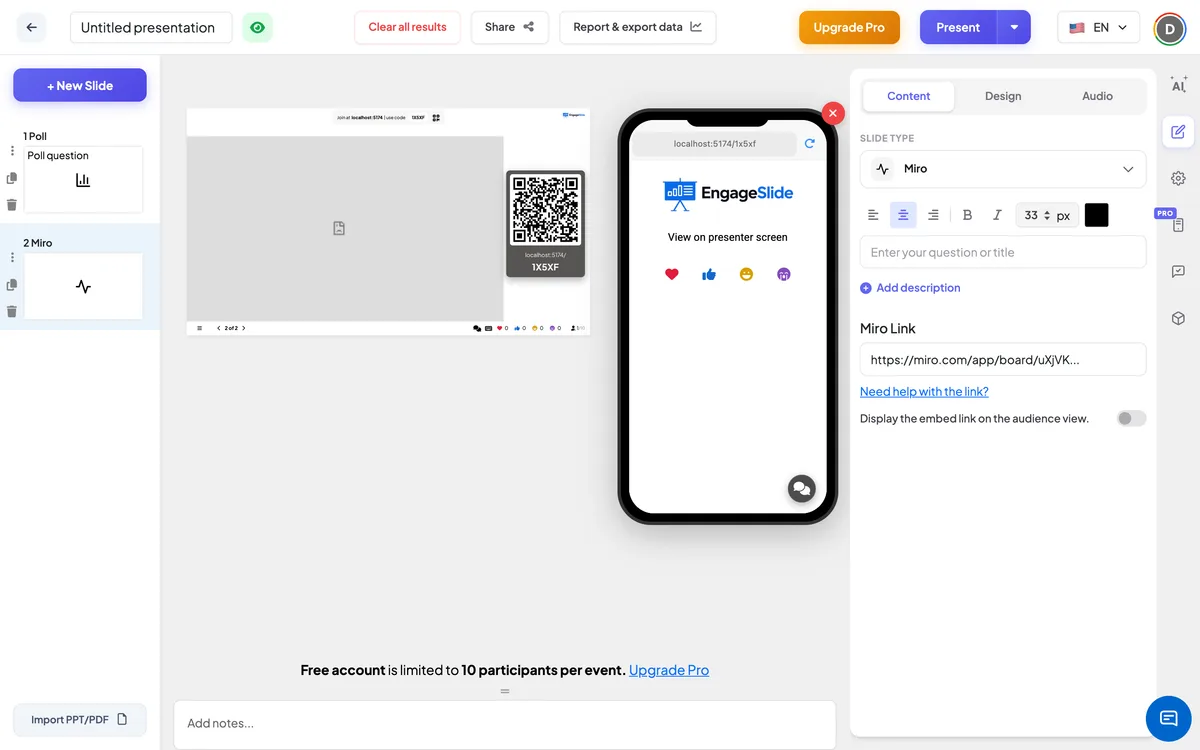
Miro board settings
Show fullscreen
Off (default): the title is shown above the board. On: the board fills the whole slide edge to edge, the title is hidden, and the header and control bar float on top.
Display the embed link on the audience view.
Off (default): participants’ phones show the slide title and View on presenter screen. On: phones show the title and the Miro board.
On the audience side
By default, phones show the slide title and View on presenter screen, so everyone follows the board on the big screen. Switch on Display the embed link on the audience view. to load the board on every phone as well, so people can zoom in and read the details themselves. What they can do on the board depends on the board’s sharing settings in Miro.
View results
No EngageSlide responses are collected on this slide — any interaction happens on the Miro board itself. While presenting, click into the board to pan and zoom; use EngageSlide’s next / back buttons to move to your next slide, for example a poll to vote on the ideas you just reviewed.
Ways to use a Miro slide
- Workshops: review the board from a brainstorming session, then vote on the best ideas.
- Retrospectives: show the team’s retro board before agreeing on actions.
- Planning: present a roadmap, user journey or project plan and take questions.
- Teaching: walk through a mind map or diagram built in Miro.
Frequently asked
Which link do I paste?
The board link from Miro: open the board, click Share and Copy board link. Click Need help with the link? in EngageSlide to see the steps.
Do changes on the board show up?
Yes. The board is loaded live, so it shows its current content each time the slide is opened.
Can participants see the board on their phones?
Yes, if you switch on Display the embed link on the audience view. Otherwise their phones say View on presenter screen.
Does EngageSlide save anything participants do on the board?
No. The board stays in Miro; EngageSlide only displays it.