📊Interactive Question Slides 6 min read
Assignments
Create graded homework and quizzes, let AI build them from an exam file, and auto-grade every submission with a live gradebook.
What is an Assignment?
An Assignment is a graded version of a Survey: you build a set of questions that have correct answers, share it on its own link or QR code, and EngageSlide marks every submission automatically and shows each learner their score and worked solutions. It is perfect for homework, quizzes, formative checks and practice tests — students answer at their own pace on any device, and you get a live gradebook without marking a single paper by hand. Like a Survey it can be standalone or linked to a presentation, but unlike a Survey it adds correct answers, points, math support and AI exam import.
Create an assignment Add or AI-generate questions Set correct answers Share link / QR Students submit Auto-graded gradebook
Create an assignment
- 1Open Assignment from the left menu and click Create assignment.
- 2Choose a linked presentation (optional) or keep it standalone, then confirm.
- 3Give the assignment a title and instructions.
- 4Click Add question or use Generate with AI, then pick a question type for each.
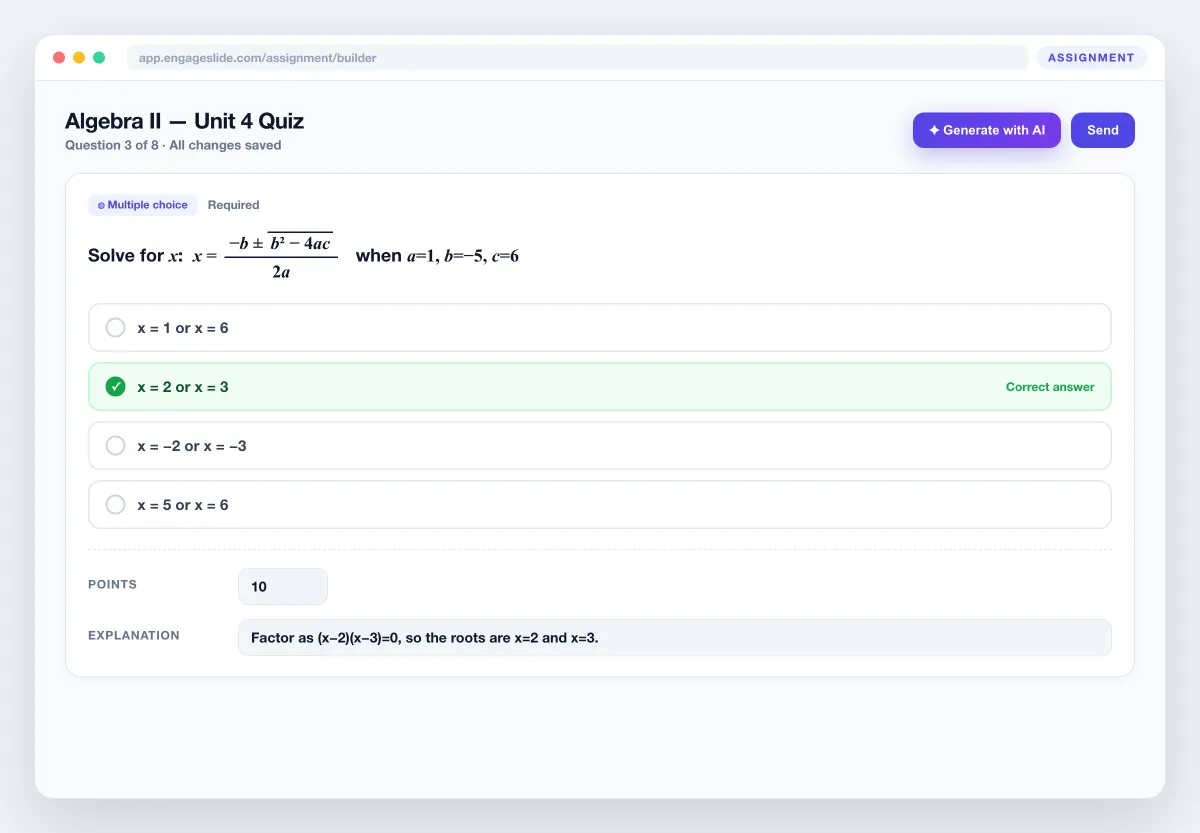
- 5Mark the correct answer, set points, and add an optional explanation. Everything autosaves.
Question types & grading
Multiple choice
Pick one option. Auto-graded against the correct choice.
Checkboxes
Select all that apply. Score all-or-nothing or award partial credit.
Short answer
A typed answer matched against accepted answers (case/space-insensitive).
Numeric
A number graded with an optional tolerance (±) for rounding.
Math expression
Students type a formula in a math field; compared as LaTeX.
Essay
A long written answer you grade by hand in the gradebook.
Rich math editor
Every question and option supports formulas. Click Insert formula to open the math editor, type in a visual field or in raw LaTeX, and see a live KaTeX preview before you insert it. Formulas render crisply for students too, so equations, fractions, roots and matrices look right on any screen — ideal for maths, physics, chemistry and engineering.
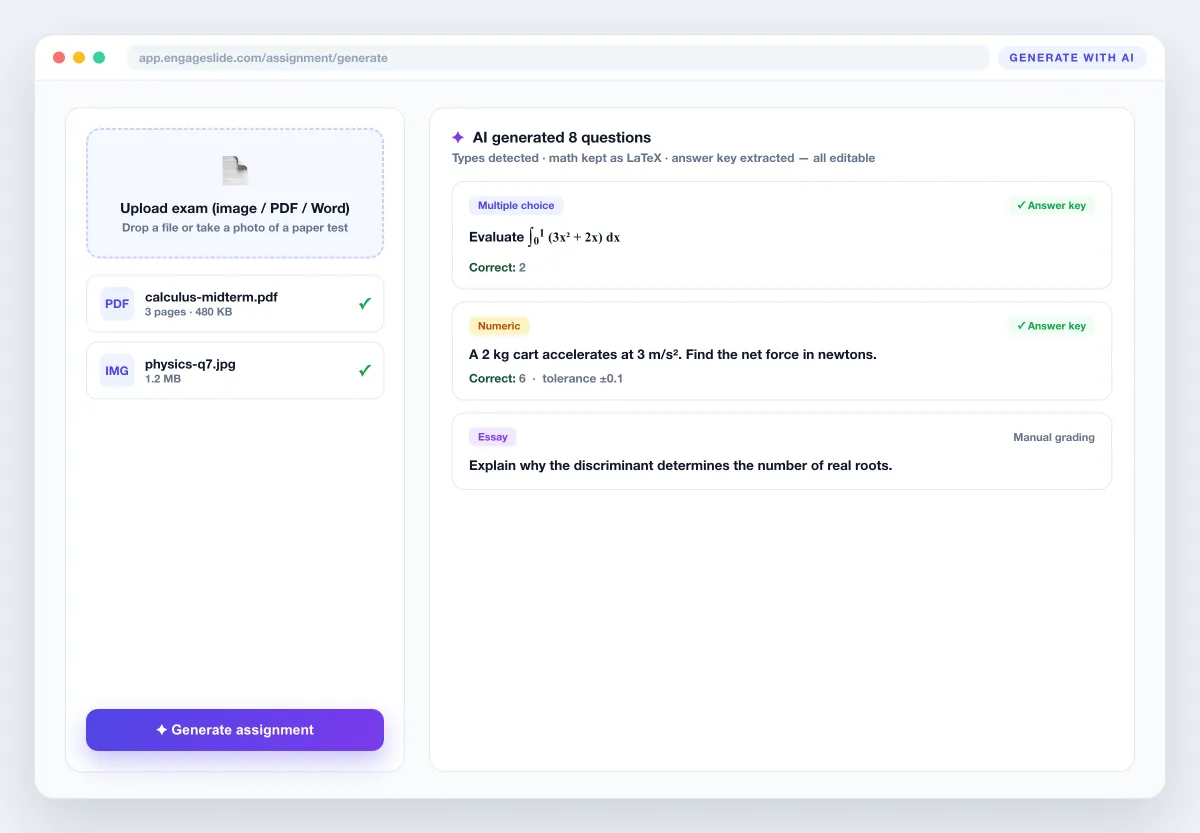
Generate an assignment with AI
- 1Click Generate with AI in the builder.
- 2Upload an exam as an image, PDF or Word file (photos of a paper work too).
- 3Wait a few seconds while AI extracts the questions, options and answer key.
- 4Review the generated questions, fix anything, and share — every question is fully editable.
Attach files & media
Add an image, video or audio clip to any question or option — useful for listening tasks, diagrams and worked examples — and attach reference files (images, PDFs, documents) to the assignment as a whole. Students get a button to open each attachment while they work.
How students answer
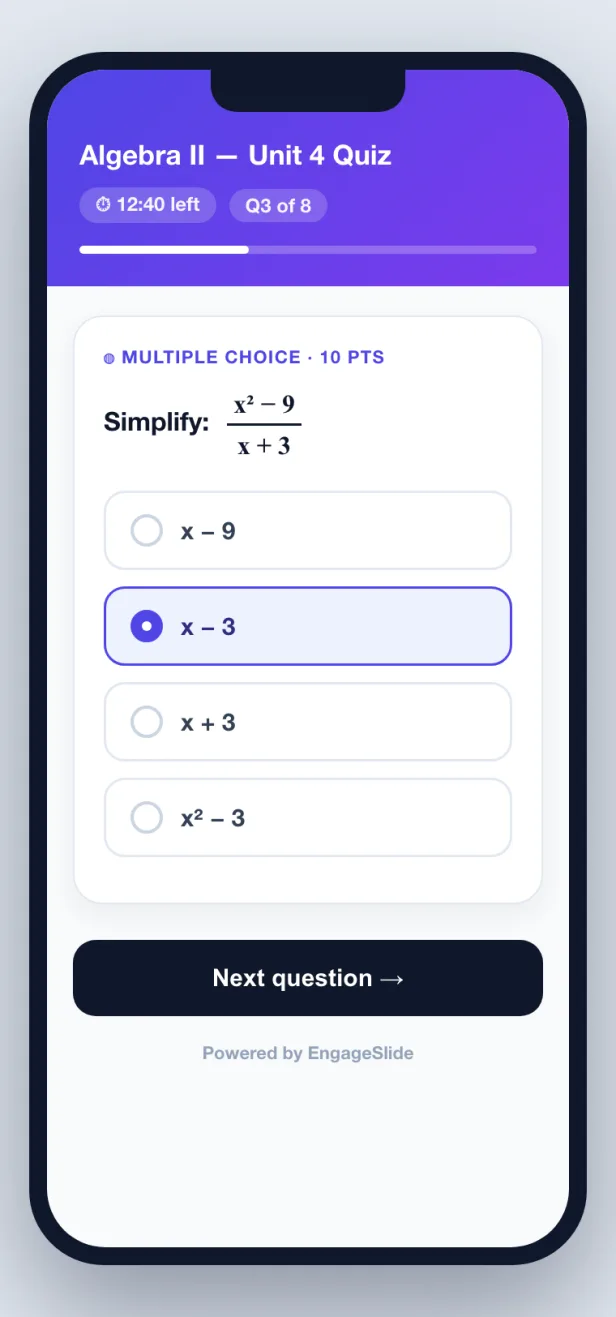
The audience view is mobile-first: one clean question per card, formulas rendered inline, and the right input for each type — options to tap, a text or number box, or a math field for formula answers. If you set a time limit a countdown appears, and attempts are enforced. After submitting, students see their score and — depending on your settings — the correct answers and your explanations.
Grade & analyze
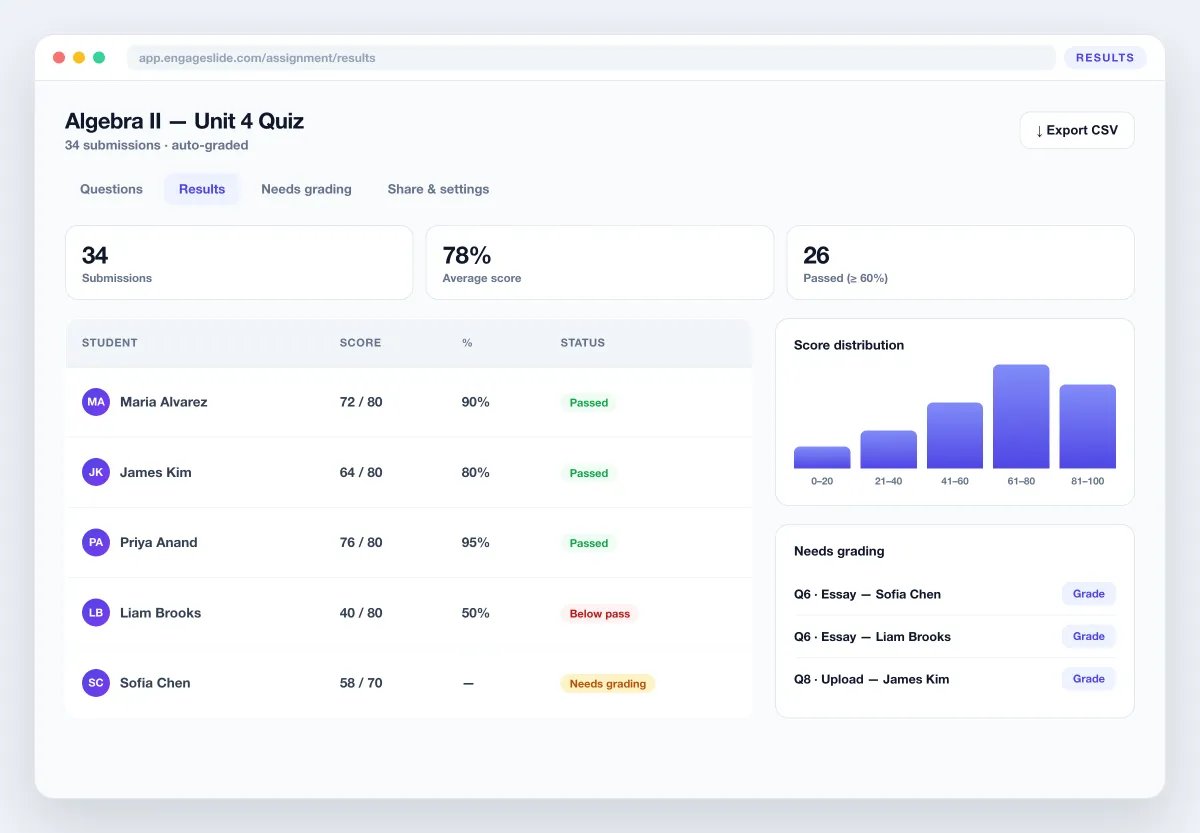
Open the Results tab for a live gradebook: every student, their total score, and a per-question breakdown of right and wrong answers. Auto-graded questions are marked instantly; essays and file uploads land in Needs grading, where you enter a score by hand. Export the whole gradebook to CSV for your records or your LMS.
Assignment settings
Accepting submissions
Open or close the assignment to new submissions at any time.
Due date
Set a deadline after which the assignment stops accepting work.
Attempts allowed
Let students try once or several times.
Time limit
Give a per-attempt countdown in minutes.
Pass score (%)
Define the mark students need to pass.
Show answers
Reveal correct answers after submitting, after the due date, or never.
Frequently asked
How is an Assignment different from a Survey?
A Survey collects opinions with no right answer. An Assignment has correct answers, points, math support and AI exam import, so submissions are graded automatically and each student gets a score and solutions.
Can AI really build an assignment from a photo of an exam?
Yes. Upload an image, PDF or Word file and AI extracts the questions, keeps math as LaTeX, detects each question type and fills the answer key when the file has one. You review and edit before sharing.
Which questions are graded automatically?
Multiple choice, checkboxes, short answer, numeric and math-expression questions are graded instantly. Essays and file uploads go to a Needs grading queue for you to mark by hand.
Do students need an account?
No. They open a link or scan a QR code and answer on any device — no app or login required.
Can I stop students seeing the answers?
Yes. Use the Show answers setting to reveal correct answers after submitting, only after the due date, or never.