📊Interactive Question Slides 4 min read
Draw
Everyone draws on their phone and the drawings pop up in a live gallery on the big screen.
What is Draw?
A Draw slide lets every participant sketch an answer on their phone and send it to the big screen. Drawings appear in a live gallery as they arrive — click any one to zoom in and even replay how it was drawn. There is no scoring: it is made for icebreakers, creative prompts, visual brainstorming and checking understanding in a more playful way.

Presenter creates the slide Click Present Share code / QR Audience enters code Respond & submit Real-time results
Create a Draw slide
- 1On Home, click + Create new presentation (or add a slide to an existing one).
- 2In Choose Slide Type, pick Draw. You can also type it into Search slide types….
- 3The slide is created and the right panel opens on the Content tab.
Set up the content
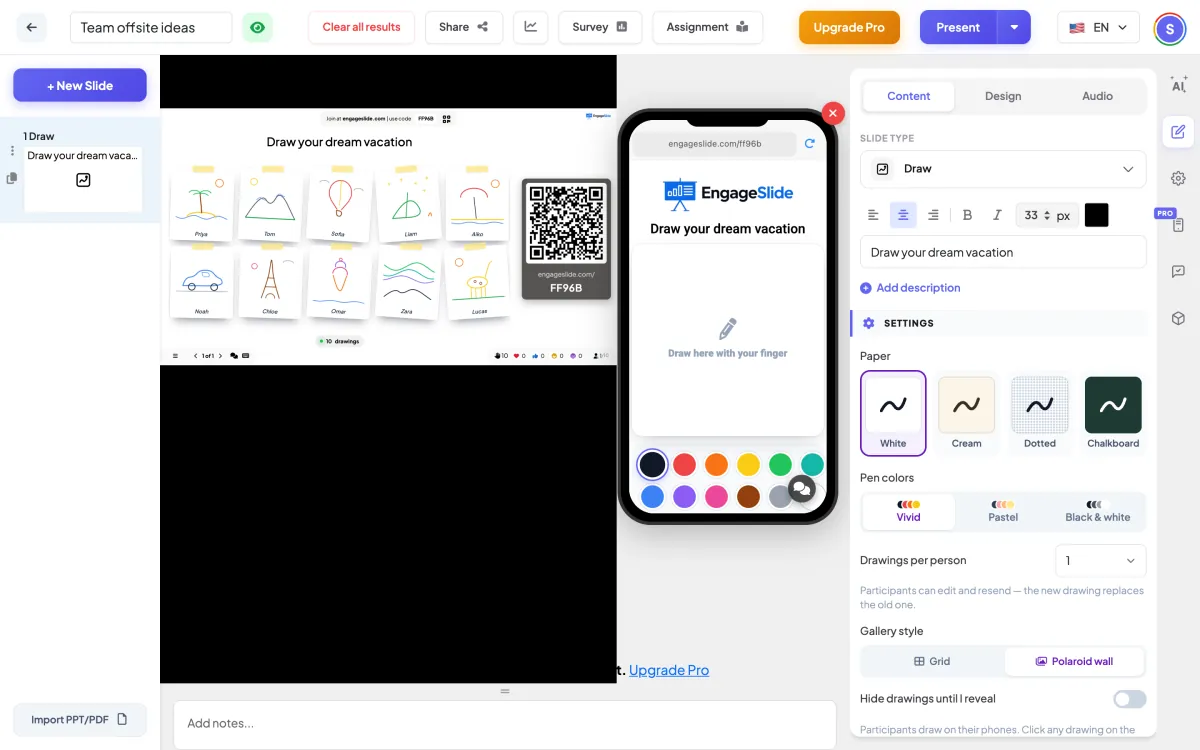
- 1Type your prompt as the slide title, e.g. Draw your dream vacation.
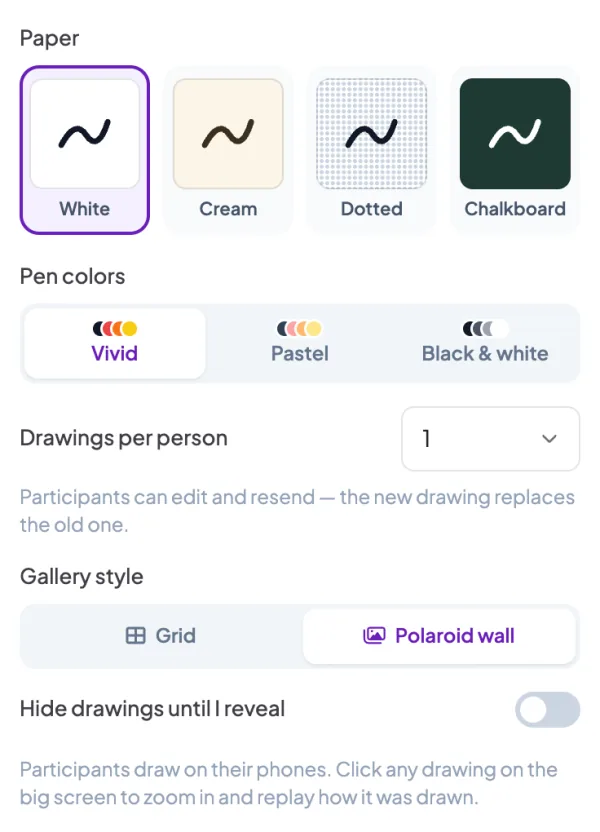
- 2Pick the Paper (White, Cream, Dotted or Chalkboard) and the Pen colors (Vivid, Pastel or Black & white).
- 3Choose Drawings per person — 1 lets people edit and resend (the new drawing replaces the old one); 2, 3, 5 or Unlimited lets them send several.
- 4Pick a Gallery style — a clean Grid or a Polaroid wall with taped, slightly tilted photos.
Draw settings
Paper
The background people draw on — White, Cream, Dotted or Chalkboard.
Pen colors
Vivid, Pastel or Black & white palettes on the phone.
Drawings per person
1 (edit & resend replaces it), 2, 3, 5 or Unlimited.
Gallery style
Grid or Polaroid wall on the big screen.
Hide drawings until I reveal
Show only a face-down stack and a counter while people draw, then reveal them all at once.
Collect name / email / avatar
Show who drew what under each drawing.
Time limit
Give everyone a countdown to finish drawing.
Stop submission
Close the slide so no more drawings come in.
Present & share the join code
- 1Click Present in the top bar to put the slide on the big screen.
- 2A join code and a QR code appear (e.g.
36Y56). - 3Participants open the Audience app at join.engageslide.com, type the code and press Enter — or simply scan the QR.
- 4When everyone has joined, the responses start flowing in live.
How the audience responds
Participants draw with their finger on a square canvas, with a colour palette, four brush sizes, an eraser, undo and clear. Tapping Send my drawing flies the picture up to the big screen. Depending on your settings they can then edit it or draw another. Unfinished drawings are kept if the phone locks or the page reloads.
View results
Drawings pop into the gallery the moment they arrive, and the grid resizes itself so everything fits the screen. Click a drawing to open it full screen: use the arrow keys to browse, Replay drawing to watch it being drawn stroke by stroke, or Hide to remove it from the gallery.
Frequently asked
Can I remove an inappropriate drawing?
Yes — open it and click Hide (click again to confirm). It disappears from the gallery immediately.
Do the arrow keys change slides while a drawing is open?
No. While a drawing is zoomed in, the arrow keys move between drawings; press Esc to close it and go back to presenting.
How is this different from the Whiteboard slide?
On a Whiteboard slide you draw on the big screen yourself, and participants can each send in a drawing from their own blank board. Draw is built around the room: every person draws on their phone and the results appear together in a live gallery, with a lightbox and stroke-by-stroke replay.