📊Interactive Question Slides 5 min read
2x2 Grid
Plot responses onto a two-dimensional grid.
What is 2x2 Grid?
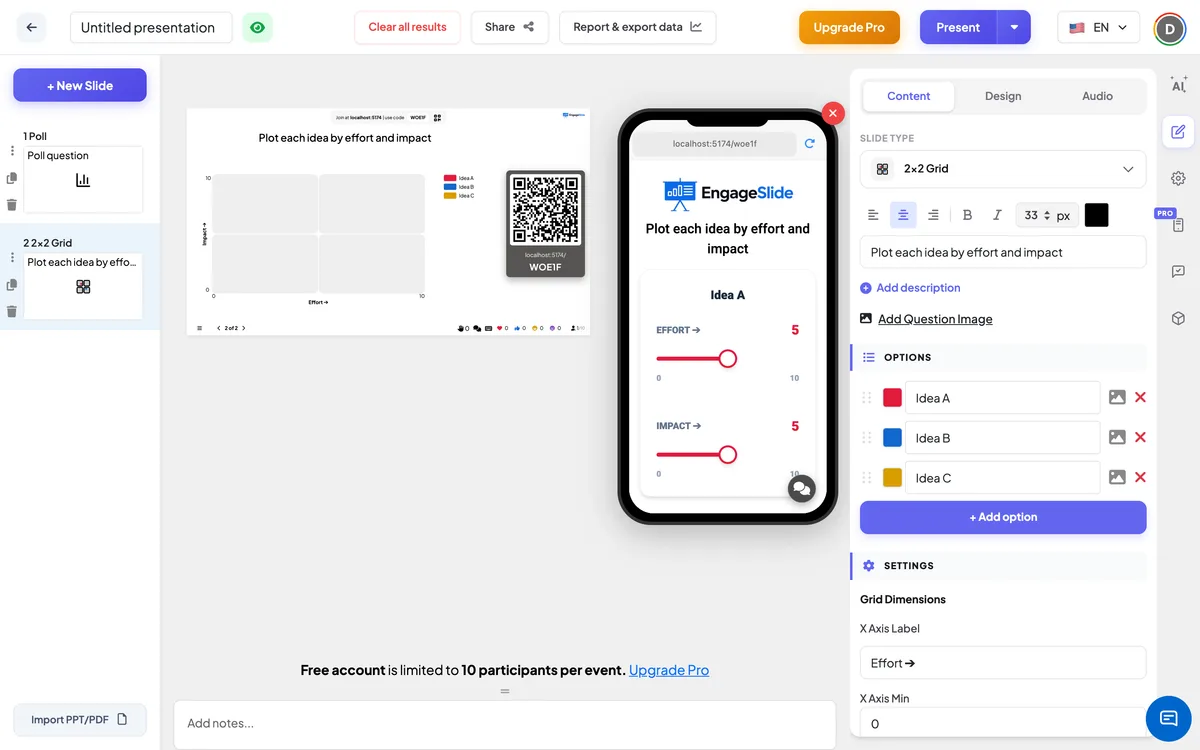
A 2x2 Grid slide asks the audience to rate several items on two scales at once — for example Effort and Impact. Each participant moves two sliders per item on their phone, and the big screen plots every item as a dot on a four-quadrant grid at the average of everyone’s ratings. In a few seconds the room sees which ideas are quick wins (low effort, high impact) and which are not worth the trouble. Use it for prioritisation workshops, roadmap and backlog planning, risk reviews, or in class to compare characters, sources or solutions on two criteria.

Presenter creates the slide Click Present Share code / QR Audience enters code Respond & submit Real-time results
Create a 2x2 Grid slide
- 1On Home, click + Create new presentation (or add a slide to an existing one).
- 2In Choose Slide Type, pick 2x2 Grid. You can also type it into Search slide types….
- 3The slide is created and the right panel opens on the Content tab.
Set up the content
- 1Type your question in Enter your question or title, for example Rate our project ideas. The toolbar above the field sets alignment, bold, italic, font size and colour.
- 2Optionally click Add description to explain the scales, e.g. 0 = very little effort, 10 = a huge effort.
- 3Optionally click Add Question Image. Participants see it above the sliders, and on the big screen a Show image / Hide image button switches between the image and the grid.
- 4Under Options, click + Add option to add each item people will rate — for example Mobile app, New onboarding email, Customer portal. You can add up to 9. Press Enter or Tab in an item to add the next one, drag the handle to reorder, and click the colour square to choose the item’s colour on the grid.
- 5In Settings → Grid Dimensions, set the X Axis Label (default Effort ➔) with its X Axis Min and X Axis Max, and the Y Axis Label (default Impact ➔) with its Y Axis Min and Y Axis Max. Both axes run from 0 to 10 by default; values are whole numbers.
- 6Choose the remaining settings — collecting names, hiding results, stopping submissions — described below.
2x2 Grid settings
Grid Dimensions
X Axis Label, Y Axis Label and the Min / Max of each axis. Defaults: Effort ➔ and Impact ➔, both 0–10. The labels and numbers appear on the grid and next to each slider on the phone.
Allow the audience to enter their name / email / avatar
Three separate switches, all off by default. When on, participants see a name field, an email field or an avatar picker above the Submit button.
Hide result
Off by default. When on, the dots are not drawn while people answer; click Show result on the big screen to reveal them.
Stop Submission
Off by default. When on, phones show Submission stopped. Click Enable Submission on the big screen to reopen.
Clear result this slide
Under Actions: deletes all ratings for this slide so you can start again.
Present & share the join code
- 1Click Present in the top bar to put the slide on the big screen.
- 2A join code and a QR code appear (e.g.
36Y56). - 3Participants open the Audience app at join.engageslide.com, type the code and press Enter — or simply scan the QR.
- 4When everyone has joined, the responses start flowing in live.
How the audience responds
Participants see the question (and image, if you added one) and then one card per item. Each card has two sliders: the X axis (e.g. Effort ➔) and the Y axis (e.g. Impact ➔), with the min and max at each end and the current value shown in the item’s colour. Both sliders start in the middle, and they move in whole steps. Participants rate every item, fill in their name, email or avatar if you asked for them, and press Submit. The button changes to Submitted and the sliders lock — each person answers once.
View results
The big screen shows a grid split into four quadrants, with the axis labels along the sides and the min and max values at the corners. A legend lists every item with its colour. As ratings arrive, each item appears as one large dot at the average X and Y of everyone who rated it, and the dots move live as more people answer. The response counter shows how many people have submitted. Use Show image to switch to the question image, Show result when results are hidden, and Enable Submission to reopen a closed slide.
Popular 2x2 matrices
- Effort / Impact: pick quick wins from a list of ideas or backlog items.
- Urgent / Important (Eisenhower): sort tasks into do now, schedule, delegate or drop.
- Likelihood / Severity: a quick risk review for a project or a safety briefing.
- Value / Complexity: plan a product roadmap or choose features for the next release.
- Classroom: rate characters on Brave / Kind, sources on Reliable / Useful, or solutions on Cost / Speed.
- Team health: rate projects on Confidence / Excitement at the start of a quarter.
Frequently asked
Does the grid show every person’s rating?
No. Each item is shown as one dot at the average of all ratings for that item, so the grid stays readable even with a large audience.
Can I change the scale, for example 1–5?
Yes. Set X Axis Min, X Axis Max, Y Axis Min and Y Axis Max in Grid Dimensions. Use whole numbers — sliders move in steps of 1.
How many items can I add?
Up to 9 items per slide. For readability, 4–7 usually works best.
Can participants change their ratings after submitting?
No. After Submit the sliders are locked and the button says Submitted. If you need a fresh round, use Clear result this slide.
Where do I see names if I collect them?
Names, emails and avatars are saved with each response; the grid itself shows only the averages, not who rated what.